
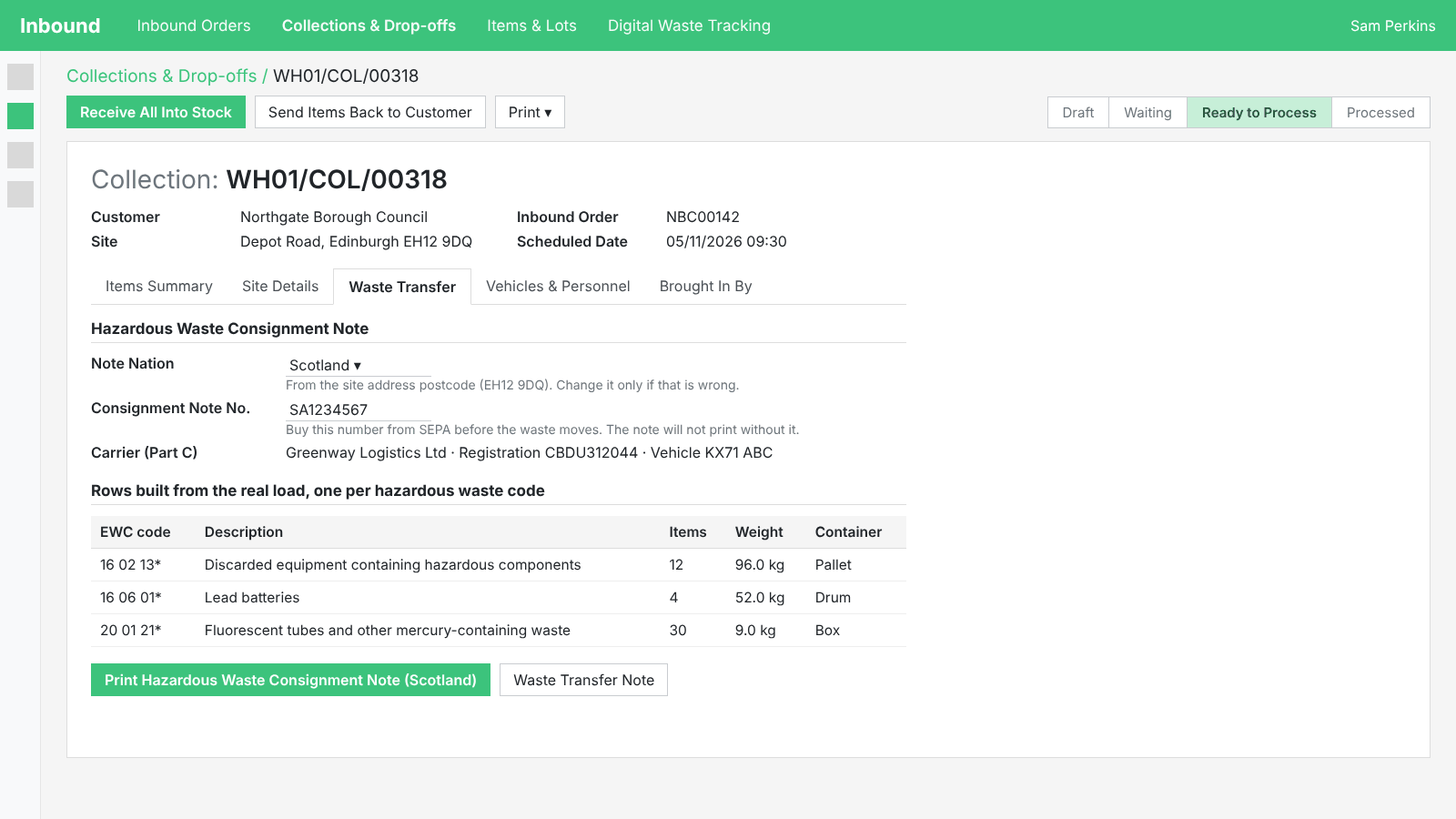
- The nation from the site's postcode, the carrier from what was recorded
- Digital Waste Tracking that knows each site's nation and start date
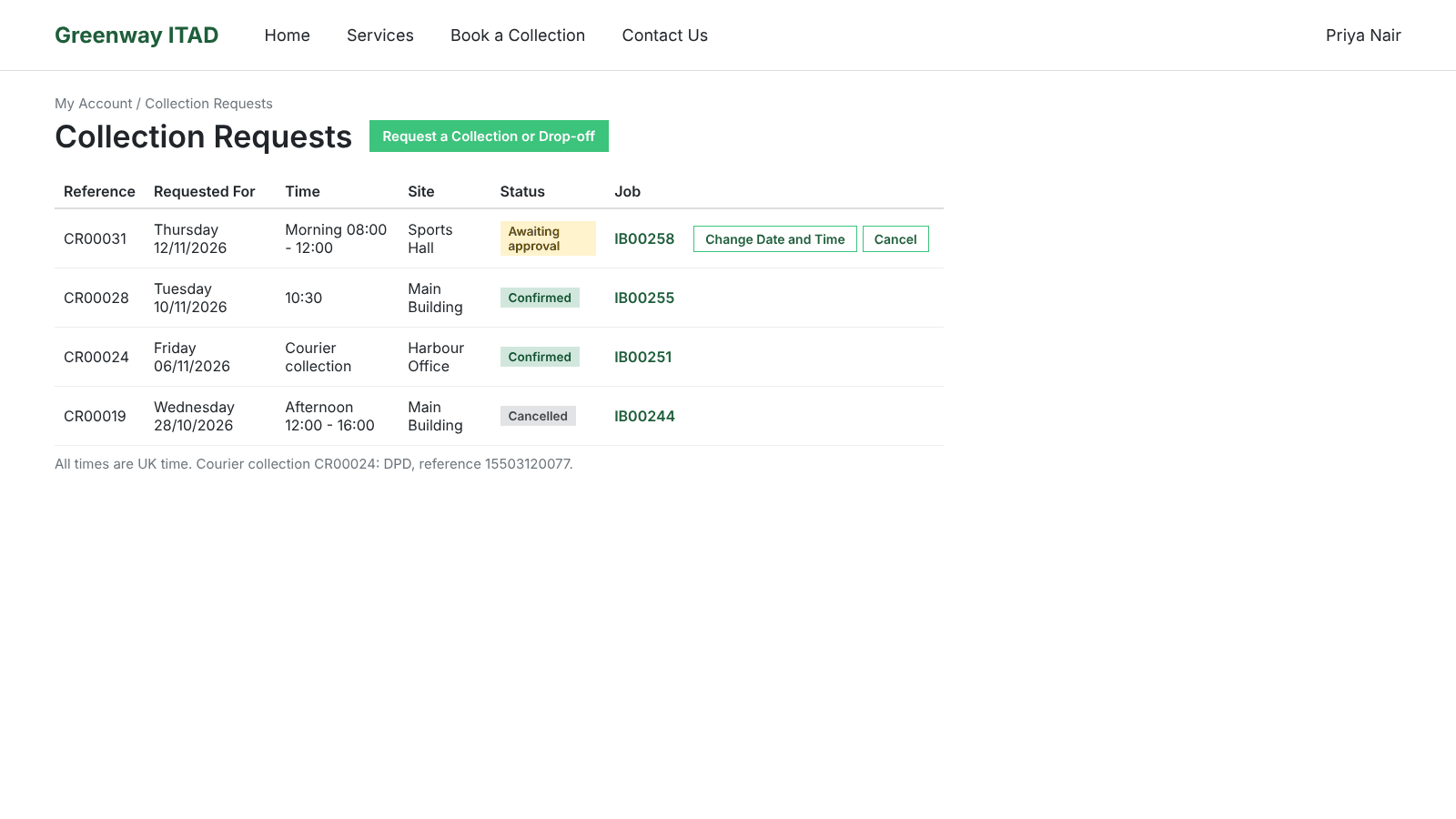
- Availability rules by postcode area, county or country
- Courier collections, and on-site services with their own slots
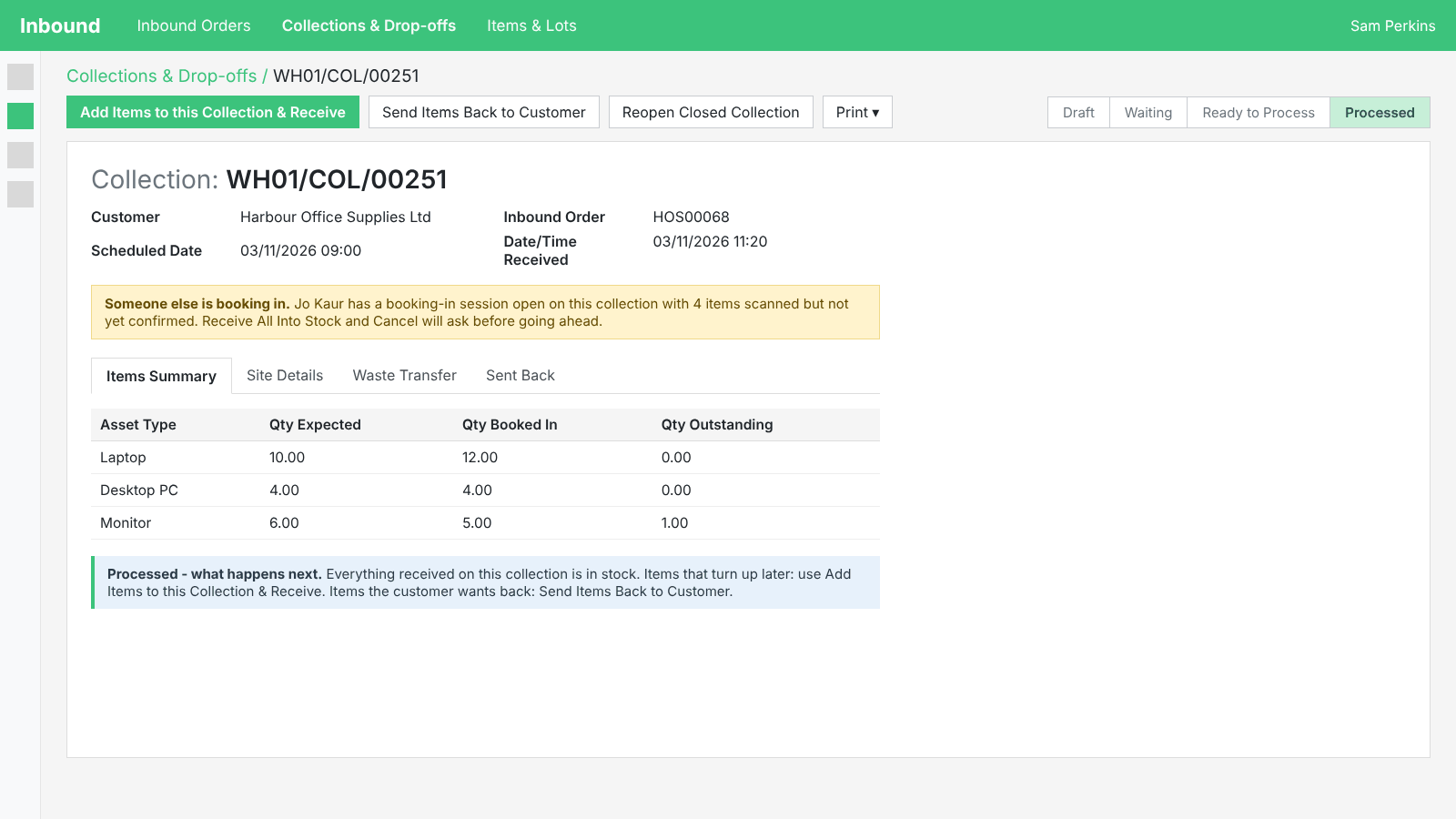
- Reopen a closed collection, and next-steps panels at every status
- Qty Booked In counts scanned and hand-added items alike
RecyclyERP 2026.19 brings e-waste compliance into every load: Hazardous Waste Consignment Notes built from what was actually collected, in each UK nation's own format, and Digital Waste Tracking that knows which nation each site reports to. Alongside it, your customers can see, change and cancel their collection requests on the Customer Portal, with availability rules by area and courier collections. Collections keep moving, with items sent back to the customer, items added after receiving and two people working one collection safely. Stock can be set aside on a Stock Hold before an order exists, a Guided Setup walks a new company through its Setup Actions, and Driver Hub gains a map of the day's runs, weighed loads and ready-made count notes.
This release focuses on Hazardous Waste Consignment Notes, Digital Waste Tracking, Weights & Units, Online Collection Requests & the Booking Form, Inbound Orders & Collections, Booking In, Stock Holds, Items & Lots, Driver Hub & Route Planning, Outbound Orders & Deliveries, Document Templates & Labels, the Setup Assistant, the Customer Portal, Users & Settings and the Knowledgebase - with new features added to your Setup Assistant so you don't miss them.
Release Highlights
- Hazardous Waste Consignment Notes, built from the real load: The consignment note is now a Document Template for each UK nation, copying its official form and offered only when it applies, with one row per hazardous waste code built from what was actually collected, the carrier filled in from what was recorded, one note per vehicle, and a note for waste collected outside the UK.
- Digital Waste Tracking for every UK nation: RecyclyERP knows which nation each site reports to and when its reporting starts, keeps each item's EWC code and WEEE category from the day it arrived, keeps deliveries that arrive as assets rather than waste off the Defra return, and records who brought a drop-off in so every return names its carrier.
- Customers manage their collection requests on the Customer Portal: A Collection Requests page where customers see each request's status, change its date and time or cancel it while it awaits approval, with availability rules by postcode area, county or country, courier collections, and on-site services that get their own slots and a longer visit.
- Collections that don't get stuck: Send items back to the customer or supplier, add items before and after a collection is received, let two people work one collection safely, reopen a closed collection, and next-steps help panels that say what to do at every status.
- Stock Holds: Set stock aside by hand before an order exists, see what is held and for whom on Items & Lots, keep held items out of other customers' orders, and let holds expire on their own.
- Guided Setup: The Setup Assistant takes a new company through its Setup Actions six at a time, most important first, with the live screen or setting on most pages, or a button straight to it, and a summary at the end of every batch.
And that is just the start. Read on for everything in 2026.19.
Hazardous Waste Consignment Notes
Where hazardous waste is collected, the consignment note that travels with it is now built by RecyclyERP from the load itself, in the format the regulator for that nation expects.
- The Hazardous Waste Consignment Note is now a Document Template for each UK nation (England, Wales, Scotland and Northern Ireland), each copying its official form, plus a note for waste collected outside the UK, and it is offered only when it applies.
- The Note Nation is worked out from the site's postcode, with an administrator able to override it; England and Wales consignment codes follow each regulator's own format, and Scotland and Northern Ireland numbers are typed in before the note will print.
- The rows are built from what was actually collected, one per hazardous EWC code, with the hazard codes and physical form taken from the code; Asset Types gain consignment note defaults for chemical components (with an Examples pop-up), container type, UN number, proper shipping name, UN class and packing group.
- Part C, the carrier, comes from what was recorded on the collection or drop-off, Part E lists only waste, each with its own recovery or disposal code, and Parts B1 and B2 come from the customer.
- One note per vehicle: on a collection with two or more vehicles, the driver records which vehicle each item went on in Driver Hub, Booking In records it too and it can be corrected afterwards, one note is produced per vehicle (an item with no vehicle recorded goes on the first vehicle's note, with a line saying so), and the Digital Waste Tracking export makes one record per vehicle.
- The collection form's buttons and stage banner now stay pinned at the top while you scroll, on laptop and tablet screens.
Digital Waste Tracking
- A UK Nation on your Digital Waste Tracking settings (England, Wales, Scotland or Northern Ireland), filled in from your company postcode, with the regulator and the mandatory start date following from it: the Environment Agency and Natural Resources Wales from 1 October 2026, SEPA and DAERA from 1 January 2027. The reminder, the help panels and the wording use your own start date, a company with no nation set behaves as England does today and is prompted to set it, and a new Setup Action asks for it.
- The export now reports containers from what actually arrived: the receipt's package first, then the driver's count, then the booking.
- Items keep the EWC code and WEEE category they arrived with: Asset Types gain a WEEE Category (the 15 GOV.UK reporting categories) and a household or non-household choice, each item carries its own copy set on arrival, every waste report reads the item's copy rather than the Asset Type's, administrators can correct the codes on the item, a WEEE category set on an Asset Type reaches its existing items, and WEEE category can be filtered and grouped on Items & Lots.
- Arrives as Waste: a new setting on each Asset Type, with a default on Contracts and a column on every Booking In screen that only an administrator can change, keeps deliveries that arrive as assets rather than waste off the Defra return. The DWT Export gains an Excluded tab showing what was left off and why, an administrator can correct past items one at a time or in bulk, the daily reminder no longer flags a day on which nothing reportable arrived, and an item recorded as not waste but carrying a hazardous code is warned about.
- Drop-offs record who brought them in: a Brought In By tab for the carrier, driver and vehicle registration, a matching block at Booking In with an amber line when nothing has been recorded, a Customer or Courier choice when signing, and carriers limited to Courier-tagged entries in the Address Book. The Digital Waste Tracking export, the Waste Transfer Note, the Hazardous Waste Consignment Note Part C and the Duty of Care Document all take the drop-off's real carrier, driver and vehicle, so a drop-off no longer reaches the Defra return with no carrier, and Receive All Into Stock warns when a drop-off has no vehicle registration.
- The DWT Export and the Asset Weight by Collection & EWC Code report count an item and the parts recorded inside it once, as it arrived, and a second DWT Export for the same day is refused with a clear message.
- EWC codes tidied on upgrade: the list is brought in line with the published catalogue, including every WEEE code from 16 02 09* to 16 02 16, duplicates for the same six digits are merged, the hazardous tick follows the asterisk, the unused EWC Code on Asset Sub-types is hidden, and EWC codes can now be archived.
- The Knowledgebase guide Digital Waste Tracking (DWT): reporting received waste to Defra is updated to match.
Weights & Units
- Waste Transfer Note before Booking In: each row gets its own estimate from the Asset Type's typical weight, scaled to the driver's load weight, an Asset Type with no typical weight prints no weight, and a weighed row prints its weight and no quantity.
- Driver Hub weighs instead of counting: an expected line in kilograms shows as a weight row, for example "Expected 50 kg", with Weighed, As expected and Not weighed to choose from, a kg Asset Type added on the phone is weighed, the load weight cannot be less than the total weighed on the items, what the driver weighed shows at Booking In, and the printed Duty of Care Document shows quantities with their units.
- Booking In - Standard Screen, weighed Asset Types: type the weight straight into the Weight column, a new line starts with what is left of the driver's weighed weight, Expected Items gains a Driver's Weight column, and an Asset Type counted in anything other than Units shows its unit after the name, for example "Steel (kg)".
- Booking In by weight is easier to find: the Lots tab is renamed Lots / Weighted / Other Items, a note above Individual Items says kg Asset Types are booked on that tab, a scan while the default Asset Type is in kg goes onto that tab, Split / Unpack Lot offers Smaller Lots for a kg Asset Type instead of one item per kilogram, and a split that would make more than 10 items asks first.
- Items and kilograms are never added together on an invoice: a service's Quantity to Invoice gains two weight options (the actual weight of matching items received, and the same once the final action is completed), the item quantity options count only Asset Types counted in Units, and an amber warning shows when a quantity option meets weighed Asset Types.
- The once-as-it-arrived rule for broken-down items from 2026.18 now reaches every report: the Customer Portal's job item list and download, the job's item summary, the Inventory Report, the Service Review pack, Quantities by Asset Type, received quantities on purchase lines, job and collection documents, a reprinted Waste Transfer Note, the job's money totals and collection cost apportionment all count the item once, as it arrived, while ESG counts the parts by their own outcomes; the Items & Lots lists behind the job and collection buttons open As Arrived.
- Systems set to pounds: a quantity counted in a weight unit converts into your database's unit, ESG's factors are converted before use, every weight label shows your unit, large figures show in short tons, and existing quantity-based weights are recalculated.
- The ESG set-up now creates its metal Asset Types (Steel, Aluminium, Copper, Brass, Stainless Steel and Cable) in kg, so recording 73 kg of copper no longer makes 73 items; on existing systems a Units metal type is switched to kg, or where it has been used, archived and replaced by a kg type that keeps its settings, prices, contract rules and translations, with the ESG Summary counting the old type's items in the replacement's row.
- The Knowledgebase guide Processing a Mixed Load by Weight is updated to match.
Online Collection Requests & the Booking Form
- Customers see, change and cancel their requests on the Customer Portal: a Collection Requests card and page show each request's status (Awaiting approval, Confirmed, Declined or Cancelled) and, once confirmed, the date and time actually booked; while a request awaits approval the customer can change its date and time or cancel it, which frees the old place at once and tells whoever approves. A Request a Collection or Drop-off button, a link to the Job, a Collection Request panel on the Job page, and for your staff a history of changes on the request and an Originally Requested For field.
- Service areas: Availability rules gain Areas to Include and Areas to Exclude (postcode prefixes, counties or states, and countries, matching any one or all), so each site is offered only the rules that apply to it, overlapping rules are listed in one pop-up, and a live sentence under the rule describes what it does.
- Courier collections: an Availability rule says whether it is Collected By your own vehicles or a courier, a courier collection is approved with the courier, reference and notes, and the customer sees the courier's name and reference on their request and their Job page.
- On-site services get their own slots and a longer visit: Booking Form answer choices gain Own Availability and Extra Visit Hours, and Availability rules gain Only for Services, so a booking that includes an on-site service is offered only that service's slots and gets a longer visit when approved.
- Settings, availability rules and closed dates: online collection requests can be off for all, on for all, or on per customer from the company's Customer Portal tab, with minimum notice, furthest ahead, time zone, approver and public-holiday closure; Availability and Closed Dates live under Inbound > Configuration > Collections & Drop-offs, with clearer Availability Type names such as "Time slot (e.g. Morning)", default availability rules to start from, a Deselect All button, mass edit, and a portal calendar that opens on the first month with a slot.
- Each Asset Type in its own unit on the Book a Collection form: the unit (kg, lb or t) sits beside the box, the heading reads Qty, Amount or Qty / Amount, the numbers are checked against the unit on submit, and the Customer Portal's Total No. Items counts only lines counted in Units.
- Give a weight instead of a count, or say "Not sure": Asset Types gain Customers Can Give a Weight and Customers Can Say Not Sure, submitted bookings carry Unknown Quantity and an Estimated Weight onto the Lead and the Inbound Order, whose Expected Items lists gain an Estimated Weight column, and Schedule Collection carries the values through to the collection.
- Equipment lists and photos: the Book a Collection form gains an Equipment List and Photos section under Estimated Quantities, with Upload Equipment List and Upload Photos/Videos, files checked as soon as they are chosen and again on the server, a file table per upload, Upload more Photos/Videos, a Clear all uploads button that asks first, and duplicate photos skipped.
- Show an answer choice only for certain Asset Types: a choice appears on the public form only once the customer has entered a quantity for one of them, with a Copy Asset Types pop-up to copy the list to the other choices of the same question, and a help panel on the Booking Form Questions list.
- An answer choice can add a Service to the Inbound Order: a signed-in booking gets the customer's Default Contract and a Requested on Booking Form service line, carried through when a Lead is converted.
- The Asset Type form explains Booking Form Preferred Outcome: what customers see, a read-only Customers Choose From list, an amber warning when no outcome is offered, and a link straight to Item Processing Actions to change it.
- The RMA and collection request emails go out through your own mail server, so they land in the inbox rather than the junk folder.
Inbound Orders & Collections
The Inbound Orders and collections screens have been simplified from booking to completion, so a collection never has to be cancelled and recreated to put something right.
- Send Items Back to Customer: "Reverse Transfer" becomes Send Items Back to Customer (or to Supplier on a purchase-order job), with a pop-up showing what was expected, what was booked in and what is going back, a Sent Back ribbon on each item and on the transfer, a Sent Back filter and smart button, Undo Send-Back for stock managers, and a send-back return that reads Confirm Sent Back. Tooltips and help panels across the collection screens are corrected, and a new Knowledgebase guide, Sending a collection's items back to the customer, explains it.
- Collections that don't get stuck: the Items Summary stays editable at Draft, Waiting and Ready to Process and locks only at Processed or Cancelled, adding a row at Ready to Process no longer drops it back to Waiting, a Processed collection or drop-off gains Reopen Closed Collection (refused with a clear pop-up once any item has been received), a Qty Expected below Qty Booked In or a changed Asset Type on a booked-in row is refused with the old value put back, a late save is refused rather than lost, archived Asset Types still expected are offered at Booking In, the job's own Asset Types are listed first, and Edit Booking-in Defaults becomes Set Booking-in Defaults.
- Two people on one collection: a yellow notice shows when someone else has a Booking In session open with items scanned, Receive All Into Stock and Cancel ask first in a Someone Else Is Booking In pop-up, cancelling a collection with items booked in but still Expected asks first, and Booking In - Standard Screen saves itself about 10 seconds after you pause.
- Add items before and after receiving: a Processed collection or drop-off gains Add Items to this Collection & Receive, and an Inbound Order gains Book In Items to a Collection; the items are received straight into stock on that collection, which stays Processed, with a warning first when that day has already been sent to Defra. A collection can be created before its contents are known, new items link automatically to a job's only collection, Processing Status shows on items that are still Expected, and two optional settings count work on items not yet received and show them on the Customer Portal.
- An Inbound Order's Collections / Drop-offs tab gains an optional Type column (Coll, Drop, PR, Rcpt, SBk and Undo SBk), the Collections & Drop-offs list filters are renamed My Collections & Drop-offs and Includes Asset Type, and Sign for Load Received is hidden on a collection closed with nothing received.
- The Inbound Order screen tidied: Schedule Collection and Schedule Drop-off stay available on a Completed or Cancelled job (in a quieter colour, with a confirmation first), a notice counts the open collections by status with a Cancel Empty Collections button that confirms in its own pop-up, the Add to Existing Collection picker is quicker to use, the Schedule pop-up's button says what it will do, a collection opens at the top, the buttons gain tooltips, receiving a purchase order's last delivery is never undone by the Completed stage's requirements, and the Write Off Items from Stock pop-up gains a Full qty or Set qty choice, a Lot/Serial line sized to the name, and clear messages when a write-off is refused or there is nothing left to write off.
- Next-steps help panels: the collection screen shows one panel per status (Draft, Waiting, Ready to Process, Processed and Cancelled) saying what to do next, with a yellow warning on an overdue collection with nothing booked in and another when its Inbound Order is already closed, and the Inbound Order screen shows one of five panels chosen from the facts on the job. A new Knowledgebase guide, Inbound Orders: how a job runs from booking to completion, walks through the whole journey.
- Qty Booked In replaces Qty Scanned on a collection's Items Summary and counts items added by hand or by import as well as scanned ones, Qty Outstanding replaces Qty Unscanned, a received item of an unexpected Asset Type gets its own row, and View Items & Lots lists scanned and added items alike.
- Searching Collections & Drop-offs: typing in the search box and pressing Enter searches the common fields (reference, customer, Inbound Order and the customer's PO ref) in one go, and the Transfer filter is renamed Reference.
- Build an Asset Purchase Order from priced items: the Add Items/Lots to an Asset Purchase Order action shows what will happen before anything is created, groups identical items by SKU and price or adds one line per item, links each item to the line paying for it with an Items smart button and On / Not on a Purchase Order filters, and warns with Update Prices from Items when prices change after the lines were built; the job's Financials tab offers New Asset Purchase Order from the job's priced items.
- Warehouse Locations: a new location goes under Stock, and the Stock row is protected from renaming and deletion.
- Receive All Into Stock and Book In Items & Lots only accept a stock location as the destination, so a lot is never left showing Expected, and a written-off lot is never counted as Expected.
- Only stock items are Asset Types: Grid Entry's Asset Type column offers stock items only, a Service or Consumable is refused as an item's Asset Type on every route, Grid Entry always links new rows to the job you are working on, and Change Asset Type and Set Lot Quantity cope with an item that has no stock.
- Enhancements to the Inbound Order's Expected Items: the Changing Items Entry Method pop-up appears only when something has actually changed, and a button opens the Asset Types list to set which types load on a new Inbound Order.
- Duty of Care Document: the shipped template now prints the Inbound Order No, the Collection Address and the Site Contact with their telephone and mobile numbers, drops the Driver Signature column and corrects the Goods Loose label; an empty table prints as blank, the Collection Date/Time prints in UK time with the day first whatever the producing user's language, and Note No carries the Waste Transfer Note number with no stray slash. Systems still on the unedited copy are updated automatically, and the new fields are offered for your own copies.
Booking In
- Booking In - Standard Screen accepts a scan with no Asset Type: the line is added, shown in red with an Added With No Asset Type note, the screen still saves, and Confirm opens an Items Need an Asset Type pop-up to pick one Asset Type for all of them or go back; the Item Type column is renamed Asset Type on both tabs.
- Item Specifications at Booking In: Booking In - Standard Screen's Individual Items tab gains an optional Item Specification column that fills in the line's Manufacturer and Model, Grid Entry gains a specification per line and a How Grid Entry Works help panel, Grid Entry scrolls sideways on a tablet instead of squeezing its columns, and phone search results show the Model / Part Number so one specification can be told from another.
- The Booking In screen's action buttons stay pinned at the top while you scroll, and the two information boxes under the Individual Items lines are now one.
- The Knowledgebase guide Booking In: the three Booking In screens, scanning and "From the driver" is updated to match, as is Correcting the Quantities on a Collection / Drop-off after processing.
Stock Holds, Items & Lots
- Stock Holds: set stock aside by hand before an order exists. A new Stock Holds list, a Hold Items pop-up on Items & Lots, a Held For column with an On Hold filter and group-by, held items kept out of other customers' orders, holds that expire on their own with a Default Hold Duration setting, Add Items on a hold with Add to Hold at the top and a check for items already on hold, plus help panels and log notes throughout.
- The Items & Lots side panel lists every Asset Type holding items, with counts, instead of "Too many items to display", and any section with more than 15 entries gets a search box.
- The Items & Lots list puts the selected count, its buttons and the Actions menus together in one group.
- Item Specifications: a new Item Specifications screen under Asset Types & Services > Configuration > Attributes holds the usual values for one model, only Inventory Administrators can create or change them, and it is found from the main menu search as Master Items or Asset Item Templates. An item's form shows the Item Specification last applied to it, Apply Item Specification works on one or many items from the Items & Lots Actions menu, on lots and on new items, a specification can be limited to Asset Sub-types, Asset Type and Sub-type sit on the item form, and built-in Snapshot Sources show as Built-in and cannot be archived.
- Graphics Specifications: graphics cards recorded on items with a Graphics Card List and Details, a Graphics Card component Asset Type, an Add Graphics Card pop-up laid out like Add RAM, columns on Items & Lots and on Import Items, and a Graphics Cards section in Demanufacture / Parts Harvest; Blancco, Aiken, Certus and YouWipe audit reports fill them in, and an existing Graphics Card record of the same name is adopted on upgrade.
- Package Types show an External Volume and an Internal Volume in cubic metres, worked out from their sizes, on the form and as list columns.
Driver Hub
- A map of the day's runs: a Map button on My collections and on each run opens a map with numbered pins in each run's colour, the depot, the route along the roads, a card for each pin with an Open Collection button, a pulsing blue dot for where you are, a Share location prompt whenever it opens without one, and numbering per run or across the whole day; the map comes through RecyclyERP, and an amber notice explains when it cannot load with no signal.
- Driver Hub's own calendar: tapping the date on My collections opens a month calendar with a coloured dot under each day that has collections (green all collected, orange some not collected, red something not done, blue booked, grey cancelled or moved) and a key underneath, built from what the phone already holds so it works with no signal.
- "I've arrived - Start Collection": the first tap records the arrival time, shown as Arrived on Site on the collection's Proof of Collection tab, and the collection card shows the actual Arrived and Collected (or Not collected) times alongside the scheduled time, with the opened collection reading, for example, "On site 11:52 to 12:07 (15 min)".
- Ready-made Count Difference Notes: the office keeps a list of notes under the Driver Hub (App) configuration menu, with built-in notes to start from; when a count differs the driver taps Choose from list and ticks the matching notes, adds up to three photos per count, and types into a Reasons box that grows as they go, all working with no signal, and the reason shows in RecyclyERP when a collection's time was changed.
- An opened collection lists the expected items by Asset Type with the estimated weight the office plans with, and a Site access section listing every answered Site Access Detail; a collection started on this phone shows an In Progress pill in place of Next.
- The collection card puts the collection number, the Scheduled and Arrives-about times in a bordered box with the details across the full width, shows a You are here now banner when the phone is within about 150 metres of the site (you can change the distance), and a grey "located roughly" line on a site with only an approximate pin; in RecyclyERP a latitude and longitude typed by hand on an address are never replaced by the address look-up.
- Driver Hub no longer has to wait for a collection to finish before it updates: a new version downloads in the background even part-way through a collection, which carries on in the new version exactly where it was left.
- Opening the app: Driver Hub only reopens a collection it was closed in the middle of, and says so with a Carrying on where you left off banner.
- Signed documents on a finished collection update on their own: each Documents line reads "made once this collection has been sent" while the phone is still sending, then changes to signed and emailed with a View button without leaving the screen.
- A finished collection's items have headings for what was collected and what was expected, laid out as a table, leaving out rows left at 0 that nobody expected, and the Sending screen's When and What columns each get their own space.
- The Knowledgebase guides Installing and logging in to Driver Hub, Setting up drivers for Driver Hub and Doing a collection, including no signal are brought in line with the app as built, with new pictures.
Route Planning
- The Driver dropdown on the Route Planning board gains All, Has Collections and Has no Collections filters with counts for the date on screen, a "(Select a driver)" entry, and the driver on screen stays after Save, Confirm or Discard whatever the filter; the choice is remembered.
Outbound Orders & Deliveries
- Enhancements to dispatch: Confirm Dispatch sends every reserved row, so a row whose items were picked through View / Assign is no longer left behind, and the same applies to an internal transfer's Confirm Transfer.
- Enhancements to Reserve Stock and View / Assign: Reserve Stock says plainly when a SKU line is left short, a SKU's available count is what can actually be reserved, Continue Anyway on the SKU warning carries straight on to dispatch, and the item picker opens at once.
Document Templates & Labels
- Up to three Items & Lots lists in one Word template, each with its own filter, quick filters and optional List Name, on Inbound Orders, collections and sales orders, with a warning when the Word file uses the same list in more than one table.
- Invoice templates gain 29 Commonly Used Fields including a Tax Rate per line, any status-type merge field prints the on-screen words, invoice lines print in the order shown on screen, and the shipped Invoice template prints the Invoice Number and Your PO Ref.
- Duplicate Template: a button on the Document Template form asks for the copy's name, whether to start with the original's Word file, and whether it goes on the Documents menu and the Customer Portal, and creates one new template carrying every setting of the original.
- On the Merge Fields tab a field's note now sits in grey under its name, instead of an empty Notes column squeezing the list.
- Label Templates gain Code 128 as a Barcode Format for ID labels beside Code 39, a Will the Barcode Fit? check with Change it for me buttons and a suggested font size, a Preview Label button, a Generate Name button, the barcode settings on the Barcode tab, a Label Templates menu in Templates & Documents, a Labels menu on the Items & Lots form, and combined Order + Item barcodes that fit a small label and scan everywhere Code 39 does, including Booking In and erasure report links; Word templates can print Code 128 too.
- Enhancements to label printing: labels print at exactly the size set on the Label Template, one label per page and never running onto the next, with existing templates rescaled once on upgrade so their labels print as before, and Barcode Line Width capped at 2 mm.
Setup Assistant
- Guided Setup takes a company through its Setup Actions six at a time, most important first. It opens with "Which of these do you use?" so the actions for features you do not use are marked Not Needed, each action's page shows the live screen or setting, or a button straight to it, with Previous, Skip for Now, Mark as Not Needed and Mark as Completed & Next, a summary closes every batch with your overall progress, a Back to Guided Setup button sits in the top bar, and it can be started from the Setup Actions list, the Home menu reminder and the Welcome Panel, with Previous Batch and Reset Guided Setup when you need them. The Website & Portal Setup area is renamed Booking Form & Customer Portal.
- The Setup Actions list stacks each action's buttons in a narrow column, coloured and with tooltips, so the title and description get far more room, with a Has Notes filter and a status bar of five tiles: All Outstanding, To Do, In Progress, Done / Not Needed and All.
- New and updated Setup Actions for your UK Nation for Digital Waste Tracking, Item Specifications, booking form units and online collection requests, Code 128 labels and email configuration, so nothing in this release is missed.
Customer Portal
- Customer Portal: every portal user can now add and edit their own sites: Every portal user who belongs to an organisation sees Manage Sites and can add and edit sites, while only a Portal Organisation Admin (a new tick on the person in the Address Book) can archive, delete or restore them. Add Site and Add Contact become large tiles, the Add and Edit Site pages say Site Name and Site Address, Manage Sites shows its sites at once, and the home page has new pictures. A new Knowledgebase guide, Customer Portal: how your customers add and manage their own sites, explains it.
- The Customer Portal home page fits the window at every width: the right-hand boxes sit inside the window on tablet and desktop, long names and email addresses wrap inside their box, and the two columns start on the same line.
Users & Settings
- Send Emails From: a new setting under Settings > Email chooses the address your quote, order and invoice emails go out from, so your own mail server always accepts them, with ten standard Sales, Invoicing, Purchasing and Delivery emails reworded where you have not changed them, and the Email Configuration Setup Action updated.
- Shared Dashboards retired: Shared Dashboards has been retired from the Dashboards app, as everything it showed is now quicker to get from reports elsewhere in RecyclyERP. Your Personal Dashboard is unchanged, and you can still add any report to it from Saved Searches & Dashboards > Add to Personal Dashboard. Old Shared Dashboards links now open your Personal Dashboard.
- Home Action is renamed Home Screen, with a plain-English tooltip, in Users > Preferences, My Profile and Change My Preferences.
- Address Book forms show a permanent Tags label in front of the tags and a Parent Company label in front of its box, so both can still be found once filled in, and a locked tag such as Courier cannot be removed.
Knowledgebase
- Three new guides: Inbound Orders: how a job runs from booking to completion, Sending a collection's items back to the customer and Customer Portal: how your customers add and manage their own sites.
- Brought up to date for this release: Digital Waste Tracking (DWT): reporting received waste to Defra, Booking In: the three Booking In screens, scanning and "From the driver", Processing a Mixed Load by Weight, Correcting the Quantities on a Collection / Drop-off after processing, The Address Book: Companies, Sites and Contacts, ADISA DIAL Ratings: your customers' ratings and your own certification, and the three Driver Hub guides.
General & Platform-wide Improvements
- RecyclyERP remembers the list or cards view each person last switched to, screen by screen, on tablet and desktop.
- The row under the search box keeps the view buttons on one line, with Filters, Group By and Saved Searches & Dashboards dropping under the search box only when the line cannot hold everything.
- List and card header buttons move down a line instead of wrapping their wording, and on a phone only the list scrolls while the header stays put.
- Help panels sit flush with the form's own boxes on every form screen.
- The public holidays note on the Closed Date form is now a help panel.
The above changes are now available for all customers to use (you might just need to refresh your browser).
Coming soon...
2026.19 is the first release with Hazardous Waste Consignment Notes built from the load itself. Here is a taste of what the team is working on for the coming releases:
- E-Waste Handling, next phase: Gross, tare and net weights at goods-in with a weight ticket, a weight discrepancy receipt the customer signs, and charging and paying by weight.
- ESG, next phases: Materials and social impact tracking, plus a "Your Effect on the Planet" view for eCommerce shoppers.
- Digital Waste Tracking, next phase: Defra intend to replace the spreadsheet upload with a direct connection, and automatic submission is planned before the manual route is withdrawn in 2027 Q4.
- Grading & Valuation, next phase: Automatic valuations flowing straight from your grading results into quotes and settlements.
- Online Collection Requests, next phases: Ship-in kits with boxes and prepaid labels, approving or declining many requests at once with a requests calendar, and automatic confirmation for chosen customers.
- Marketplace eCommerce integrations: List and sell your stock on marketplaces such as Amazon and eBay, directly from RecyclyERP.
- Report Builder enhancements: Deeper configuration options for creating, sharing and exporting your own custom list reports.
- Mobile device processing: IMEI capture, mobile erasure reports and device-testing integrations for phone and tablet workflows.
- SLA tracking on Inbound Orders: See SLA deadlines on orders, get reminders before a breach, and report on SLA performance.
If you have any queries do not hesitate to contact us, or simply click here to arrange a comprehensive demonstration.
- The Recycly Dev Team