A Settlement sets what you are charging a customer on one job against what you are paying them for their assets on that same job, so that only the difference changes hands.
For example, you charge a school 1,240.00 for the collection, on-site data erasure and certificates, and you pay them 2,160.00 for 48 laptops you are buying back. Instead of the school paying you and you paying the school, the Settlement shows that you owe them the difference.
This guide covers switching Settlements on, raising one, reading the figures, confirming it, what your customer sees, and the mistakes that cost money.
1. Switching Settlements on
Settlements are an optional feature. An administrator switches them on at Users & Settings > Settings > Inbound, under "Inbound Orders", with Enable Settlements. The list then appears at Inbound > Inbound Orders > Settlements, and each job gains a New Draft Settlement button on its Financials tab.
2. Raising a Settlement
Raise it from the job, not from the Settlements list:
- Open the job at Inbound > Inbound Orders > Inbound Orders.
- Go to its Financials tab.
- Click New Draft Settlement.
That fills in the Inbound Order for you, for example IB00318, and the customer comes from that job. Set the Settlement Date. The Settlement Ref., for example ST00042, is generated when you first save; you do not type it.
New on the Settlements list works too, but you then have to choose the Inbound Order yourself before anything else.
One job can carry more than one Settlement, for example ST00042 and then ST00043 once a further purchase order is added.
3. Adding the orders
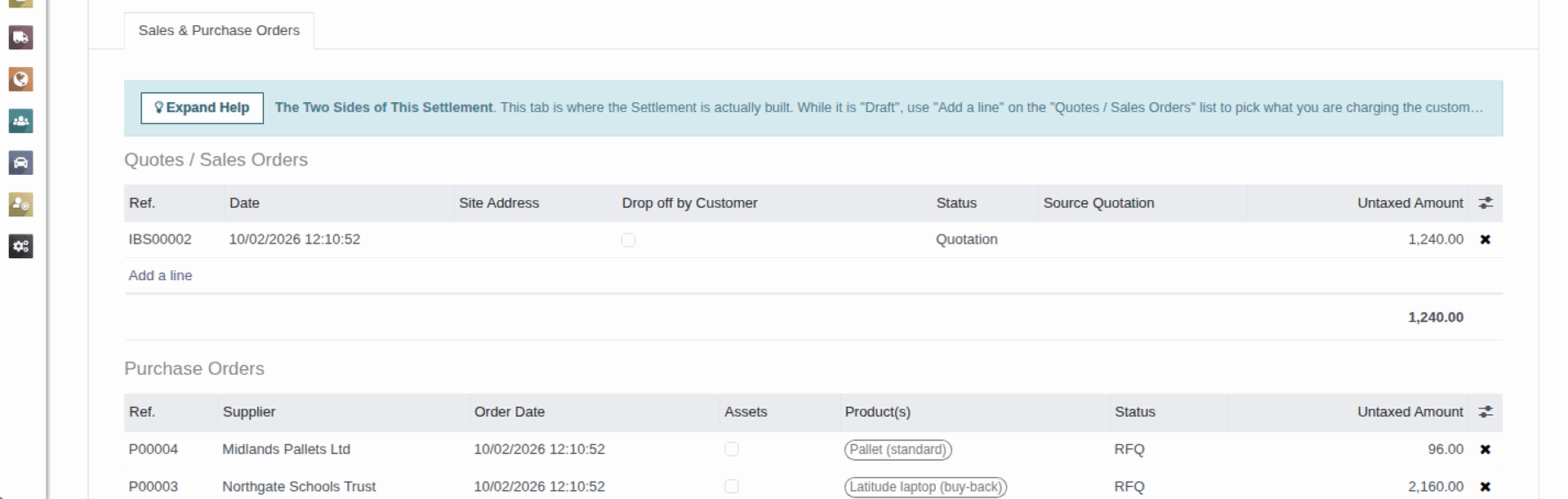
On the Sales & Purchase Orders tab, use Add a line on each list:
- Quotes / Sales Orders - what you are charging the customer, for example IBS00204 at 1,240.00 for a collection, on-site data erasure and certificates.
- Purchase Orders - what you are paying out. That is purchases of the customer's assets, where Assets is ticked, for example P00937 at 2,160.00 for 48 laptops; and orders to other suppliers for the same job, for example P00941 at 96.00 for 12 pallets from a packaging supplier.
Only paperwork belonging to the job in the Inbound Order box is offered, which is why the job has to be set first.
Including a packaging supplier's order is normal, but it means the balance is no longer purely what is owed to the customer.
4. Reading the figures
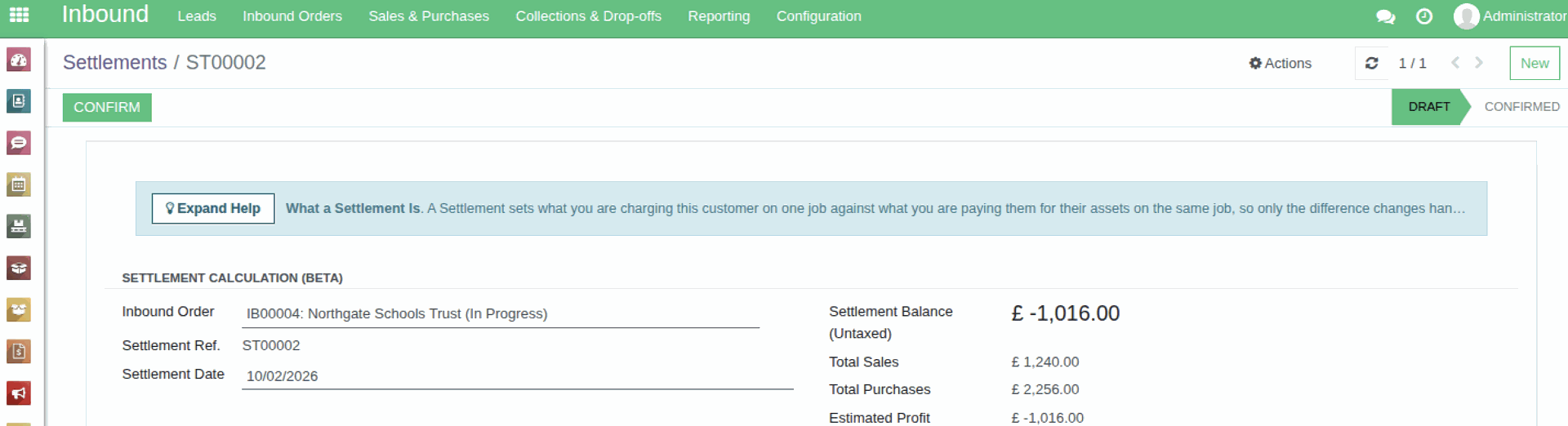
Every figure excludes VAT (Value Added Tax) and is read from the linked orders' Untaxed Amount, never from invoices, bills or payments.
- Total Sales - the untaxed total of the linked sales orders, for example 1,240.00.
- Total Purchases - the untaxed total of the linked purchase orders, for example 2,256.00 (2,160.00 of laptops plus 96.00 of pallets).
- Settlement Balance (Untaxed) - Total Sales minus Total Purchases. A positive figure is owed to you by the customer. A negative figure, for example -1,016.00, means you owe the customer 1,016.00.
- Estimated Profit - the same subtraction before labour, transport and overheads. It shows in red when it is below zero. Treat it as a rough order-level figure, not a margin to bank on.
5. Confirming it
A Settlement is Draft while you are putting it together, and anything on it can change.
Once the net figure is agreed with the customer, click Confirm at the top. That locks the Inbound Order, the Settlement Date and both order lists. Reset to Draft unlocks them again, and asks you first, because it takes the Settlement back out of the figure your customer sees (section 6).
6. What your customer sees
A customer who can see the ESG (Environmental, Social and Governance) page on your Customer Portal, and who has the Value Returned tile switched on, is shown the Total Purchases of their Confirmed settlements, picked up by Settlement Date.
Nothing else on a Settlement ever reaches the customer. That is deliberate: Total Sales and Estimated Profit would give your resale margin away.
7. What a Settlement does not do
A Settlement posts nothing to the accounts. It raises no invoice, no bill, no credit note and no payment, and it does not stop the linked orders being invoiced in the usual way. Treat it as an agreed statement of the net position on the job, which your finance team still has to act on.
8. Mistakes to avoid
- Leaving it at Draft. Only Confirmed settlements count towards the customer's Value Returned tile, so money you have genuinely paid them is missing from their dashboard until somebody clicks Confirm.
- Assuming an agreed figure cannot move. The totals are live. Edit one of the linked orders later and the Settlement changes with it, even after it has been confirmed - confirming locks which orders are linked, not the orders themselves. That is why those orders carry the warning "Warning: This document is part of the following Settlements:". Check the figure again after any change.
- Counting an order twice. The same order can go on two Settlements for one job, and it is then counted in full on both. You are warned when you add one that is already on another Settlement, for example "P00937 is already on ST00019 for this job", but not stopped, because splitting a job across two Settlements is legitimate.
- Changing the job after adding orders. Changing the Inbound Order takes the previous job's orders off. You are asked first, with how many orders will come off; saying no leaves everything as it was.
- "A Settlement is missing from the list." The list opens with the Draft and Confirmed filters applied. Turn one off and those settlements drop out, so check the search box first.
9. Related guides
- Buying Assets from a Customer, and General Purchases such as Pallets (opens in a new tab) - raising the purchase orders a Settlement is built from.