Driver Hub is the app you use on your phone for your collections. This guide gets it onto your phone and signs you in, which takes about five minutes the first time, with no app store and no password.
1. What Driver Hub is
Driver Hub is your company's own app for collections, and it comes from your company's RecyclyERP rather than from an app store. You install it from your company's RecyclyERP address followed by /driverhub/, for example yourcompany.recyc.ly/driverhub/, and your office will tell you the exact address.
2. Installing Driver Hub on an iPhone
Open your company's Driver Hub address in Safari, and Driver Hub shows you four steps:
- "Tap ⋯ next to the address bar, then tap Share. No ⋯? Tap Share at the bottom of Safari."
- "Scroll down and tap Add to Home Screen. Not in the list? Tap View More first."
- "If you see Open as Web App, leave it switched on. Tap Add."
- "Close Safari and open Driver Hub from your home screen."
The whole thing takes about 20 seconds. On an iPad the steps are the same, except that the first one ends "Tap Share at the top of Safari."
If you use Chrome on your iPhone or iPad, Driver Hub shows Chrome's own steps instead. The first is "Tap Share at the right of the address bar.", the middle two are the same as Safari's, and the last is "Close Chrome and open Driver Hub from your home screen."
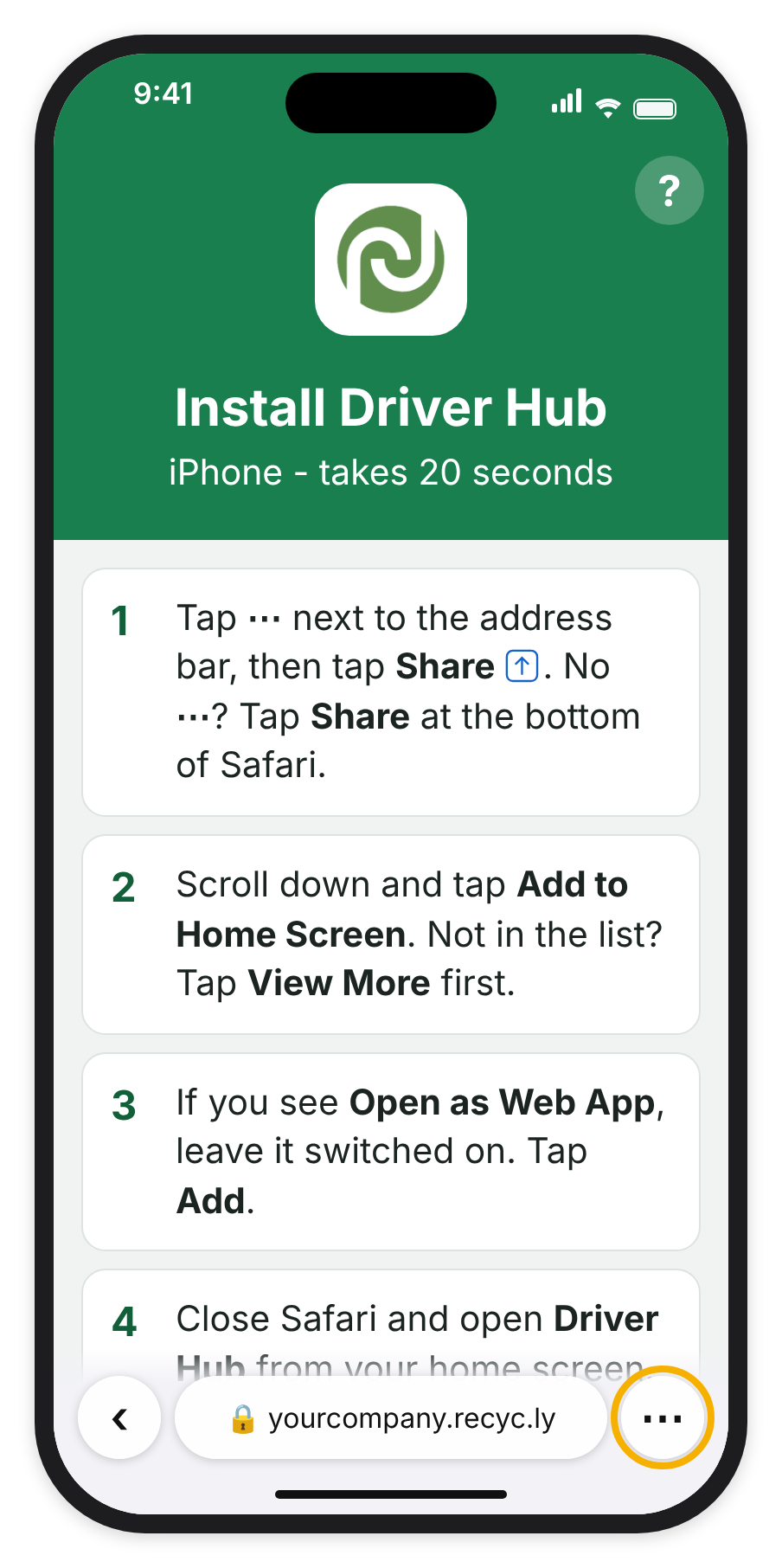
Driver Hub's install steps, as an iPhone shows them in Safari.
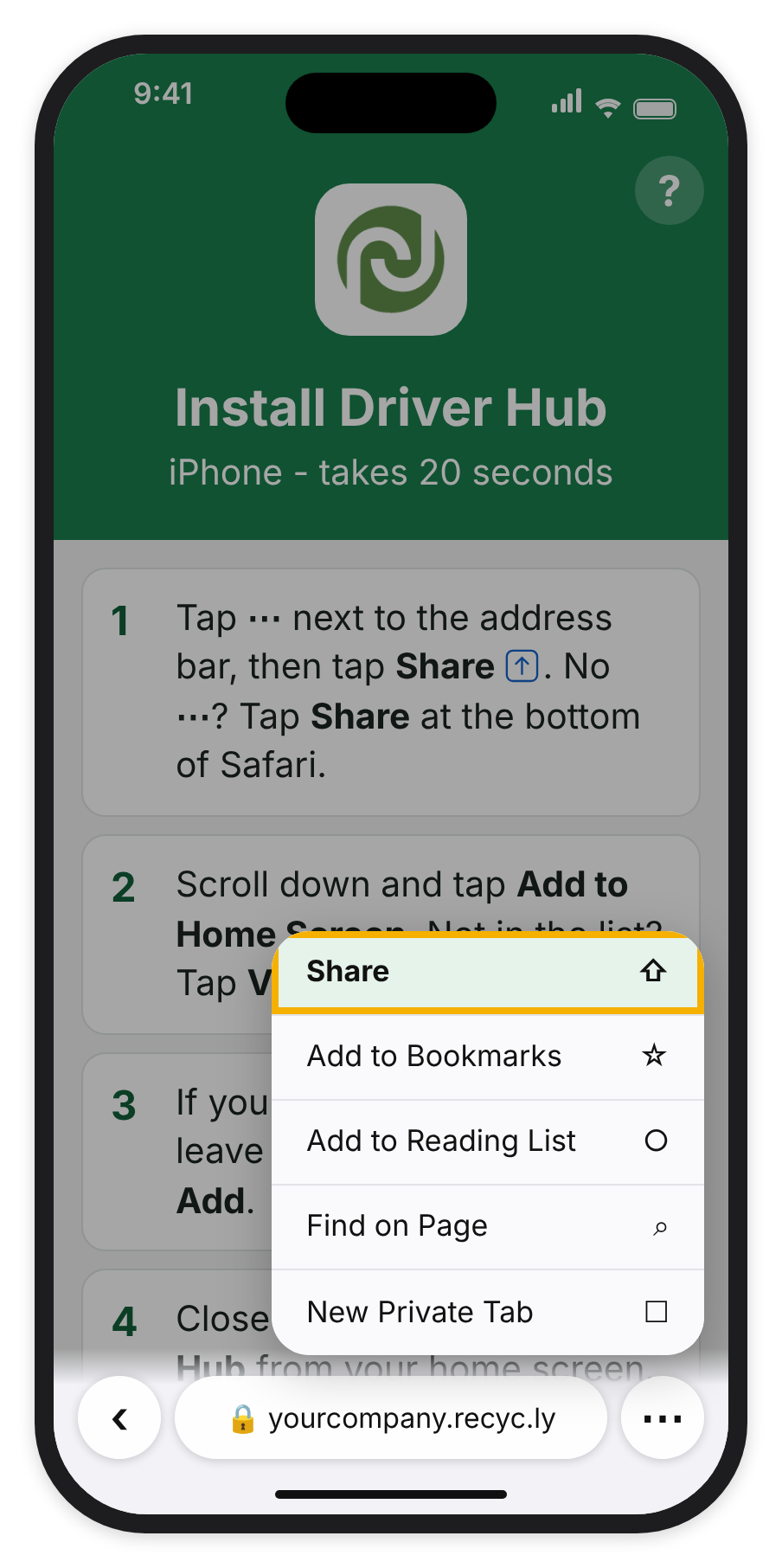
Step 1: tap ⋯ next to the address bar, then tap Share.
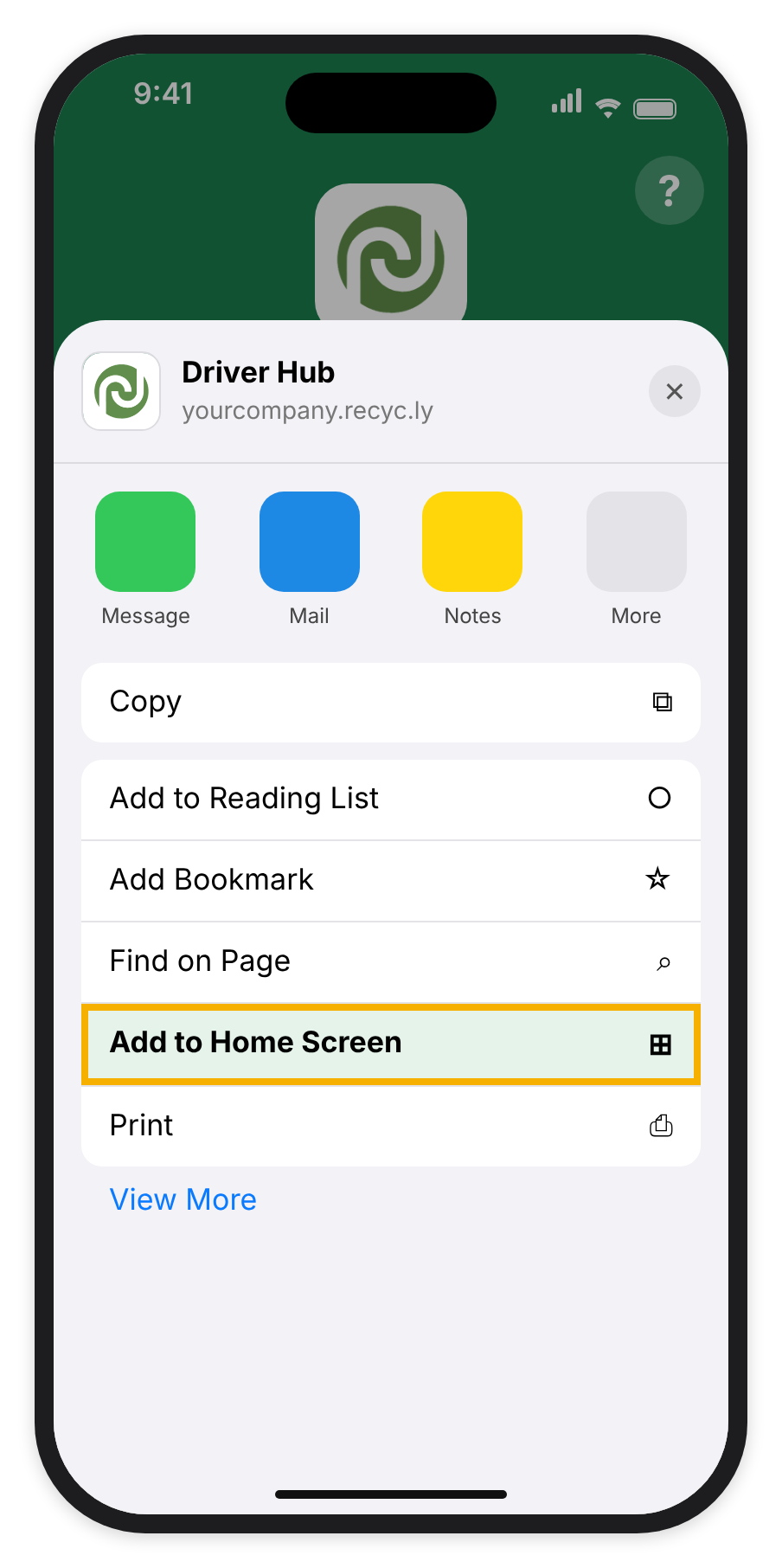
Safari's Share sheet: scroll down and tap Add to Home Screen. Not in the list? Tap View More first.
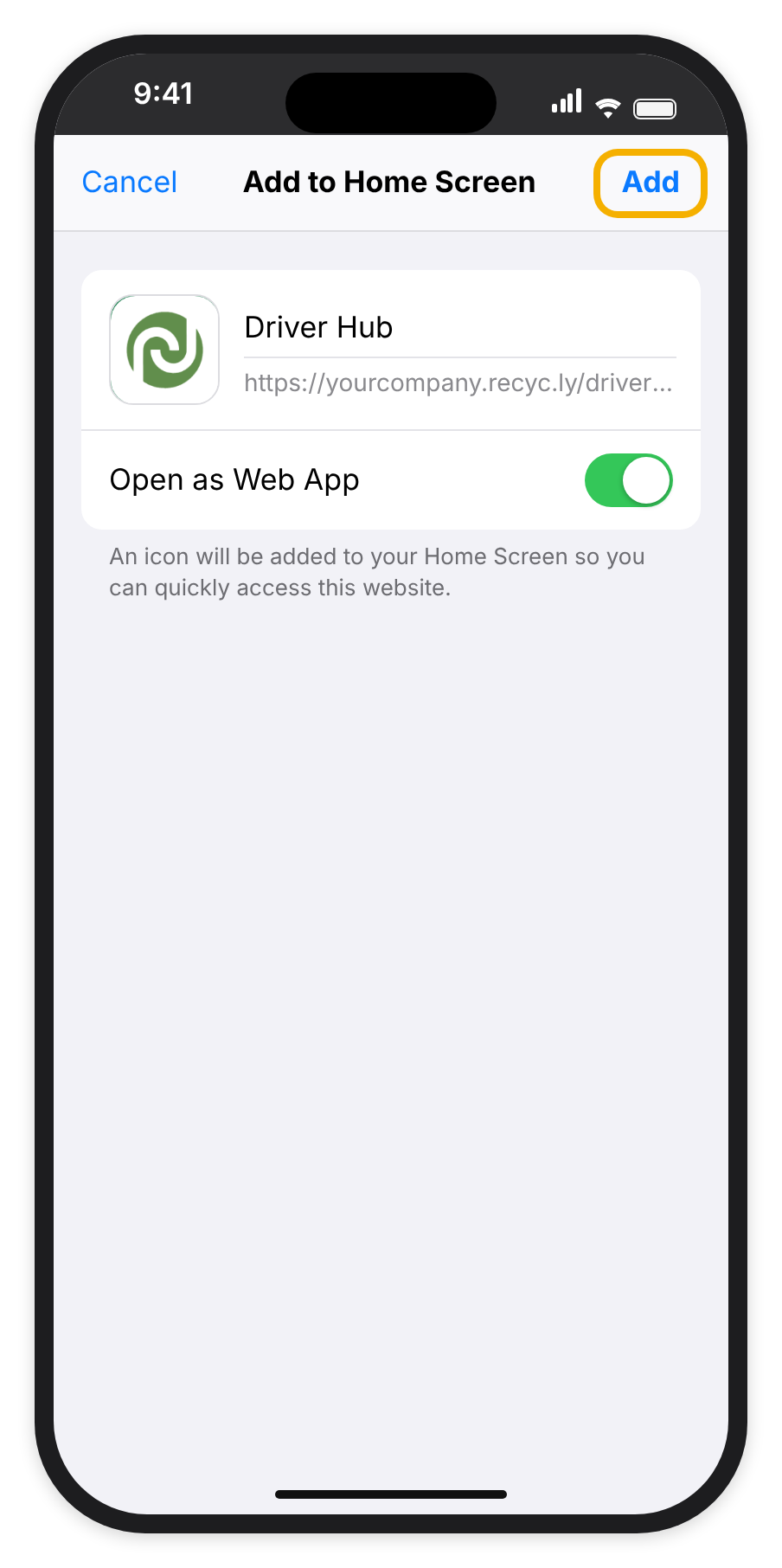
Check the name reads Driver Hub, leave Open as Web App switched on, then tap Add.
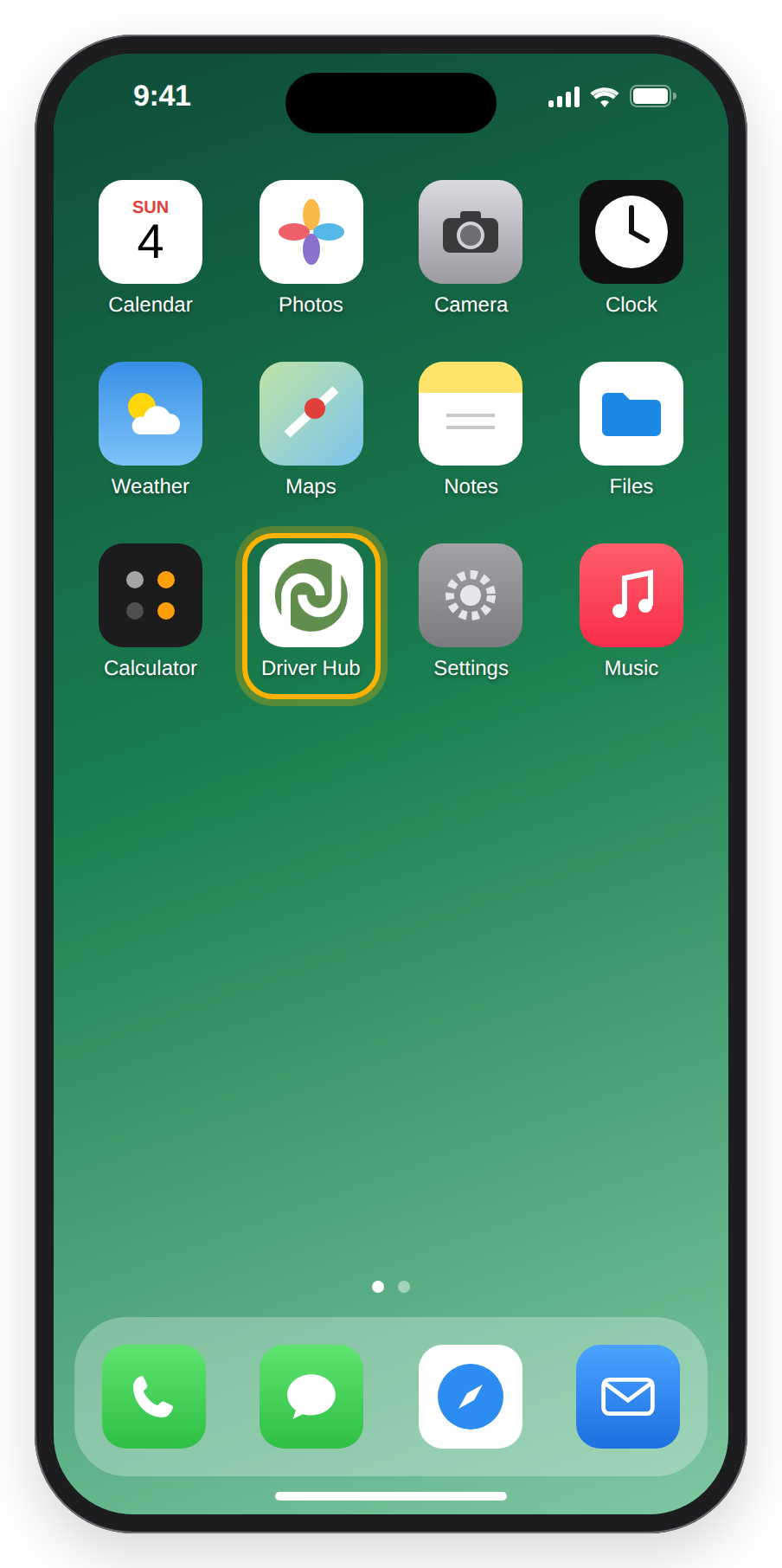
Driver Hub on the home screen. Open it from here, not from Safari.
Install first, then sign in
On an iPhone or iPad, always install Driver Hub before you sign in. The install screen says why, under the heading Sign in from the home screen app: "Safari and the installed app keep separate sign-ins, so sign in only after opening the app from your home screen." In Chrome it names Chrome instead: "Chrome and the installed app keep separate sign-ins, so sign in only after opening the app from your home screen." Sign in inside the browser and the app on your home screen stays signed out, with your code already used.
3. Installing Driver Hub on an Android phone
Open your company's Driver Hub address in Chrome, tap Install App and confirm, and Driver Hub goes onto your home screen like any other app. It takes about 10 seconds. If there is no button, the screen tells you what to do instead: "No button? Open Chrome's menu ⋮, tap Add to home screen or Install app, then Install." Then open Driver Hub from your home screen to sign in.
On a Samsung phone using Samsung Internet, the line reads "No button? Tap the menu ≡ at the bottom right, then Add page to, then Home screen, then Add."
Any other browser, or a link opened inside another app
If you open the address in a different browser, or from a link inside another app such as your email or a messaging app, Driver Hub shows Open this page in Chrome: "This browser may not be able to add Driver Hub to your home screen. Copy the link, open Chrome, paste it into the address bar and follow the steps there." On an iPhone or iPad it says Open this page in Safari, with Safari in place of Chrome. Tap Copy Link, which then reads "Link copied", open Chrome or Safari, paste the link into the address bar and follow the steps there.
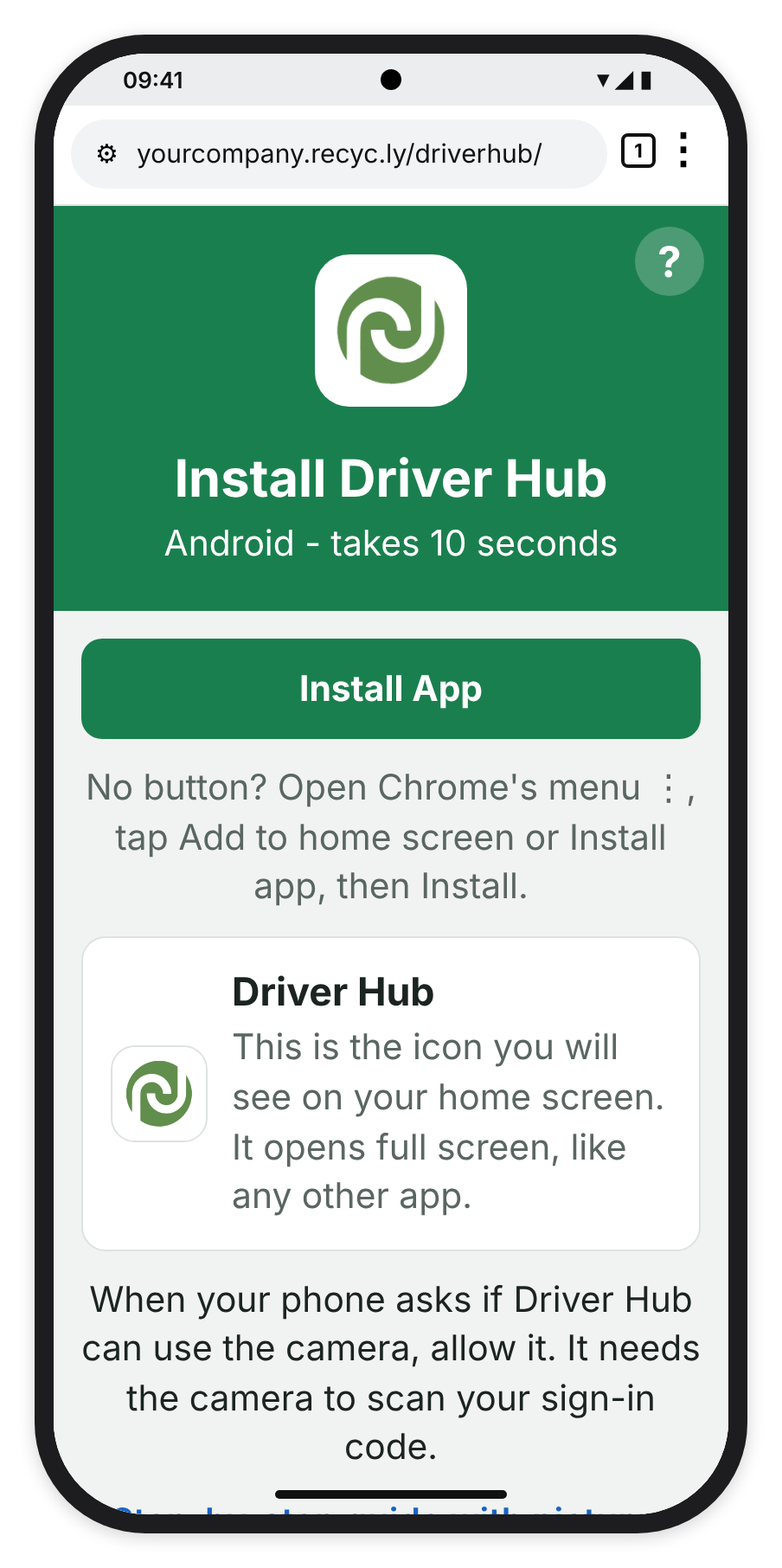
On an Android phone, Install App puts Driver Hub on your home screen.
4. Using Driver Hub on a computer
There is nothing to install on a computer: open the Driver Hub address in your browser and the app runs in the window, as a phone-width column in the middle. If you also work in the office, you can open it from Inbound > Collections & Drop-offs > Driver Hub, which opens it in a new tab. You sign in with a code exactly as you would on a phone.
5. Getting your sign-in code from the office
Your sign-in code comes from your office. Someone with Inventory Administrator access opens your employee record, goes to its Driver Hub tab, which shows for anyone with Can be Driver for Collections ticked, and clicks Invite to Driver Hub, or Sign In to Driver Hub once you have been invited, for example for a new phone. A pop-up then shows a QR (Quick Response) code and the same code typed out as three groups of three, for example K7P-4QX-9MD. They can show you the screen to scan, read the code out to you, or click Email Link to Driver to send it to your email.
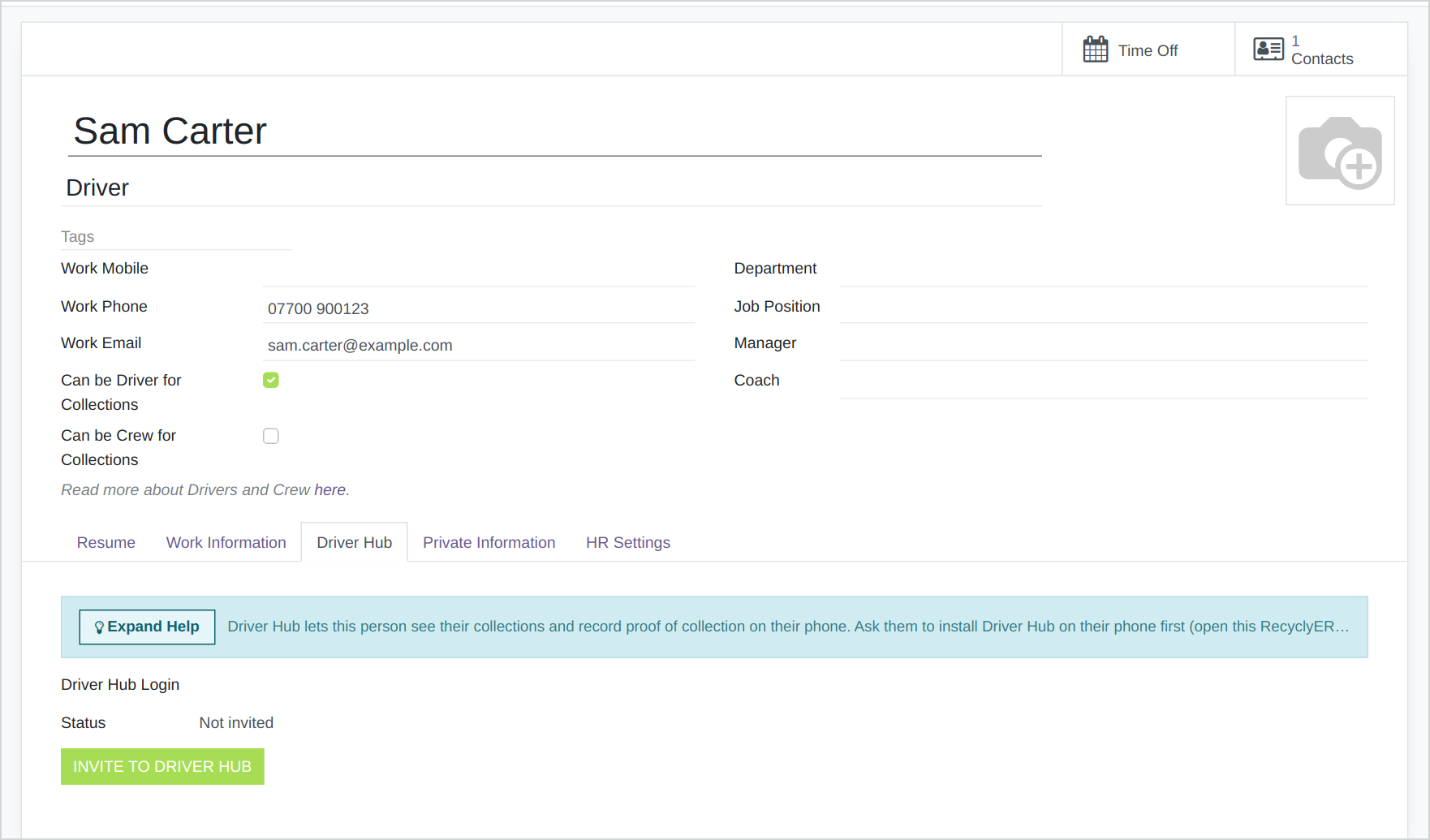
What the office sees: the Driver Hub tab on your employee record.
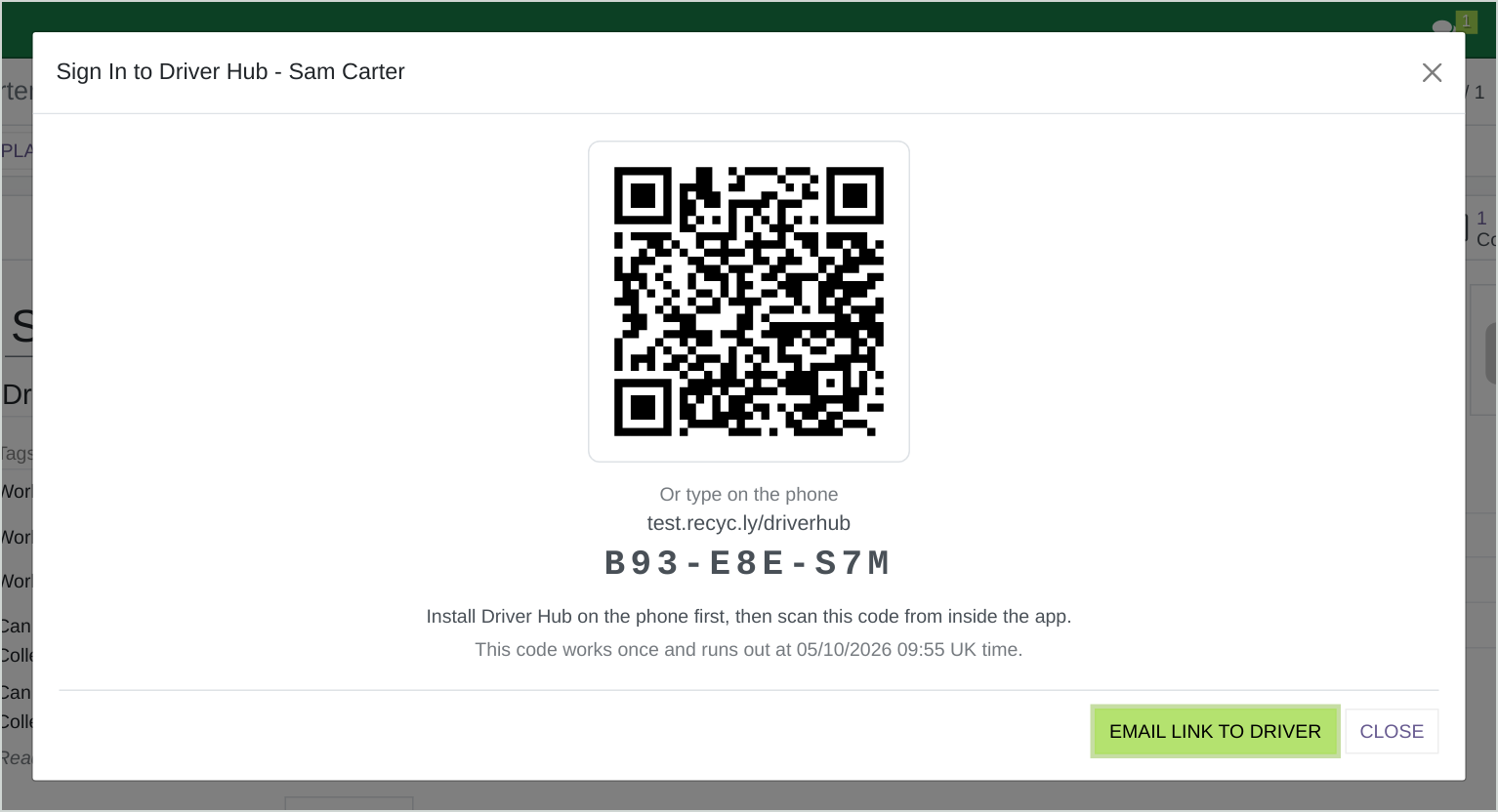
The office's pop-up, with your QR code and the same code typed out.
6. Signing in
Open Driver Hub from your home screen and tap Scan QR Code, and when your phone asks if Driver Hub can use the camera, allow it. The camera opens inside the app: point it at the QR code on the office screen and Driver Hub signs you straight in, with nothing else to tap. If you would rather type, enter the code under or type a sign-in code and tap Sign In; spaces, dashes and capital letters do not matter, so k7p4qx9md works as well as K7P-4QX-9MD. If the camera does not open, Driver Hub tells you why and what to do on your phone, usually with a Try Again button, and typing the code always works instead. There is no address to type and no password.
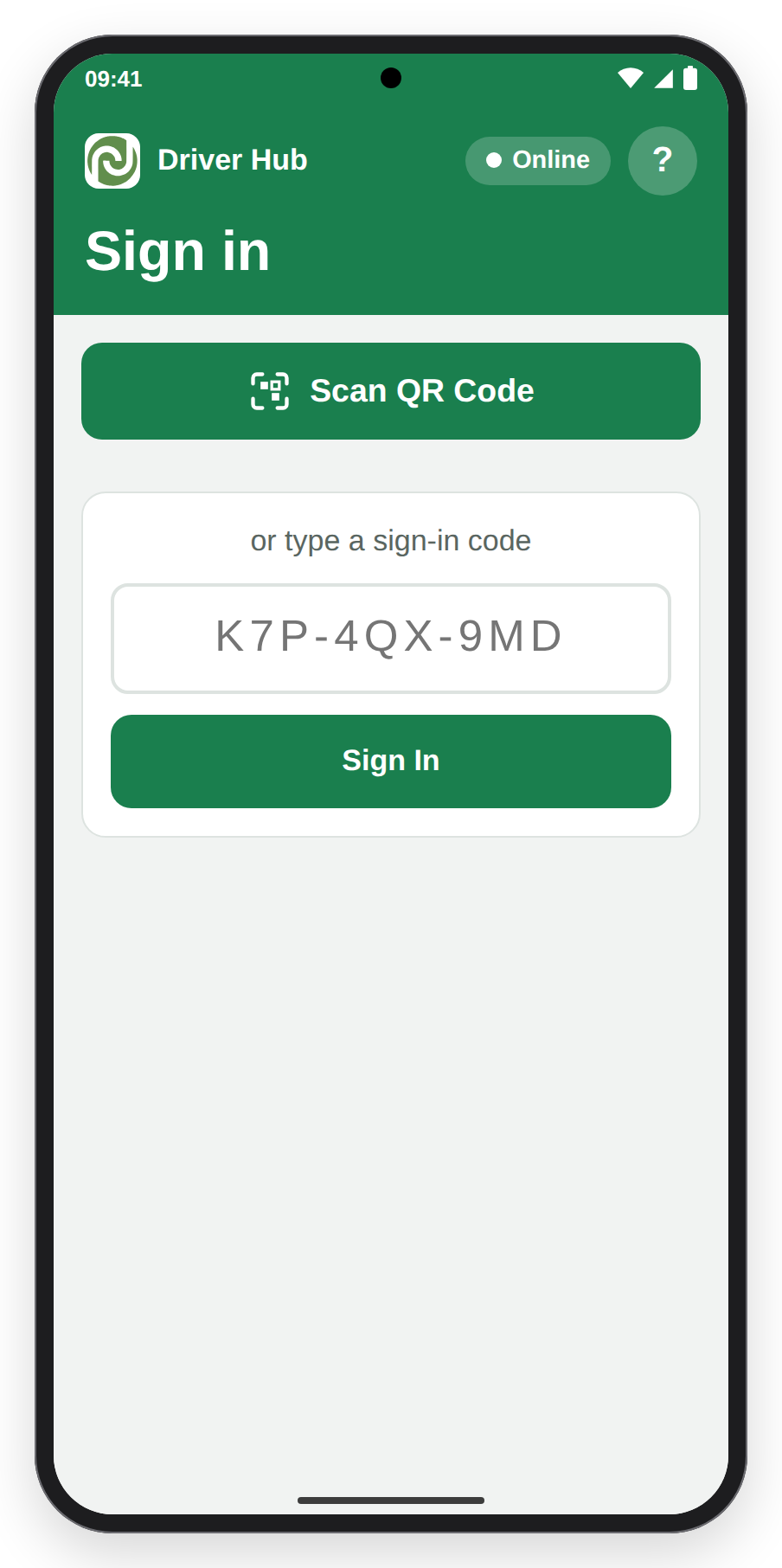
The sign-in screen: scan the QR code, or type the code.
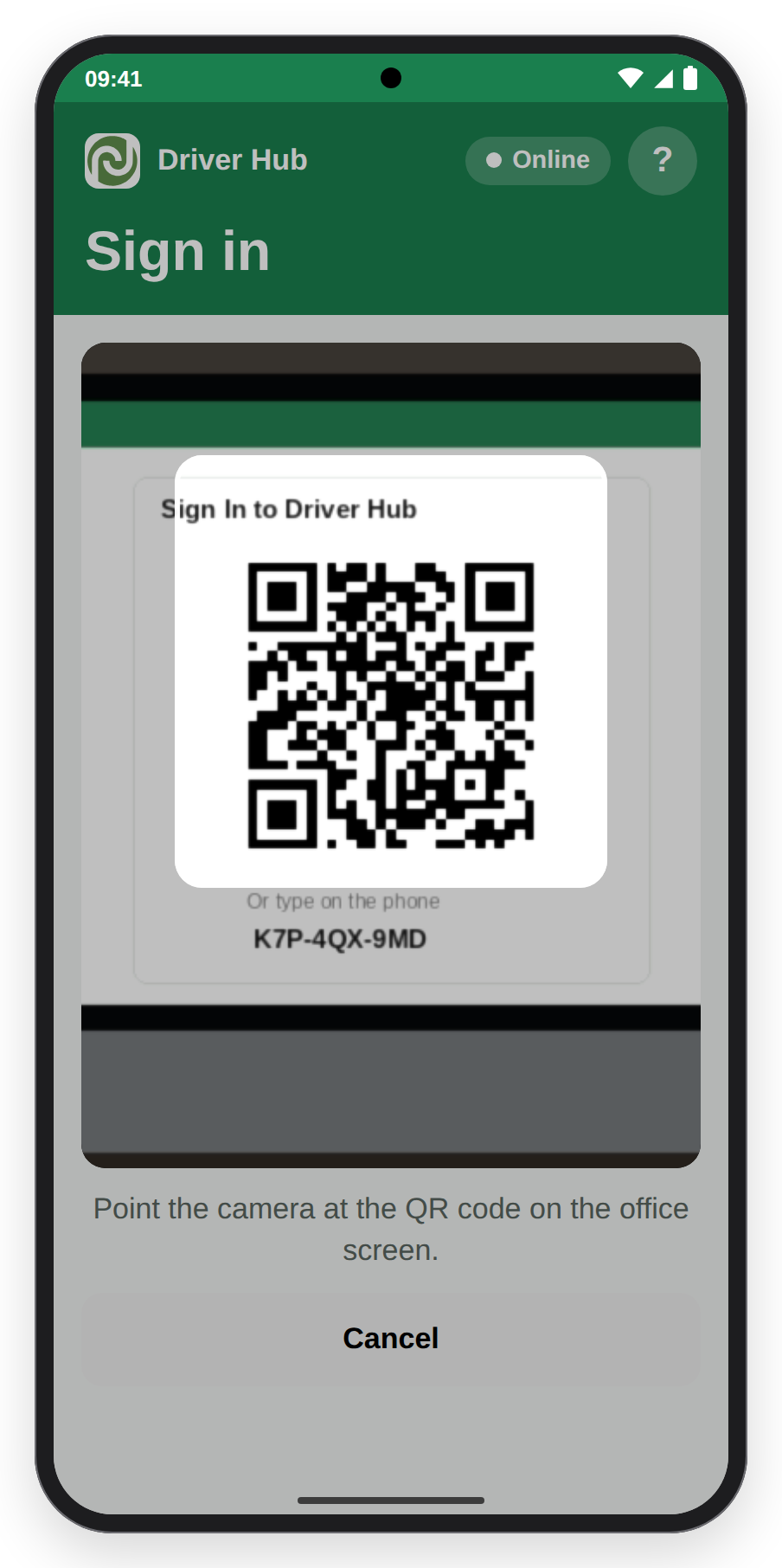
Scanning the office's QR code from inside Driver Hub.
7. Signing in from an emailed link
If the office emails you a link, open the email on the phone you will use. On an Android phone or a computer, tapping the link opens the Driver Hub sign-in screen with your code already filled in: tap Sign In to finish. On an iPhone the link opens Safari, which keeps a separate sign-in from the app, so Safari shows "Open Driver Hub from your home screen and type this code: K7P-4QX-9MD" with your own code in place of that example. Open Driver Hub from your home screen and type the code there.
Remember: on an iPhone, install first and sign in from the home-screen app, never in Safari.
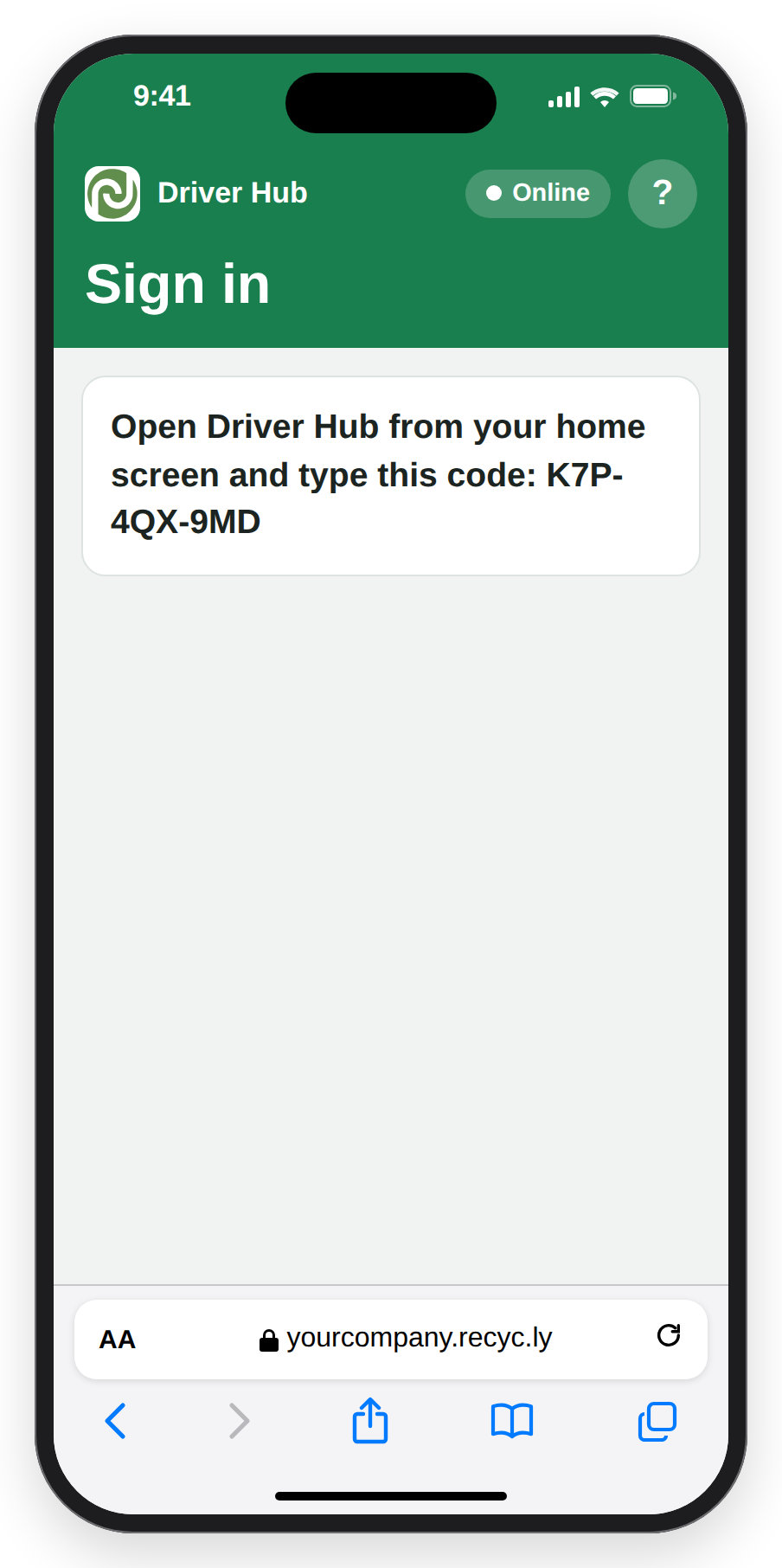
An emailed link opened in Safari on an iPhone points you to the home-screen app.
8. How sign-in codes work
A code works once, and runs out 24 hours after the office issues it. When the office sends you a new code, the old one stops working. A wrong, used or out-of-date code shows "That code is not valid. It may have been used already or run out. Ask your office for a new one." After five wrong codes in 15 minutes, that phone has to wait 15 minutes and shows "Too many wrong codes on this phone. Wait 15 minutes, then try again."
9. Staying signed in, and working with no signal
Once you are signed in you stay signed in: the phone keeps its sign-in for 30 days without reaching RecyclyERP, and only then needs a new code. With no signal, Driver Hub keeps working for 72 hours after it last reached RecyclyERP, so you can still open your collections and record your work, and a Monday morning still works after a weekend. After that it hides your collections and shows "Connect to the internet to carry on. Nothing you have captured is lost." As soon as it has signal again it carries on as normal, with no new code needed.
10. Signing out, and lost or replaced phones
To sign out, open the app's menu and tap Sign Out. If anything is still waiting to send, Driver Hub warns you first, for example "You have 2 items not sent yet. If you sign out now they will be deleted.", and offers Stay Signed In and Sign Out Anyway: unless you are sure, stay signed in until you have signal.
If your phone is lost or replaced, tell your office straight away. They find it in the Signed-in Phones list on your employee record and click Sign Out This Phone: "Use this for a lost or replaced phone. The phone is signed out the next time it connects, and anything on it that has not been sent is deleted." The same list shows when each phone last made contact, which version of Driver Hub it is running, and how many things it was still holding at that contact, under Waiting to Send and Not Accepted. Turn Off Driver Hub Access signs out every phone and cancels any unused code, and your access also ends if you are archived or are no longer a driver or crew member.
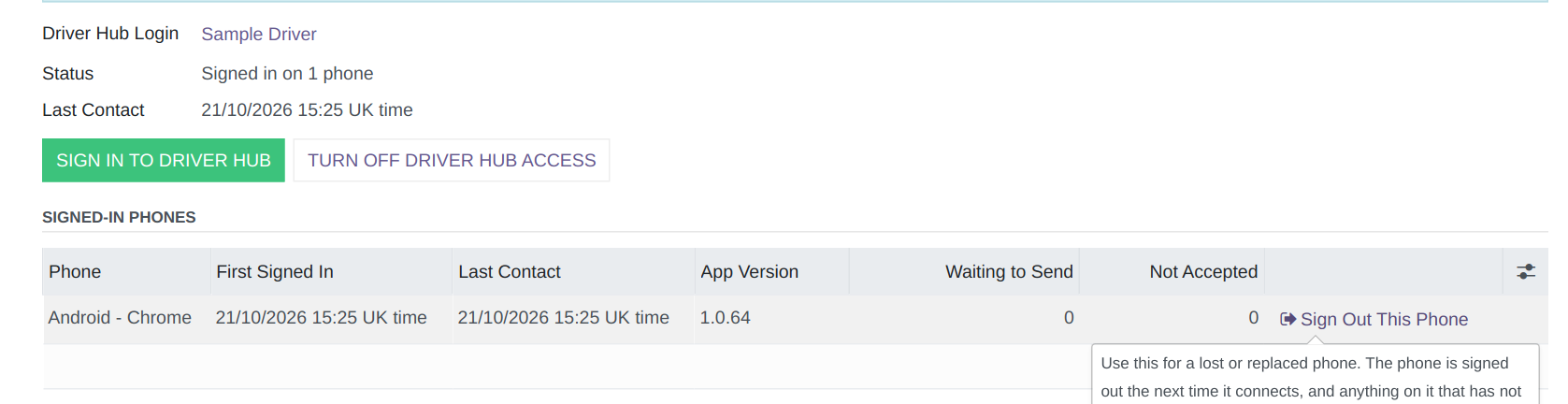
The office's list of your signed-in phones, with Sign Out This Phone.
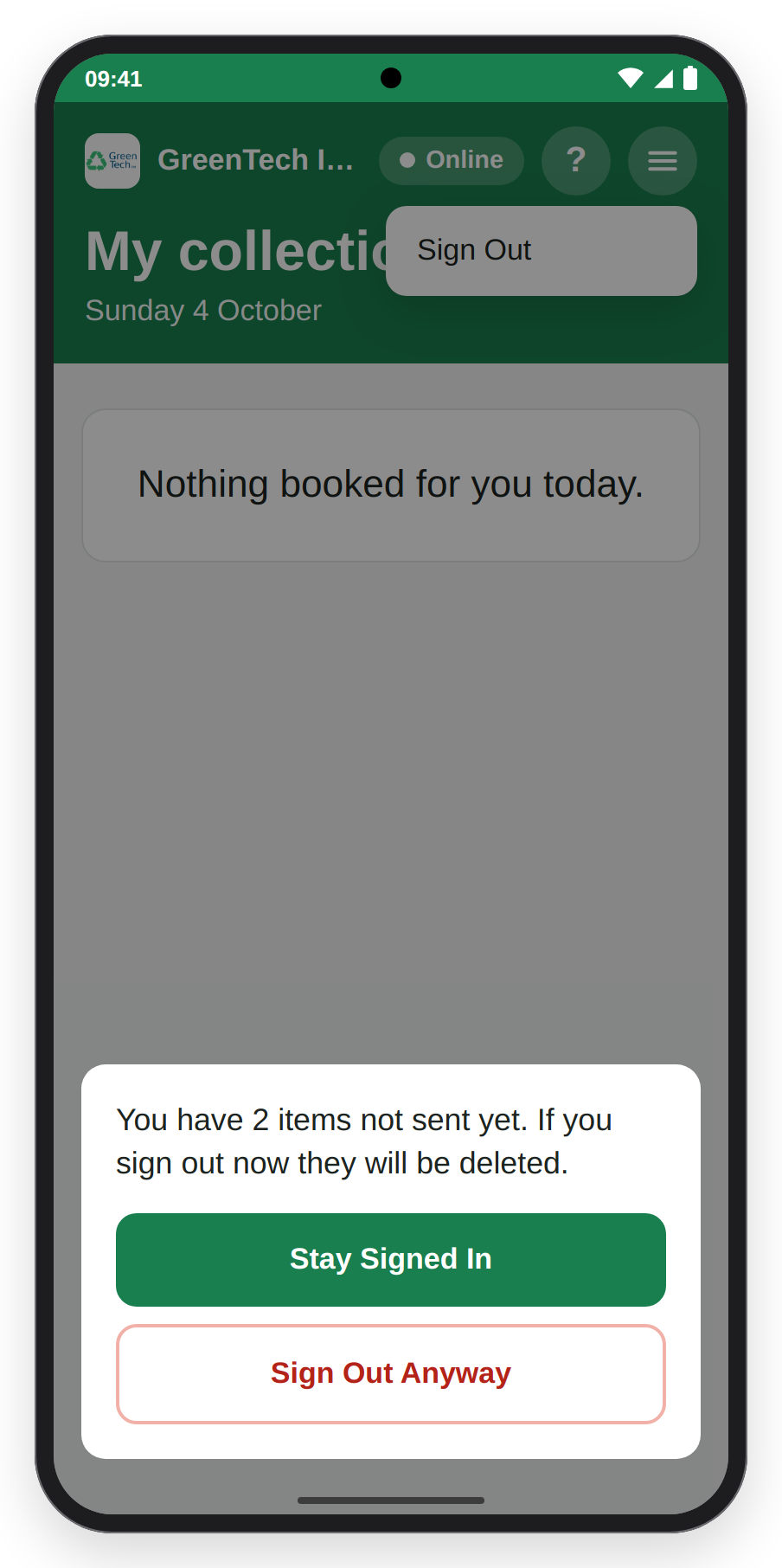
Signing out with something not yet sent: Driver Hub warns you first.
11. Locking the app, and About
Locking Driver Hub
You can lock Driver Hub, so nobody else can open it on your phone. The first time you sign in, it asks "Unlock Driver Hub with your face or fingerprint next time?" and says "You will also set a 6-digit code for when the phone cannot check your face or fingerprint." Tap Yes, answer your phone's own face or fingerprint question, then choose a 6-digit code and type it again. Tap Not now if you do not want a lock. On a phone or computer that cannot check a face or fingerprint, it asks "Lock Driver Hub with a 6-digit code?" instead: "Driver Hub will ask for your code when you open it after 15 minutes away. Face or fingerprint cannot be used on this device." An easy code is refused: "Choose a code that is harder to guess: not the same digit six times, and not six in a row like 123456." Once it is set up, Driver Hub says "Driver Hub is now locked. Change this any time in the menu, under Settings."
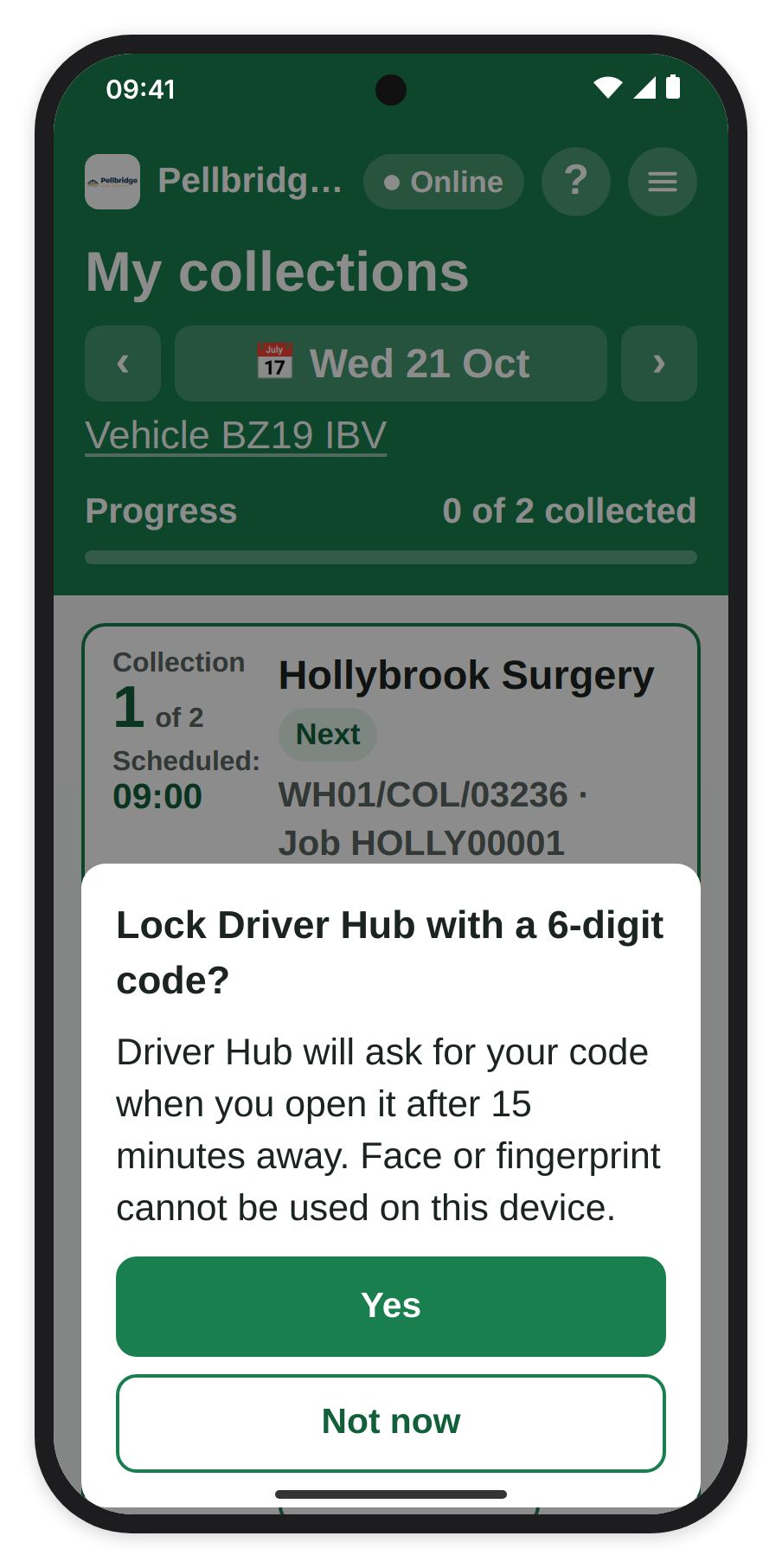
The first sign-in offers a lock. This phone cannot check a face or fingerprint, so it offers a 6-digit code.
Unlocking
When Driver Hub is locked it shows your company and your name, and an Unlock button. Tap it and let the phone check your face or fingerprint, and Driver Hub opens exactly where you left it. If the check fails three times in a row, Use your 6-digit code instead appears: tap it and type your code under "Enter your 6-digit code". With the code only, Driver Hub asks for the code straight away. Anything waiting to send keeps sending while the app is locked.
IMPORTANT NOTE: a wrong code tells you how many tries are left, for example "Wrong code. 4 tries left.", and before the last one Driver Hub warns you: "Wrong code. 1 try left: one more wrong code signs this phone out and deletes everything on it, including anything not yet sent." After 5 wrong codes in a row the phone is signed out, and the sign-in screen says "Driver Hub signed this phone out after 5 wrong codes and deleted everything saved on it. Ask your office for a new sign-in link or code." Your office cannot see or change your code, so if you forget it, a new sign-in code from the office is the only way back in.
Changing or turning off the lock
Open the menu, tap Settings and go to Lock. Under When to lock, choose Lock after 15 minutes, which it starts on ("When Driver Hub has been closed, in the background or on a locked phone for 15 minutes."), or Only when I sign in ("Once a day, the first time you open Driver Hub."). Your choice is kept as soon as you tap it. Unlock with says how you unlock, and the buttons under it let you Set Up Face or Fingerprint (when your phone can check one and it is not set up yet), Change Code or Turn Off Lock. With the lock off, Turn On Lock sets it up again. As the screen says, "Your code never leaves this phone. Your office cannot see or change any of this."
About
To see exactly which version of Driver Hub your phone is running, open the menu and tap About, between Settings and Sign Out. It shows "Recycly® Driver Hub", "Companion to RecyclyERP", with RecyclyERP linking to its website, and the version with the day it was made, for example "Version: 1.0.64 / 21 October 2026". Under that are Signed in as, Email ("None on record" when the office has no email for you), This phone, RecyclyERP and Driver Hub address (the addresses the app connects to), Last in touch with RecyclyERP, for example "Today at 08:19", and Last without signal, for example "Today, 07:02 to 07:40", or "Not since you signed in". It all shows with no signal. If the office asks which version you have, this is where to look. Tap Back to go back.
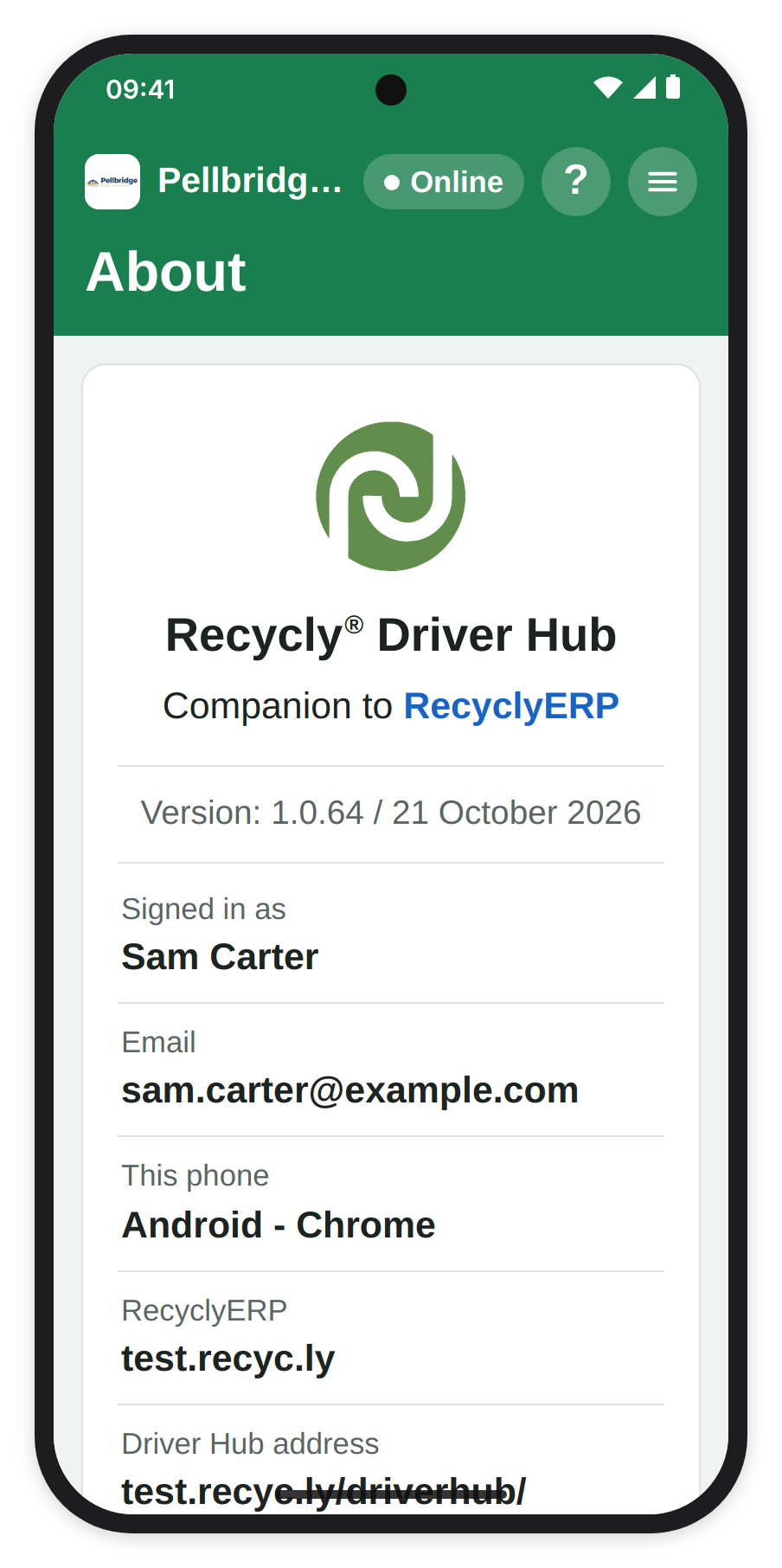
About, from the menu.
12. Getting help
Every Driver Hub screen has a ? at the top right. Tap it and the guide for that screen opens inside the app, on top of the screen you were on: tap Back to return to exactly where you were. Driver Hub keeps a copy of its guides on your phone, so help works with no signal too, and then shows "Saved on this phone - updated" with the date the copy was updated, for example "Saved on this phone - updated 12/10/2026". Only before the first copy has downloaded does it say "Help needs signal the first time": "This guide downloads the first time Driver Hub has signal, then stays on this phone for when you have none. Try again when you are back online." With signal, Open in browser at the end of the guide opens it in your phone's browser, "To print or share this guide."
Read more: Doing a collection, including no signal (opens in a new tab).