A schedule sends a report by itself, every day, week, month or quarter, so the reports your customers expect go out without anybody having to remember. Unless you choose otherwise, nothing is emailed until you have approved it.
1. What a schedule does
Under Reports > Schedules, press New, choose the Report, and under When set How Often: "Every day", "Every week", "Every month" or "Every quarter", at the Time you choose. Each run starts within 15 minutes of that time, in your business's time zone. A schedule sends the report exactly as it is saved, its columns, filters and Period included, and has no filters of its own. To send a different version, duplicate the report and schedule the copy.
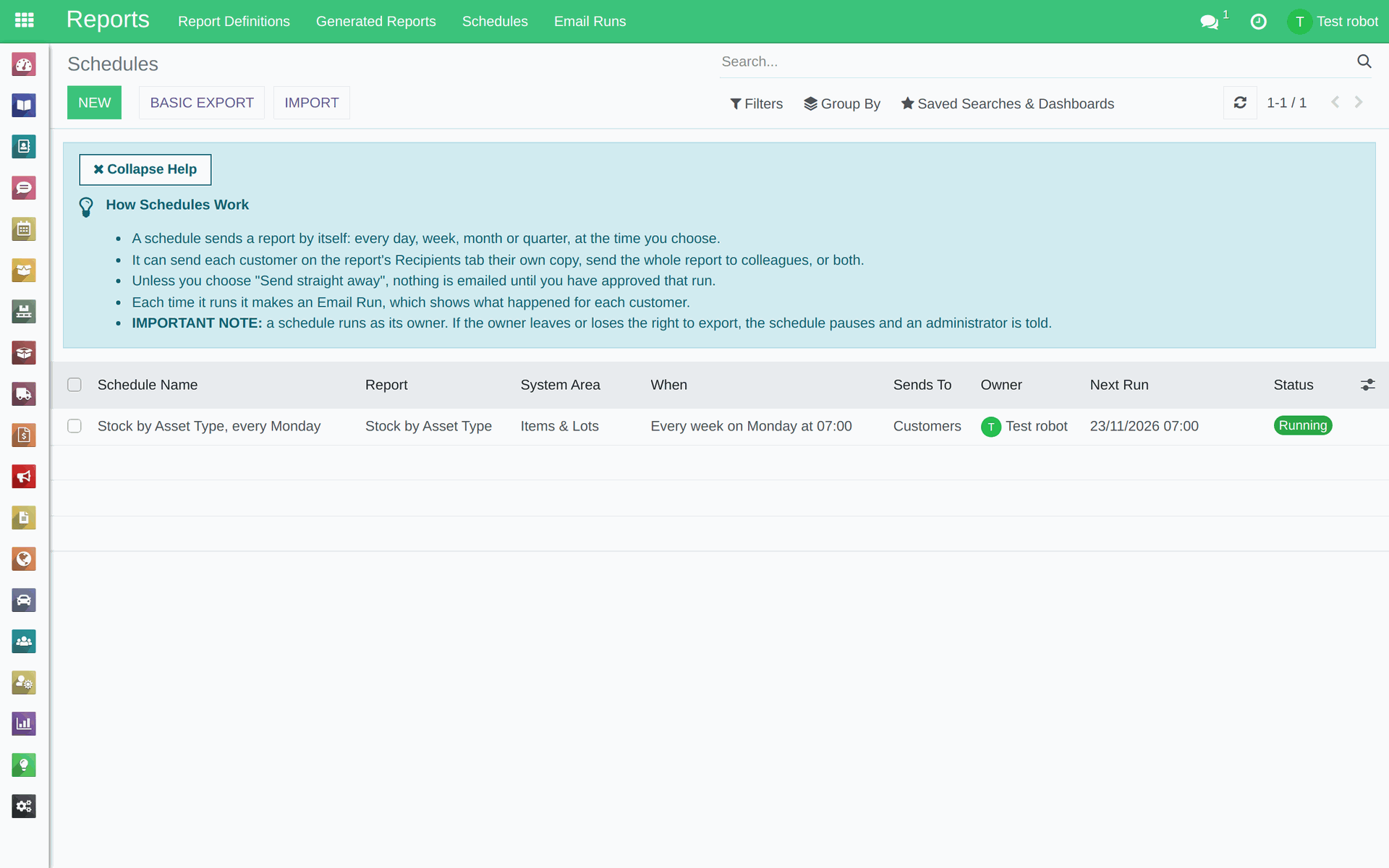
Reports > Schedules, with its help panel.
2. Who gets it
The people a schedule sends to are chosen on the report's Recipients tab, not on the schedule. Under What and Who, tick Send Each Customer Their Own Copy to send each customer on that tab only their own rows, Send the Full Report to Staff to send colleagues every customer's rows together, or both. Those colleagues are picked one by one under Staff Who Get the Full Report, on the same tab.
3. Setting one up, and approving it first
Under Before Sending, choose Wait for my approval, which is where every new schedule starts, or Send straight away. With "Wait for my approval" the files are made and you are told, and nothing is emailed until you press Approve and Send. With "Send straight away" the emails go to customers with nobody checking them first, so leave a schedule waiting for approval until you have seen a few runs and trust what they send.
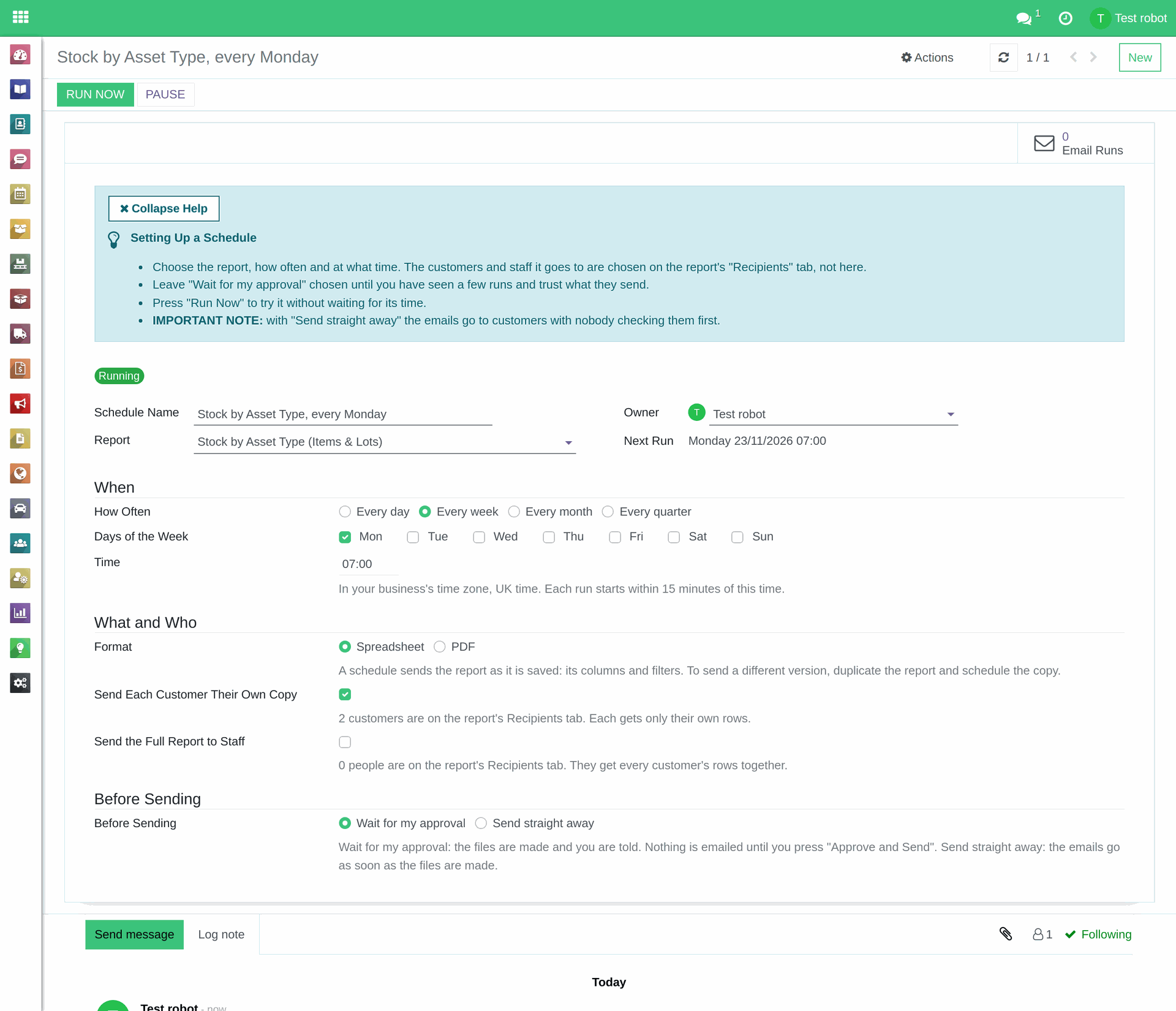
A schedule: when it runs, what it sends and to whom, and whether it waits for approval.
4. Approving a run
When a run is waiting, you get a To Do activity, "Approve report emails:" and the schedule's name, and the Email Run reads Waiting for Approval. Open it, open any customer's file to check it, untick anybody you do not want to email this time, then press Approve and Send, or Discard to send nothing. A run that nobody approves within 14 days is discarded by itself, and its files are removed.
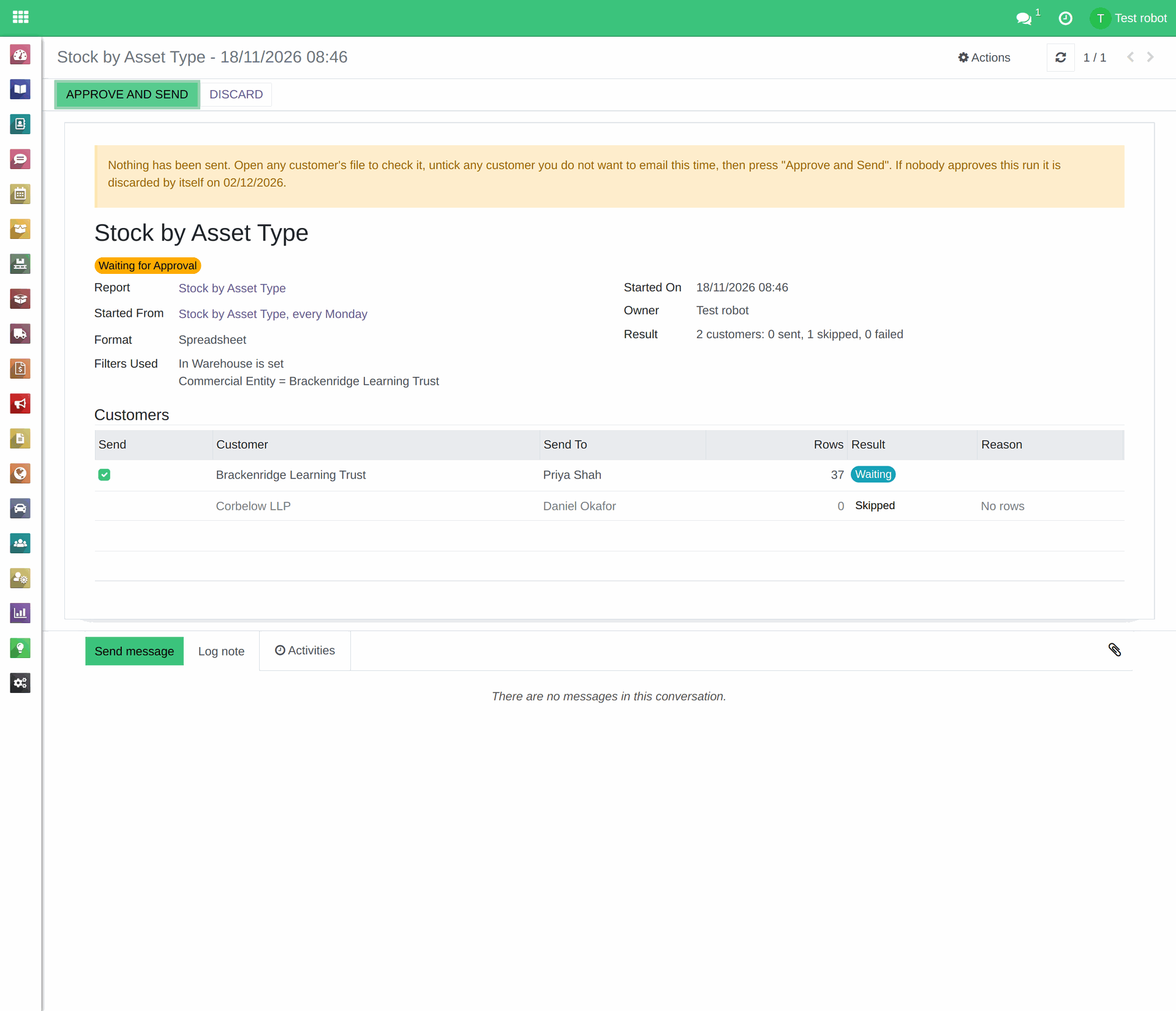
An Email Run waiting for approval.
5. Run Now, pausing and resuming
Press Run Now on a schedule to try it without waiting for its time; with "Wait for my approval" you are still asked to approve before anything is sent. Pause stops a schedule starting new runs, and Resume starts it again. Its Status reads "Running", "Paused" or "Paused by the System".
6. A schedule runs as its owner
A schedule runs with its Owner's rights, and the owner approves its runs; only an administrator can change the Owner. If the owner is no longer an active user, or loses the "Access to export feature" right, the schedule pauses itself, reads "Paused by the System" and shows the reason. The owner and every administrator are told, in a notification headed "Schedule paused:" and the schedule's name. Put the cause right, or change the Owner, then press Resume.
Read more:
- Reports: how they work, and building your own (opens in a new tab)
- Reports: generating a spreadsheet or PDF (opens in a new tab)
- Reports: emailing a report to one customer or many (opens in a new tab)
- Reports: sharing reports on the Customer Portal (opens in a new tab)
- Reports: sending trade buyers a list of your stock (opens in a new tab)