A delivery is what actually takes goods out of your warehouse. Confirming a sales order creates one for you, and until that delivery is confirmed nothing has moved: the order on its own never changes a stock level, however far through it you are and whether or not it has been invoiced and paid. Two buttons on it matter, Reserve Stock and Confirm Dispatch, and this article covers what each of them does.
One thing before anything else, because it is the mistake that costs the most: never move stock by hand into a customer location to mark an order as sent. Confirm Dispatch makes that move itself, and doing it by hand breaks the order permanently. Section 4 explains exactly what it breaks.
This article sits in the middle of a set. Outbound Sales: Creating the Order (opens in a new tab) comes before it, and afterwards there are Part-shipping Orders (opens in a new tab), Sales Orders and Deliveries: how they work together, and changing quantities (opens in a new tab) and Returns (RMAs): Setting up and raising a return (opens in a new tab).
1. Finding your deliveries
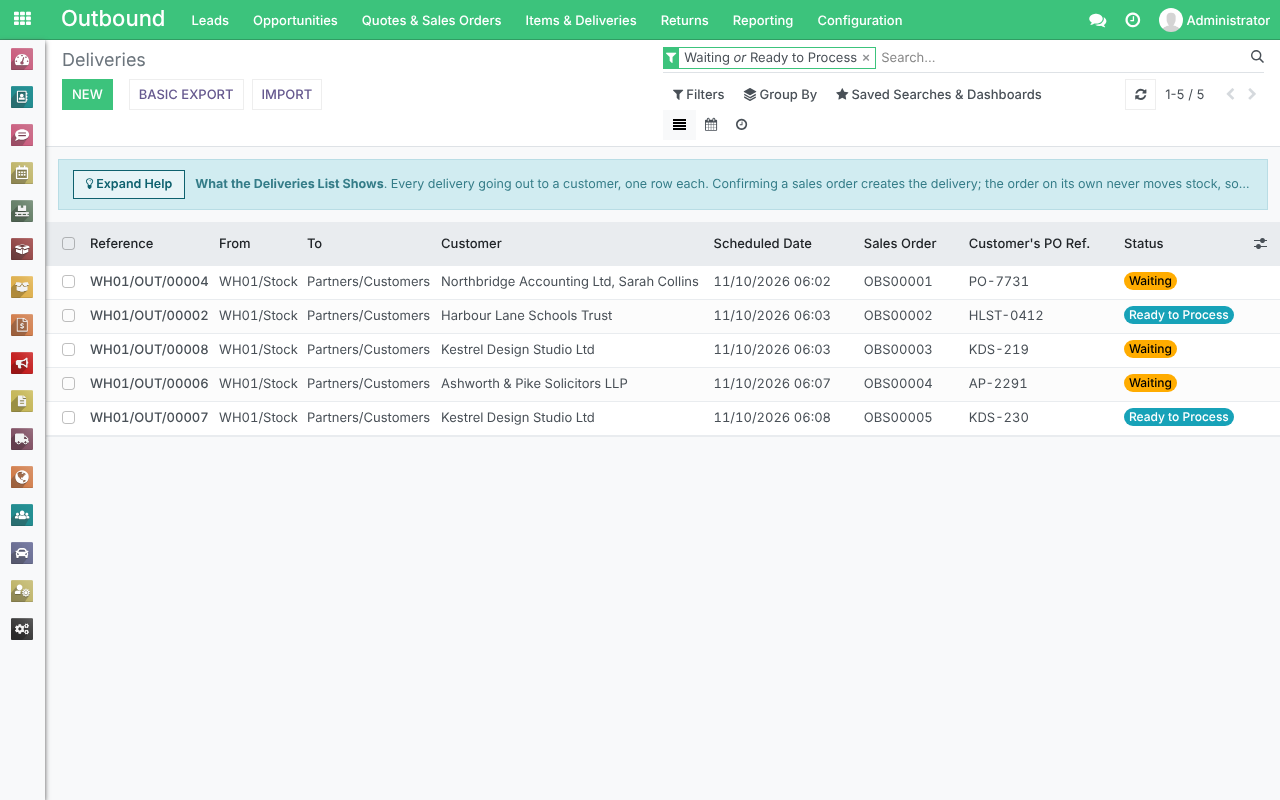
Deliveries live at Outbound > Items & Deliveries > Deliveries, between Items & Lots and Items to Deliver. Each one gets its own reference automatically, made up of your warehouse code, OUT, and a five digit number - WH01/OUT/00274. That reference is what to quote internally, and it is what appears on the delivery paperwork.
You can also reach a delivery from the order it came from. Open the sales order and use the Delivery button at the top right, which counts how many deliveries that order has. An order that has been part-shipped has more than one.
A delivery is in one of four states, shown as its status:
- Waiting - nothing on the delivery is reserved yet. Either the stock is not in the warehouse, or another order has already reserved it.
- Ready to Process - at least some of it is reserved and can be sent.
- Processed - the goods have been dispatched. Stock levels have come down, the order shows what was delivered, and a return can now be raised against it.
- Cancelled - the delivery was called off. Nothing moved and nothing is reserved.
If your system is set to US English, these read "Ready" and "Done".
A delivery moves to Ready to Process as soon as anything is reserved, so check the Items Summary tab before you dispatch. If the order's Shipping Policy, on its Warehouse, Shipping & Delivery tab, is When all products are ready, the delivery stays at Waiting until everything is reserved.
The list opens filtered, and this catches people out. It arrives showing only deliveries at Waiting and Ready to Process, because those are the ones somebody still has to do something about. Completed deliveries are not missing, they are filtered out: clear the Waiting or Ready to Process filter in the search box at the top and everything appears.
2. Reserving the stock
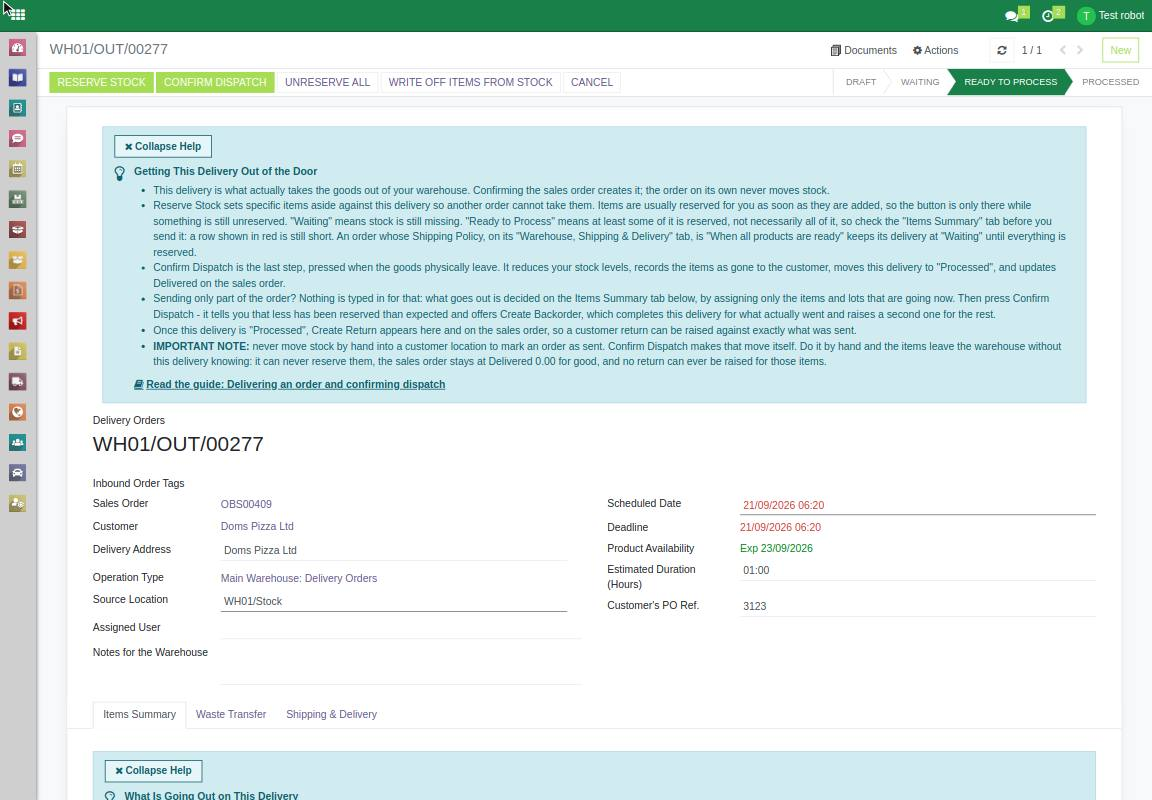
Reserve Stock sets specific items in your warehouse aside against this delivery, so that another order cannot take them while you are getting them ready to go. Its own tooltip says it plainly: "Reserves specific in-stock items against this delivery so another order cannot take them. Items are usually reserved automatically when added."
Lines naming a specific item or lot are reserved when the order is confirmed. Asset Type and SKU lines are not: reserve them on the delivery with Reserve Stock, or with View / Assign on the Items Summary tab. The button only appears while something on the delivery is still unreserved. Not being able to see it is not a fault and it is not something to go hunting for: it means there is nothing left to reserve.
Reserving moves no stock. Nothing leaves the building and no stock level changes. All that changes is what the items are earmarked for, which is why a delivery can sit at Ready to Process for days with the goods still on the shelf.
Where there is not enough to go round, pressing it does what it can and then tells you what it could not do, in a message headed Some Items Could Not Be Reserved naming the items concerned. If nothing at all could be reserved the delivery stays at Waiting; if some of it could, it moves to Ready to Process with the rest still to reserve. Either way you can press Reserve Stock again later once the missing stock has been booked in.
You may well have arrived here from the sales order, which shows a yellow warning whenever something on it is unreserved: "Some stock on this order is not reserved. Unreserved items and lots can still be sold on other orders. Open the Delivery to reserve the remaining stock once it is available." That warning is telling you to come to this screen and press this button.
3. Confirming the dispatch
Confirm Dispatch is the last step, and you press it when the goods physically leave. Its tooltip says what it does: "Confirms the goods have physically left: stock levels reduce and the delivery is completed."
Pressing it does four things, and the last two are the ones nobody guesses:
- Your stock levels reduce, and the items are recorded as having gone to the customer.
- The delivery moves to Processed.
- The Delivered figure on the sales order is updated, which is what invoicing and reporting read.
- Create Return becomes available, on this delivery and on the sales order, so a customer return can be raised against what was sent.
This is the only supported way to send goods out. There is no second route and no manual alternative, which matters because of what section 4 describes.
Sending only part of the order? Nothing is typed in for that: you choose what goes by what is reserved. On the Items Summary tab, click View / Assign on the row, take off the items that are not going now with the bin icon beside each one, and click Confirm. Then press Confirm Dispatch. If it asks Dispatch Reserved Items?, click Dispatch Reserved Quantities. When it then asks Create Backorder?, click Create Backorder: this delivery completes for what actually went, and a second delivery is raised automatically for the rest. Part-shipping Orders (opens in a new tab) walks through it with screens.
4. Never move stock by hand into a customer location
IMPORTANT NOTE: never move stock by hand into a customer location - anything under Partners/Customers - in order to mark an order as sent. This is the single most damaging thing you can do to an outbound order, and it cannot be undone from the screen afterwards.
The wrong method looks reasonable, which is the whole problem with it. It goes: confirm the invoice, then go into your stock and move the sold items by hand into a customer location. The order has been invoiced, the stock has left the warehouse, and on the face of it everything is where it should be.
It is not. The delivery knew nothing about that move, and four things follow from it:
- The items have left the warehouse without the delivery knowing, so the delivery can never reserve them. It sits at Waiting for good, waiting to reserve stock that is no longer there.
- The sales order stays at Delivered 0.00 however many items actually went out, because only Confirm Dispatch updates that figure.
- No return can ever be raised for those items. Create Return only appears on a delivery that reached Processed, so an order that was never dispatched here can never be returned against, whatever the customer sends back.
- Your stock, invoicing and reporting figures stop agreeing with one another, and every report built on them is wrong from that point on.
There is nothing else you need to do. Confirm Dispatch performs that stock move for you, out of your warehouse and across to the customer, as part of completing the delivery. No manual stock move is ever needed on an outbound order, and if somebody has told you otherwise they were describing a different system.
5. Returns come from a completed delivery
Once a delivery is Processed, a Create Return button appears on it, and another on the sales order. Either one opens a new return with the customer already filled in, and the items it offers are the ones that were actually dispatched, so nothing can be returned that the customer never received.
That is the practical reason section 4 matters so much. The return is built from the dispatch record, so where there is no dispatch record there is nothing to build it from. Returns (RMAs): Setting up and raising a return (opens in a new tab) covers what happens next.
Common problems
- The order says Delivered 0.00 even though the goods have gone. The delivery was never confirmed, so nothing told the order anything had shipped. Check whether the stock was moved by hand into a customer location, and read section 4. An order already in this state cannot be put right from the screen - contact support rather than trying to correct it with further manual stock moves, which make it harder to unpick.
- The delivery is stuck at Waiting and Reserve Stock does nothing. The items it is waiting for are not available to reserve: either they are no longer in the warehouse, or another order has reserved them first. Check the stock is actually there, and check no earlier order has claimed it.
- There is no Create Return button. A return can only be raised against a completed delivery, so this one has not been confirmed yet. Confirm the dispatch first and the button appears.
- I cannot see my completed deliveries. The list opens filtered to Waiting and Ready to Process. Clear that filter in the search box and the completed ones appear.
- Which article should I be reading? For changing quantities after the order is confirmed, see Sales Orders and Deliveries: how they work together, and changing quantities (opens in a new tab). For sending an order in more than one shipment, see Part-shipping Orders (opens in a new tab).