Sometimes only part of an order can go out today. RecyclyERP lets you send what is ready now and raises a second delivery, called a backorder, for the rest, against the same sales order. In the example below the order is for 8 laptops and only 4 are going now.
The statuses below are as a UK English system shows them. If your system is set to US English, they read "Ready" and "Done" rather than "Ready to Process" and "Processed".
1. Choose what goes now
Open the delivery, from the Delivery button at the top right of the sales order or from Outbound > Items & Deliveries > Deliveries, and go to its Items Summary tab. Here the row expects 8 laptops and all 8 are reserved.
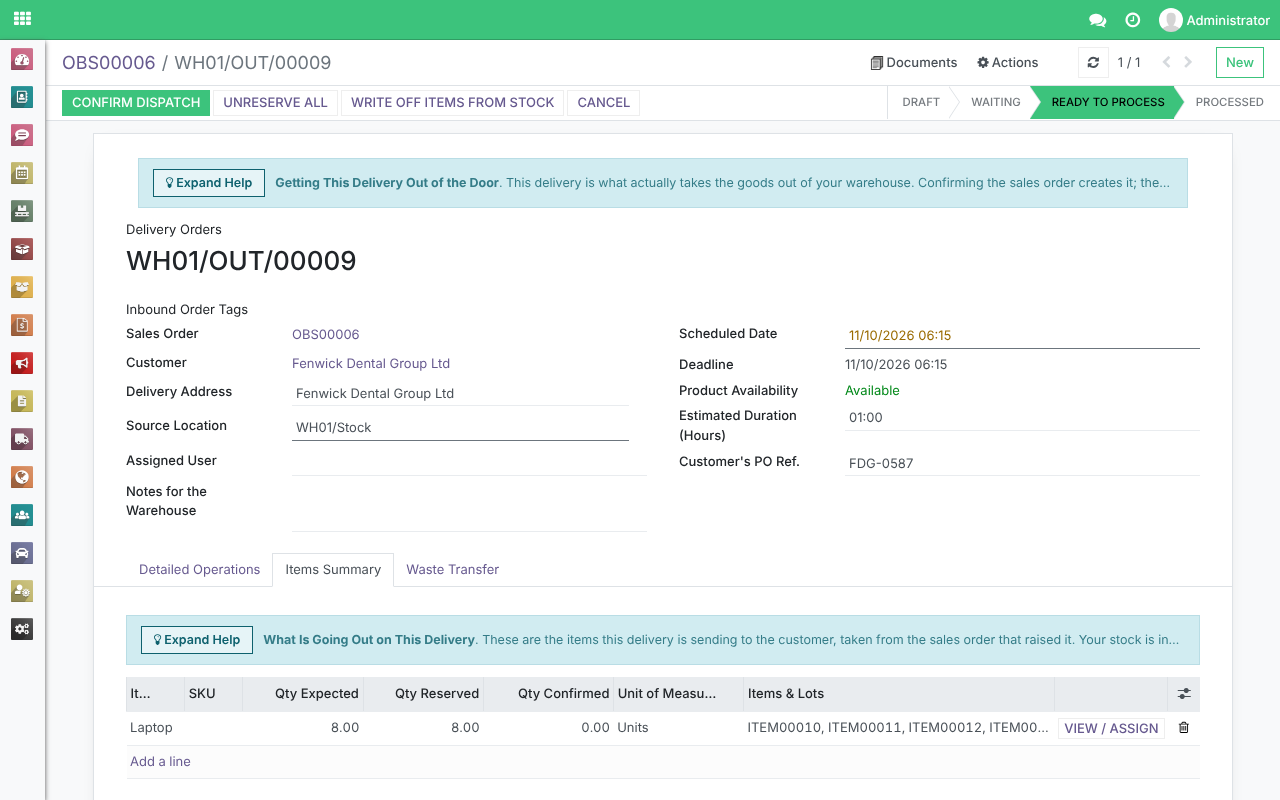
Click View / Assign on the row. The window lists every item reserved for it under Items / Lots already reserved. Take off the items that are not going now with the bin icon at the end of each line - here four of them - and click Confirm. Taking an item off only releases it: it stays in your warehouse and can be reserved again later. Nothing is typed into a quantity, because what goes out is decided by what is reserved.
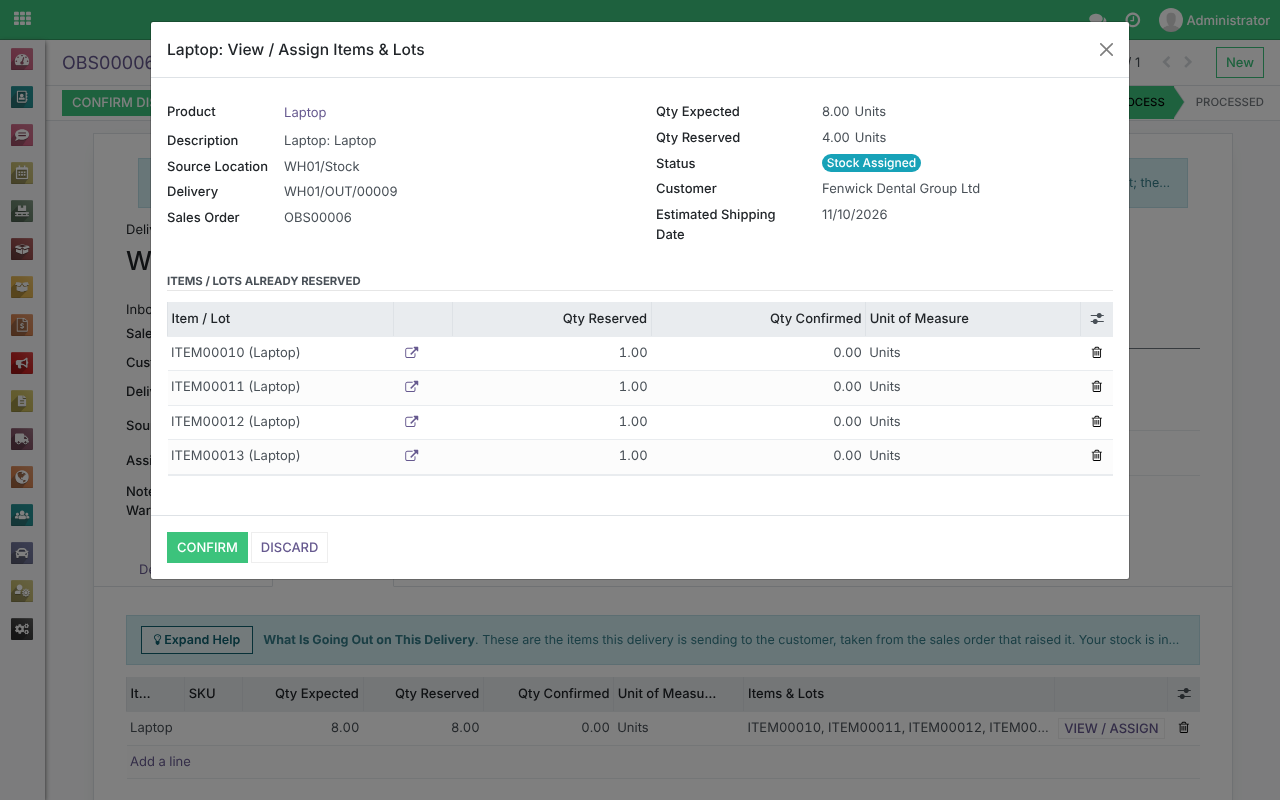
If nothing is reserved on the row yet, the same window shows Item(s) / Lot(s) to reserve instead: pick the items going now and click Reserve Items / Lots.
Back on the delivery, the row now shows 8 expected and 4 reserved, in red because it is short of what the order asked for.
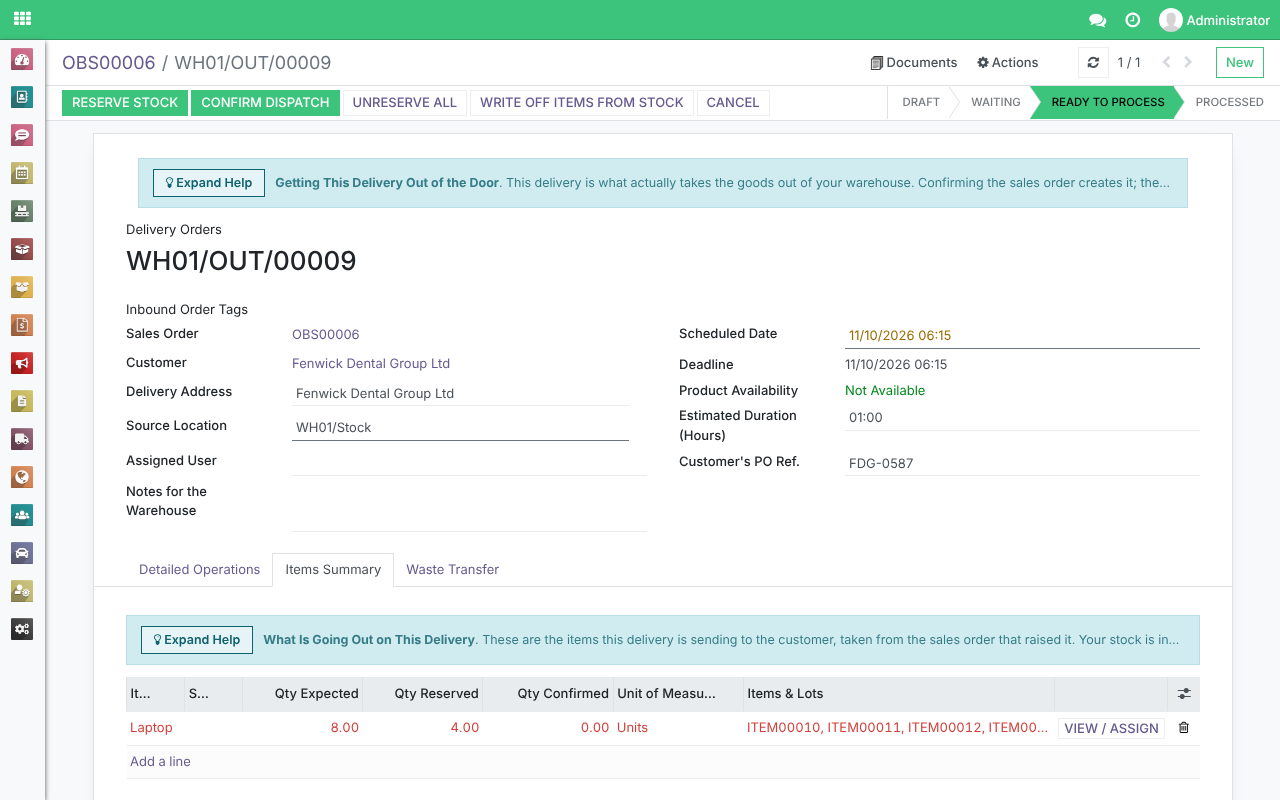
2. Confirm Dispatch
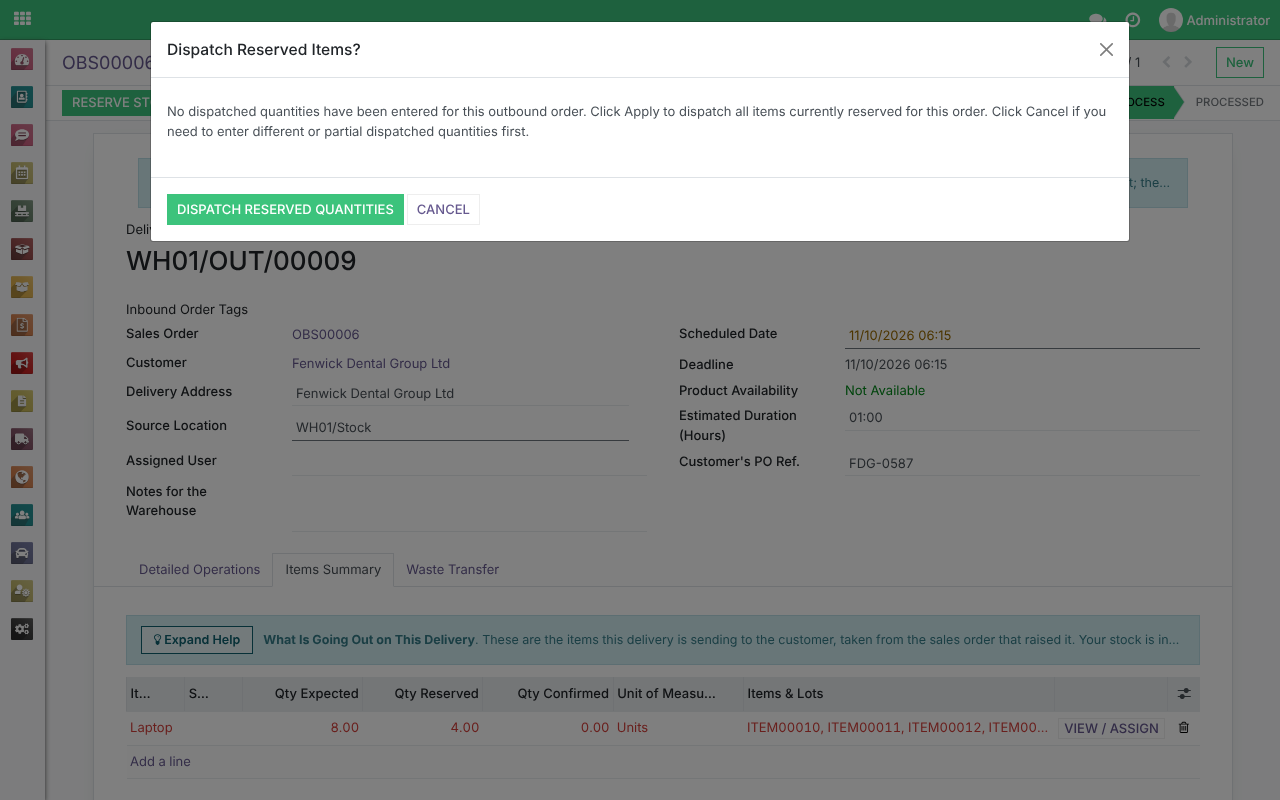
Press Confirm Dispatch. If the row has items reserved but not yet confirmed, it first asks Dispatch Reserved Items?: click Dispatch Reserved Quantities to send exactly what is reserved.
Because less is going than the order expects, it then asks Create Backorder?, explaining "You have reserved less stock than expected for this delivery / stock move".
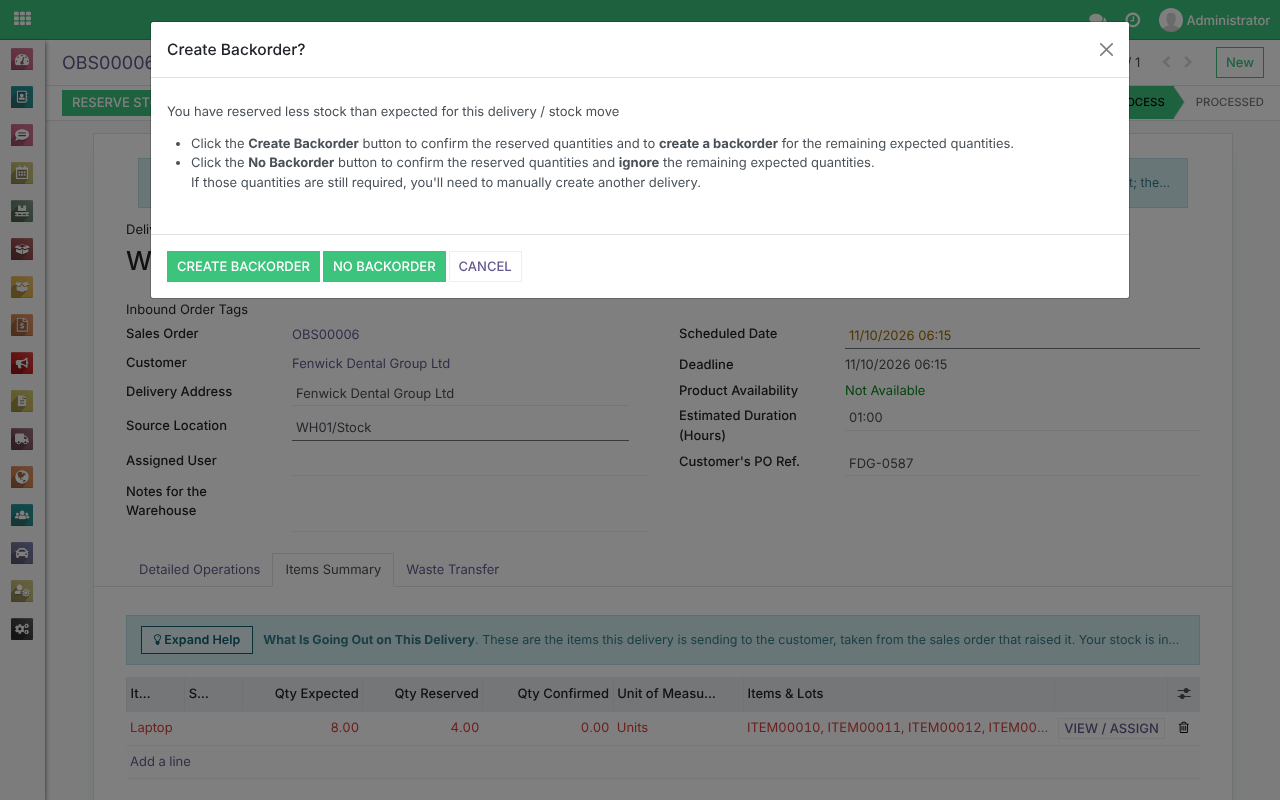
- Create Backorder completes this delivery for what went and raises a second delivery for the rest. Choose this when the rest is still to follow.
- No Backorder completes this delivery and drops the rest. Nothing more is sent for those items unless you raise another delivery by hand.
- Cancel goes back to the delivery without dispatching anything.
3. What you end up with
After Create Backorder, this delivery moves to Processed for the 4 laptops that went, and Create Return appears on it.
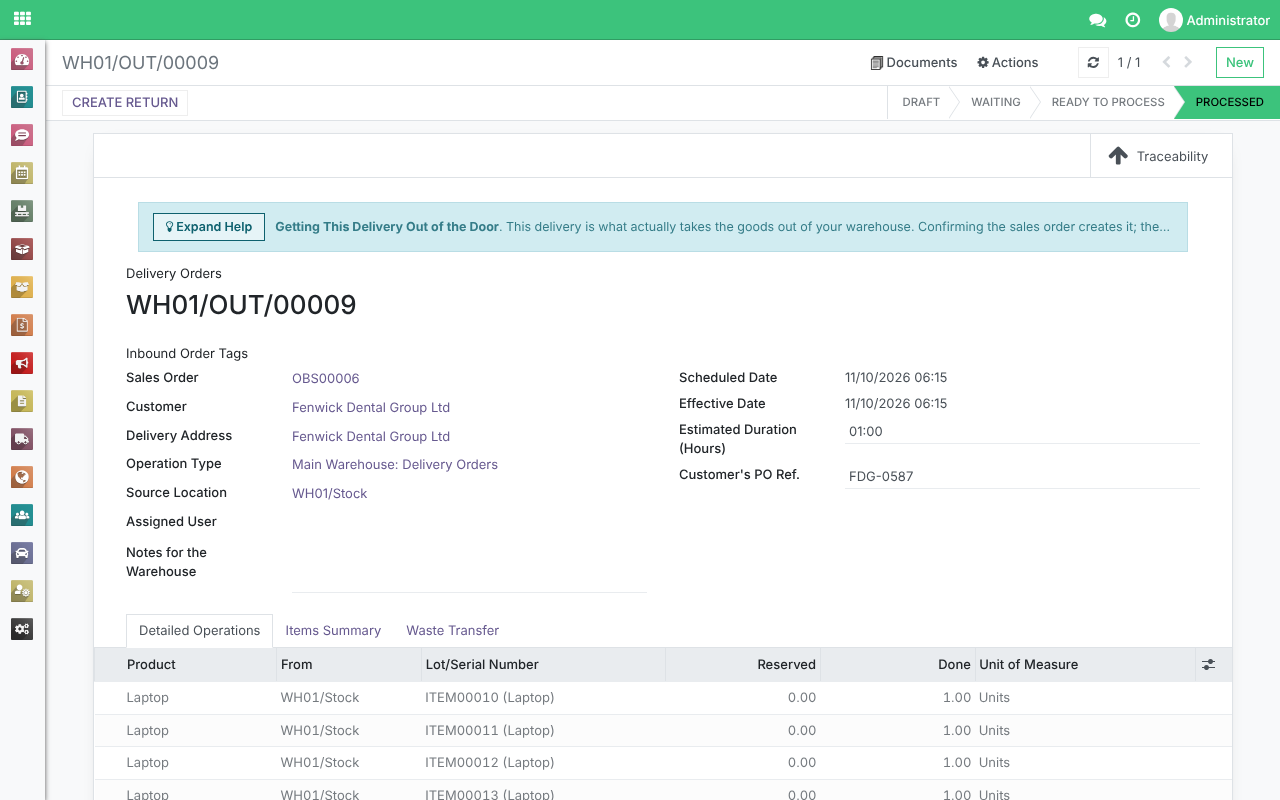
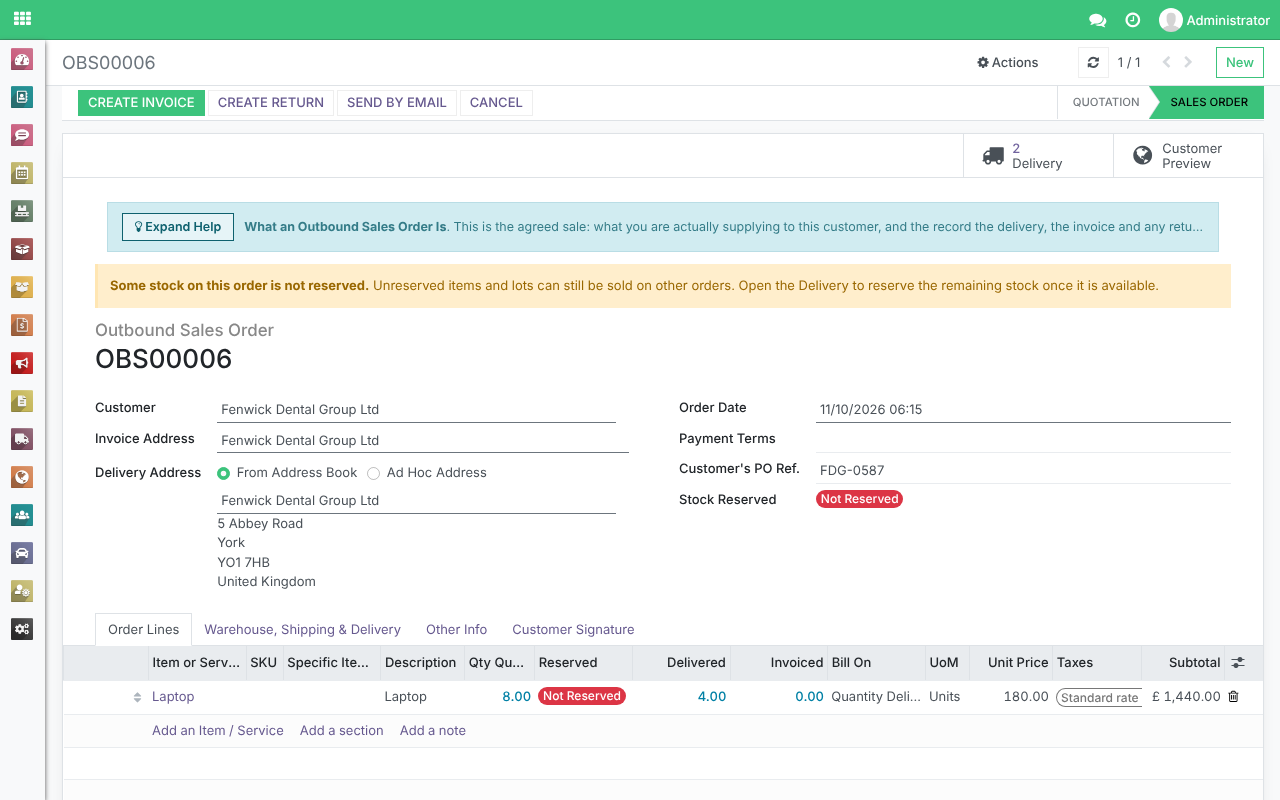
The backorder has also been created. Return to the sales order: the Delivery button at the top right of the sales order now counts one more delivery, and the order line's Delivered column shows 4.00.
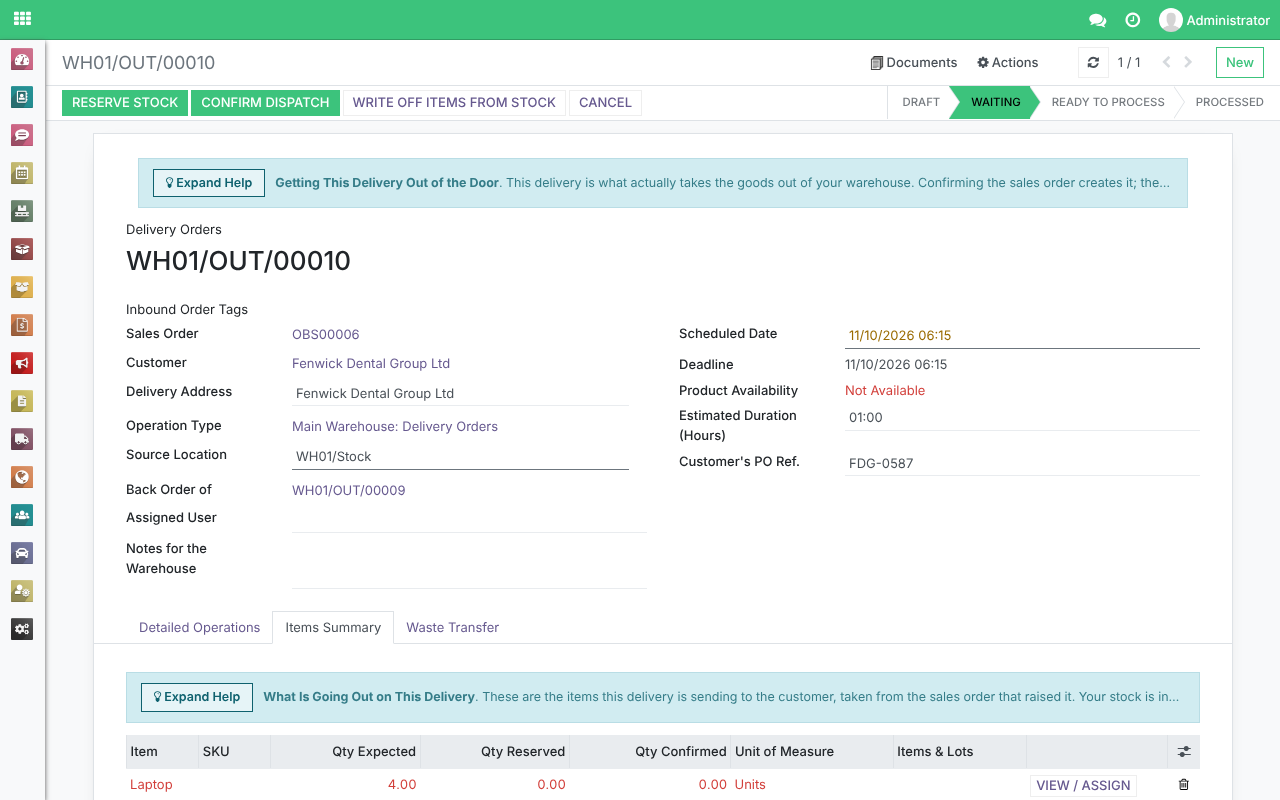
The backorder will be in the Waiting state for the remaining quantity to be shipped. Its items are not reserved automatically: when they are ready to go, open it and press Reserve Stock, or pick them with View / Assign, then dispatch it the same way. Its Back Order of field names the delivery it came from.
For what each button on a delivery does, see Outbound Sales: Delivering the order and confirming dispatch (opens in a new tab).