This guide is for your own staff, not for your customers. It explains what the Customer Portal looks like when you open it from your back-end account, why several things on it are deliberately switched off for you, and how to see the portal exactly as one of your customers sees it.
The two panels at the top of the page
Open the Customer Portal while signed in as a member of staff and two panels appear above the page. A customer never sees either of them, whatever permissions they hold.
The first is the amber Staff view panel. It says you are signed in as staff rather than as a portal user, and it lists the things that most often surprise people. On a Job or a Collection / Drop-off it also carries a This page: line naming the customer that record belongs to.
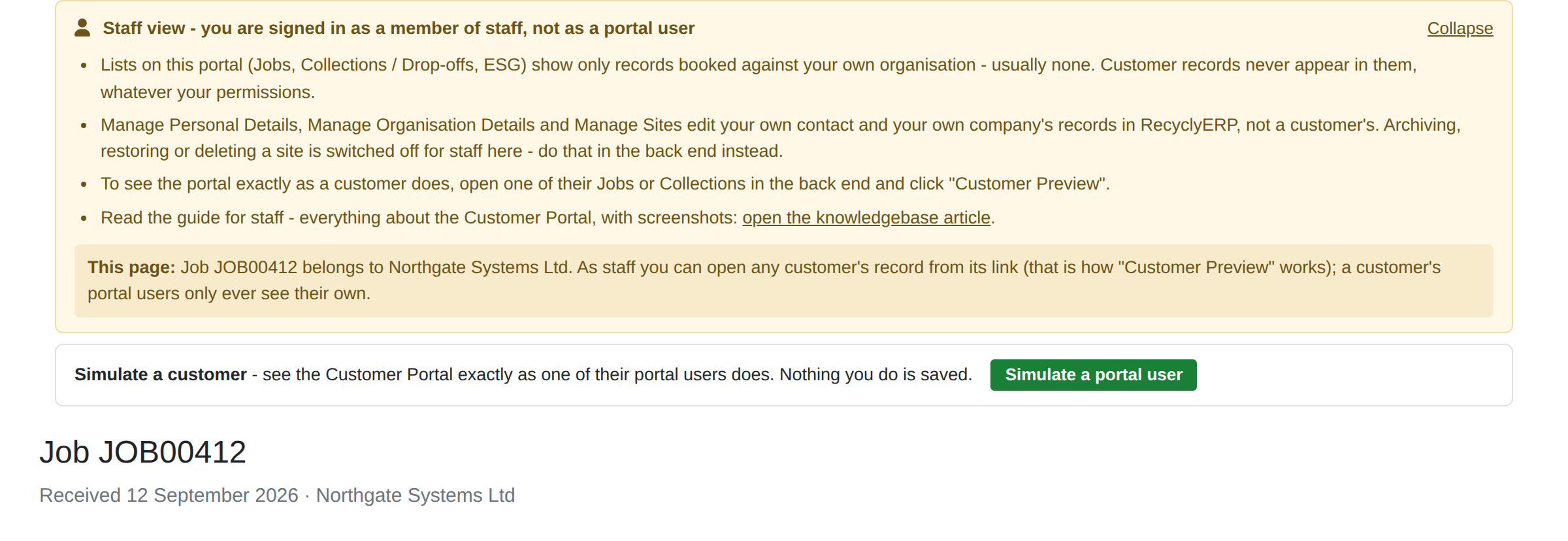
The amber Staff view panel, with the white Simulate panel directly beneath it. Only staff see these two.
The second is the white Simulate a customer panel underneath it. That panel has no Collapse control and cannot be hidden or dismissed, so the way into a simulation is always on the page.
The Staff view panel above it can be collapsed, using the Collapse link on its right. Your choice is remembered for you across browsers and devices, so once collapsed it stays collapsed until you press Expand. Collapsing it does not take the Simulate panel with it.

The Staff view panel collapsed to a single line. The Simulate panel below it is still there in full.
1. Why the portal looks different when you are staff
The Customer Portal shows a signed-in person their own organisation's records. That is the whole rule, and it is the same rule for everybody.
A customer's portal user belongs to that customer, so the portal shows them that customer's jobs, collections and reports. You belong to your own company, so the portal shows you your own company's records instead. It is not showing you less than a customer sees. It is showing you the same thing, pointed at a different organisation.
This is why nothing on the portal is a way of looking at a customer's account. To do that you use Customer Preview or a simulation, both covered below.
2. What the Jobs, Collections / Drop-offs and ESG lists show you
Those three lists show only records booked against your own organisation, which for most staff means nothing at all. ESG stands for Environmental, Social and Governance, and that list reports on the environmental impact of an organisation's own recycling.
An empty list here is normal and is not a fault. Customer records never appear in these lists, whatever permissions you hold in the back end.
Every customer's jobs and collections are in the back end, where you already work with them.
3. What Manage Personal Details, Manage Organisation Details and Manage Sites really edit
All three edit your own records, never a customer's:
- Manage Personal Details edits your own contact record.
- Manage Organisation Details edits your own company's record.
- Manage Sites lists your own company's sites.
This is worth reading twice, because the screens give no hint that they belong to you rather than to whoever you were last looking at. Saving on one of them changes your own company's data in RecyclyERP.
4. The buttons that do nothing for you, and where to do those things instead
Some buttons on the portal stay visible and clickable for staff, on purpose, because part of the reason you are here is to see what a customer is offered. Clicking one puts up a short explanation of what it would have done, and changes nothing.
Archive Site, Unarchive Site and Delete Site are switched off. For a portal user these act on that customer's own sites, but the page is pointed at your organisation, so the same click would act on one of yours. With the right permissions you can archive, restore or delete a site in the back end, under Contacts, on your own company's record.
Book Collection is switched off for the same reason. For a portal user it raises a Job for their organisation from the details on the form; done by you it would raise one against your own contact record. To book for a customer, create the Job in the back end under Inbound > Jobs, or simulate one of their portal users to see the form exactly as they do.
In every case nothing is created, changed or deleted. The refusal is enforced on the server as well, so these are not buttons that only look switched off.
5. Customer Preview: one record, as the customer sees it
Open a Job or a Collection / Drop-off in the back end and you will find a Customer Preview button in the row of buttons at the top of the form. It opens that one record's portal page exactly as that customer sees it, so you can check what you are about to show them.
Customer Preview and simulating answer two different questions, so it is worth being clear which one you want:
- Customer Preview shows you one record as the customer sees it. You stay signed in as yourself the whole time. Use it to check a single job, report or appointment before you send a customer to it.
- Simulating signs you into the customer's portal account and shows you their whole portal: every screen, every menu and every list, exactly as they get it. Use it when the question is about what they can and cannot reach, rather than about one record.
If somebody rings up saying "I cannot see my certificate", Customer Preview tells you whether the certificate is on the page. Simulating tells you whether that person can get to the page at all.
6. Simulating one of a customer's portal users
Who may. An administrator, or anybody holding the Can Impersonate All Users permission. If you are neither, the Simulate panel still appears and tells you so, and there is no button on it. A customer's own portal user can never simulate anybody.
Starting from the portal. Click Simulate a portal user on the Simulate panel. A list of portal users opens, which you can search by name, email address or customer. Pick a row and click Simulate.
Only genuine portal users are listed. Your colleagues and other back-end users are never portal users, so they never appear here.
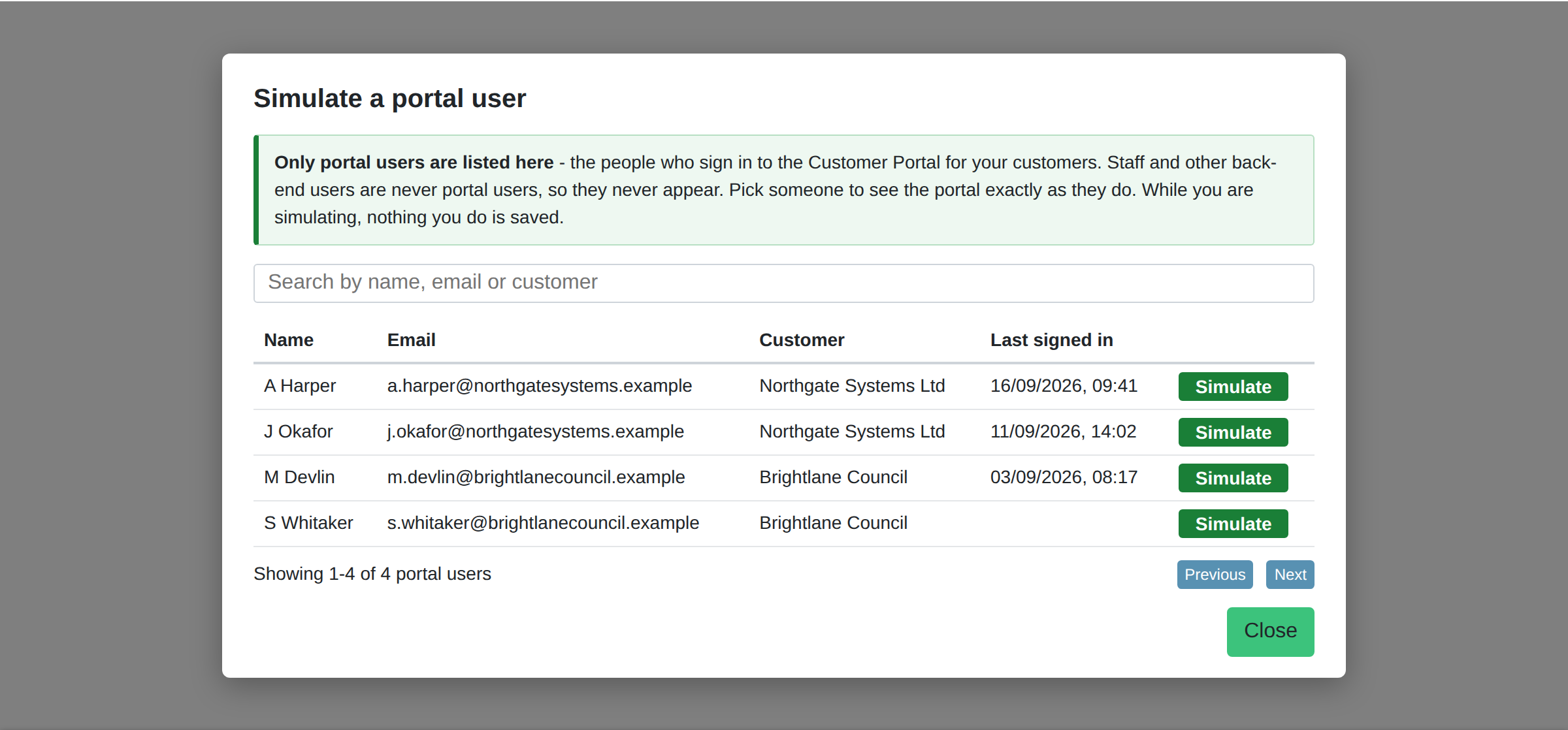
The picker. Search by name, email address or customer, then click Simulate on the person you want.
Starting from the back end. Three buttons do the same thing without you going to the portal first:
- Simulate Customer, next to Customer Preview on a Job.
- Simulate Customer, next to Customer Preview on a Collection / Drop-off.
- Simulate on Portal, on a contact who has a portal sign-in of their own.
Each opens the portal in a new tab. From a contact, or where the customer has exactly one portal user, you go straight in as that person. Where the customer has more than one, the list opens narrowed to that customer, with a line above it saying which record you came from and asking whose view you want. If the customer has no portal users at all, the button says so and opens nothing.
While you are simulating. A red SIMULATING bar sits across the top of every page, naming the person and the customer you are seeing the portal as. It cannot be collapsed or dismissed, because it is your way back. It has its own space at the very top, above the customer's own logo row, so nothing on the page sits behind it.
It is on every front-end page while a simulation is running, not only the page you started on: the whole Customer Portal, the Quotations, Orders and Invoices pages, the booking form, and any of your own website pages the customer can reach.

The red bar while a simulation is running. It has its own space at the very top of the page, above the customer's logo row, rather than floating over it. Stop simulating on the right is how you come back to your own account.
Nothing is saved while you are simulating. Every attempt to create, change, archive or delete anything is refused, from any screen and by any route, and you get a short note saying what would have happened and what to do instead. Reading is untouched: pages, documents and downloads all work normally, which is the point of the feature.
So a simulation is safe to run on a real customer. You cannot change their data while you are in it, even by accident.
Stopping. Click Stop simulating on the red bar. That puts you back into your own account.
A second way out. The same Stop simulating is also in your account menu at the top right of the page, which on a phone is inside the menu button - the three horizontal lines. Open the menu and it is the dark red item directly above Logout. It does exactly what the button on the bar does, and it is recorded in exactly the same way. It is there so that a bar which does not draw for any reason is an annoyance rather than a trap, and it only ever appears while you are actually simulating.
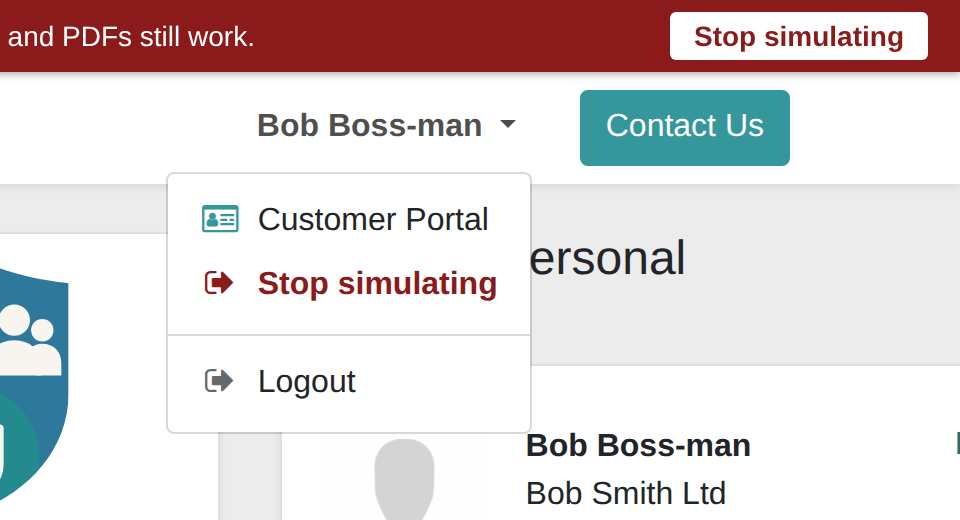
The same Stop simulating in the account menu, directly above Logout. It is only there while a simulation is running.
One simulation runs per browser at a time. Your own RecyclyERP tabs stay as you while it runs, but closing the portal tab does not stop it: only Stop simulating, or signing out, does.
Where each simulation is recorded. Two places, and neither can be edited by anybody:
- A note on the customer's own record in Contacts, saying who simulated which portal user and when they stopped. It is an internal note and it emails nobody.
- A row on the Portal Simulation Log, which administrators reach under Settings. It records who, as whom, for which customer, where the simulation was started from, when it started and when it stopped. A blank Stopped means the person closed the browser without clicking Stop simulating, rather than that anything went wrong.
A simulation started from the Simulate panel on the portal is logged as started from Customer Portal. One started from a back-end button is logged against the Job, the Collection / Drop-off or the contact it was started from.
7. A customer's DIAL rating on Site Access Details and the booking form
While ADISA DIAL Ratings is switched on (Users & Settings > Settings > Inbound), a customer signed in to the portal sees their ADISA DIAL (Data Impact Assurance Level) rating in two places. Simulate one of their portal users to see it as they do:
- Site Access Details: directly below the Site: picker, a line for the organisation or site chosen, for example "DIAL Rating: DIAL 2", "DIAL Rating: DIAL 2 (your organisation's rating)" for a site using its organisation's rating, or "DIAL Rating: Not recorded".
- The booking form: once they choose a site, the top of the Access At Your Site section reads, for example, "DIAL Rating for this collection: DIAL 2". Nothing shows when no rating is recorded, or to a visitor who is not signed in.
The customer sees the level only: never the DIAL Reference, the verification, the Review By date or the certificate, and they cannot change it. Both places depend on Site Access Fields, as before: the Site Access Details page and the Access At Your Site section only appear when at least one Site Access Field is shown on the booking form.
The full guide: ADISA DIAL Ratings: your customers' ratings and your own certification (opens in a new tab).