A purchase order records something you are buying and what you have agreed to pay for it. RecyclyERP has two kinds, and the heading on every order says which one it is: an Asset Purchase Order buys assets, and a General Purchase Order buys anything else.
This article covers the two situations that are not stock bought in to resell: paying a customer for the assets they hand over on a job, sometimes called a buyback, and buying pallets, packaging, spare parts and other supplies. It walks through raising each one, what happens when you confirm it, how the money changes hands, and the two mistakes that are easy to make.
1. Which purchase order do I need?
- Paying a customer for their assets on a job, for example the laptops a school hands over on a collection, is an Asset Purchase Order raised from the job itself. See sections 2 to 4.
- Buying pallets, packaging or anything else for a job is a General Purchase Order raised from the same job. See section 5.
- Buying supplies that are not for any one job is a General Purchase Order raised with New at Inbound > Sales & Purchases > Purchase Orders. See section 5.
- Buying stock to resell from a trade supplier is also an Asset Purchase Order, but one where the purchase order does all the work for you. It has its own guide: Buying in Stock to Resell: the Purchase Order does it all (opens in a new tab).
2. Paying a customer for their assets: raise it from the job
Open the job at Inbound > Inbound Orders > Inbound Orders, go to its Financials tab, and click New Asset Purchase Order under "Asset & General Purchases". Every purchase order raised for the job is listed underneath.
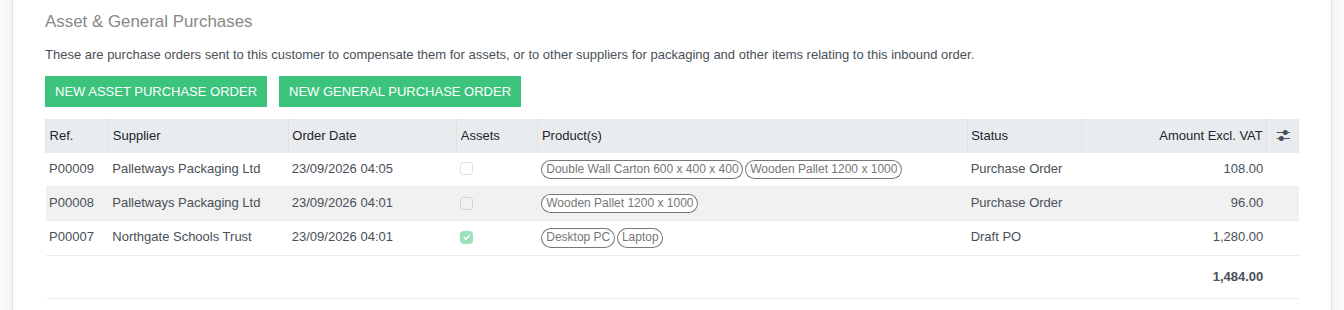
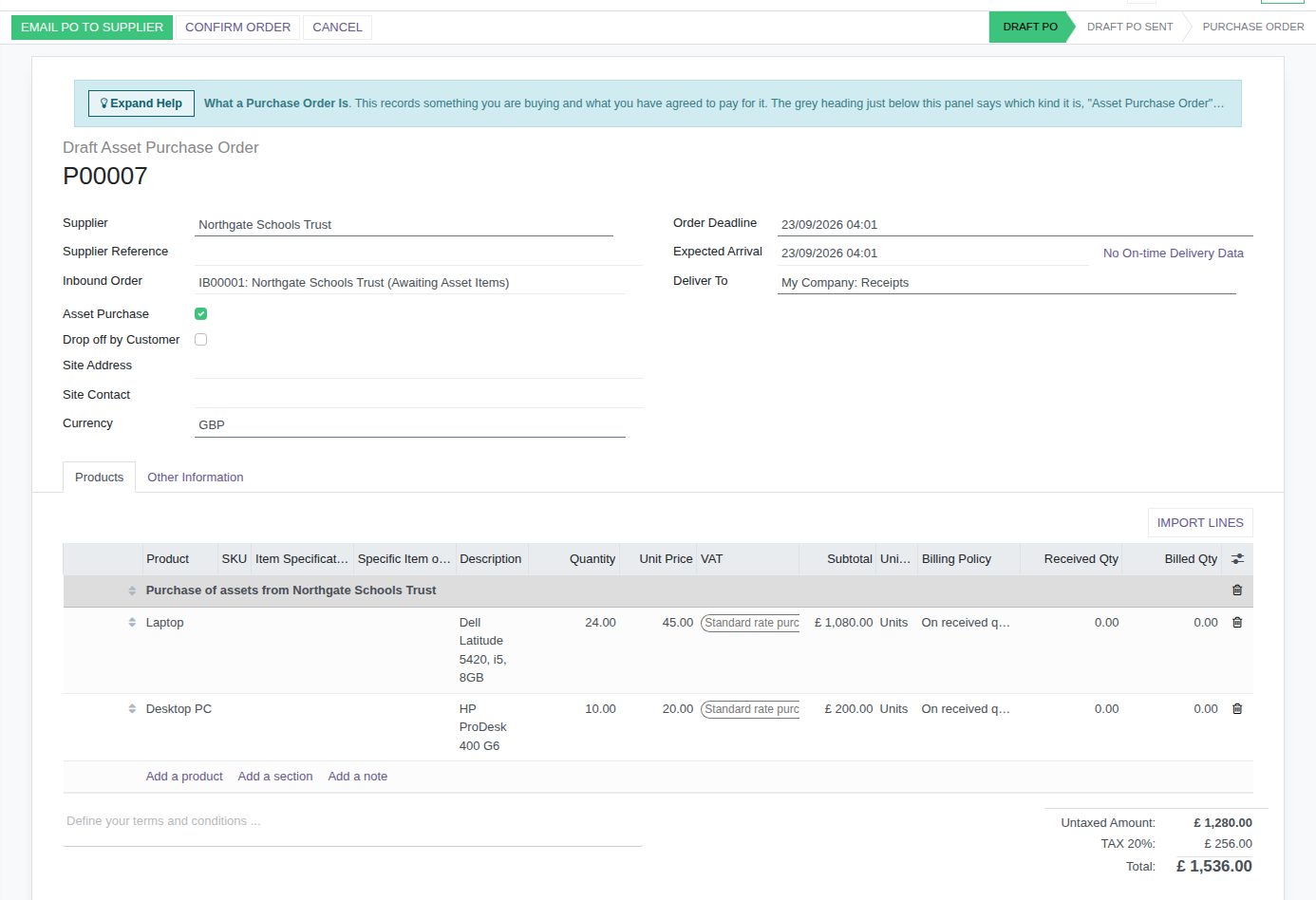
The new order is filled in for you:
- the Supplier is the customer, because they are the one being paid;
- the Inbound Order box names the job;
- Asset Purchase is ticked, so the heading reads "Draft Asset Purchase Order";
- there is one line for each expected item on the job, under a heading such as "Purchase of assets from Northgate Schools Trust".
Each line's Unit Price normally starts at the Asset Type's Cost, or at 0.00 where it has none, so put in what you are actually paying for each one. Everything stays editable until you confirm.
3. Send it and confirm it
- Email PO to Supplier opens an email to the customer with the order attached, ready for you to check and send.
- Confirm Order commits to it. A message tells you the asset lines are left off the receipt; click Confirm Purchase Order to carry on.
- No receipt is created for the assets. They arrive through the job's own collection or drop-off and are booked in there, exactly as they would be if you were not paying for them.
4. Paying the customer
There are two ways the money changes hands.
- A bill raised from the job. On the job's Financials tab, under "Invoices & Bills", click New Bill to record what you owe the customer. Bills are raised in draft for finance to check and post.
- A Settlement, where you are also charging the same customer on the same job, for the collection, data erasure or certificates, say. A Settlement sets your sales order against this purchase order so only the difference changes hands. Raise it from the job's Financials tab with New Draft Settlement. Settlements are switched on at Users & Settings > Settings > Inbound, under "Inbound Orders", with "Enable Settlements".


Why not "Create Bill" on the purchase order? "Create Bill" only bills what has been received on the order when the Asset Types are billed "On received quantities", which is the usual setting. On a purchase from a customer the assets are received on the job and never on the purchase order, so "Create Bill" tells you there is nothing to bill.
5. General purchases: pallets, packaging, parts and equipment
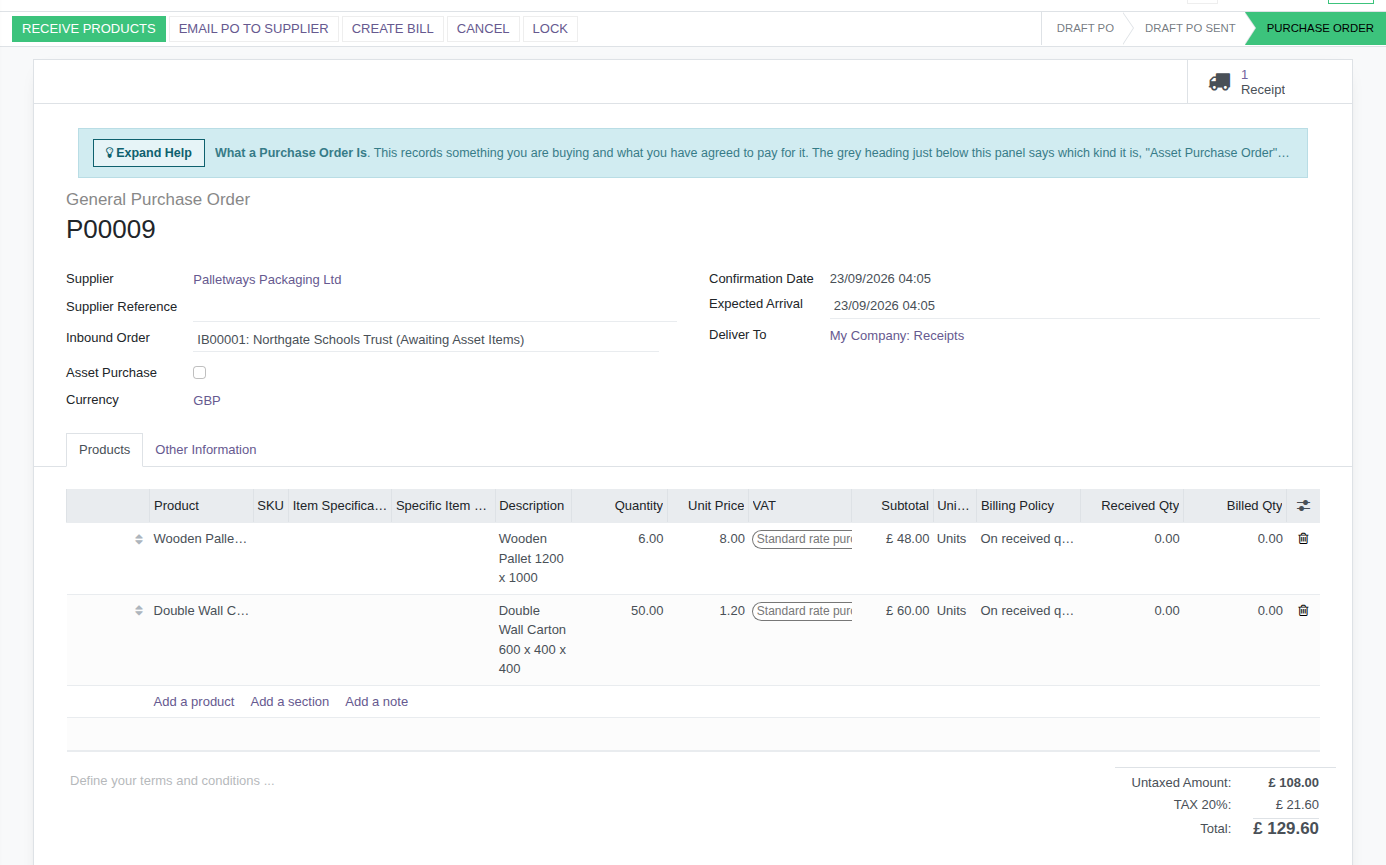
For supplies bought for one job, open the job's Financials tab and click New General Purchase Order. The job is filled in for you: choose the Supplier, your packaging supplier for example, and add the lines. For supplies that are not for any one job, go to Inbound > Sales & Purchases > Purchase Orders and click New.
- Only products with "Can be Purchased" ticked are offered on the lines.
- "Asset Purchase" stays unticked, so the heading reads "General Purchase Order".
- Buying a part for one particular item? Pick that item in the Specific Item or Lot column. When the part is received, the full untaxed amount you paid is added to the item as a Parts cost.
- Click Confirm Order. RecyclyERP creates a receipt for the goods, shown by the Receipt button at the top.
- When the goods arrive, click Receive Products to open that receipt and receive them into stock.
- Then click Create Bill to raise the supplier's bill for what arrived, for you to check against their invoice. Before the goods are received it tells you billing cannot proceed.
Why a pallet order for a job has to start from the job: the Inbound Order box on a purchase order only offers the supplier's own jobs, so a packaging supplier's order cannot be linked to your customer's job afterwards.
6. What you can change after confirming
- While the order is a draft you can change everything.
- Once it is confirmed, the Supplier, Currency, Deliver To and the product on each line are fixed. Quantities and Expected Arrival can still be corrected, and a line's price can be changed until that line has been billed.
- An order cannot be cancelled once anything on it has been received.
- The Tax Scheme on the Other Information tab decides the tax on every line, for example for a supplier in another country. See Understanding and Using Tax Schemes in Recycly ERP (opens in a new tab).
7. Two mistakes to avoid
- Paying a customer from a new purchase order instead of from their job. An order with Asset Type lines and no job is treated as stock you are buying in, so confirming it creates a second job for assets that are already on their way through the first. Always start from the job's Financials tab.
- Linking the job before adding the lines. If you pick the job in the Inbound Order box first and then add Asset Type lines, Asset Purchase is not ticked for you. Confirmed like that, the order raises a receipt for assets that will arrive on the job's own collection. Check Asset Purchase is ticked before you click Confirm Order.
8. Finding purchase orders later
- Every purchase order raised for a job is listed on that job's Financials tab.
- Inbound > Sales & Purchases > Purchase Orders lists them all. Its search box offers "Asset Purchases" and "General Purchases", "Related to an Inbound Order", and "Invoice Not Yet Received" for confirmed orders still waiting on the supplier's bill.
- The email wording and the attached document are yours to change. See Editing Email Templates (opens in a new tab) and Creating and Editing Document & Report Templates (opens in a new tab).