An Inbound Order is one job for one customer: everything you have agreed to take in from them. When you move to RecyclyERP you may want to bring your open jobs, and the items expected on them, across from your old system in one go. This guide shows how to import both so that every item stays linked to its order.
Importing is an advanced feature, so some confidence with spreadsheets helps. If you have not imported before, read Importing Data into RecyclyERP: Step by Step (opens in a new tab) first. If you are unsure about your files, email them to support@recyc.ly and Recycly Support will check them for you.
How Inbound Orders, Items and Collections fit together
- Inbound Order - the job. RecyclyERP gives each one a Job ID, such as IB00123, as it is created (1).
- Items - what is expected on the order, and then what arrives. The Items & Lots button on the order lists them (3).
- Collection or Drop-off - the visit that brings the items in. You make it from the order with Schedule Collection (2) or Schedule Drop-off, and the order's Collections / Drop-offs tab lists it (4). There is no import for Collections: RecyclyERP makes each one from its order, and an item joins a Collection when it is booked in on it.
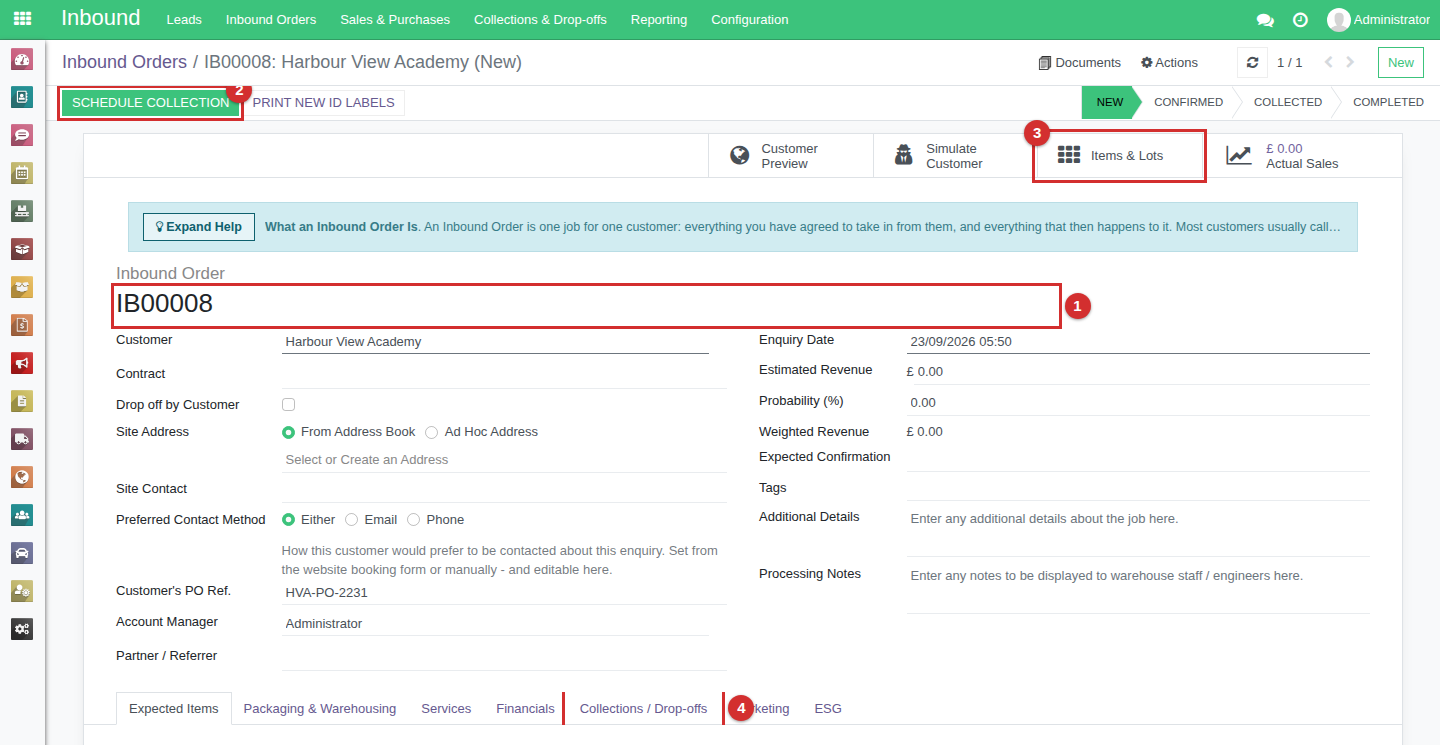
So an import has two steps: the orders first, then their items, each item naming its order. When the items arrive, you book them in on the order's Collection as normal.
Step 1: import the orders, each with an External ID
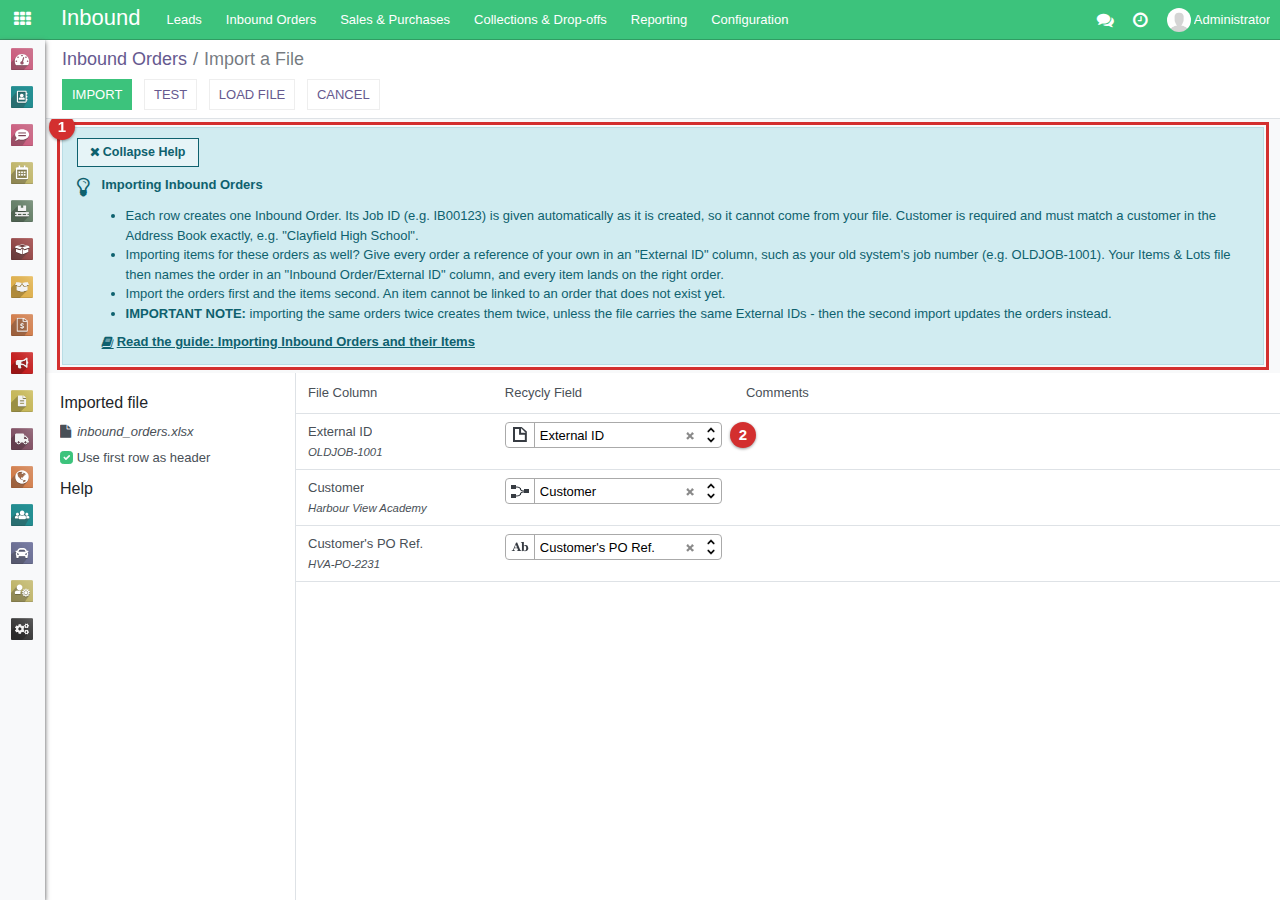
The Job ID is given automatically as each order is created, so it cannot come from your file. To let your items file point at an order that does not exist yet, give every order a reference of your own in an External ID column. Your old system's job number is ideal.
| External ID | Customer | Customer's PO Ref. |
|---|---|---|
| OLDJOB-1001 | Harbour View Academy | HVA-PO-2231 |
| OLDJOB-1002 | Harbour View Academy | HVA-PO-2232 |
Customer is required and must match a customer in the Address Book exactly. If your customers are not in RecyclyERP yet, import them first: see Importing Companies, Sites and Contacts (opens in a new tab). Add Customer's PO Ref. if your company makes it compulsory, and any other order field you need, headed with its label as it appears on screen.
Go to Inbound > Inbound Orders > Inbound Orders and click Import. The help panel at the top (1) sums up this guide, and the External ID column is matched for you (2).
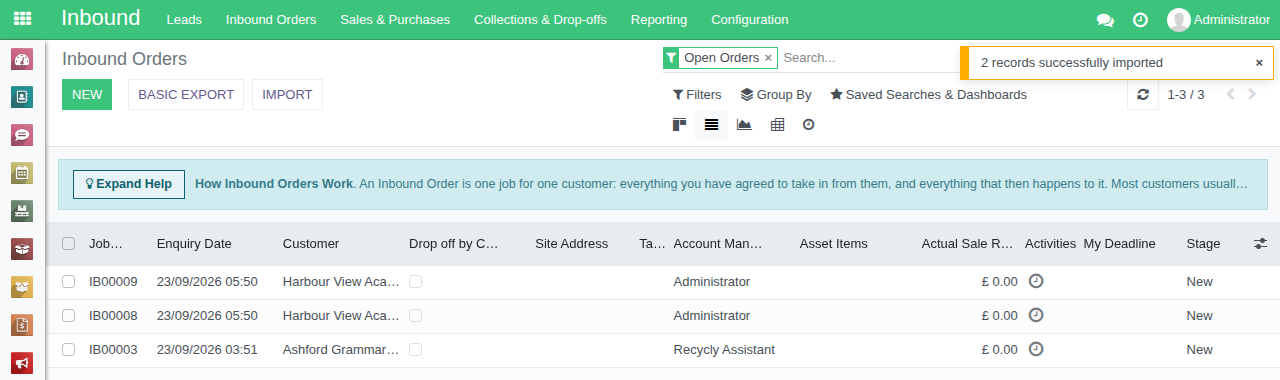
Click Test, then Import. Each order gets its Job ID - here IB00008 and IB00009.
Step 2: import the items, each naming its order
| Inbound Order/External ID | Asset Type | Lot Quantity | Manufacturer | Model | Serial Number | Asset Number | New Item(s) Stock Status |
|---|---|---|---|---|---|---|---|
| OLDJOB-1001 | Laptop | 1 | Dell | Latitude 5490 | SN5490-0001 | HVA-0001 | Not yet received |
| OLDJOB-1001 | Laptop | 1 | Dell | Latitude 7490 | SN7490-0002 | HVA-0002 | Not yet received |
| OLDJOB-1002 | Laptop | 1 | Lenovo | ThinkPad T480 | SNT480-0003 | HVA-0003 | Not yet received |
| OLDJOB-1002 | Laptop | 1 | Apple | MacBook Air 13 (2020) | SNMBA-0004 | HVA-0004 | Not yet received |
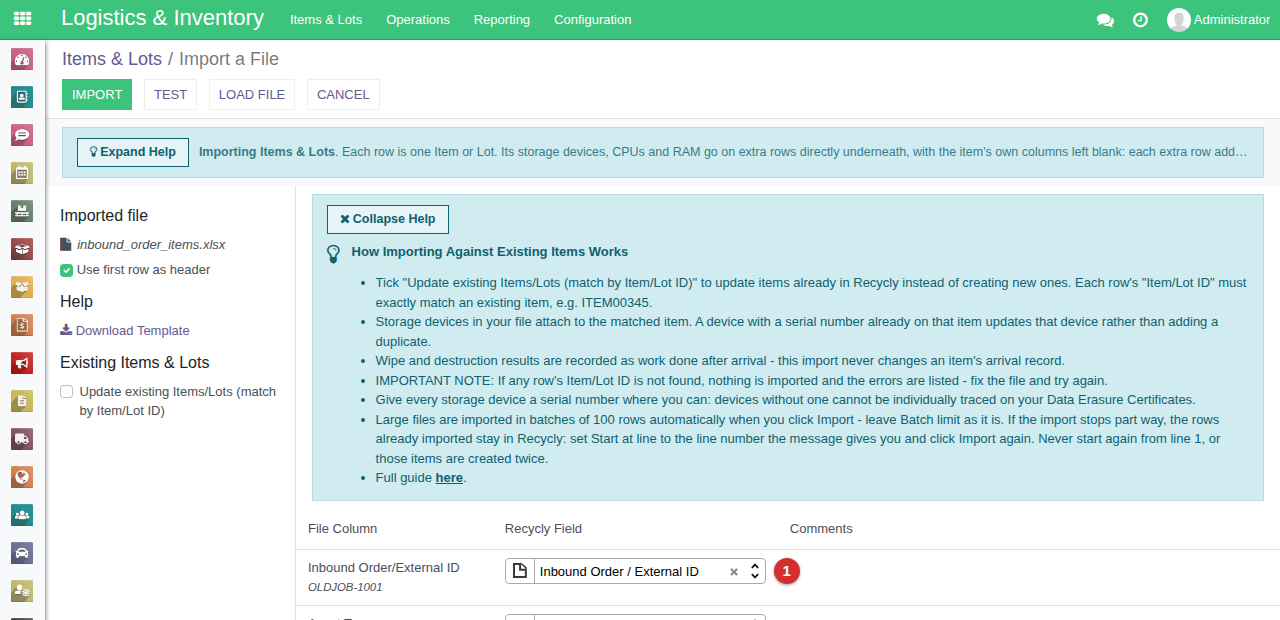
The first column's heading, Inbound Order/External ID, tells RecyclyERP to find each item's order by the External ID you gave it in step 1. Use exactly that heading.
Go to Logistics & Inventory > Items & Lots > Items & Lots, click Import and load the file. The Inbound Order/External ID column is matched for you (1). The Items & Lots template has every other column you are likely to need, including parts such as storage devices: see Importing Items & Lots (opens in a new tab).
Click Test, then Import. Each order now holds its own items: click Items & Lots on the order to see them.
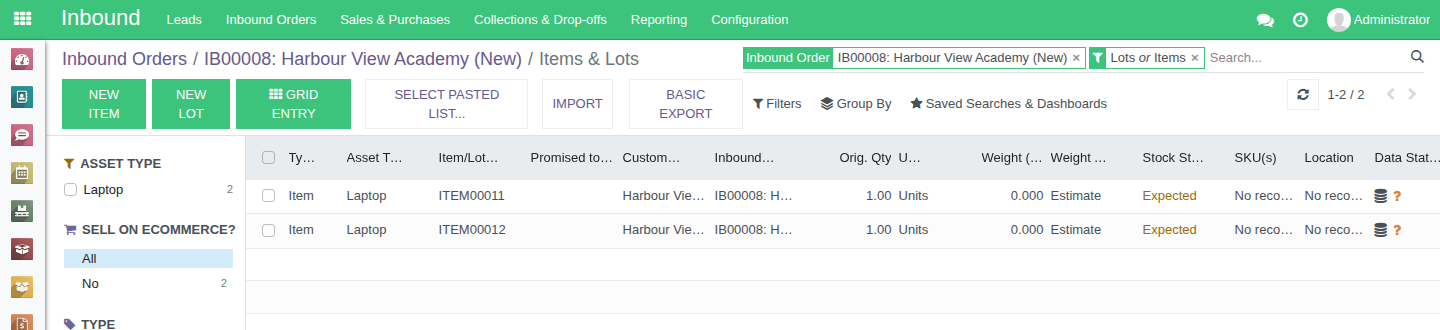
Items for an order already in RecyclyERP
If the order is already there - created by hand, or imported earlier without an External ID - use an Inbound Order column instead, holding the order's Job ID alone, for example IB00123. Never its full label ("IB00123: Harbour View Academy"), and never the customer's name: a customer's name links each item to one of that customer's orders, without a warning.
Expected items for a single order
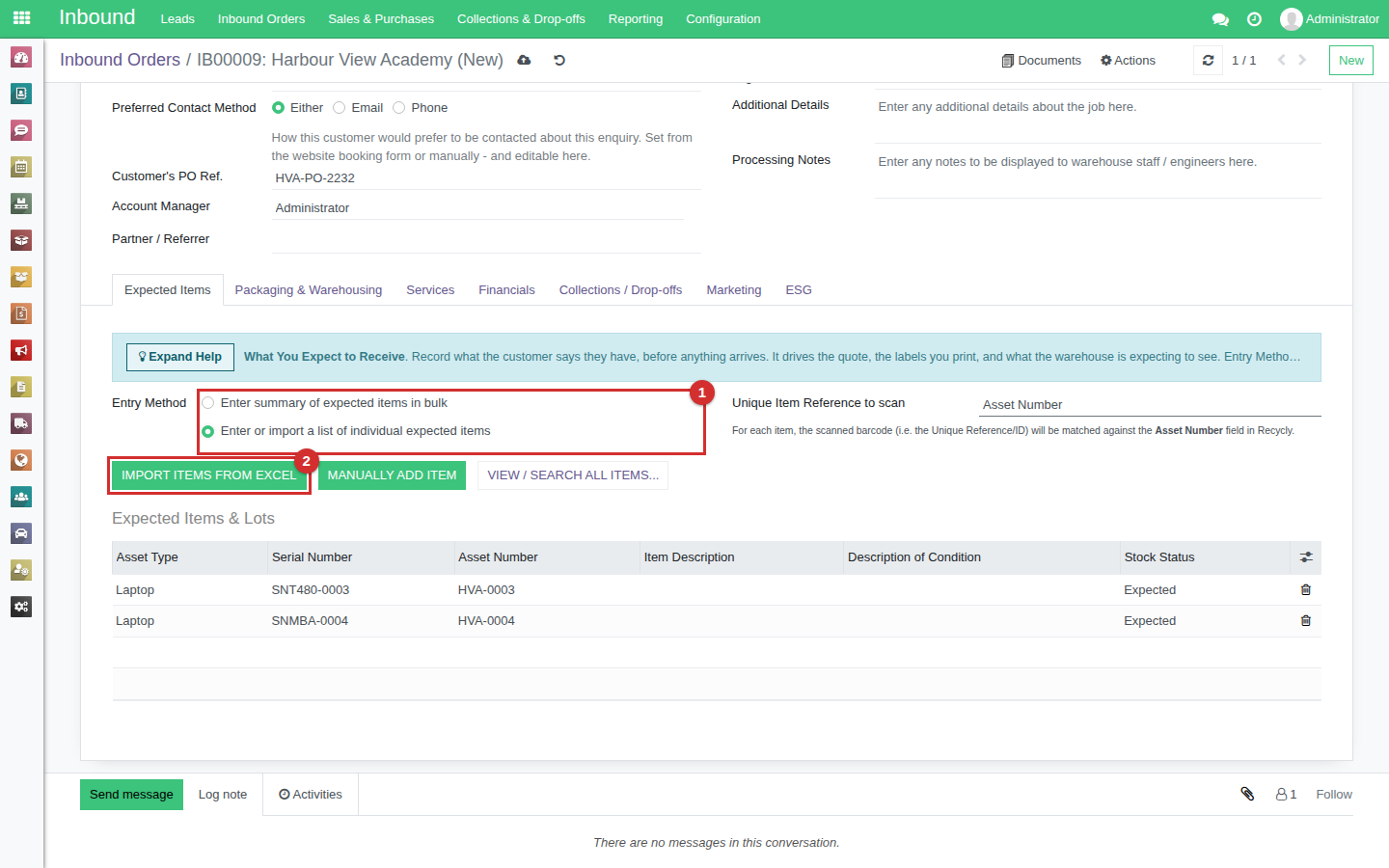
To add expected items to one order, open it and go to its Expected Items tab. Under Entry Method, choose Enter or import a list of individual expected items (1), then click Import Items from Excel (2). Items already on the order are listed underneath.
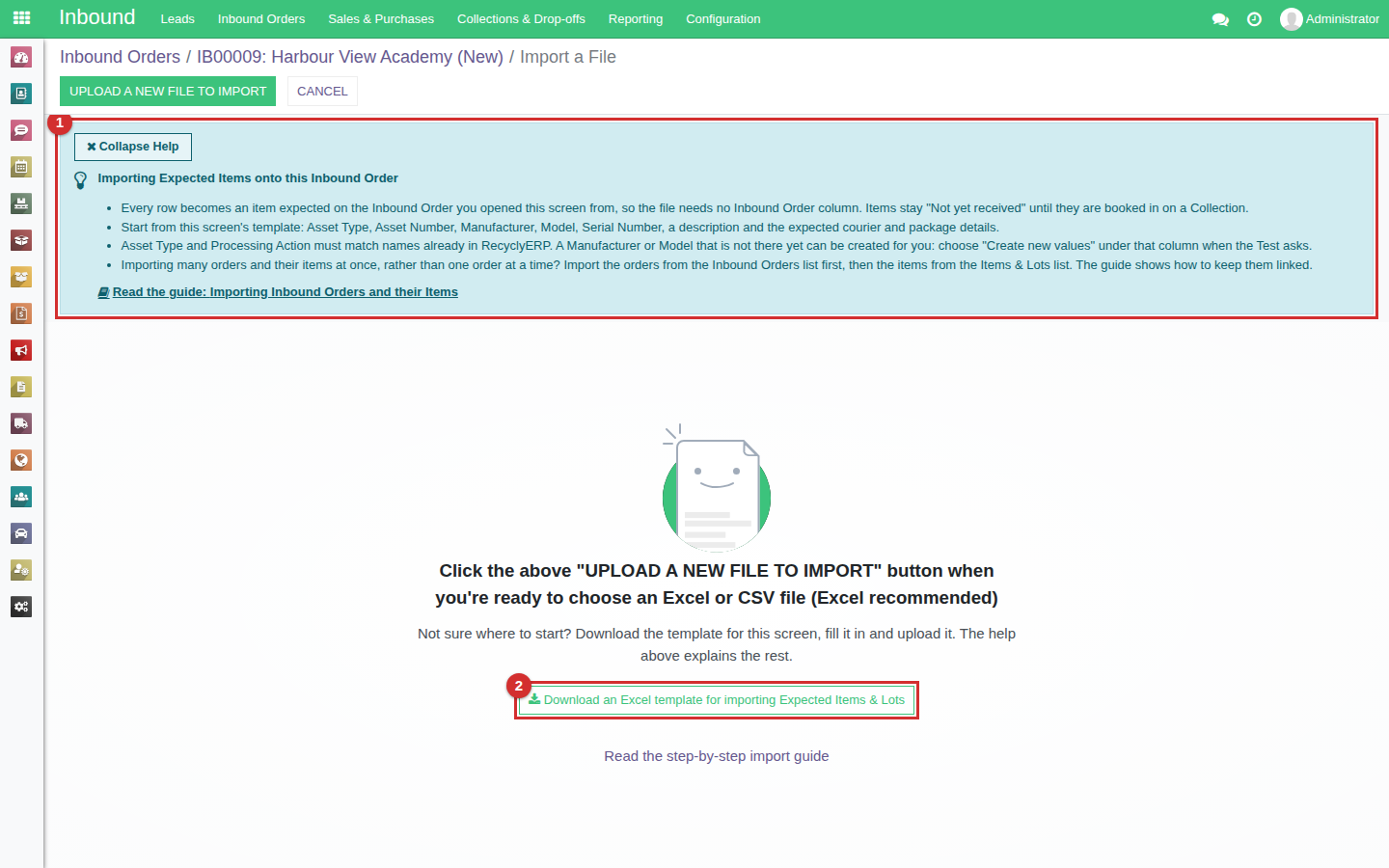
The import screen that opens adds every row to that order, so the file needs no Inbound Order column. Start from its template (2); the help panel (1) explains the rest.
New Item(s) Stock Status
- Not yet received - for items still to be collected. When they arrive, they are booked in on the order's Collection as normal. This is what happens if you leave the column out.
- Received and in warehouse - for items already in your building. Each one is booked straight into stock at the New Item(s) Location given, so fill that column in too: leave the Location blank and the item is recorded as not yet received, with no warning.
- Moving finished jobs across from an old system? Import their items as Received and in warehouse, with the Location they are kept in. Their past Collections are not recreated, because RecyclyERP only makes a Collection from an order.
Things to know
- Orders first, items second. An item cannot be linked to an order that does not exist yet.
- Importing the same orders twice creates them twice - unless the file carries the same External IDs, when the second import updates those orders instead.
- Job IDs follow your company's own numbering, and are given by RecyclyERP, never by your file.