Importing brings many records into RecyclyERP at once from a spreadsheet, instead of typing them in one by one: your customers and their contacts, manufacturers and models, inbound orders, items and more. This guide walks through an import from start to finish with two worked examples, then answers the questions people ask most.
Importing is an advanced feature. You need some confidence with spreadsheets, and it is worth trying a few rows before a whole file. If you are unsure, email your file to support@recyc.ly and Recycly Support will check it for you before you import it.
Before you start
- Start from the template. Every import screen offers a ready-made Excel template with the right column headings and example rows. Keep the headings exactly as they are.
- Use Excel (.xlsx) where you can. A CSV file can lose leading zeros (01234 becomes 1234) and swap day and month in dates when it is opened and saved again. Excel keeps them as you typed them.
- Try a few rows first. An import cannot be undone with one click, so prove your file with two or three rows before you import the rest.
- Import in the right order. A record that points at another one - a contact at a company, an item on an inbound order - can only be linked to something already in RecyclyERP. Import the companies before their contacts, and the inbound orders before their items.
Worked example 1: importing manufacturers
A new customer's asset lists mention four manufacturers that are not in RecyclyERP yet: Dell, Lenovo, Apple and Samsung. Steps 1 to 7 bring them in.
1. Open the import screen
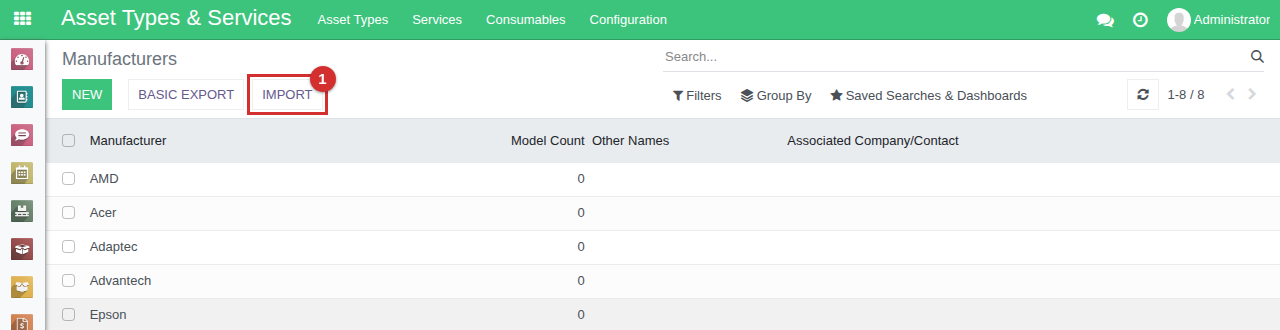
Go to the list you want to import into - here Asset Types & Services > Configuration > Attributes: General > Manufacturers - and click Import (1).
2. Download the template
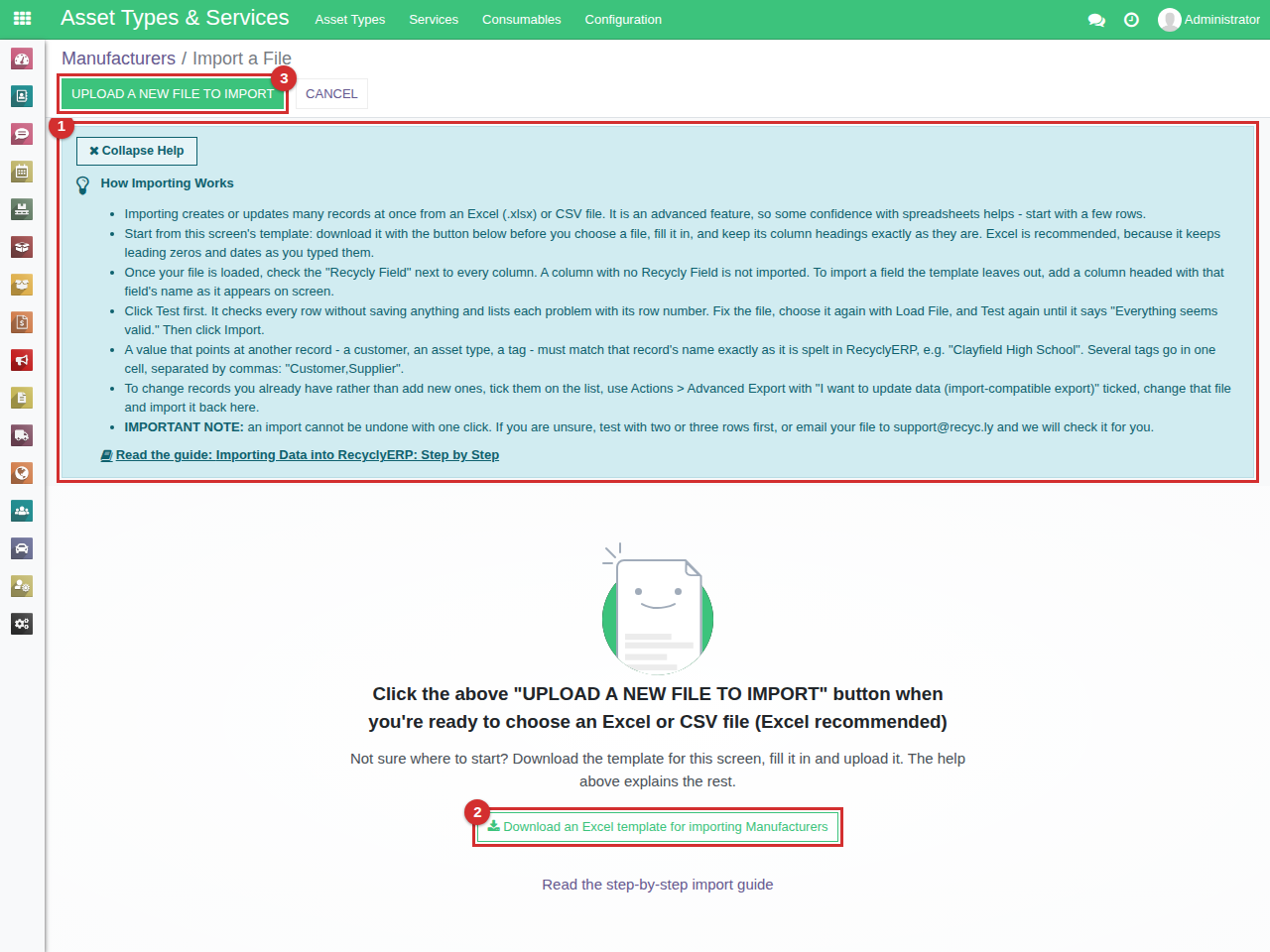
The import screen opens with a short help panel at the top (1) explaining how importing works. Click Collapse Help to fold it away once you know it; it stays folded for you until you click Expand Help.
Click Download an Excel template for importing Manufacturers (2) to get this screen's template. Every import screen has one, named after what it imports.
3. Fill in the template
Open the template in Excel, replace the example rows with your own, and leave the heading row exactly as it is. The manufacturers file is a single column:
| Manufacturer |
|---|
| Dell |
| Lenovo |
| Apple |
| Samsung |
4. Upload your file
Click Upload a New File to Import (3 in the picture above) and choose your file. RecyclyERP reads it and lists each column with its first value underneath, so you can see it was read properly.
5. Check the Recycly Field beside each column
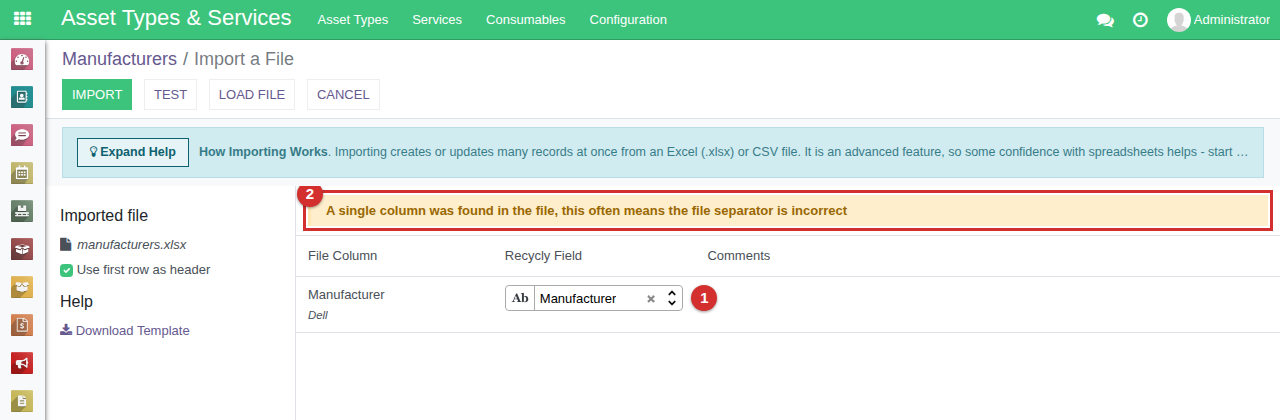
The Recycly Field (1) is the field each column will go into. Because the template's headings match RecyclyERP's own labels, each one is matched for you. A column left with no Recycly Field is not imported at all.
With an Excel file that has only one column, RecyclyERP also shows A single column was found in the file, this often means the file separator is incorrect (2). That warning is meant for CSV files, and you can ignore it for a one-column Excel file.
6. Click Test
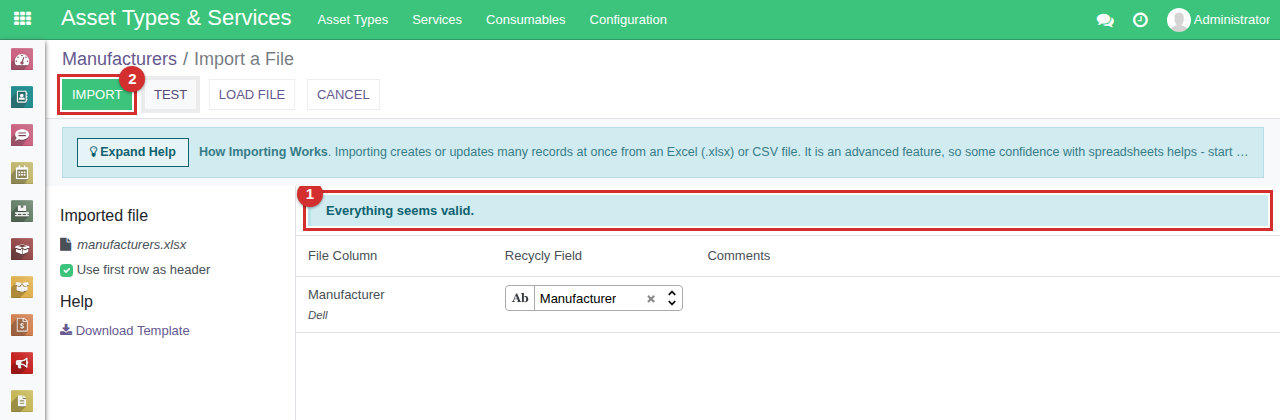
Click Test. It checks every row without saving anything. When it reports Everything seems valid. (1), click Import (2).
7. Import
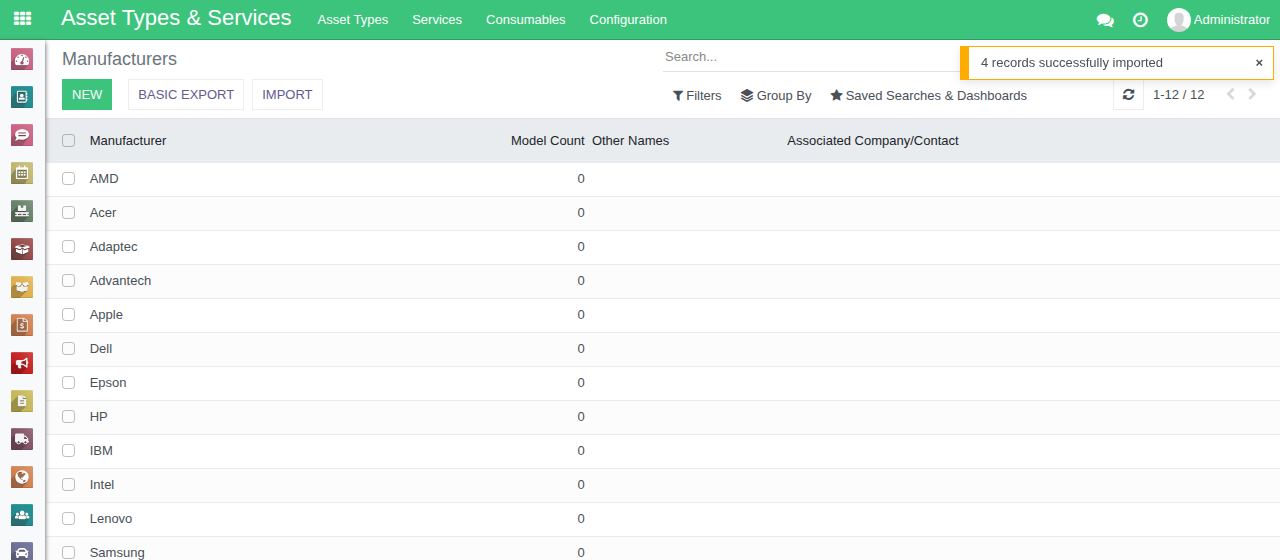
RecyclyERP imports the file, goes back to the list and says how many records went in. The four new manufacturers are in the list.
Worked example 2: models, and a mistake
Now the models, each linked to its manufacturer. Go to Asset Types & Services > Configuration > Attributes: General > Models, click Import and click Download an Excel template for importing Models. The Models template has two columns, Model and Manufacturer:
| Model | Manufacturer |
|---|---|
| Latitude 5490 | Dell |
| ThinkPad T480 | Lenovo |
| MacBook Air 13 (2020) | Apple |
| Latitude 7490 | Del |
The Manufacturer column points at another record, so each value must match a manufacturer's name exactly as it is spelt in RecyclyERP. The last row has a typing mistake - "Del" - to show what Test does with one.
Loading the models file
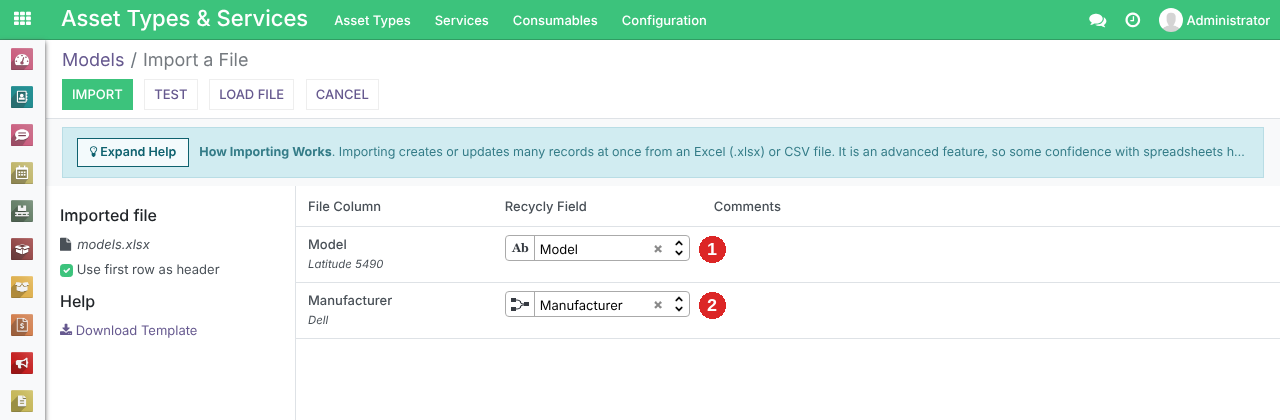
Upload the file as in step 4. Both headings match RecyclyERP's own labels, so Model (1) and Manufacturer (2) are matched to their Recycly Fields for you.
Reading the problems Test finds
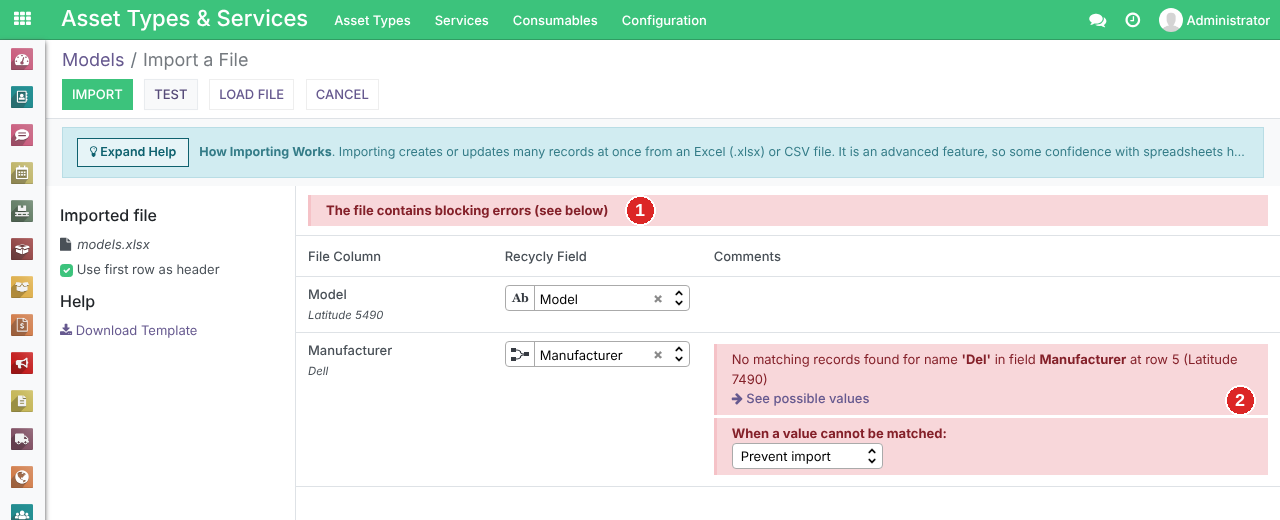
Click Test. This time it reports that The file contains blocking errors (1), and lists each problem beside the column it is in (2), with its row number: No matching records found for name 'Del' in field Manufacturer at row 5 (Latitude 7490). The heading row counts as row 1, so the row numbers match Excel's. See possible values lists the names RecyclyERP knows.
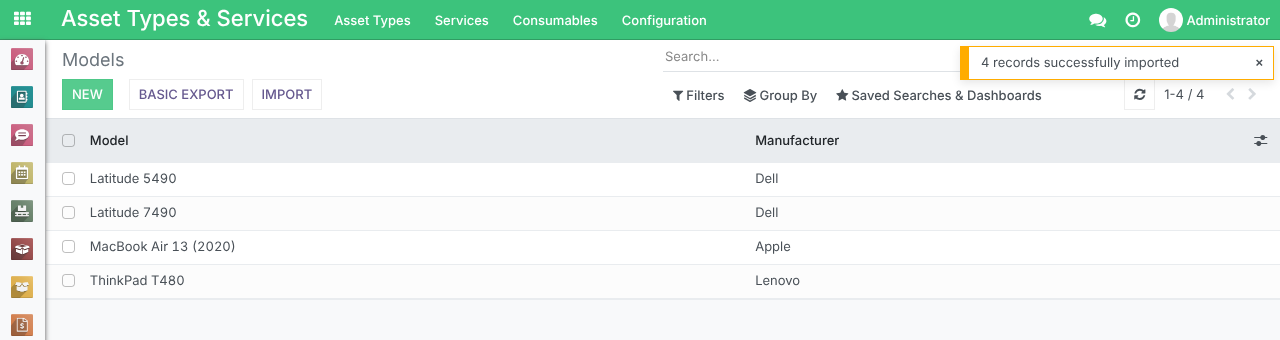
Correct "Del" to "Dell" and save the file. Click Load File, choose the file again and click Test. When it says Everything seems valid., click Import.
Under a problem like this one, When a value cannot be matched offers other choices: Set value as empty, Skip record, or Create new values, which adds the missing record for you. Creating is handy for names that genuinely are new - a Manufacturer or Model that is not in RecyclyERP yet - but check the spelling first, or you will end up with a "Del" as well as a "Dell".
Common questions
Can I import into a field that is not in the template? Yes: add a column headed with the field's label as it appears on screen, then check its Recycly Field once the file is loaded. The templates keep to the columns most people need. For example, the Manufacturers template has only a Manufacturer column, but the Manufacturers list also shows Associated Company/Contact. Add a column with that heading, and make each value match an existing company's name exactly. This heading is not matched for you: its Recycly Field reads To import, select a field..., and Test still says Everything seems valid. while leaving that column out. Click it, type "Associated", choose Associated Company/Contact and click Test again. Do the same for any column whose Recycly Field reads To import, select a field..., or correct the heading in your file and load it again.
How do I import companies, their sites and their contacts? All in one file, using the Company Type and Related Company columns. See Importing Companies, Sites and Contacts (opens in a new tab).
How do I import inbound orders and their items so they stay linked? See Importing Inbound Orders and their Items (opens in a new tab).
My leading zeros or dates came in wrong. Use an Excel file. A CSV file holds everything as plain text, and opening and saving it in Excel strips leading zeros (01234 becomes 1234) and can swap day and month. If you have to use CSV, check the Date Format on the left of the import screen once the file is loaded.
How do I put several tags in one cell? Separate them with commas, for example "Customer,Supplier".
What does "Found multiple matches" mean? Two records in RecyclyERP have the name your file uses - two companies both called "Clayfield High School", say. Test warns you, and the row is linked to whichever one is found first. Rename or archive the duplicate before you import.
What does "There is already another record with the same ..." mean? Some fields do not accept duplicates, such as a Model. The value is already in RecyclyERP, usually because the file was imported before. Take those rows out of the file.
What does "A single column was found in the file" mean? For an Excel file with one column, nothing: see step 5. For a CSV file it usually means the separator is wrong, so choose another Separator on the left of the import screen.
Can I undo an import? Not with one click, which is why Test and a few trial rows come first. To take an import back out, tick the records it created on the list and use Actions > Archive where the list offers it, or ask Recycly Support to help.
Can you import our data for us? Yes. See Sending data files to us, so we can quote you for import (opens in a new tab).
How do I find duplicates in my spreadsheet before I import it? See Finding and Removing Duplicate Values in Excel Data (opens in a new tab).
More import and export guides
- Importing Companies, Sites and Contacts (opens in a new tab)
- Importing Inbound Orders and their Items (opens in a new tab)
- Importing Items & Lots (opens in a new tab)
- Importing Individual Hard Drives (opens in a new tab)
- Updating Existing Data using a Data Import (opens in a new tab)
- Exporting Data: Basic and Advanced Exports (opens in a new tab)