This guide takes you through a day's collections in Driver Hub, from choosing your vehicle in the morning to the office receiving what you recorded. It also explains what happens when you have no signal: you carry on as normal, and everything you record is kept on your phone until it is sent.
1. Before you set off
The first time you open Driver Hub each day it asks "Which vehicle are you in today?", because "This goes on today's Waste Transfer Notes, so pick the vehicle you are actually driving." The vehicle booked on most of your collections is already chosen, with a line such as "Booked on 3 of today's collections" under it. If you are in a different one, pick it from Other vehicles, or for a hire vehicle use Not listed? Type the registration (for example a hire vehicle), then tap Confirm Vehicle. To change it later in the day, tap the vehicle's registration in the header of My collections. The vehicle you confirm also becomes your route's vehicle, so the office's Route Planning shows the one you are actually driving. If you have more than one run today, Driver Hub may ask again before a later run: see "More than one run a day" below.
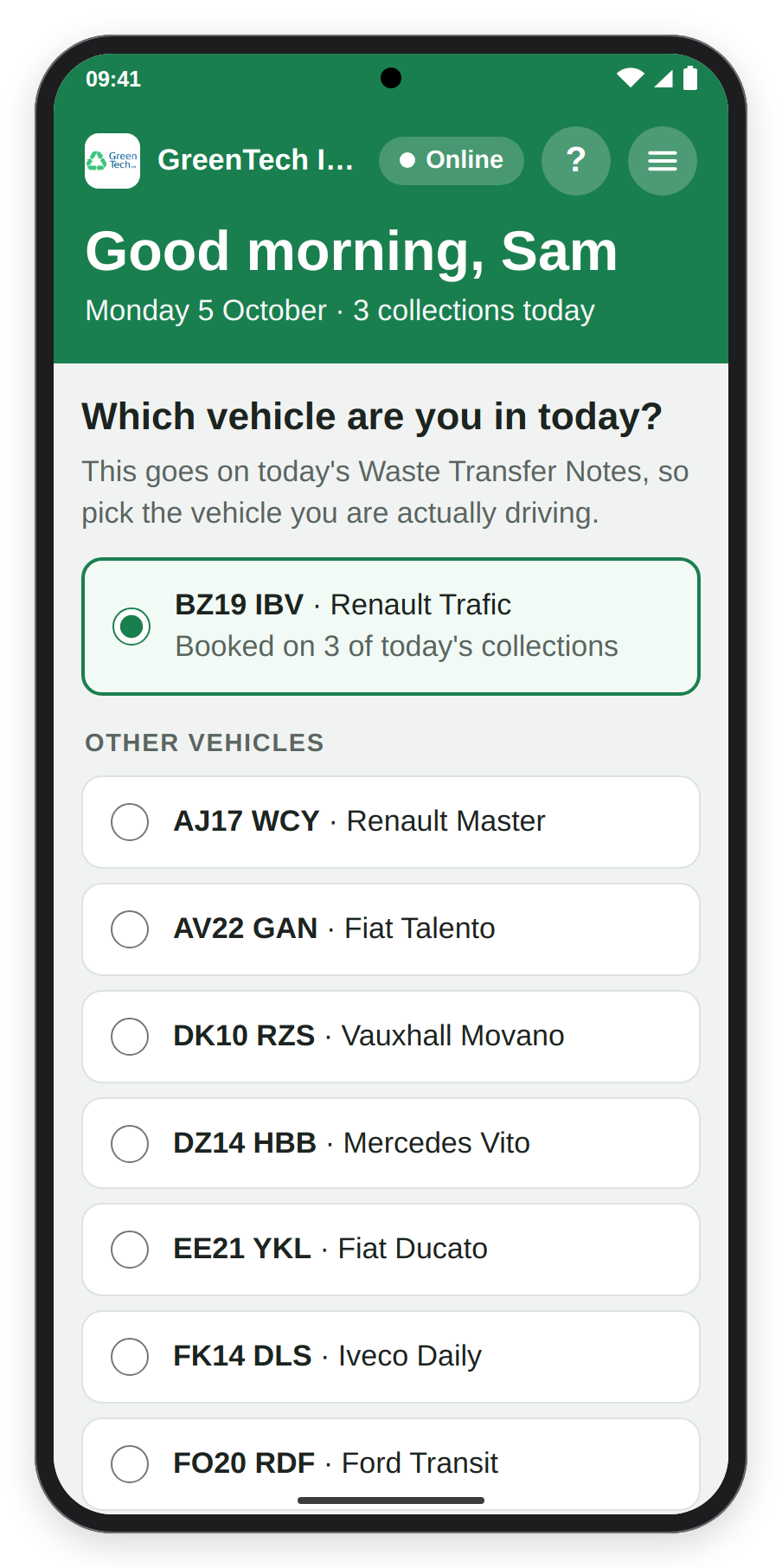
The vehicle question, the first time Driver Hub opens each day.
2. Sharing your location with the office
When the office has confirmed your route for today, Driver Hub asks once, on My collections, after you have confirmed your vehicle: "Share your location with the office?" and "Share your location with the office while you are on a route? It helps them tell customers when you will arrive. Only while the app is open, and only on a route." Tap Share, then allow it when your phone asks, or tap Not now, and Driver Hub asks again the next day. Once you have tapped Share, it does not ask again.
What is shared is where your phone is, nothing else, and only while Driver Hub is open on the screen: from when you open your first collection of the route until you tap Arrived at Depot or finish your last collection. It sends a position every minute, and whenever you have moved more than 200 metres, to the office's Route Planning. With no signal, the last 100 positions are kept on the phone and sent when signal returns.
While it is sharing, the header shows Sharing location. To stop, tap it: Driver Hub asks "Do you want to stop sharing your location?", so tap Stop sharing, or Keep sharing to carry on. Once stopped, it says "Stopped - the office cannot see where you are." and the header shows Share location, which turns it back on.
3. My collections
My collections lists today's collections in time order, with the date, your vehicle and Progress at the top, for example "0 of 3 collected". When the office has confirmed your route, the list follows the route instead, under "In the order of today's route", so the times need not run in order; any of today's collections not on the route come at the end, under "Not on today's route".
Each card shows:
- its number of the day, "Collection" over, for example, "1 of 6";
- "Scheduled:" and the booked time and, on a confirmed route, "Arrives about:" and when you should get there;
- the customer or site, and under it the collection number and the job, for example "WH01/COL/00001 · Job IN00019";
- the address, and the contact, for example "Contact: Sarah Nolan" (tap the number to ring it);
- the window, for example "Collect between 09:00 and 12:30", "At 09:30" or "Any time", and what is expected, for example "Expected: 6 items - 4 Laptop, 2 Desktop", with any boxes, pallets or cages;
- any notes: "Site note:" is the site's own note, for every visit, and "Collection note:" is for this collection only;
- for hazardous waste, an amber badge, "⚠ Hazardous waste · Consignment code" and the code. With no code it says "No consignment code - call the office before collecting", and the opened collection shows "Call the office:" with the number to ring.
Next marks the first collection not yet collected, and New one the office has just added. A finished one stays in place marked Collected ✓, and one you could not do is marked Could not collect. With nothing booked, the screen says "Nothing booked for you today."
To check for changes at any time, pull the list down: it says "Pull down to check for changes", then "Let go to check for changes", and while it checks, what it is doing, for example "Checking for changes to today's list…". Driver Hub also checks by itself every 5 minutes while it is open, and each time you come back to it.
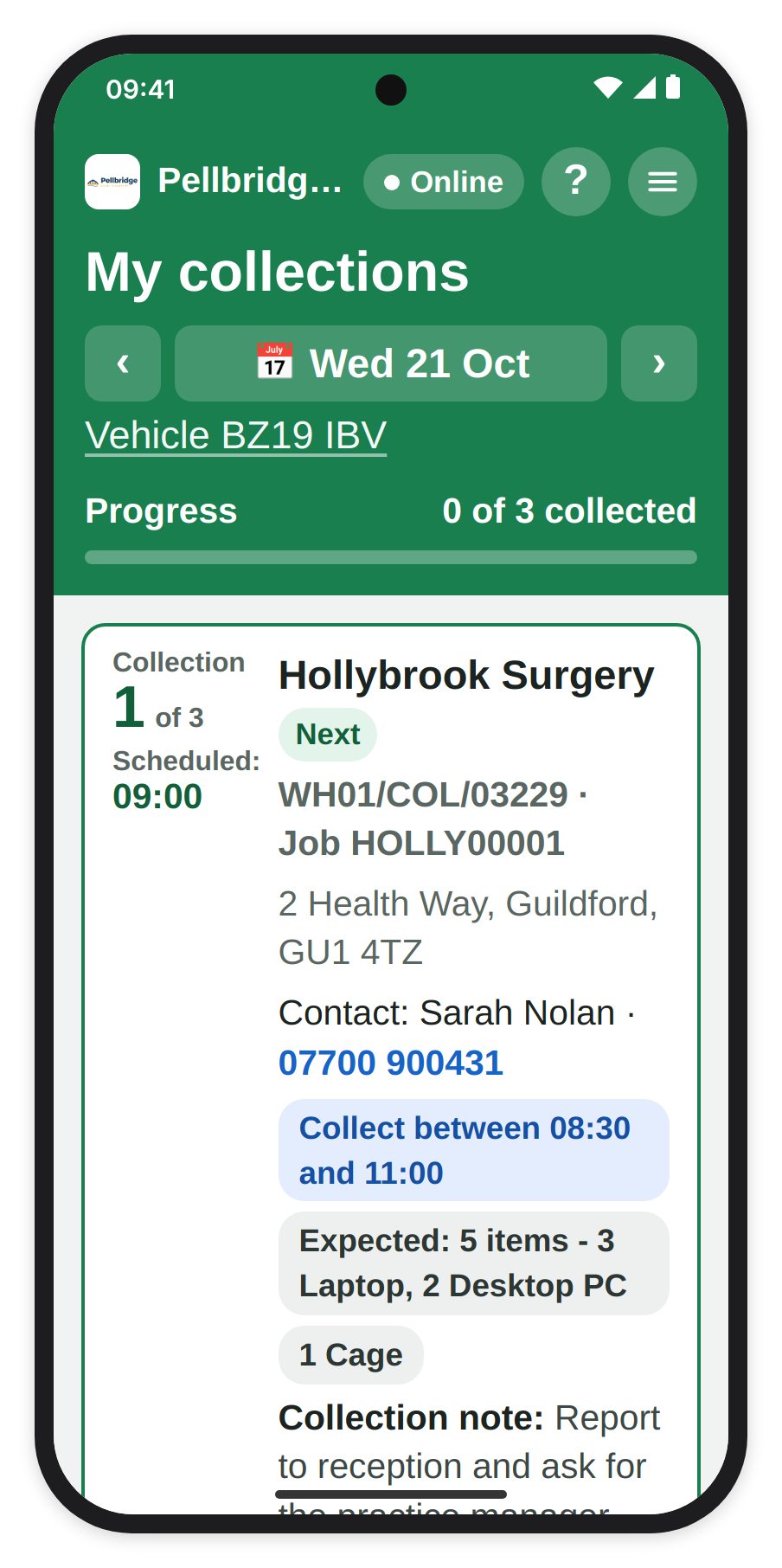
My collections: the next collection, with what you need to know before you arrive.
4. Other days
The date under My collections sits between two arrows: ‹ goes to the day before and › to the day after, or tap the date to pick a day, from 7 days back to 14 days ahead. Another day is read only: it says "Read only - not today", with Back to today beside it, and nothing there can be started or changed.
- A day ahead says "Planned so far - this can still change.", and each card says when you can start it, for example "You can start this on Wed 8 Oct."
- A past day sums up what happened, for example "2 collected · 1 could not collect · 1 cancelled · 1 moved", and each card shows its outcome, such as Collected ✓, Partly collected, Could not collect, Cancelled, Moved to another day or Not done. Tap a card to see what was recorded.
Every day from 7 back to 14 ahead is saved on the phone, so it shows straight away, even with no signal. With no signal, a saved day says when it was last checked, for example "Saved on this phone - last checked 14:05", and a day not saved says "This day is not saved on your phone" and "Try again when you are back online."
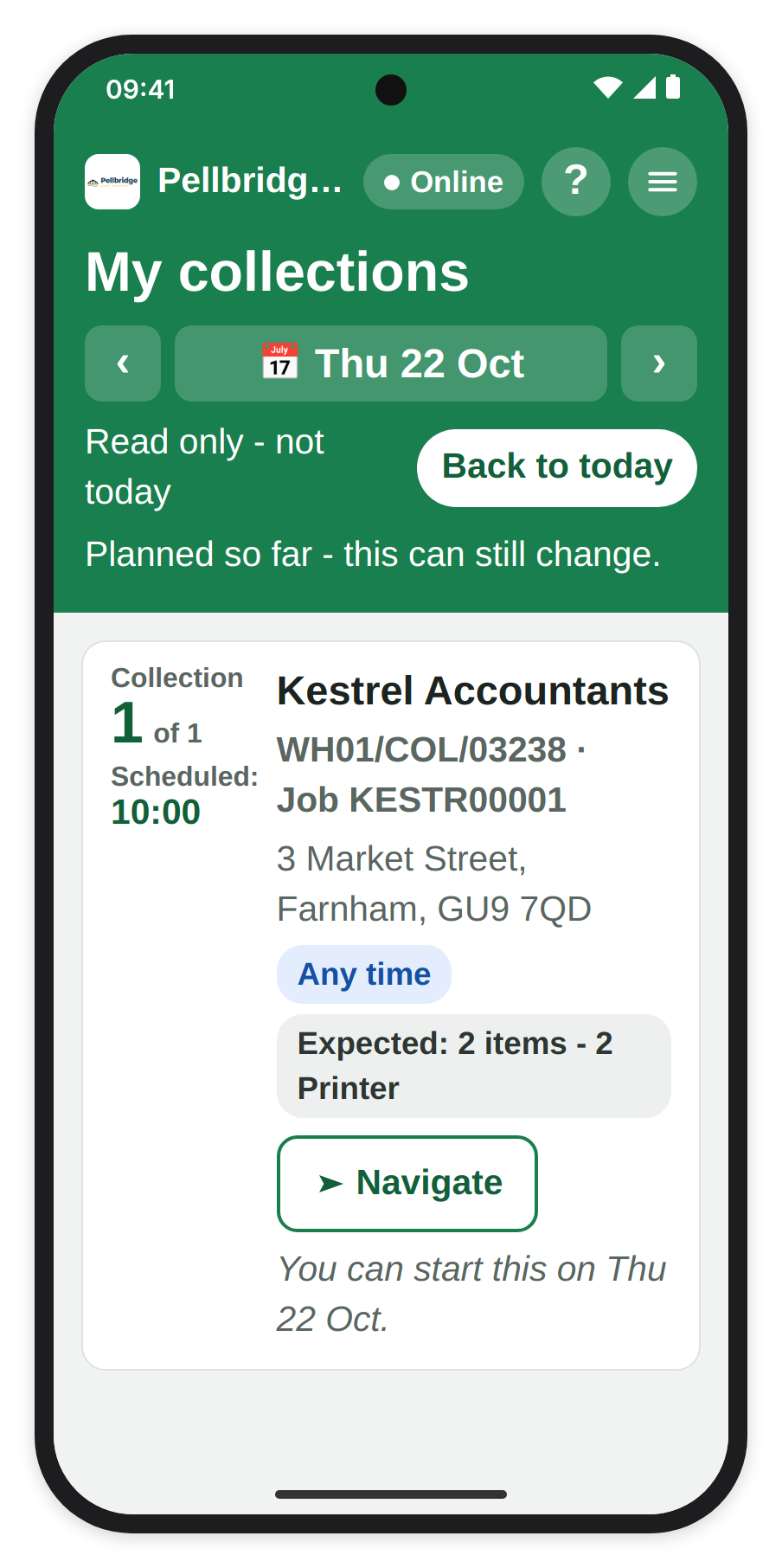
Another day is read only.
5. Navigate
Tap Navigate on a collection's card and your sat nav app opens with the site as the destination. To start with, that is Apple Maps on an iPhone, or your phone's default maps app on Android. To use Google Maps or Waze instead, open the menu, tap Settings and choose under Sat nav app. If the app you choose is not on your phone, Navigate opens it in the browser instead. Driver Hub stays where you left it, so you can go straight back to it when you arrive.
6. When the office changes things
If the office changes your day while you have the list open, a Your collections have changed banner says what changed, one line each: "Added:", "Cancelled:", "Moved earlier:" or "Moved later:" with the new time, "Moved to" another day, "Taken off your list:" when it has gone to someone else, or "Order changed by the office". On a day of more than one run it can also say, for example, "Run 2 added: 3 collections, leaves about 13:15". Tap Got it once you have read it. A collection the office has cancelled stays on your list greyed out, marked Cancelled by the office, and cannot be started; one moved to another day does the same, marked, for example, Moved to Thursday by the office. Tapping it tells you not to collect from there, and to phone the office if you think that is wrong: once they put it back on your list, it reappears.
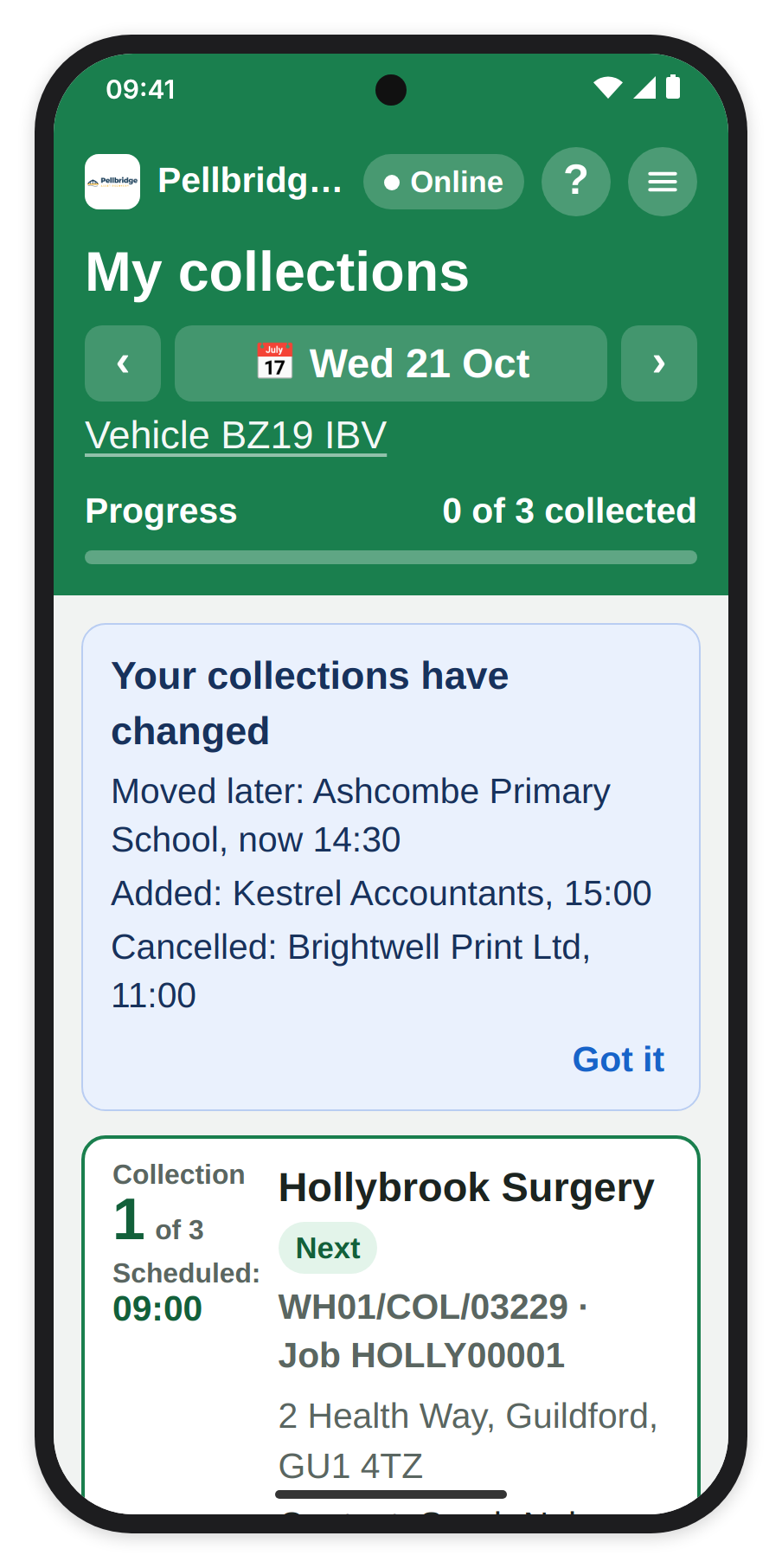
The office changed three things: the banner says what, until you tap Got it.
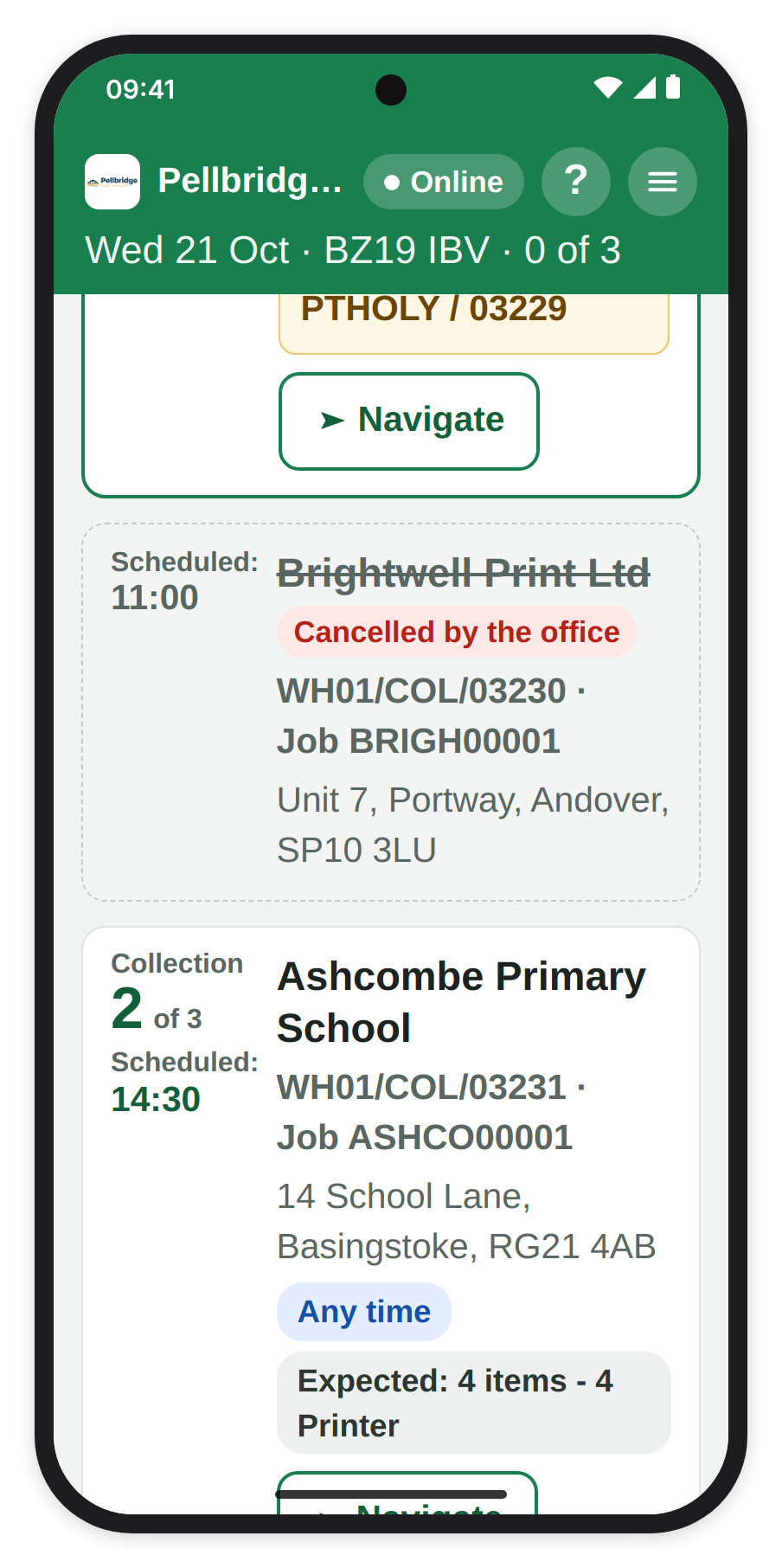
A collection the office cancelled stays on the list, but cannot be started.
7. Step 1, Items
Tap a collection, then Start Collection to open its four steps: Items, Photos, Sign and Done. When the customer has listed each item, there is a fifth, Scan, after Items (see "Scanning each item" below). To go back to an earlier step, tap its name at the top, or swipe right. Count each item type with the minus and plus buttons against what is expected; when your count differs, the card says so, for example "1 fewer than expected.", and asks "Why? (a note or a photo is needed)", so type a reason or tap Add a photo before you go on. Use + Add another item type for something nobody expected, and count boxes, pallets and cages under Boxes, pallets and cages, with + Add another box, pallet or cage for one nobody expected. Where one job has several collections, a box, pallet or cage can be expected "for the whole job" rather than at each site, so a different count there needs no reason.
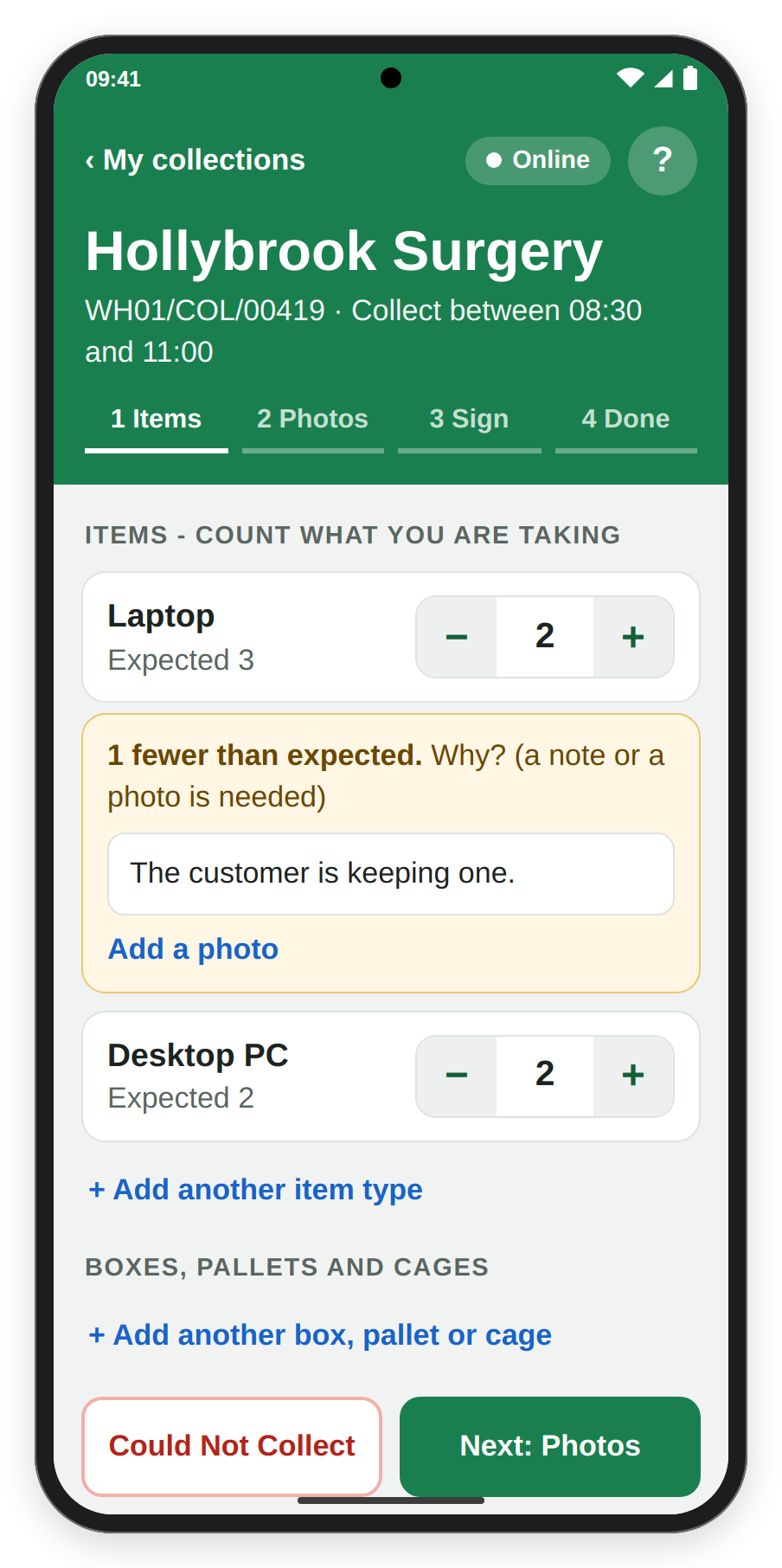
Step 1, Items: a count that differs from what was expected needs a note or a photo.
Removing a row you added. If you added an item type, or a box, pallet or cage, by mistake, swipe its row to the left and tap the red Remove. Driver Hub asks first, for example "Remove Laptop?" and "Laptop comes off this collection, with any note or photo you added for it.": tap Keep Laptop to leave it, or Remove Laptop to take it off. A row that came from the job cannot be removed, and Driver Hub says so: "Laptop came from the job, so it stays on the list. If none are here, set the count to 0."
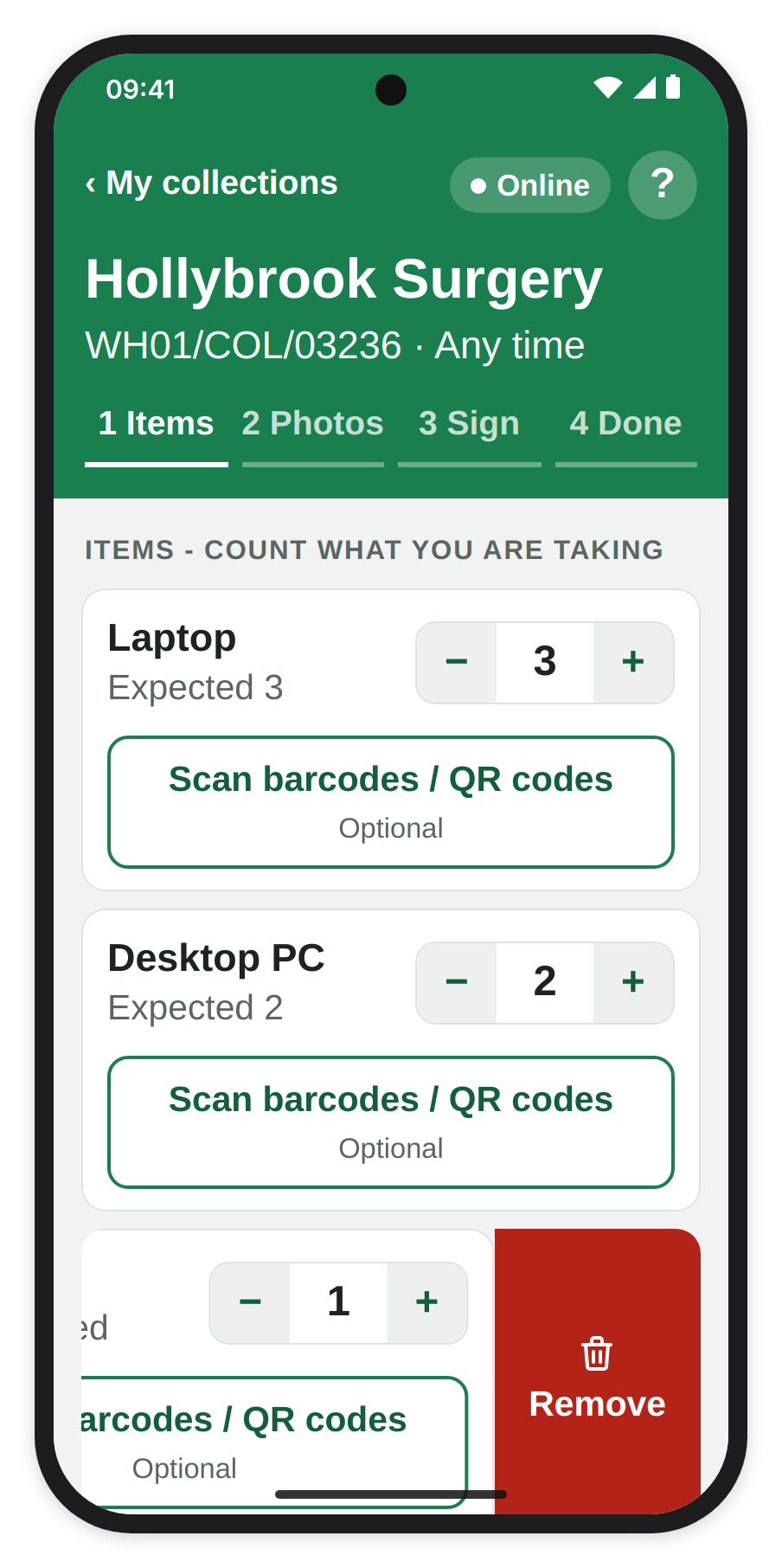
Swipe an added row to the left to remove it.
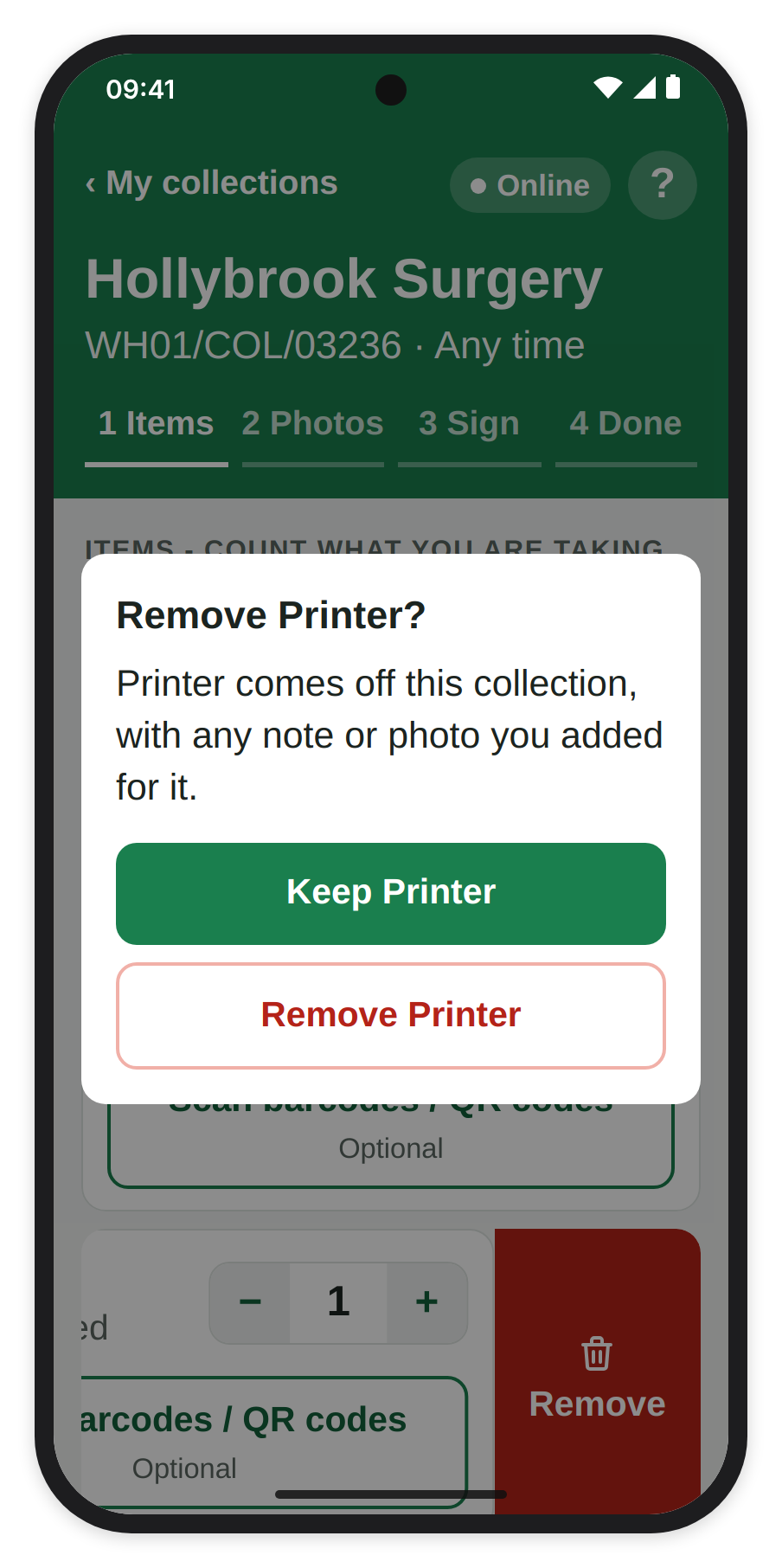
Driver Hub asks before the row comes off.
Scanning on a summary job. When the customer gave only a summary, for example "Laptop 20", each item line on Items has a Scan barcodes / QR codes button marked "Optional". Tap it to open a scanning screen for that line, which says, for example, "Laptops: Slowly move the camera around over barcodes / QR codes until they're all scanned". The camera starts straight away: hold the barcodes or QR codes in view, or type a serial into Type a serial and tap Add, then tap Done - back to Items. The line then shows how many you scanned, for example "5 scanned". A code already scanned on the collection turns amber and is not added again, and scanning more than you counted raises the count to match. Up to 2,000 can be scanned on one collection; after that it says "No more can be scanned on this collection: 2,000 is the most." Scanning here is never required: if an item has no barcode, just count it. The serials go to the office with the rest of the collection, show on its Proof of Collection tab, and wait on Book Items In until the warehouse scans each one.
8. Scanning each item (when the customer listed them)
When the customer has listed every item they are handing over, for example by serial number, the collection has a fifth step, Scan, between Items and Photos, so its steps are Items, Scan, Photos, Sign and Done. After counting, tap Next: Scan: the screen says "Scan one or more barcodes or serial numbers by holding the camera so they're in view" and counts as you go, for example "0 of 20 scanned". The camera starts straight away: the picture is a square the width of the screen, and every barcode in it is read, so you can hold the phone over several labels at once, upright or on their side. Each barcode is outlined in red as soon as it is seen, then, one after another, filled green when it is added, or amber when it cannot be: already scanned, or not on the list. As each one is read, the edge of the picture flashes, the phone beeps and vibrates, and the serial drops into the list under the camera. If you stop the camera with Stop the camera, tap Scan with the camera to turn it back on. You can also type into the box under the camera and tap Add. The box says what to type, depending on what the job is scanned by: "Type a serial", "Type an asset number" or "Type a Recycly Item ID". A Bluetooth barcode scanner paired with the phone types into the same box, so you can use one instead of the camera. Each item on the list gets a green tick, and scanning one again shows an amber "Already scanned". Anything not on the list shows in amber as "Not on the customer's list": tap Keep it if you are taking it, or Remove if you scanned it by mistake. If you tap Next before deciding, the message flashes and Driver Hub takes you to the item, with its Keep it and Remove buttons pulsing. If the screen says, for example, "That is an Asset Number. Scan its Serial Number instead.", scan the number it asks for.
If your phone asks whether Driver Hub can use the camera, allow it. If it asks every time, the line under the camera says how to stop that: on an iPhone, "Asked about the camera every time Driver Hub opens? Go to Settings > Apps > Safari > Camera and choose Allow - Driver Hub follows that setting."; on Android, next time choose "Allow while visiting the site" (or "While using the app"), not "Allow this time" or "Only this time".
Items still to scan are listed under Not scanned, each with a red edge. If one is not there, tap Not here beside it and say why: "Customer kept it", "Could not find it" or "Other", which needs a note. Undo puts it back. If you tap Next with items still unscanned, Driver Hub asks, for example, "16 items on the customer's list were not scanned. Mark them all as not here?": tap Mark as not here and choose why, or Go back to carry on scanning. Your company may let you tap Skip scanning to go straight to Photos; if it does not, each item has to be scanned or marked as not here. Scanning works with no signal, like the rest of Driver Hub.
Items marked as not here were left behind, so when you finish, Driver Hub asks whether the rest needs another visit, as it does when you take less than was expected. The office sees what you scanned on the collection's Proof of Collection tab, under Scanned by the Driver, and the warehouse sees which items you scanned when it books them in.
Tapping Remove on a scan beeps and vibrates too, with a short double so it does not feel like a read. The beep and the vibration can each be turned off: open the menu, tap Settings, and untick "Beep when a barcode is read or deleted" or "Vibrate when a barcode is read or deleted" under Scanning. There is no Save button: your choice is kept straight away, and "Settings saved" shows for a few seconds. Both are on to start with, and your choice stays on your phone. iPhones do not let apps opened in the browser vibrate, so on an iPhone the vibrate box is greyed out.
9. Step 2, Photos
Take at least one photo and up to ten: tap + and Driver Hub opens your phone's camera inside the app, and at ten it says "You can add up to 10 photos." Add any seal numbers under Seal numbers (optional) with + Add. Not sure what a seal number is? Tap the ? beside Seal numbers (optional): it explains what seals are, what the numbers are for and what to type, with examples, and it works with no signal. If you enter the Weight of this load (optional), also choose Weighed or Estimated, as the screen reminds you: "Choose one whenever you enter a weight." Then tap Next: Sign.
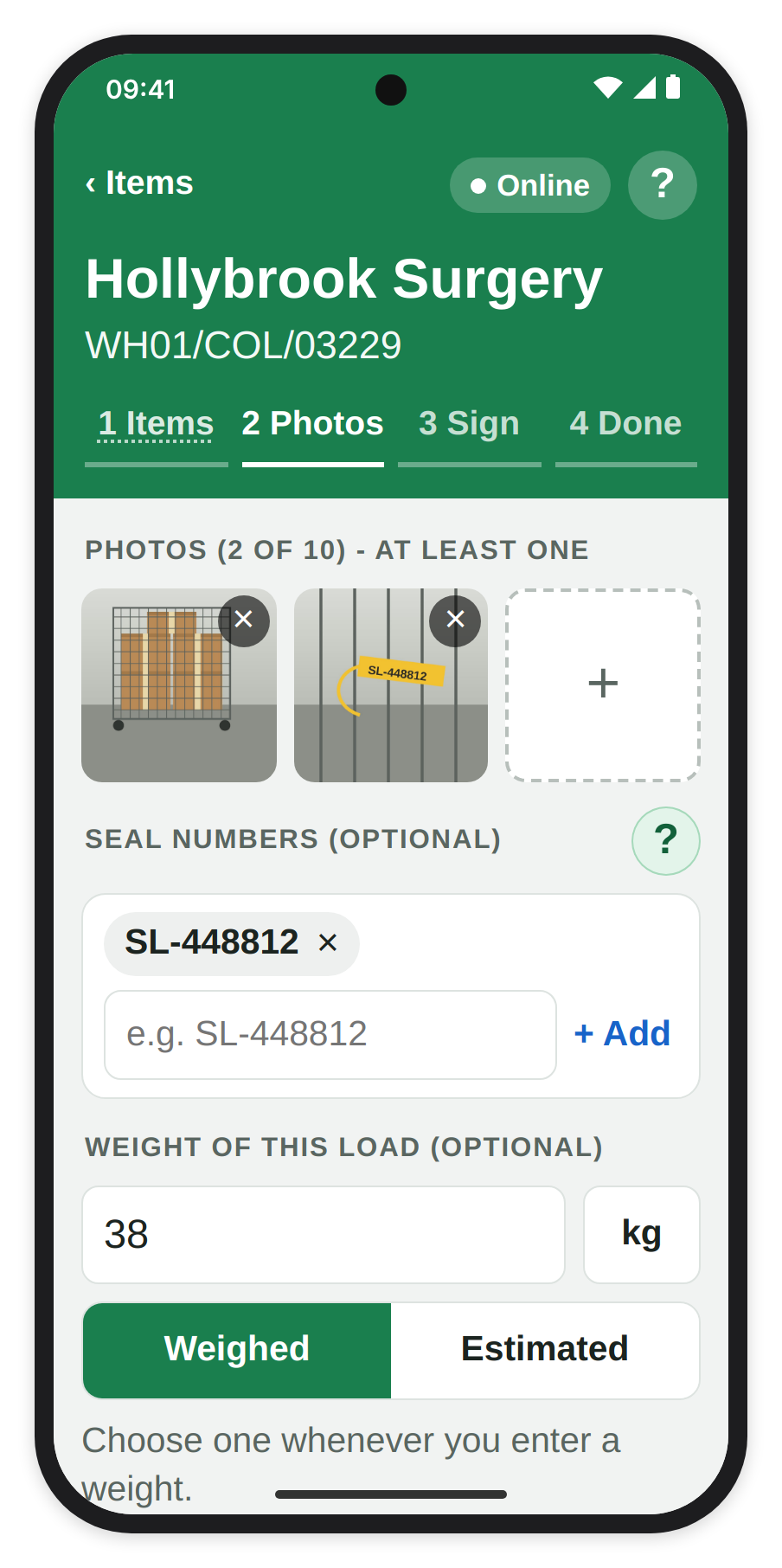
Step 2, Photos: the photos, a seal number and the weight, marked Weighed.
10. Step 3, Sign
Sign has two pages, the customer's first and then yours. The Waste Transfer Note shows first, so the customer can check it, and Show the customer the full note opens it full screen. The customer signs with a finger in the box under Customer signs (handing over the waste) and types their name under Customer's printed name. If they cannot, tap Customer can't sign?, choose "Nobody available to sign" or "Customer refused to sign" and take the photo it needs: "The collection still goes ahead. The note will say why it was not signed." Then tap Next: Driver Signs, and you sign under Driver signs (receiving the waste), with your printed name already filled in.
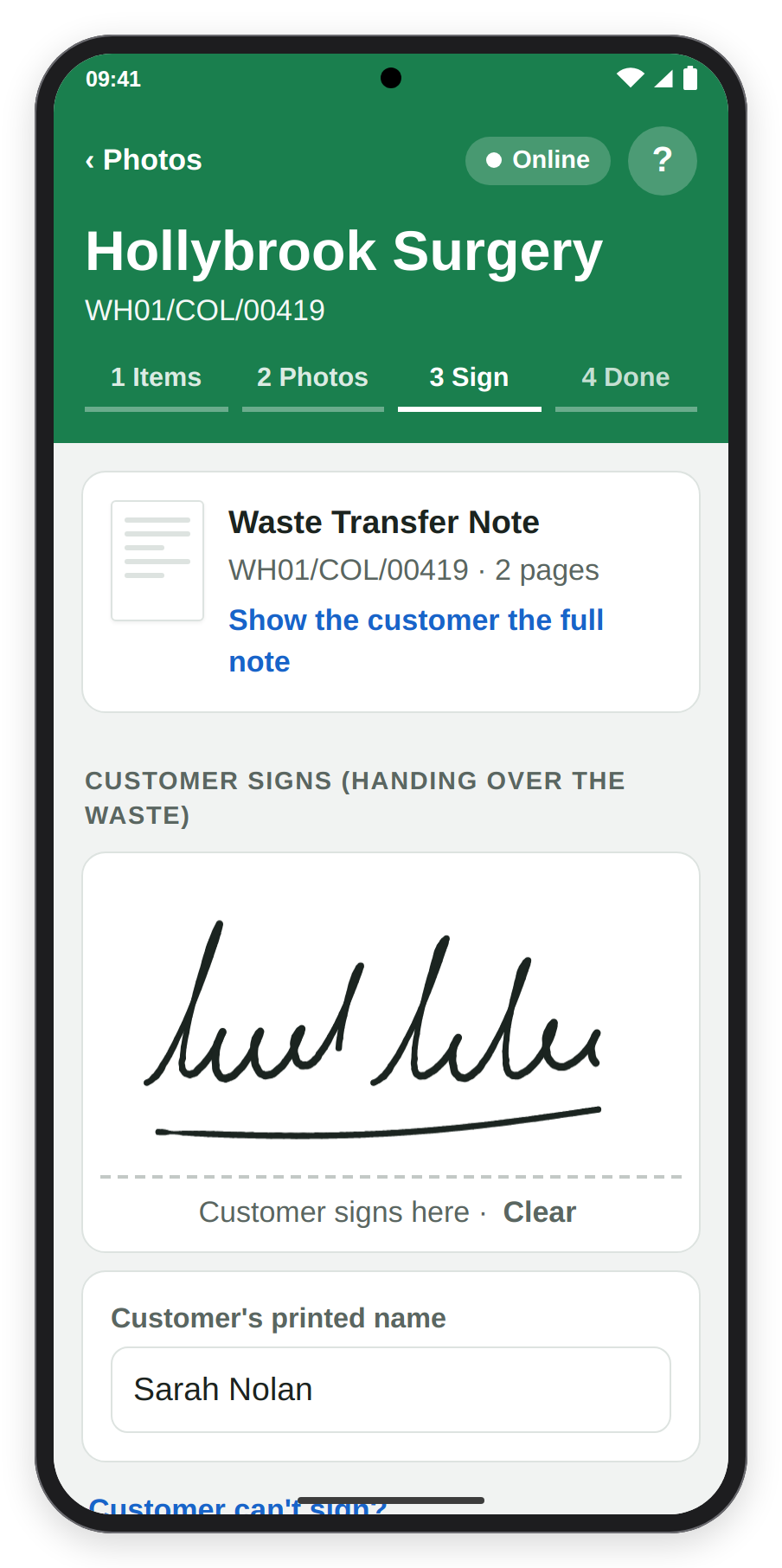
Step 3, Sign: the Waste Transfer Note first, then the customer signs.
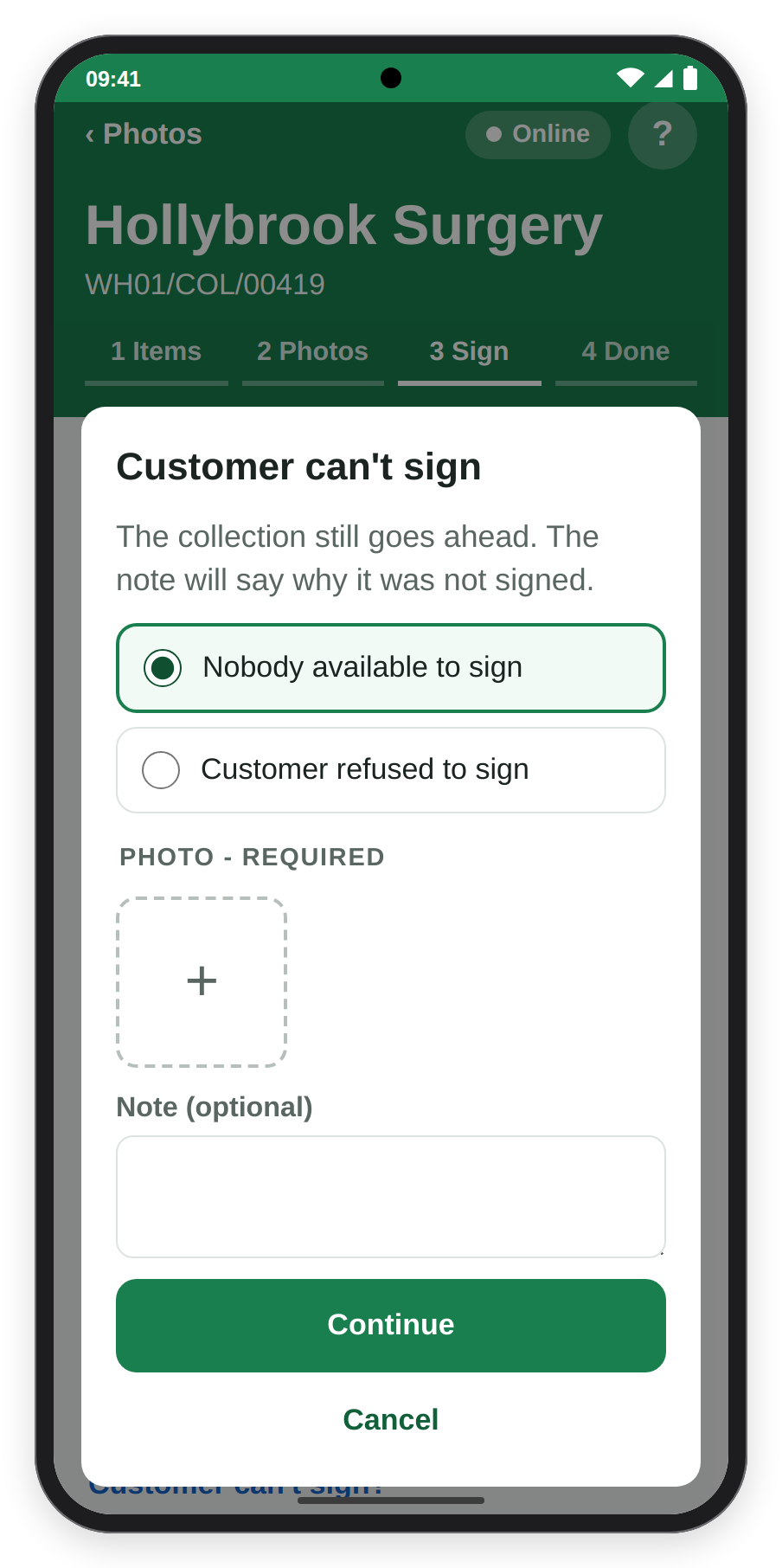
When the customer cannot sign: choose why, and take the photo.
11. Step 4, Done
Under your signature, Ready to finish sums up what you recorded, for example "4 items counted · 2 photos · 1 seal number · 38 kg (weighed) · customer and driver signed", and Finish Collection sends it. If you took less than was expected, Driver Hub first asks "Does the rest need another visit?": tap Yes and the office is asked to rebook the rest, or No if nothing more is to be collected. The Done step then shows Collection finished and "Sent to the office.", or with no signal "No signal - this collection is saved on your phone and will be sent as soon as you are back online."
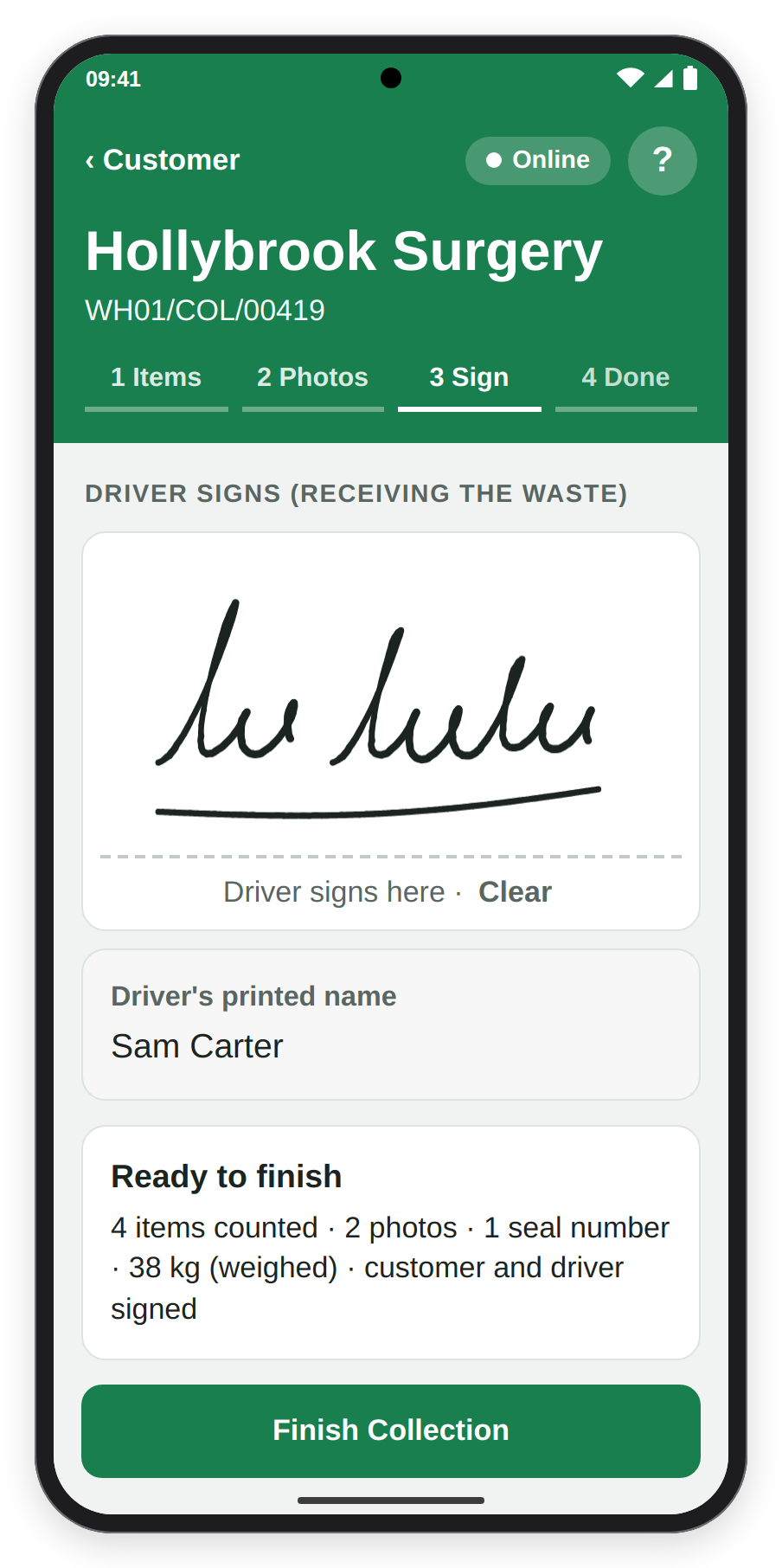
Your signature, then Ready to finish sums up what you recorded.
Once a collection is finished, tap it on My collections to see everything you recorded, in the order you recorded it: the items, what you scanned, the photos (tap one to see it full size), the seal numbers, the weight, who signed and when, the outcome, and the signed documents, with when they were emailed to the customer and View to open one. The signed documents are made a few minutes after the collection reaches the office, and say "being made" until then. The photos and documents need signal; with none, the screen says how many photos there are. Collections on past days show the same.
12. Could Not Collect
If you cannot collect at all, tap Could Not Collect on the Items or Photos step. Choose one of its five reasons, "Nobody on site", "Items not ready", "Access refused", "Wrong address" or "Other reason", and add a photo or a note, because one is required ("Other reason" always needs a note). Tap Confirm Could Not Collect: as the screen says, "Nothing was taken. The office is asked to rebook this collection." You never cancel a collection yourself, because the office decides what happens next.
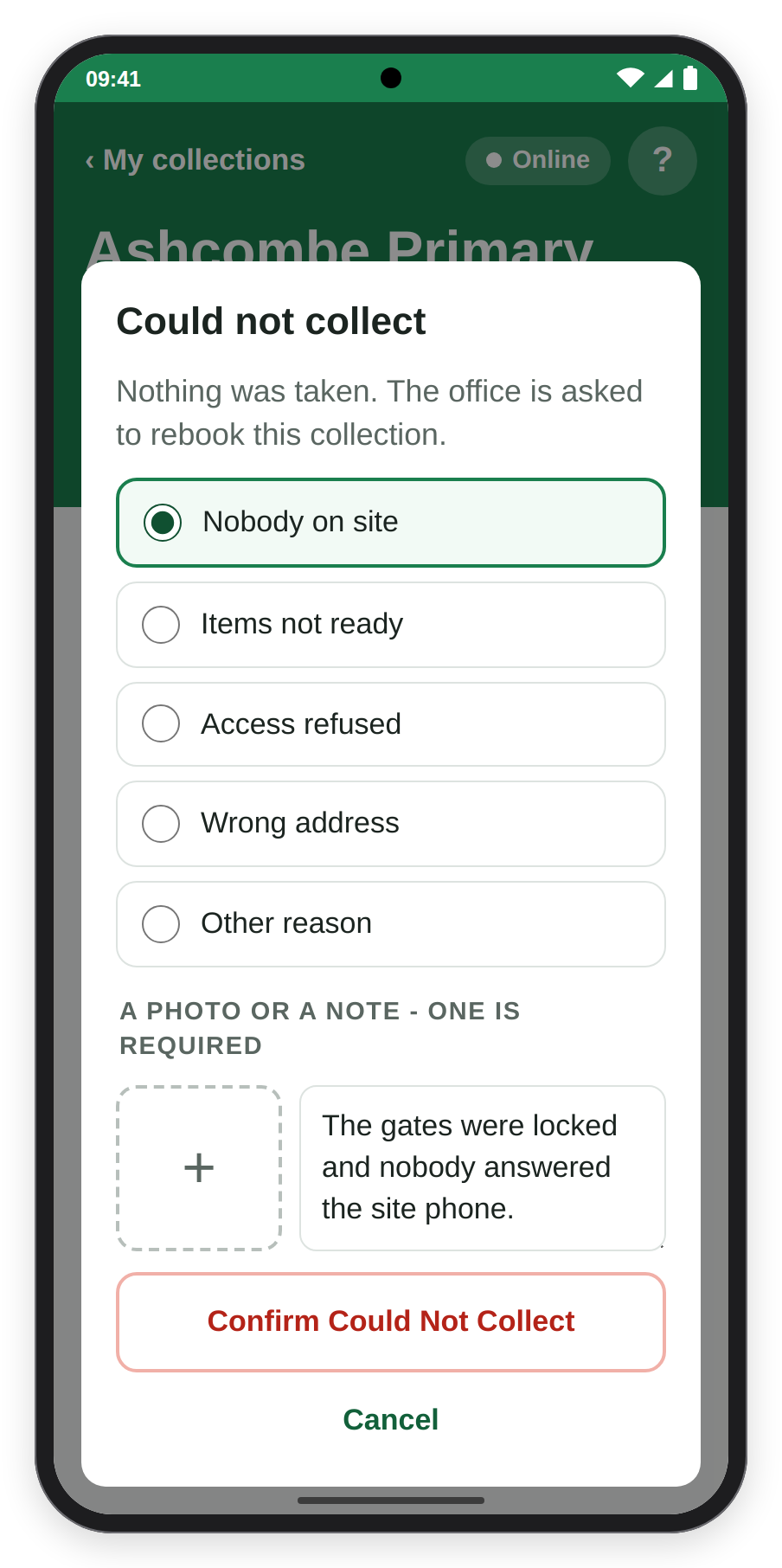
Could Not Collect: a reason, and a photo or a note.
13. Reopening a collection you could not collect
If a collection you marked Could not collect can be done after all, for example the customer has turned up, you can reopen it the same day. Tap Navigate on its card and Driver Hub asks "Reopen this collection?", for example "You marked Southfield School as could not collect at 14:05 today (Nobody on site)." and "If it can be collected now, reopen it. It goes back on today's list and the office is told." Tap Reopen Collection and Navigate, or Keep as Could Not Collect to leave it as it is. If you are already there, open the collection, where it says, for example, "Marked could not collect at 14:05 today (Nobody on site).", and tap Reopen Collection. Driver Hub then says, for example, "Southfield School has been reopened and is back on your list.", adding "The office will be told when you have signal." when you have none.
If the office has already rebooked or closed the collection, it cannot be reopened, and the card says so, for example "The office had already rebooked this collection, so it cannot be reopened. Call the office if you are on site."
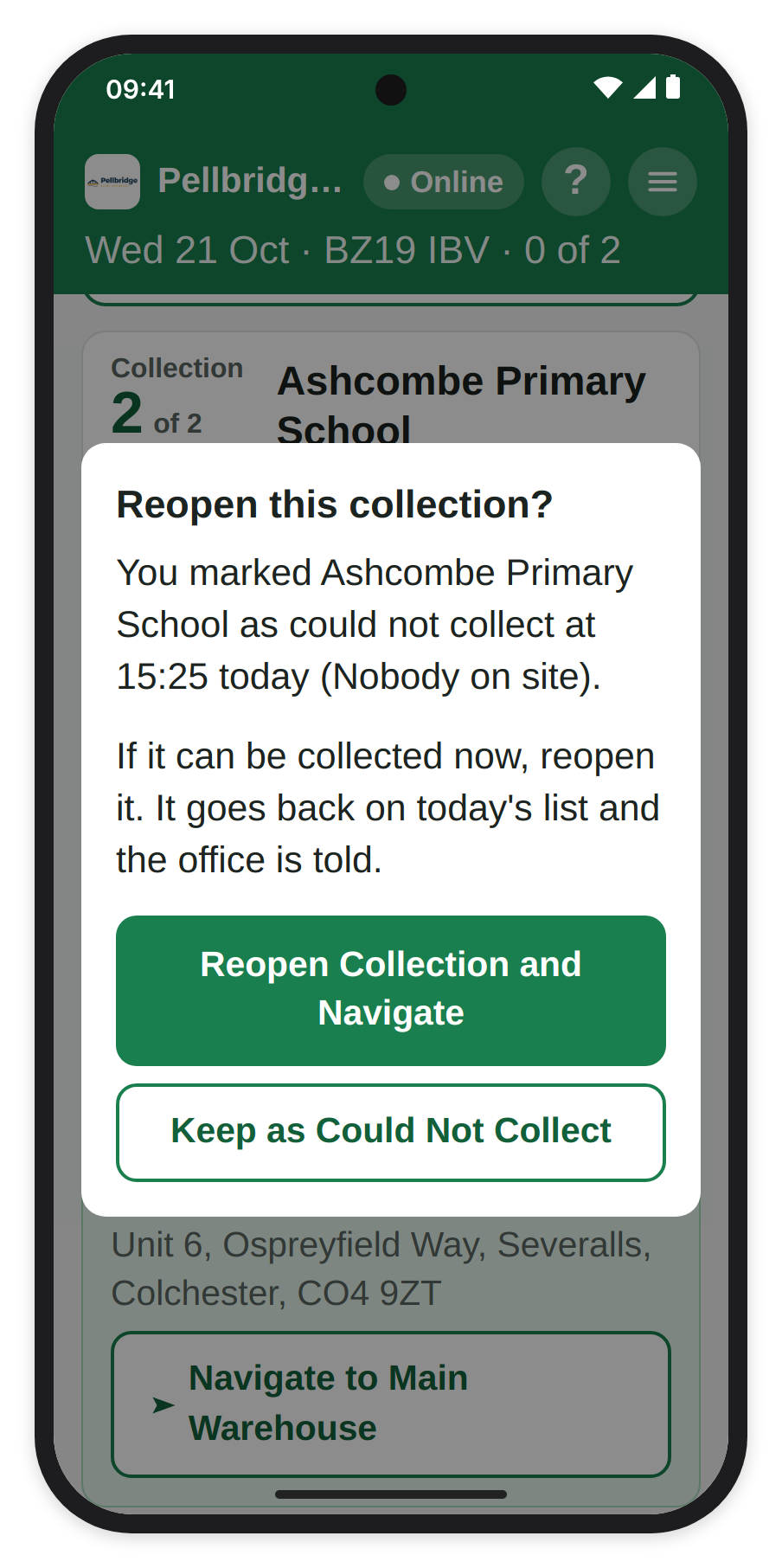
Navigate on a collection marked could not collect asks whether to reopen it.
14. Back at the depot
Until you are back, the end of My collections has a Back to the depot card, with the depot's name and address, "Due back about:" and the time you should be back, when the office's route has one, how far away it is when your phone knows where you are, for example "About 12 miles away", and Navigate to the depot, for example Navigate to Main Warehouse, which opens your sat nav app.
When you get back, tap Arrived at Depot. It is at the foot of the list once every collection has been finished or marked could not collect, and in the menu at any time. Driver Hub asks, for example, "Back at Main Warehouse?", with the depot's address, how many collections were completed, for example "2 of 3 collections completed", and what was counted, for example "7 items · 5 packages counted". Anything not completed is listed in red under "Not completed". Tap Confirm Arrival, or Not yet if you are not back. My collections then says, for example, "Day finished - 4 collections back at the depot" and "Arrived at 16:40 UK time", and anything not completed shows under "Not completed (1) - tell the office", so do tell them. Like everything else, the arrival is saved on the phone and sent when there is signal.
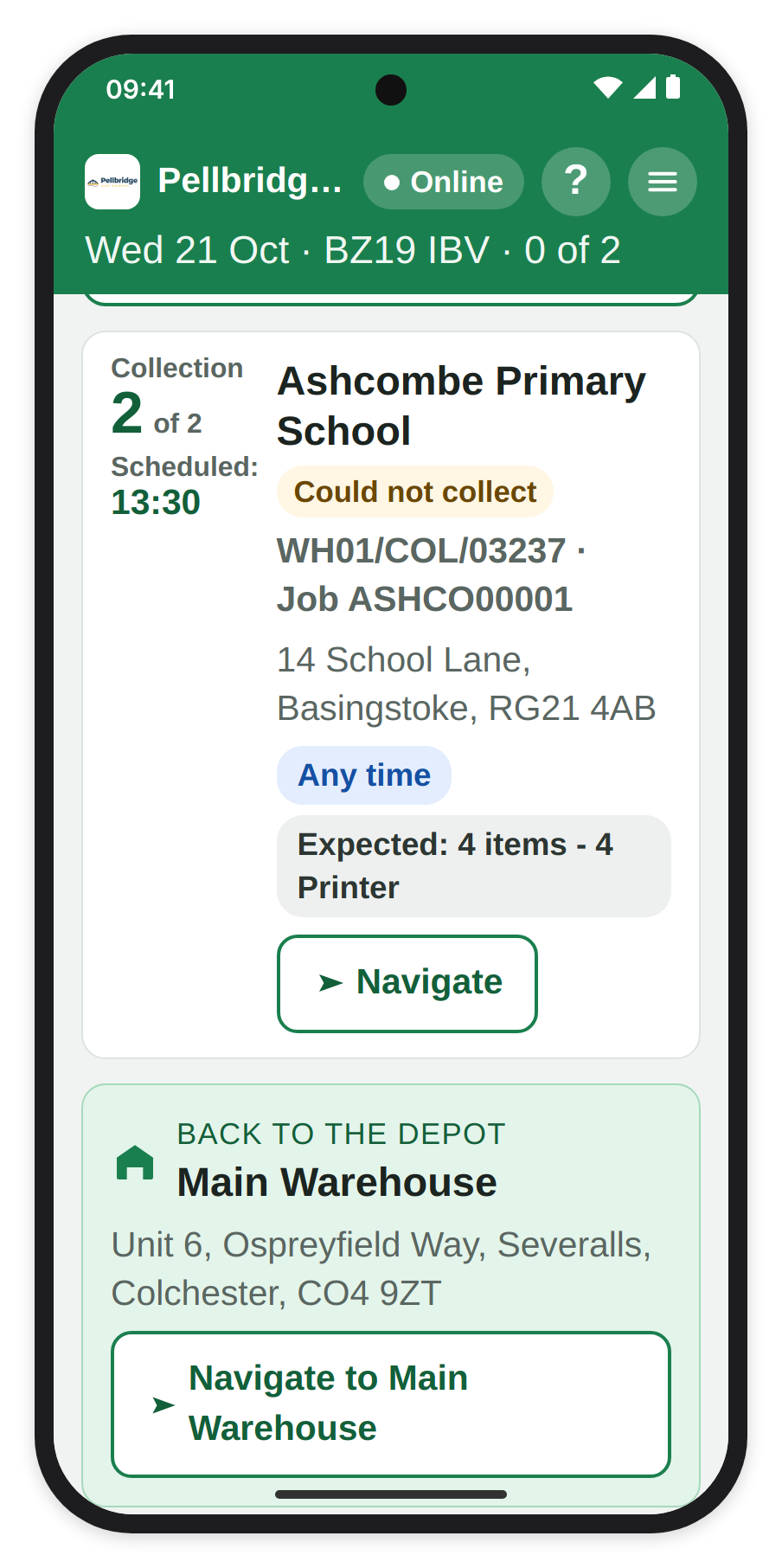
The end of My collections, until you are back.
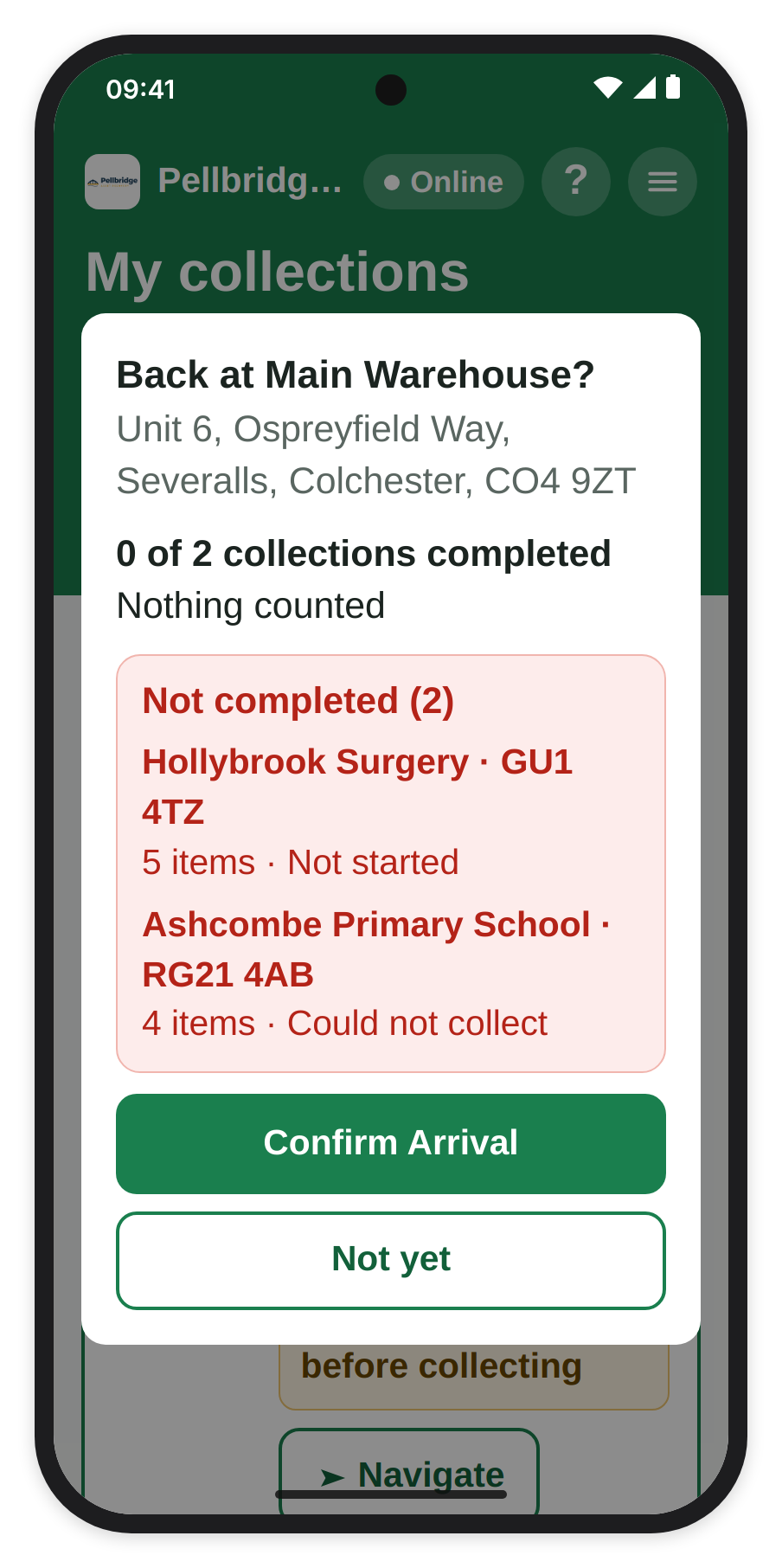
Arrived at Depot asks first, and lists anything not completed.
15. More than one run a day
Some days you go out, come back to the depot and go out again. When the office has planned more than one run for you, My collections puts each run's collections under a banner of its own, for example "Run 1" with "Leaves 08:00 · back about 12:45", and each run ends with its own Back to the depot card, which names the depot that run finishes at.
Arrived at Depot ends the run you are on, and the question counts that run only, with a line such as "End of Run 1 - Run 2 (3 collections) is still to come". Once you confirm, the list says, for example, "Run 1 done - 6 collections back at the depot" and "Run 2 leaves about 13:25 - 3 collections", and a run that is done folds down to one line, for example "Run 1 · Done · 6 collected". Tap Show to see its collections again, and Hide to fold it back. If the next run is booked on a different vehicle, Driver Hub asks again, for example "Ready for Run 2, Greg" and "Which vehicle are you in for Run 2?", so you pick the vehicle that goes on that run's Waste Transfer Notes. When the office adds a run during the day, the changes banner says so, for example "Run 2 added: 3 collections, leaves about 13:15".
16. What the customer gets
The moment your proof reaches the office, RecyclyERP makes the signed Waste Transfer Note, attaches it to the collection, emails it to the customer and shows it on their Customer Portal. A collection that is not marked as moving waste uses the Duty of Care Document instead, which the Sign step shows with Show the customer the full document. In the office, the collection's Proof of Collection tab shows everything you sent: your counts and reasons, what you scanned, the photos, the seal numbers, the weight and both signatures.
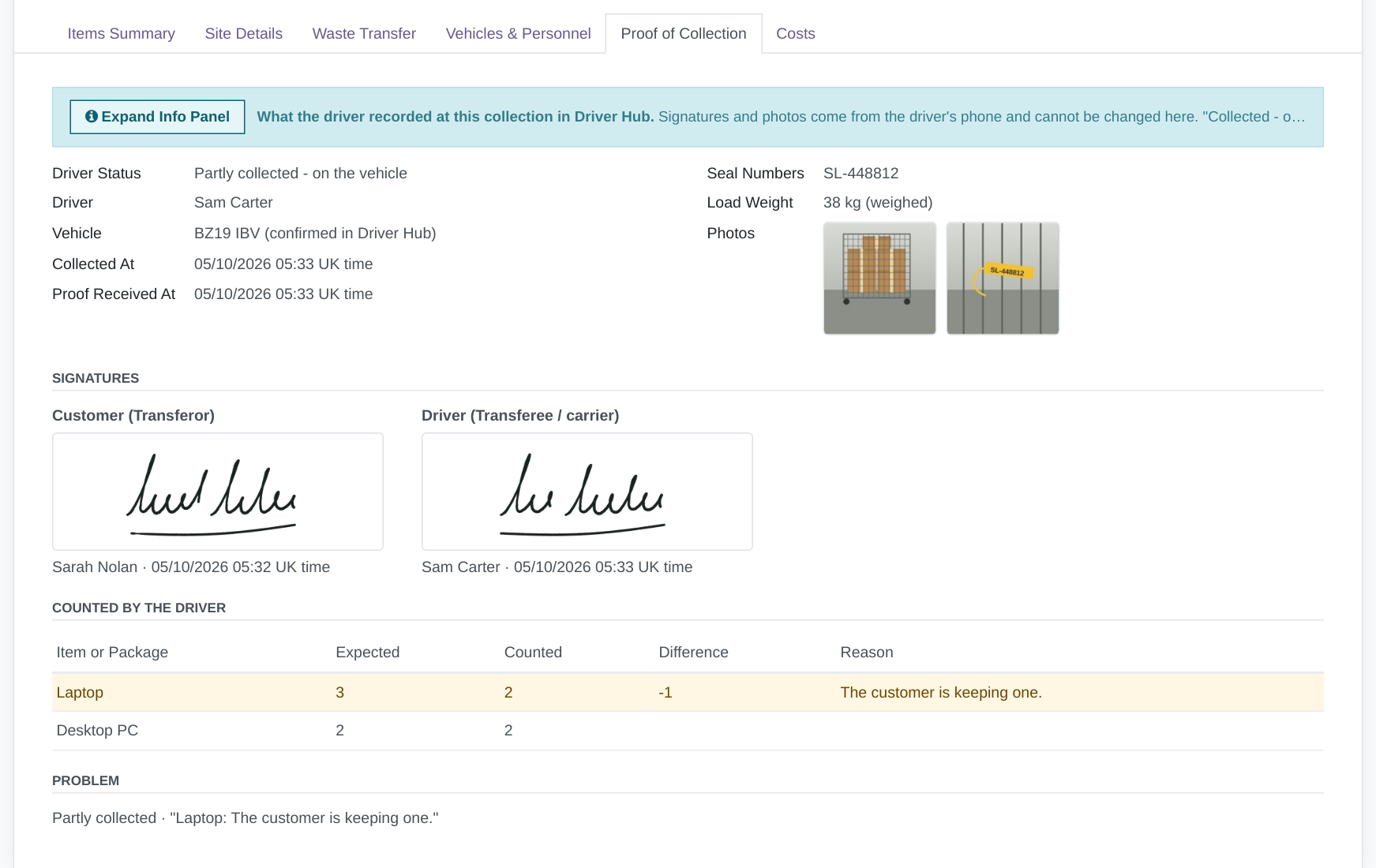
What the office sees: the Proof of Collection tab on the collection.
17. No signal
Driver Hub always opens, signal or not. If you open it with no signal before it has had today's list, for example first thing in the morning, it shows "No signal yet" and "Your collections will appear here as soon as this phone has signal. Anything you have already captured is safe on this phone." Once it has had signal, today's collections and their documents are saved on the phone, so you can work through the day without signal, and everything you record is kept until it is sent. The days around today are saved too, so on a new morning with no signal Driver Hub moves on to today's list from the copy on the phone, saying when it was last checked, for example "Saved on this phone - last checked Fri 9 Oct at 14:05". If the phone has not reached RecyclyERP for 72 hours, it hides your collections and shows "Connect to the internet to carry on. Nothing you have captured is lost."
18. Sending
The header shows Online or Offline, followed by what is still to send, for example "Offline · 1 waiting to send", "Online · sending 1 of 2" or "Online · 1 needs you"; tap it to open Sending. It is a table of the last 24 hours, both ways: "↑ sent from this phone to the office, ↓ sent from the office to this phone". Its columns are When, What and Details. The up arrows are what you recorded, such as a collection, a vehicle, a could not collect or an arrival at the depot, each with its status; the down arrows are what the office sent you, such as "Today's list: 12 collections" or a change to a collection. Anything not sent yet stays on the list until it is sent.
Tap Waiting or Sending to see what it means. Waiting means "Saved on this phone. It will send when the app is open and has signal.", Sending means "Sending now - keep the app open.", and Sent ✓ means it has reached the office. Sent - office told means it arrived, but the office had changed that collection while you had no signal, for example "Sent. The office had cancelled this collection while you had no signal, so they have been asked to check it.", and Not accepted means RecyclyERP could not take it, which the next section explains. Things send by themselves as soon as the app is open and has signal, but an iPhone only sends while the app is open, so keep the app open for a moment when you get signal back.
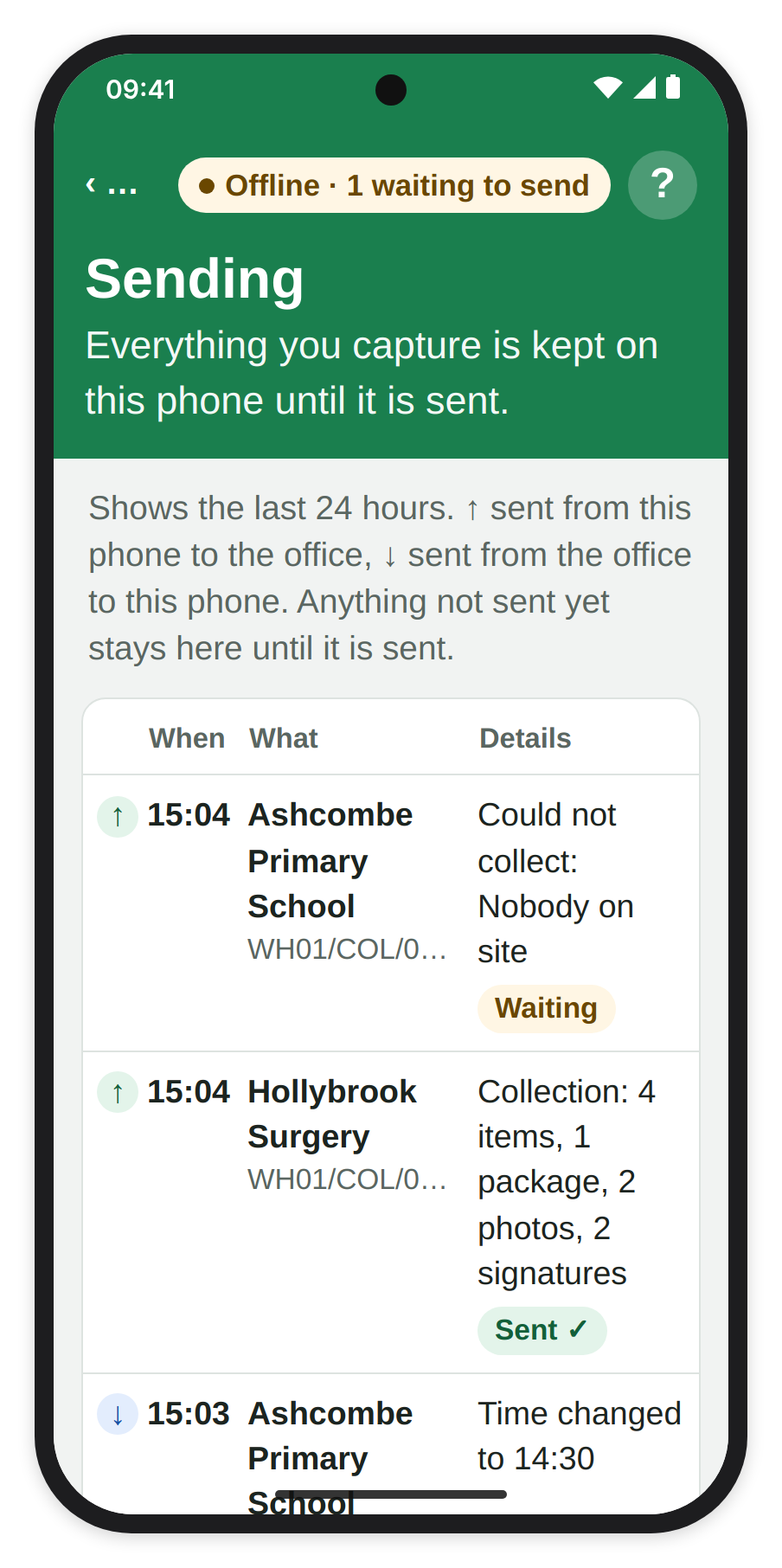
Sending: the last 24 hours both ways, and where each item has got to.
19. Not accepted
Not accepted means RecyclyERP refused what you sent, and the row says why under it, for example "This collection is no longer on your list, so it could not be sent.", "This collection was already finished from another phone.", "A photo or signature could not be accepted." or "The office changed your vehicle while you had no signal. Check with the office, then confirm your vehicle again." A reopening can be refused too, with "The office had already rebooked this collection, so it cannot be reopened." or "The office has closed this collection, so it cannot be reopened." The first three, and any other refusal of what you recorded, go on "What you recorded is still on this phone - show this screen to the office.", and that is what to do every time. Once the office has sorted it out, tap Try Again. Never tap Remove from Phone without the office's say-so, because, as it warns, "Remove this from the phone? It has not reached RecyclyERP, so it will be lost for good."
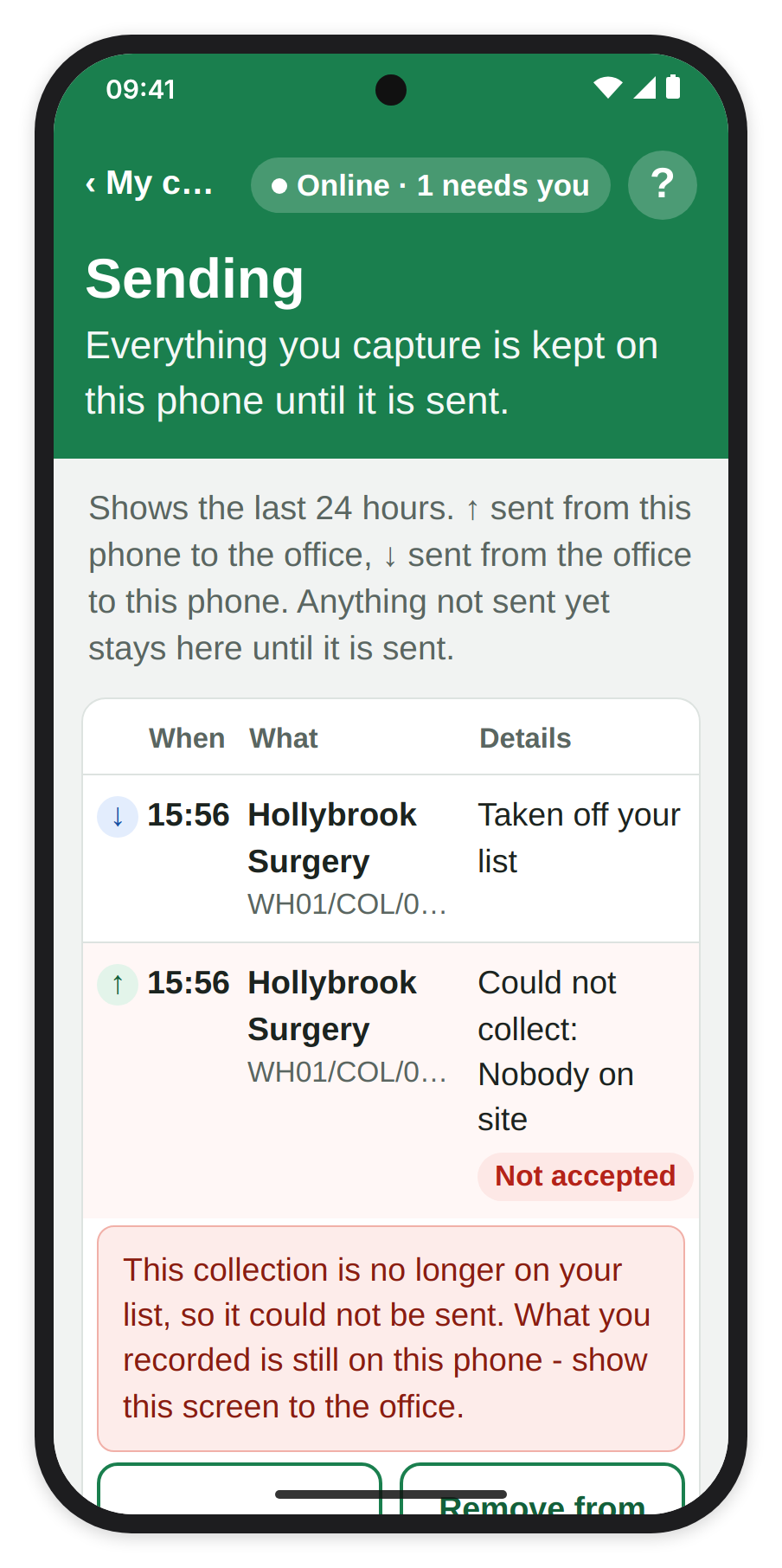
Not accepted: show this to the office before you remove anything.
20. Nothing is lost
What you have recorded stays on the phone until it has been sent, through aeroplane mode, swiping the app away, restarting the phone or a flat battery. If the phone is nearly full, Driver Hub warns you: "This phone is nearly full. Free some space before your next collection, or photos may not save." If anything is still waiting when you tap Sign Out, it warns you first, for example "You have 2 items not sent yet. If you sign out now they will be deleted.", so stay signed in until it has all been sent.
Driver Hub updates itself, but never in the middle of a collection. When a new version has downloaded, My collections says "A new version of Driver Hub is ready." with Restart: tap it when it suits you. If a collection is part-way through, it says when it will start instead, for example "A new version of Driver Hub is ready. It starts once you finish WH01/COL/00615." Once the new version is running it says so, with "Driver Hub has been updated" and, for example, "Version 1.0.13 is now running. Nothing waiting to send was lost: 1 item is still waiting and will send now."
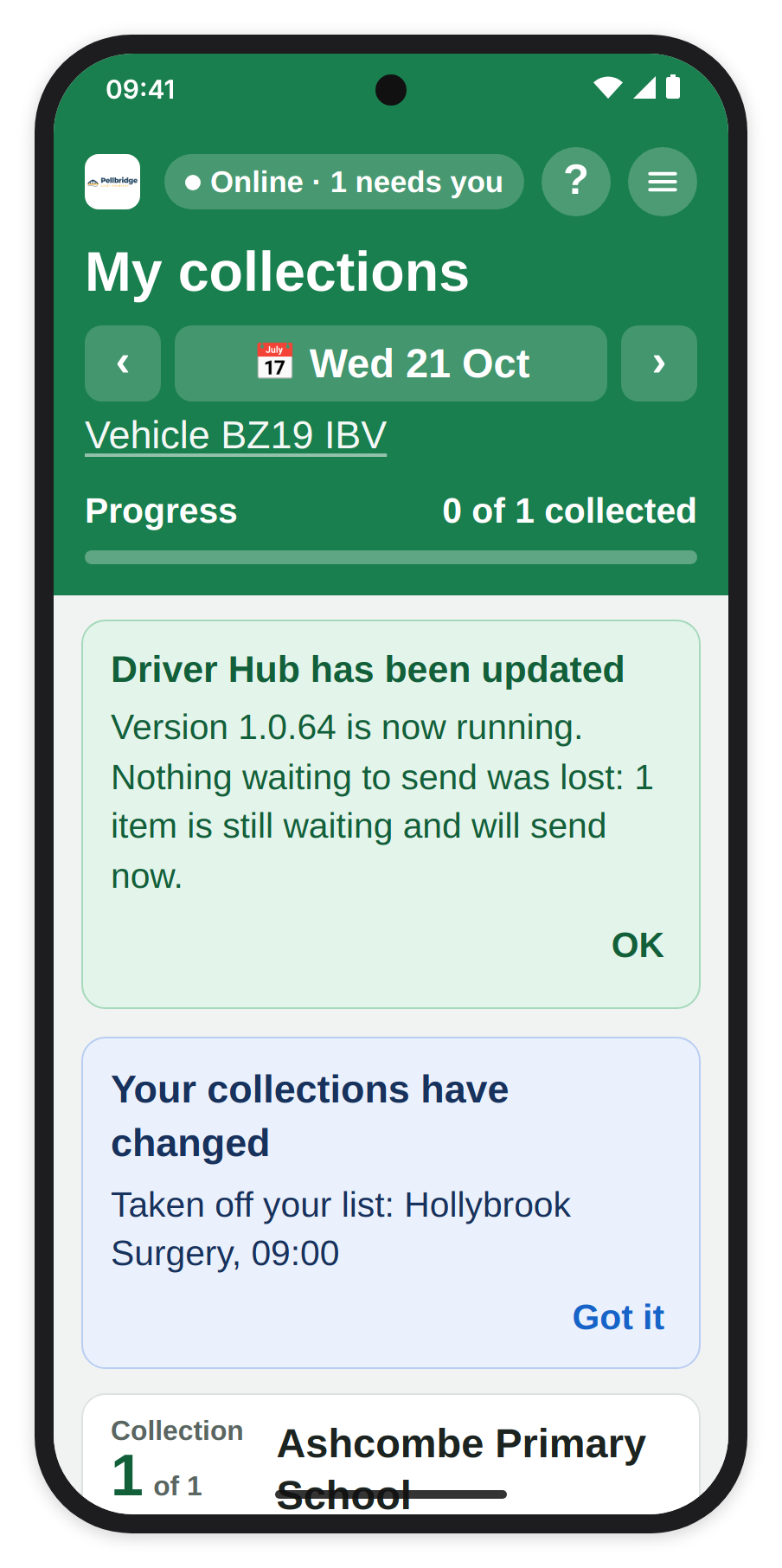
After an update: nothing that was waiting to send is lost.
21. Settings
Open the menu and tap Settings. Each choice is kept the moment you make it, with no Save button, and "Settings saved" shows for a few seconds. "These settings are kept on this phone only."
- Text size: how big the writing is on every screen, Small, Medium (default) or Large.
- Sat nav app: which app Navigate opens, as "Navigate" above explains.
- Scanning: whether the phone beeps and vibrates when a barcode is read or deleted.
- Lock: whether Driver Hub asks for your face, fingerprint or 6-digit code. The lock is explained in Installing and logging in to Driver Hub (opens in a new tab).
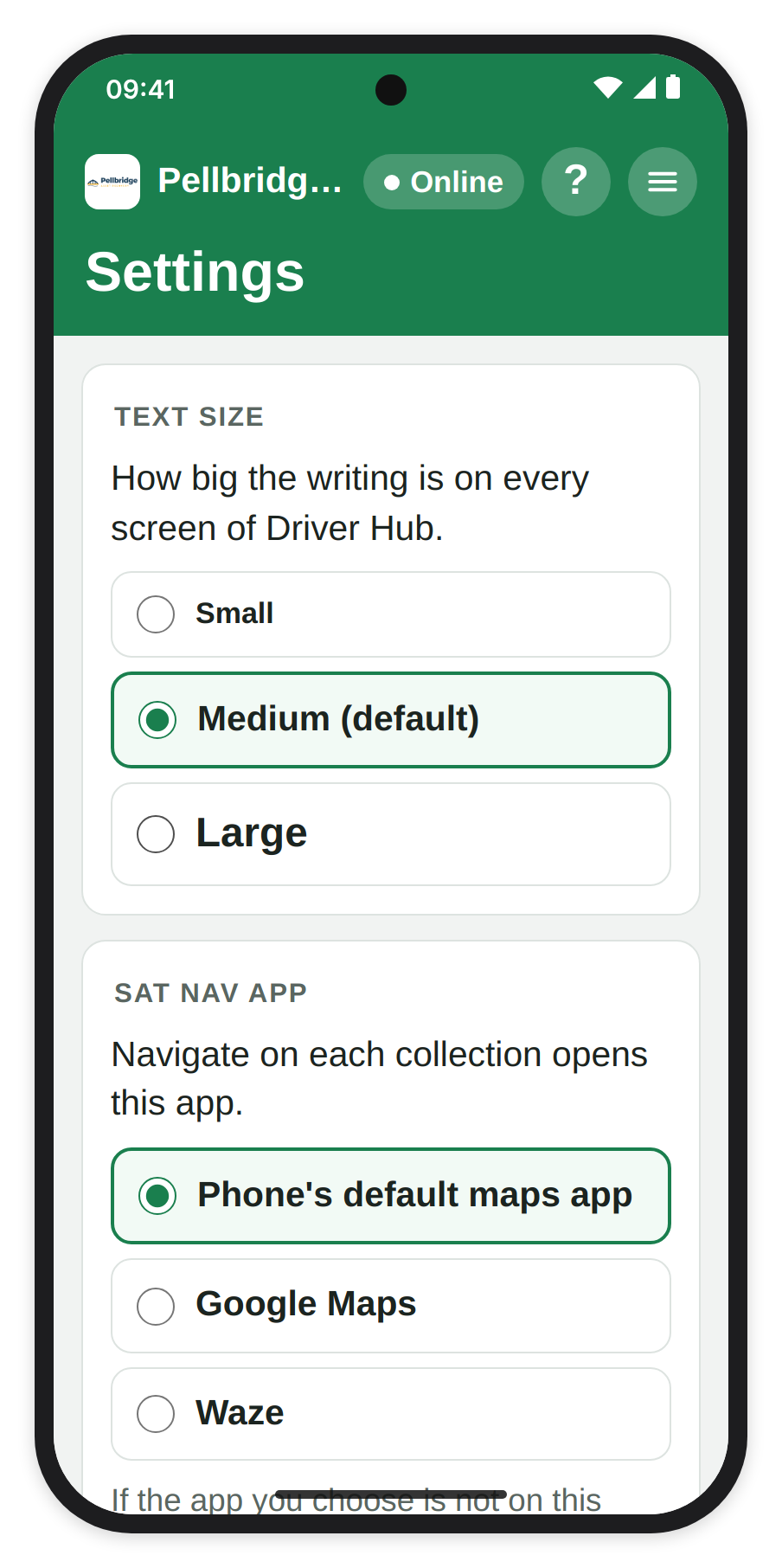
Settings: each choice is kept as soon as you tap it.
22. Help
The ? at the top right of My collections, a collection, Sending and Settings opens this guide inside Driver Hub, on top of the screen you were on. Tap Back and you return to exactly where you were, with anything you typed still there. The guide is kept on your phone, so it opens with no signal too, and says "Saved on this phone - updated" and the date. It downloads the first time Driver Hub has signal; until then, with no signal, it says "Help needs signal the first time". With signal, Open in browser at the foot opens the guide in your phone's browser, to print or share it.
Some parts of a screen have a ? of their own: the one beside Seal numbers (optional) on Photos explains seal numbers.
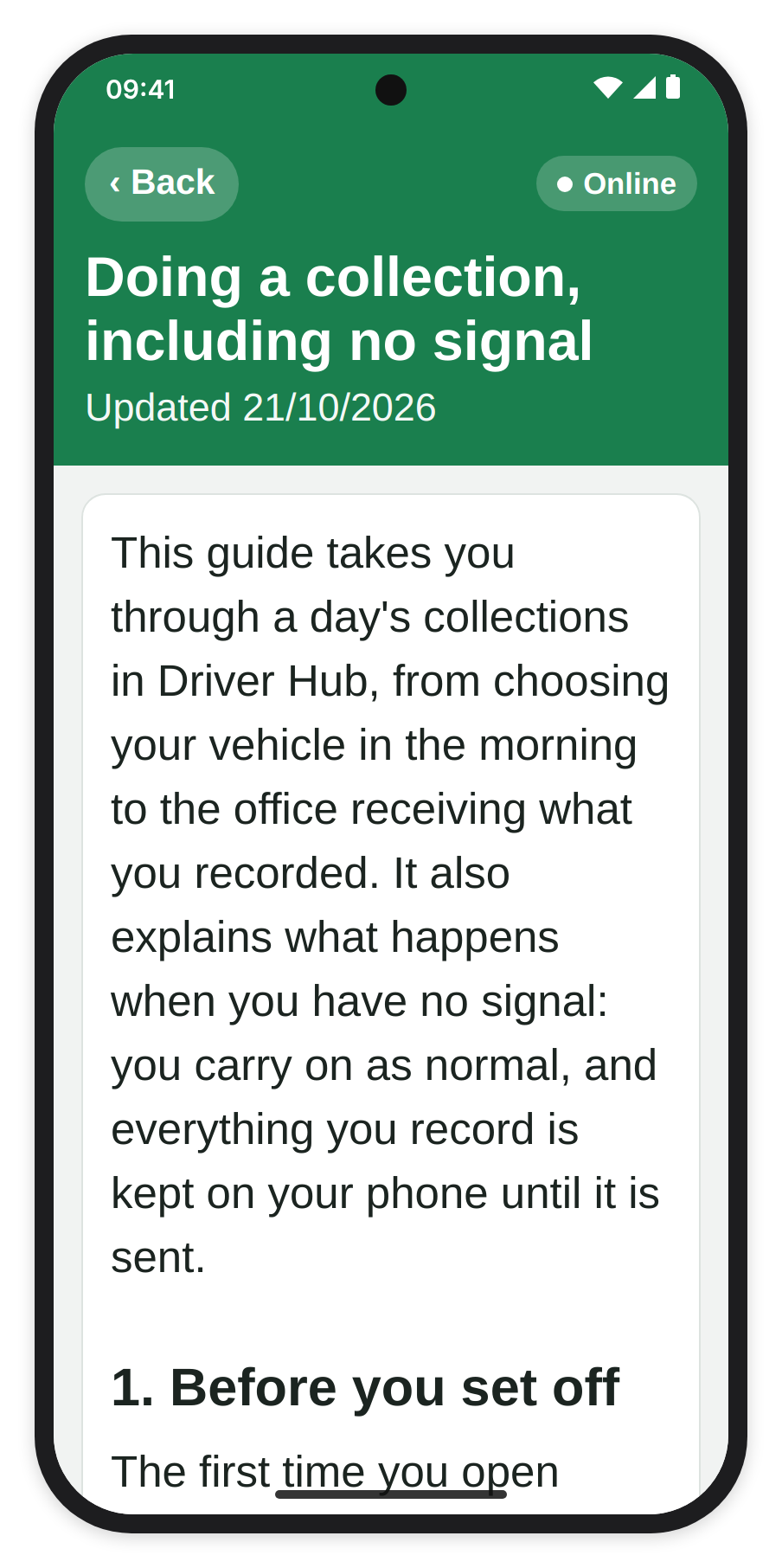
This guide, open inside Driver Hub.
23. DIAL ratings
Some customers have an ADISA (Asset Disposal and Information Security Alliance) DIAL (Data Impact Assurance Level) rating, from DIAL 1 to DIAL 3, which says how carefully their data-bearing equipment must be handled. Where your office uses them:
- On My collections, the card can show a small pill such as DIAL 3 beside its other pill, such as Next, New, Collected ✓ or Could not collect: DIAL 3 red, DIAL 2 amber, DIAL 1 grey.
- When you open the collection, a block after its notes shows the level and what the office wants you to do, for example "DIAL 3" and "Label every item and scan it at the customer's site, then scan it again when it arrives at the warehouse." Where the office has made scanning required for that level, this block always shows.
- Where the office has made scanning required for that level, the Scan step has no Skip scanning button, whatever your company's usual setting. Scan each item, or tap Not here and say why.
- On a summary job, the level can put the Scan barcodes / QR codes button on each item line even where your company normally leaves it off. Scanning there is still optional.
IMPORTANT NOTE: "Required" scanning cannot force every item to be scanned on a summary job, because the customer has not listed the items for you to scan against. Follow the instructions on the collection; the warehouse scans each item when it arrives.
For the office: ADISA DIAL Ratings: your customers' ratings and your own certification (opens in a new tab) explains how the levels are set up.
Read more: Installing and logging in to Driver Hub (opens in a new tab).