Grading gives every item a grade, such as A, B or C, that says what condition it is in. RecyclyERP can work the grade out for you from what your staff record about the item (its scratches, dents, dead pixels, missing keys, test results and so on), or you can type a grade in by hand, or copy the grade your audit software reports. The grade then helps decide what the item is worth, which SKU it matches and how it is sold.
This guide follows the Asset Grading Setup Actions in the Setup Assistant, in the same order: what grading is, your Item Grades, Grading Schemes, Grading Areas, the ready-made Grading Templates and their Grading Rules, importing grades from audit software, grading an item, and the mistakes people make. Everything is set up under Inbound > Configuration > Asset Valuation & Grading, which lists the screens in the order you set them up: Manual Item Grades, Grading Schemes, Grading Areas, Grading Templates, Grading Rules, Fair Market Value (FMV) Pricing, Manual Screen Grades and Item Cost Types. The same menu is under Asset Types & Services > Configuration > Asset Valuation & Grading.
What an item is worth once it has a grade is covered in the companion guide, "Fair Market Value (FMV): price lists, grade effects and customer payouts", in this same section.
1. What grading is: Manual Grade, Calculated Item Grade and Final Item Grade
An item can carry three grades. They all come from the same list of Item Grades (section 2).
- Manual Grade: a grade a person picks by hand, or that your audit software reports (section 6). It is for your information and is never used by the automatic grading. Grade by hand with it if you do not use automatic grading.
- Calculated Item Grade: the grade RecyclyERP works out. Every item starts at the top score of its Grading Scheme (for example 100). Each Grading Rule on the item's Grading Template takes points off for what was recorded about the item, and the Grading Scheme turns the final score into a grade. The score and the grade show side by side as Calculated Grade Score, for example "85 → Grade B".
- Final Item Grade: the grade that counts. It is what the item is valued, matched to a SKU and reported on with. It follows the Calculated Item Grade automatically, but anyone can change it by hand. A Final Item Grade changed by hand is marked Overridden and shows who changed it and when, and recalculating leaves it alone until someone clicks Revert to Calculated.
So for automatic grading you need four things in place: Item Grades, a Grading Scheme, a Grading Template switched on for the item's Asset Type, and attributes recorded on the item. Sections 2 to 5 set those up.
2. Set up your Item Grades (e.g. A, B, C)
Setup Action: Set up your Item Grades (e.g. A, B, C), which opens Manual Item Grades.
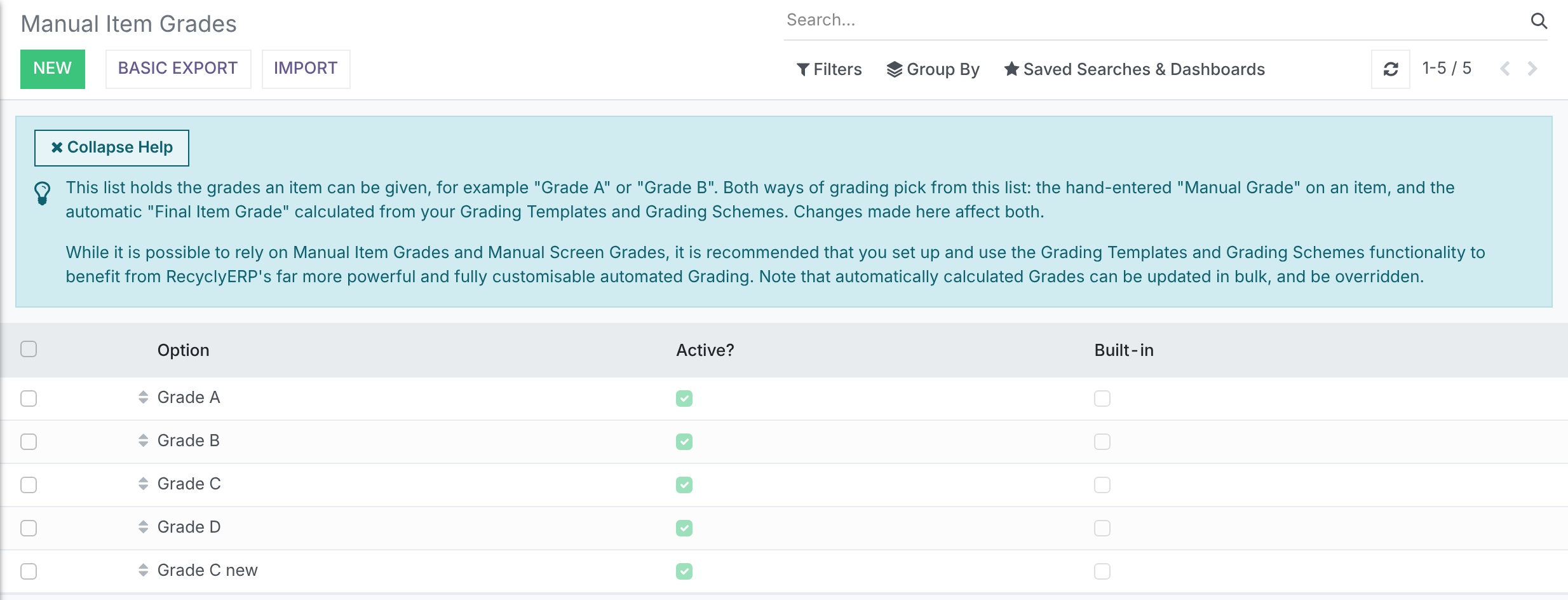
This is the one list of grades an item can be given. Every grade in RecyclyERP comes from it, whether someone picks it by hand or grading works it out, so a change here affects both.
- Go to Inbound > Configuration > Asset Valuation & Grading > Manual Item Grades.
- Check the grades listed are the ones you use, best first. Drag the handle to change the order.
- Click New to add a grade, or click a grade to rename it. Untick Active? to stop using one without losing it from items that already have it.
If RecyclyERP has already added grades for you, check they match the names you use before you go further. The names matter later: a grade from audit software is only copied when it matches the name of one of these exactly (section 6).
Manual Screen Grades, further down the same menu, is a separate list for a hand-entered screen grade. It is for information only and is never used by automatic grading. If you want screen condition to affect the grade, add a screen rule to your Grading Template instead.
3. Set up a Grading Scheme (the score bands that give each grade)
Setup Action: Set up a Grading Scheme (the score bands that give each grade), which opens Grading Schemes.
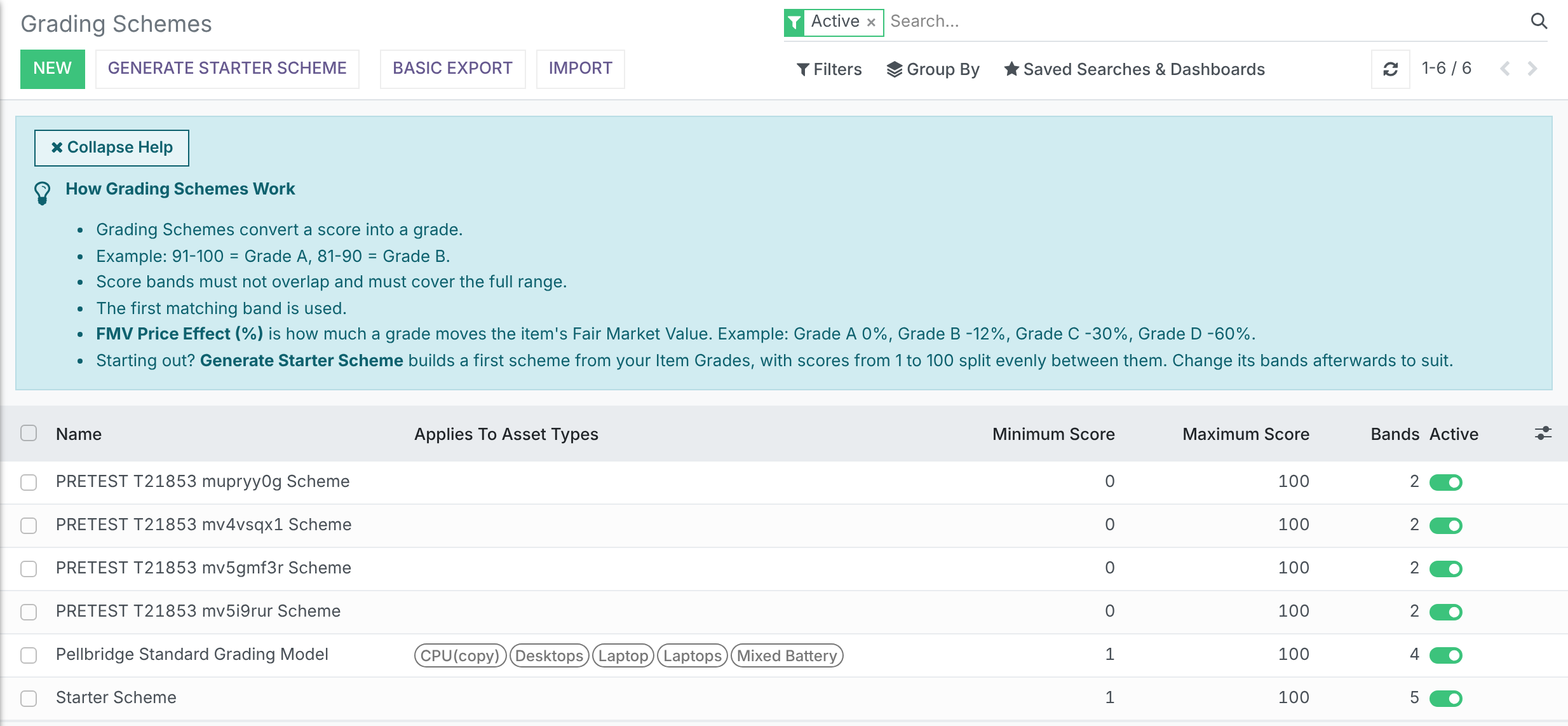
A Grading Scheme turns an item's score into a grade. It has a Minimum Score and a Maximum Score, for example 1 and 100, and a set of Score Bands, each giving one grade: for example 90 to 100 = A, 75 to 89 = B, 55 to 74 = C. Every item starts at the scheme's Maximum Score, and its Grading Rules take points off from there.
The quickest start is Generate Starter Scheme, at the top of the Grading Schemes list. It builds a first scheme from your Item Grades, with scores from 1 to 100 split evenly between them. Then adjust its bands to suit.
To set a scheme up or change it:
- Open the scheme from Inbound > Configuration > Asset Valuation & Grading > Grading Schemes, or click New.
- Set Minimum Score and Maximum Score.
- Under Applies To Asset Types, pick the Asset Types this scheme grades. Leave it empty for a scheme that applies to every Asset Type not covered by another scheme.
- On the Score Bands tab, add one line per band: Band Minimum Score, Band Maximum Score and the Resulting Item Grade.
- Save. RecyclyERP checks the bands before it saves.
The bands must cover the whole range from Minimum Score to Maximum Score, with no gaps and no overlaps. Both ends count: a band of 75 to 89 includes 75 and 89, so the next band down must end at 74. If the bands are wrong, saving stops with a message such as "Score bands overlap" or "Score bands have a gap from ... to ...", naming the bands concerned.
Each band also has FMV Price Effect (%), which is how much that grade moves the item's Fair Market Value (FMV): for example 0% for Grade A and -12% for Grade B. The Example column beside it shows what the percentage does to a round figure. Leave it at 0 if you do not value items; the FMV guide explains it in full.
4. Set up Grading Areas (e.g. Screen, Keyboard, Casing)
Setup Action: Set up Grading Areas (e.g. Screen, Keyboard, Casing), which opens Grading Areas.
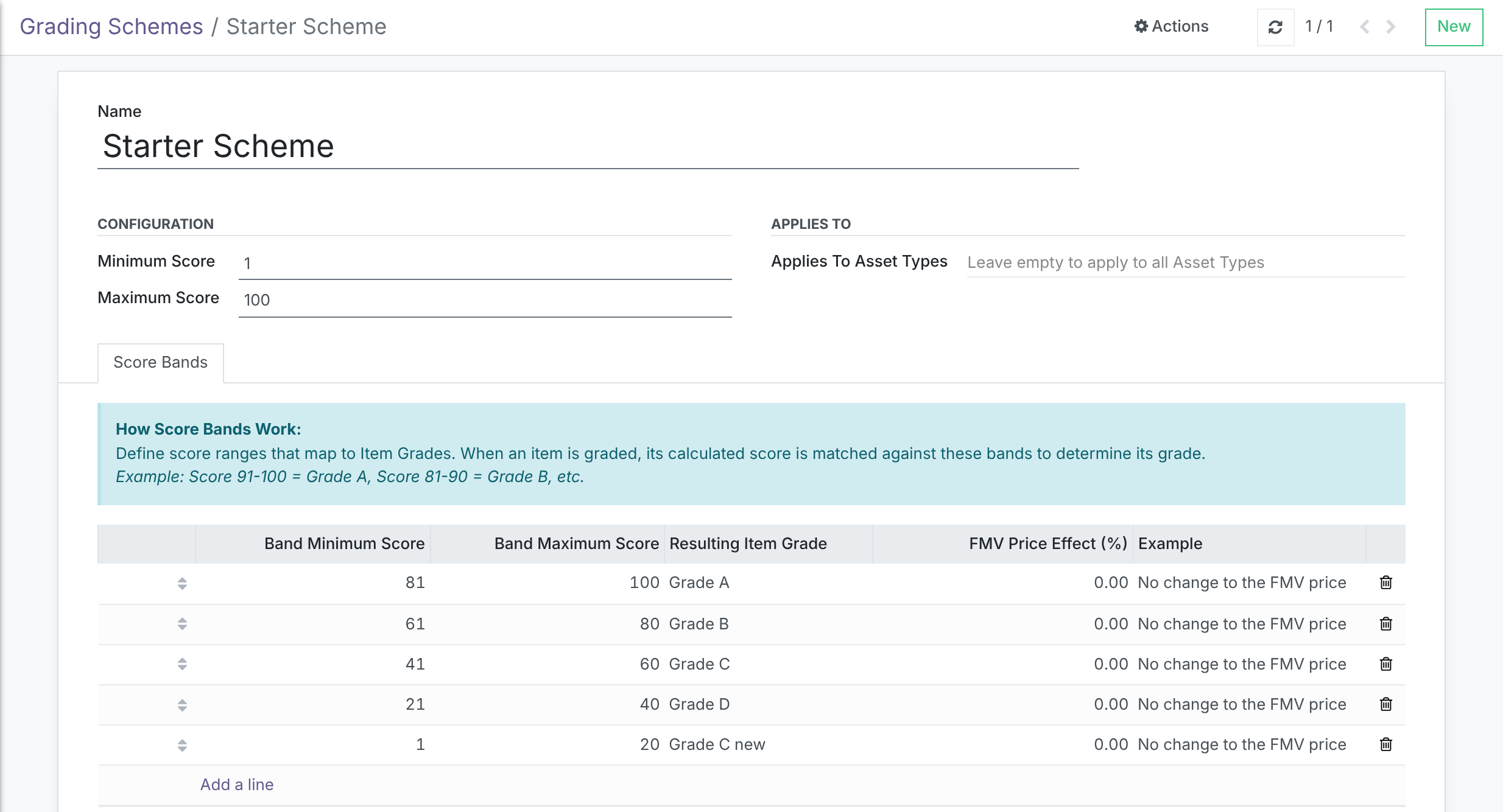
Grading Areas are the parts of an asset an operative checks, such as Screen, Keyboard, Top Casing, Base Casing and Battery. They group the Grading Rules on every template under headings, in the order your staff physically inspect an item. They never change a score, a grade or a payout.
- Go to Inbound > Configuration > Asset Valuation & Grading > Grading Areas.
- Click New to add an area, or click one to rename it.
- Drag the handle to put them in inspection order. Every Grading Template shows its area headings in this order.
The list is shared by all templates, so renaming or reordering an area changes it everywhere. An area a template already uses cannot be deleted: select it and use Actions > Archive instead. Setting an area on a rule is optional; a rule without one is grouped under its attribute's own category.
5. Switch on and adjust your Grading Templates
Setup Action: Switch on and adjust your Grading Templates, which opens Grading Templates with the Active column highlighted.
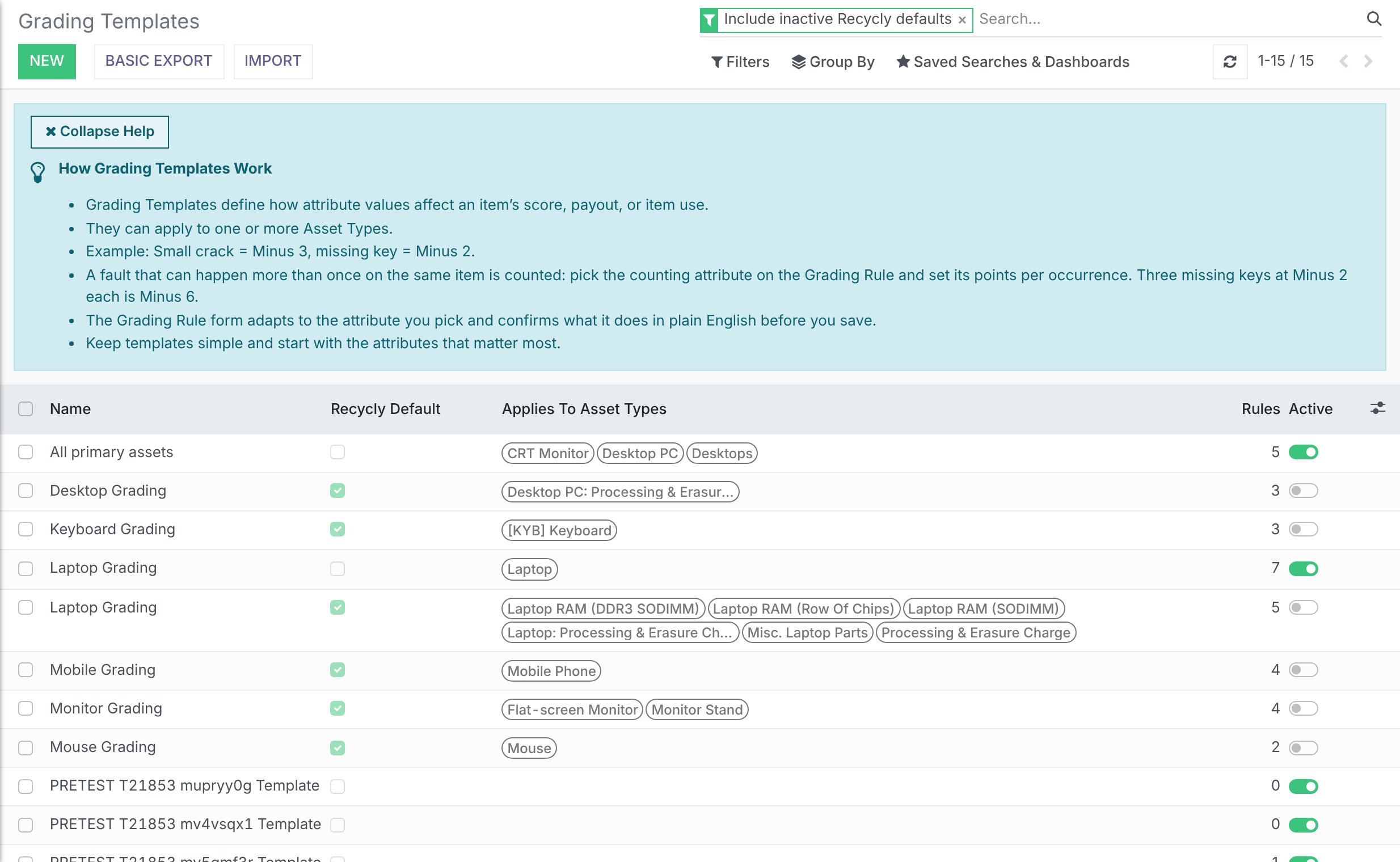
A Grading Template holds the Grading Rules for the Asset Types it applies to. RecyclyERP comes with ready-made templates for Laptops, Tablets, Mobiles, Monitors, Desktops, Keyboards, Mice, Printers and UPS units, ticked in the Recycly Default column. They are switched off until you choose to use them. The list opens with the filter Include inactive Recycly defaults on, so you can see them.
- Go to Inbound > Configuration > Asset Valuation & Grading > Grading Templates.
- Switch on the templates you want with the toggle in the Active column.
- Open each one you switched on and check Applies To Asset Types lists your Asset Types. The ready-made templates were matched to your Asset Types by name, so add any that were missed.
- On its Grading Rules tab, read the rules (below) and change the points to suit how you grade, or create your own template with New.
Reading a template's Grading Rules
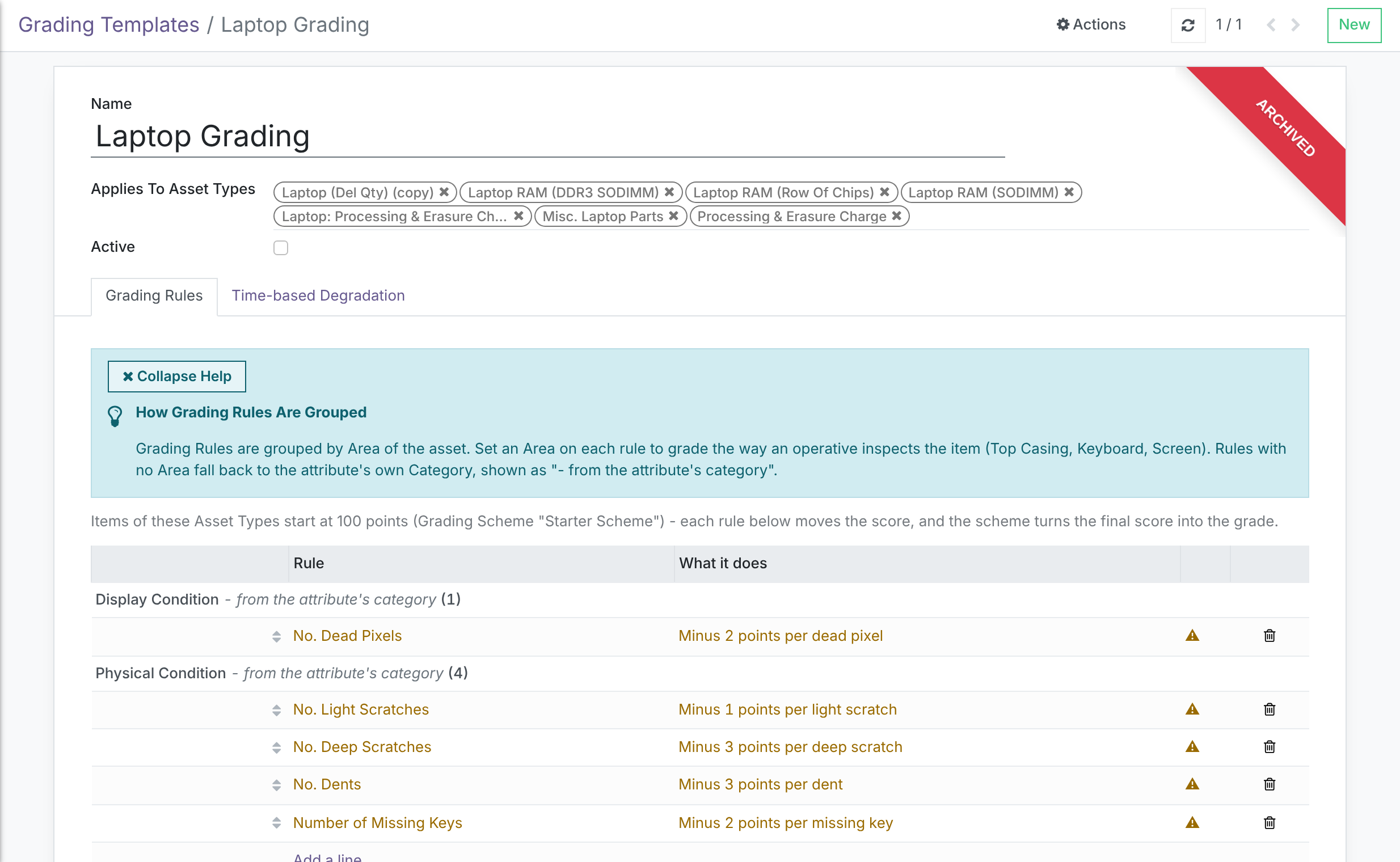
A Grading Rule says what one thing about an item does to its score. The Grading Rules tab lists them grouped by Grading Area, and the line above the list says where items start, for example "Items of these Asset Types start at 100 points (Grading Scheme "Standard") - each rule below moves the score, and the scheme turns the final score into the grade". What it does reads each rule back in plain English, for example "Minus 3 points per dent".
- A counted rule charges per occurrence: three missing keys at Minus 2 each is Minus 6.
- A fixed values rule gives each value of an attribute its own points, for example a screen test result of Fail or Warning.
- A rule turns amber when it is worth a second look: one that adds points (items already start at the top, so adding usually changes nothing) or one that does nothing yet.
- A warning symbol on the right means the rule's attribute is not set up for every Asset Type the template covers. Grading still runs; the rule is skipped for those items, or a counted rule is charged once. Hover the symbol for a summary.
Click a rule to open it. The Grading Rule form adapts to the attribute you pick and confirms what the rule does in plain English before you save.
Grading Rules in the menu lists every rule on every template together. It is for finding a rule when you do not know which template it is on. Check the Grading Template column before you change one, because a template can be shared by several Asset Types.
A template also has a Time-based Degradation tab, which takes points off an item's score as it sits in stock: Degrade Score By so many points every Degrade Interval (days), never below Minimum Degraded Score. Leave it blank if you do not want grades to fall with age.
6. Importing grades from audit software
Setup Action: Choose whether to import grades from your audit software, under Hardware Auditing Software Configuration, which opens Hardware Audit Report Sources.
If your audit software gives each device a grade, RecyclyERP can copy it onto the item. Aiken and PhoneCheck report a grade today.
- Go to Inbound > Configuration > Hardware Auditing & Processing > Hardware Audit Report Sources.
- Open each source in turn.
- Tick Import Device Grade to copy the reported grade, or untick it to ignore it. It starts ticked.
- Save.

What happens to a reported grade:
- It is only copied when it matches the name of one of your Item Grades. If your software says "B" and your grade is called "Grade B", nothing is copied: rename the Item Grade, or add one, to match.
- A grade that matches nothing is noted on the audit report's Log Note, and is never added to your Item Grades.
- A matching grade goes into the item's Manual Grade. The automatic Calculated Item Grade is never set from it.
- If no Grading Scheme covers the item's Asset Type and its Final Item Grade is blank, the Final Item Grade is set from the reported grade as well.
7. Grading an item
Once the setup above is in place, grading happens by itself. RecyclyERP works the grade out again whenever an item is created, whenever its attributes change, overnight for items whose template has Time-based Degradation, and when someone asks it to. An item with no attributes recorded yet is left ungraded, so its score and grade read blank rather than giving it the top grade.
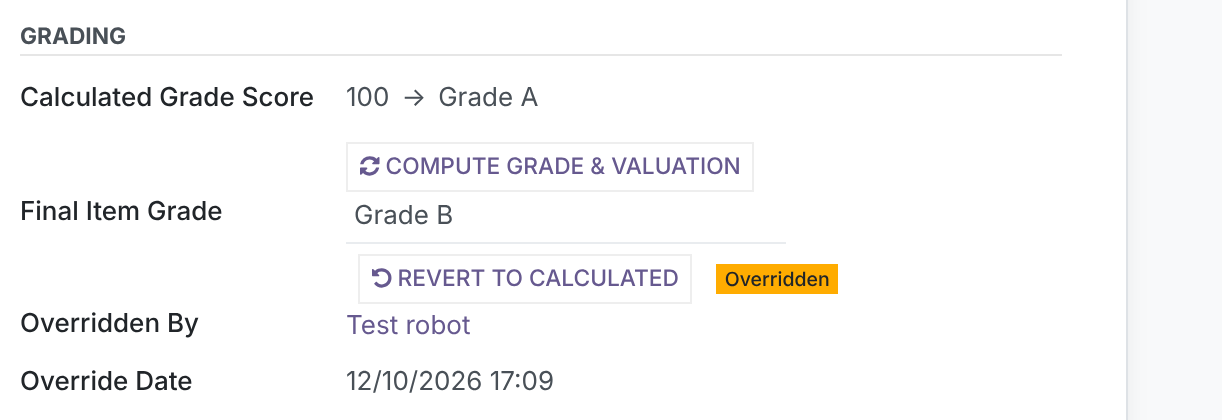
On an item, the Grading section shows the Calculated Grade Score and the grade it gives, and the Final Item Grade.
- Compute Grade & Valuation works the grade out again from the item's attributes, then its value.
- To override the grade, pick a different Final Item Grade. It is marked Overridden, with Overridden By and Override Date, and a note is written to the item's Log Note.
- Revert to Calculated sets the Final Item Grade back to the Calculated Item Grade. It does not work the score out again, so click Compute Grade & Valuation first if the attributes have changed.
Grading many items at once
On Logistics & Inventory > Items & Lots, tick the items and open the Action menu:
- (Re-)Calculate Grades works the grades out again. Choose Only calculate Grades where the Grade is currently blank, or Calculate all Grades, overwriting where they already exist, which also replaces grades set by hand.
- Set Final Grade from Manual Grade copies each item's Manual Grade into its Final Item Grade. Nothing is calculated. The pop-up counts how many items will be set, how many already have a different Final Item Grade (and lists them), and how many have no Manual Grade and will be skipped. Choose Only set items whose Final Item Grade is blank, or Also overwrite the items whose Final Item Grade is different, then click Confirm. This is the way to move from grading by hand to automatic grading without losing the grades you already have.
Common problems
- The scheme will not save: "Score bands overlap". Two bands share a score. Both ends of a band count, so 75 to 89 and 89 to 100 overlap at 89. Make the higher band start one above where the lower band ends (90 to 100). A gap is refused too: 1 to 50 and 52 to 100 misses 51.
- Items are not being graded at all. The usual reason is a Grading Template left switched off. The ready-made templates arrive switched off: tick Active on the ones you want. Also check a Grading Scheme covers the Asset Type, and that the item has attributes recorded.
- One kind of item is never graded. No active template applies to its Asset Type. Open the template that should grade it and add the Asset Type to Applies To Asset Types. The ready-made templates were matched to your Asset Types by name, so a type named differently, for example "Notepad" rather than "Tablet", is easily missed. The line above a template's Grading Rules warns when no Grading Scheme covers its Asset Types.
- A grade from Aiken or PhoneCheck did not come across. It did not match the name of one of your Item Grades exactly, or Import Device Grade is unticked on that source. The audit report's Log Note names the grade it could not match.
- Recalculating did not change the Final Item Grade. It was overridden by hand, and recalculating keeps an override. Click Revert to Calculated, or use (Re-)Calculate Grades with the overwrite option.
- A rule seems to do nothing. Check What it does: amber means the rule adds points or scores nothing yet, and a warning symbol means its attribute is not set up for some of the template's Asset Types.