Fair Market Value (FMV) is what an item is worth to resell. RecyclyERP works it out for every item from a price list for its Asset Type, adjusts it for the item's grade, and uses the result for two things: what you pay the customer as their share (the Customer Payout), and how much margin you expect to make on the item.
This guide follows the Asset Valuation (FMV) Setup Actions in the Setup Assistant, in the same order: price lists, the customer's share on your Contract Templates, and the out-of-date price list warning. It then explains how a payout is locked in, the Profitability Report, and the mistakes people make. Price lists are under Inbound > Configuration > Asset Valuation & Grading > Fair Market Value (FMV) Pricing.
Grades come first: if you grade items, set grading up with the companion guide "Grading: Item Grades, Grading Schemes, Templates and Rules", in this same section.
1. How an item's value is reached
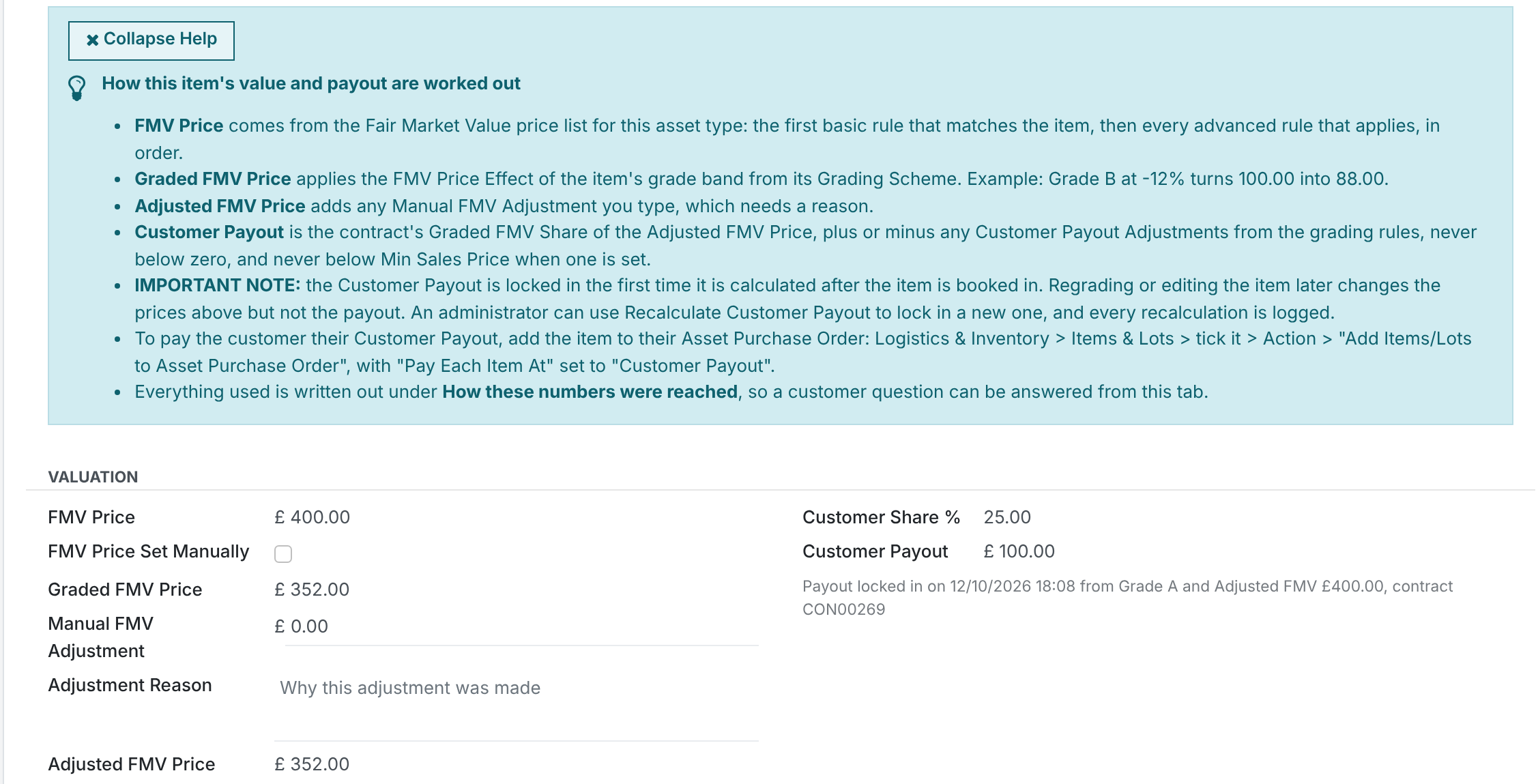
Every item's value is built up in four steps, and each one shows on the item's Financials & eCommerce tab:
- FMV Price: the starting value, from the Fair Market Value (FMV) price list for the item's Asset Type. The first Basic Price Rule that matches the item gives the price, then every Advanced Price Rule that applies adds or takes off an amount, in order.
- Graded FMV Price: the FMV Price moved by the item's grade, using the FMV Price Effect (%) of its band on the Grading Scheme. Example: Grade B at -12% turns 400.00 into 352.00.
- Adjusted FMV Price: the Graded FMV Price plus any Manual FMV Adjustment someone types on the item, which needs a reason.
- Customer Payout: the contract's Graded FMV Share (%) of the Adjusted FMV Price, plus or minus any Customer Payout Adjustments from the Grading Rules. It is never below zero, and never below the item's Min Sales Price when one is set.
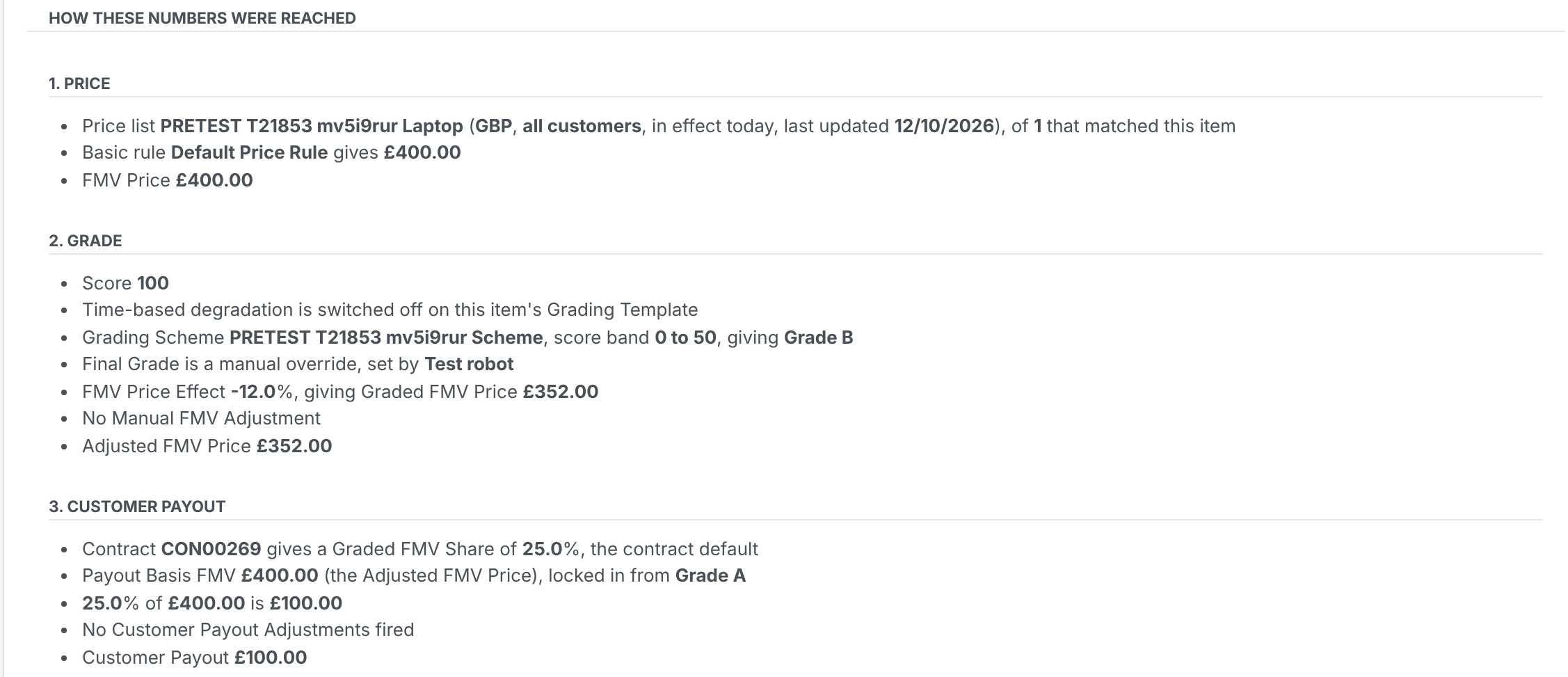
Under How these numbers were reached, the same tab writes out every step for that item: which price list and rule were used, which grade band and effect, and which contract share. A customer's question about their payout can be answered from there without opening any setup screen.
RecyclyERP values an item again whenever its grade is worked out again: when it is created, when its attributes change, when someone clicks Compute Grade & Valuation, and overnight for items whose grade falls with age. Once an item is on a confirmed Sales Order its valuation is frozen, so what it was worth cannot move under an invoice.
2. Configure Fair Market Value (FMV) price lists
Setup Action: Configure Fair Market Value (FMV) price lists, which opens Fair Market Value (FMV) Pricing.
Set up one price list for each Asset Type you value. The list shows each price list's Asset Type, Customer(s), Start Date, End Date, Currency and how many Basic and Advanced rules it has.
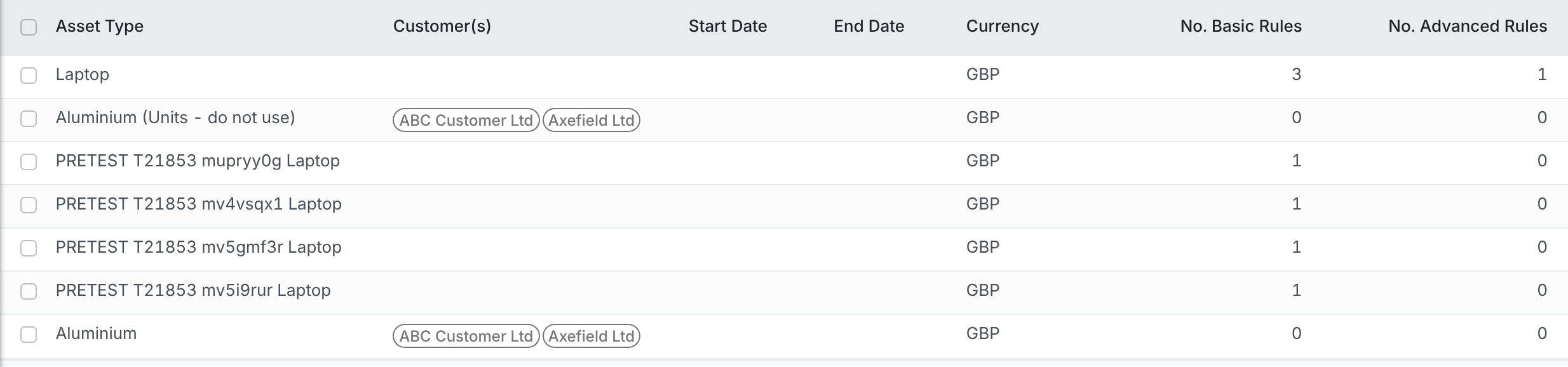
To create a price list:
- Go to Inbound > Configuration > Asset Valuation & Grading > Fair Market Value (FMV) Pricing and click New.
- Pick the Asset Type.
- Leave Customer(s) blank for a list every customer uses (section 3 covers lists for named customers).
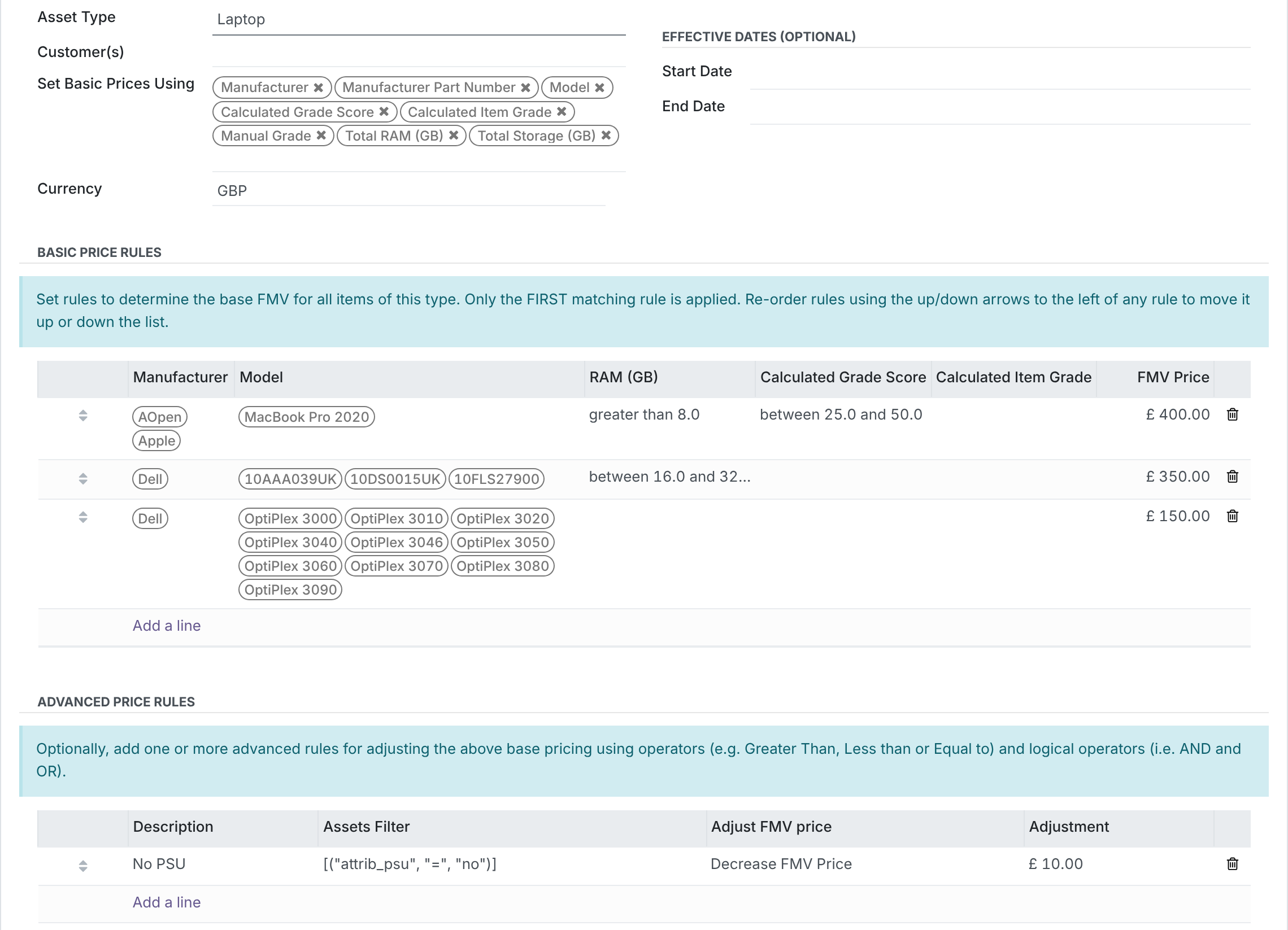
- In Set Basic Prices Using, pick the details your prices depend on, for example Manufacturer, Model, RAM (GB), Screen Size (inches), Calculated Grade Score, Calculated Item Grade or Final Item Grade. The Basic Price Rules and Advanced Price Rules sections only appear once at least one is picked, and the rules get a column for each one you picked.
- Check the Currency. It must match the currency of the items it values.
- Add your Basic Price Rules and any Advanced Price Rules (below), then save.
Basic Price Rules: the first match wins
Each Basic Price Rule says "items like this are worth this much": fill in the columns you want it to match on and the FMV Price. A column left blank matches anything. For example:
- Manufacturer Dell, Model OptiPlex 3080: 150.00
- Manufacturer Dell: 90.00
- Nothing filled in: 40.00 (every other item)
RecyclyERP reads the rules from the top and uses only the first one that matches. So put the most specific rules at the top and the catch-all rule last, and drag the arrows on the left to reorder them. In the example, a Dell OptiPlex 3080 gets 150.00, any other Dell gets 90.00, and anything else gets 40.00. Put rule 2 first and every Dell, the OptiPlex 3080 included, would get 90.00. Number ranges such as RAM can be written as, for example, "greater than 8" or "between 16 and 32".
Advanced Price Rules: add or take off
Advanced Price Rules then adjust the price the Basic rule gave. Each one has a Description, an Assets Filter saying which items it applies to, whether it will Increase FMV Price or Decrease FMV Price, and whether by a fixed Amount or a Percentage (%). Example: "No PSU", decrease by 10.00 for items with no power supply.
Every Advanced rule that applies is used, in order from the top. Order matters with percentages, because each rule works on the running total: 10% off and then 5.00 off is not the same as 5.00 off and then 10% off.
3. Lists for named customers, and lists with dates
- Customer(s): name one or more customers and that list is used for their items only. A list naming the customer always beats a list for all customers.
- Start Date and End Date (both optional): the list is only used between them. A list with no dates is always in date.
Where more than one list could value an item, RecyclyERP picks in this order: a list naming the item's customer before a list for all customers, then the one with the latest Start Date. So to bring in new prices on a date, create a new list with that Start Date rather than editing the old one, and the new list takes over from that day while the old one is kept for reference. The item's How these numbers were reached says which list was used and how many matched.
4. FMV Price Effect (%) on your Grading Scheme
A grade moves the item's value through the FMV Price Effect (%) on each band of its Grading Scheme (Inbound > Configuration > Asset Valuation & Grading > Grading Schemes, open a scheme, Score Bands tab). For example: Grade A 0%, Grade B -12%, Grade C -30%, Grade D -60%. It must be between -100 and 100, and 0 means the grade does not change the price. The Example column shows what each percentage does to a round figure.
The effect used is the one on the band for the item's Final Item Grade, so a grade overridden by hand values the item at the overridden grade. If you price by grade in your Basic Price Rules instead (choosing Calculated Item Grade or Final Item Grade in Set Basic Prices Using), leave the effects at 0, or the grade will be counted twice.
5. Set the customer's Graded FMV Share (%) on your Contract Templates
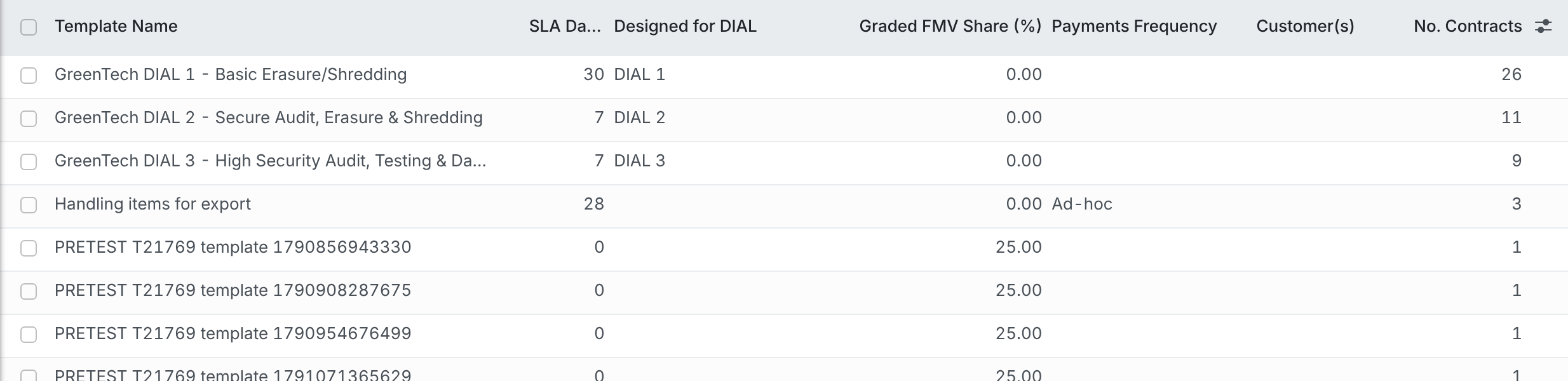
Setup Action: Set the customer's Graded FMV Share (%) on your Contract Templates, which opens Contract Templates with the Graded FMV Share (%) column highlighted.
Graded FMV Share (%) is the part of each item's Adjusted FMV Price paid to the customer. It starts at 0%, which means no payout. Each item takes its share from its Inbound Order's Contract, and a contract takes its share from the Contract Template it was made from.
- Go to Inbound > Configuration > Contracts > Contract Templates.
- Type the share into the Graded FMV Share (%) column of each template. To set several at once, tick them, change the figure on one of them and confirm.
A contract can also set a different share for one Asset Type, on its Asset Type Settings tab, which wins over the contract's own figure.
Updating contracts already made from a template
Changing a template does not change the contracts already made from it. Those keep their old share until you update them:
- Open the Contract Template.
- Click the Contracts button at the top.
- Tick the contracts to update.
- Choose Actions > Update selected Contract(s) from Contract Template.
- Choose which details to update, and confirm. Anything you leave unticked is left as it is.
6. The payout is locked in, and Recalculate Customer Payout
The Customer Payout is locked in the first time it can be worked out once the item has been received into the warehouse and has its attributes recorded. From then on, regrading the item, editing it or changing a price list moves its FMV Price, Graded FMV Price and Adjusted FMV Price, but not the payout. That way what the customer is owed does not shift under them. The line under Customer Payout says when it was locked in and from which grade, Adjusted FMV Price and contract.
In the pictures in section 1 the payout of 100.00 was locked in at Grade A (25% of 400.00). The grade was later overridden to Grade B, which moved the Graded FMV Price to 352.00, and the payout stayed at 100.00.
To lock in a new payout, an administrator uses Recalculate Customer Payout, beside the Customer Payout:
- Click Recalculate Customer Payout. The button only shows to administrators, because it changes what the customer is paid.
- Read the Current Customer Payout, and type a Reason. It cannot be left blank.
- Click Recalculate and Lock In.
The payout is worked out again from the item's current price, grade and contract share and locked in afresh, and the recalculation and its reason are recorded on the item. It is refused for an item on a confirmed Sales Order, and an item sent back to the customer or supplier asks you to confirm you understand that first.
To pay the customer, add the item to their Asset Purchase Order: Logistics & Inventory > Items & Lots, tick it, Action > Add Items/Lots to Asset Purchase Order, with Pay Each Item At set to Customer Payout.
7. Turn on the warning for out-of-date FMV price lists
Setup Action: Turn on the warning for out-of-date FMV price lists, which opens Settings at Price List Stale After (days).
Market prices move and a price list does not. This setting warns you when a list has gone unchanged for too long. It changes no figure.
- Go to Users & Settings > Settings > Inbound, and find the Asset Valuation & Grading heading.
- Type a number of days into Price List Stale After (days), for example 90. Leave it blank to keep the warning off.
- Save.
A list counts as changed when it is saved, when any of its rules is changed, or on its Start Date, whichever is latest. Once a list has gone longer than your number of days, a yellow warning at the top of it says when it was last updated and asks you to review the rules, and each item it values says so under How these numbers were reached.
8. The Profitability Report
Inbound > Reporting > Profitability Report shows what each item made, one row per item: Actual Sale Revenue (what it sold for on confirmed sales orders), Cost Basis (its cost lines, its Customer Payout and its Purchase Price) and Profit, with Margin % and Markup %. An item that has not sold shows a blank profit rather than a loss. Estimated Profit is what the item would make at its Adjusted FMV Price, so comparing it with Profit tells you whether a sale beat the valuation.
Use Group By to see which Asset Types, makes, models, grades or customers actually make money, and switch to the pivot or graph view for totals.

Common problems
- Every Customer Payout is 0.00. The contract's Graded FMV Share (%) is still 0%, which means no payout. Set it on the Contract Template, then update the contracts already made from it (section 5). Items whose payout was already locked in at 0.00 need Recalculate Customer Payout.
- An item has no value, and a red message says "No FMV price list covers asset type ... for this customer today". No price list for its Asset Type is in date: check the list's Start Date and End Date, and that its Customer(s) either names this customer or is blank.
- Items are getting the wrong price. The Basic Price Rules are in the wrong order. Only the first matching rule is used, so a general rule above a specific one hides it. Move the specific rules to the top and the catch-all rule to the bottom. How these numbers were reached on the item names the rule that was used.
- "No basic rule on price list ... matches this item". None of the Basic Price Rules fits the item. Add a last rule with nothing filled in but a price, to catch everything else.
- "Price list ... is in GBP, this item is in EUR". The list's Currency does not match the item's. Create a list in the item's currency.
- "Not graded yet". The item has no attributes recorded, so it has no grade to value it from. It is valued as soon as its attributes are entered.
- I changed the price list but the payout did not move. That is deliberate: a payout stays locked in once set. An administrator can use Recalculate Customer Payout.