Any report can be made into a file: a spreadsheet to sort and filter, or a PDF (Portable Document Format) file to read or print. This guide covers making one, what is in it, and how long it is kept.
1. Generate Report and its pop-up
Open a report under Reports > Report Definitions and press Generate Report. The pop-up starts on the report's Default Format: choose Spreadsheet (.xlsx) or PDF (.pdf) under Format. Under Filters for this run you can narrow it to one Customer (leave it empty for all customers), change the Date Field and Period, or add Filters. "Changes here apply to this run only. The saved report is not changed." A panel at the top says in green when it is ready, with how many rows the run will have, or in red what is stopping it.
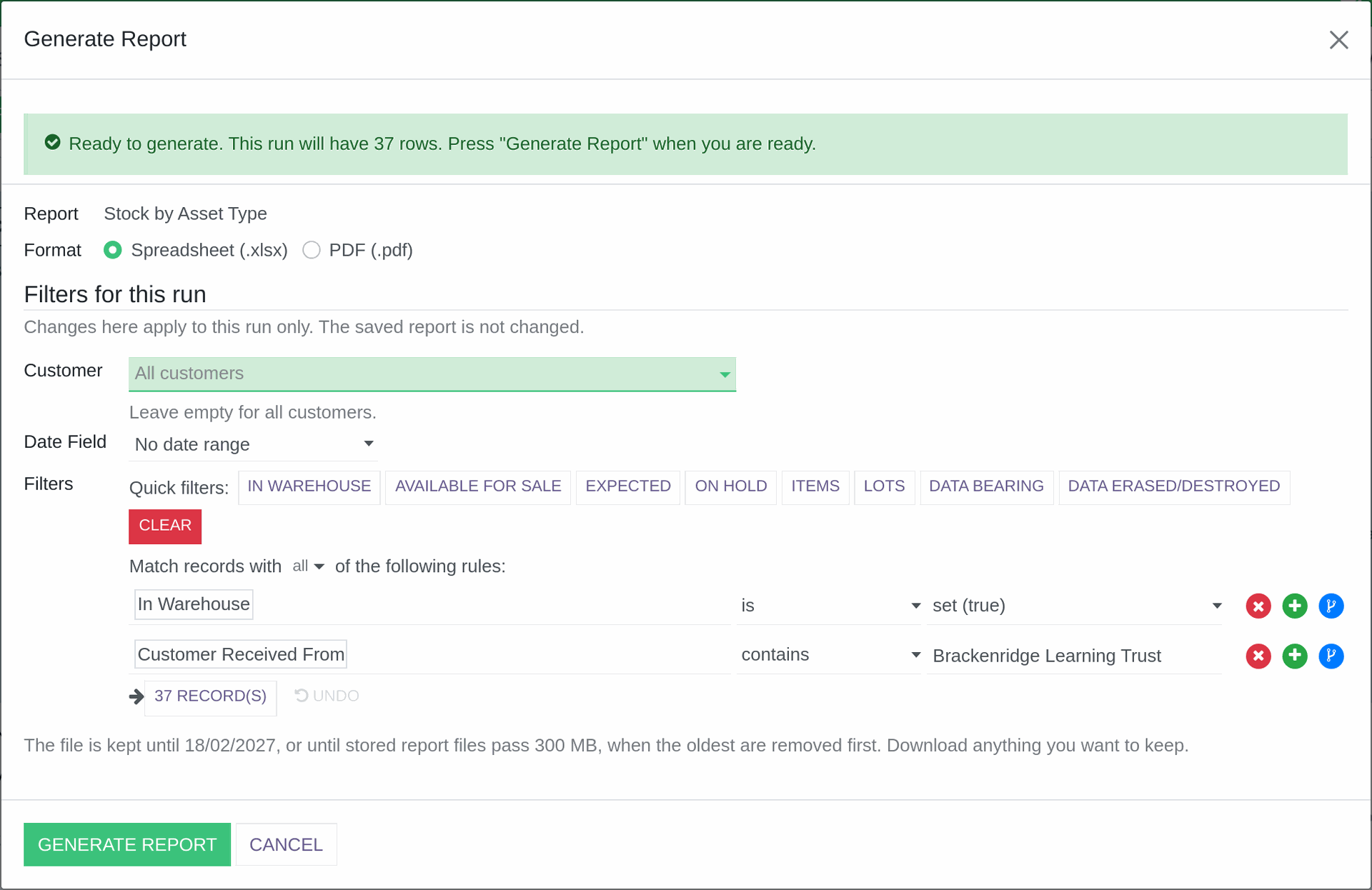
The Generate Report pop-up.
2. Small reports at once, big ones in the background
A report of up to 2,000 rows is ready straight away, and the file downloads by itself. A bigger one is prepared in the background: the pop-up says so before you press Generate Report, and the Generated Report reads "This report is being prepared. You will get a notification when it is ready, usually within a few minutes. You can leave this screen." When it is ready, a notification headed "Your report is ready:" and the report's name says how many rows it has and how long the file is kept, with the link Open Generated Report. A spreadsheet can hold up to 100,000 rows, and a PDF is always made straight away.
3. The spreadsheet
The first sheet, "Report", holds the report itself, with its headings and any totals. The second sheet, "About", says how it was made: Report, Description, System Area, Customer, Date Range, Filters, Grouped By, Sorted By, Rows, Combined, Generated On, Generated By and Company. So a file passed round the office still says where it came from.
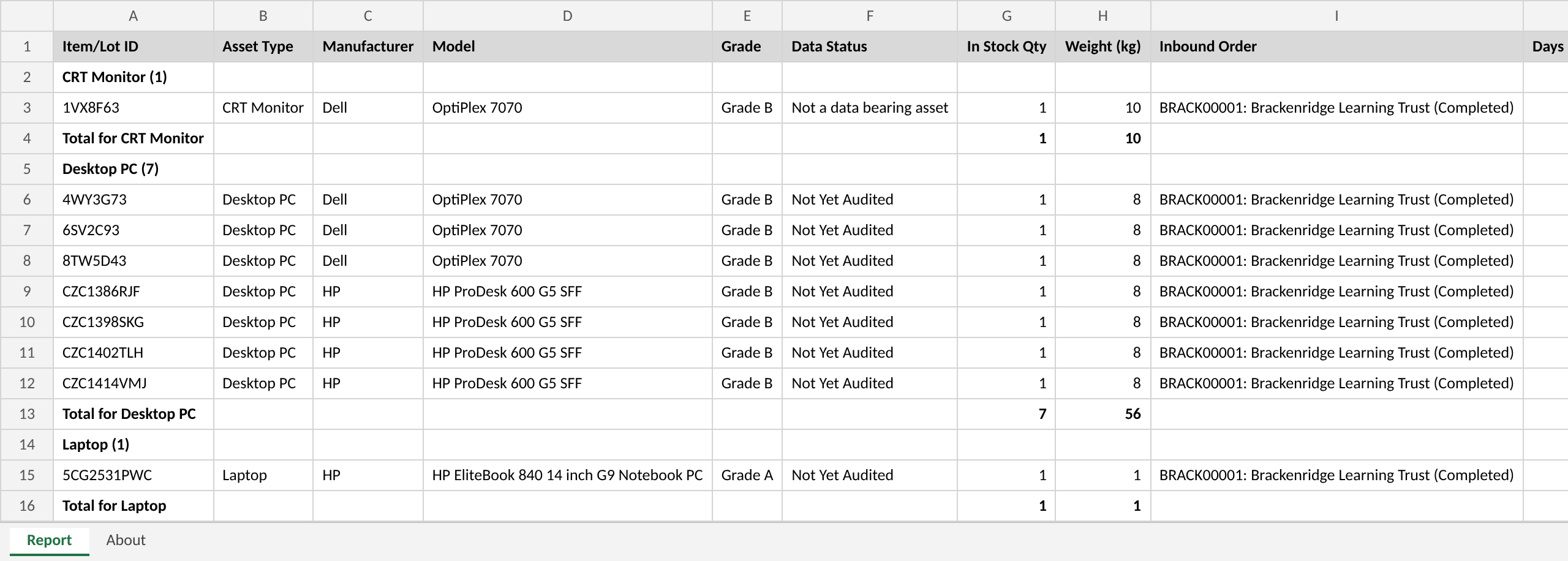
The first rows of a generated spreadsheet.
4. PDFs
A PDF is laid out with the report's PDF Layout: the Document Template that gives it its logo, heading and footer. Two come with the system, "Report Layout - Landscape" and "Report Layout - Portrait", and an administrator can change a layout under Templates & Documents > Document Templates. A PDF holds up to 1,000 rows, and a landscape layout fits up to 12 columns and a portrait one up to 7. If a report is too long or too wide, the pop-up says so and suggests the spreadsheet instead.
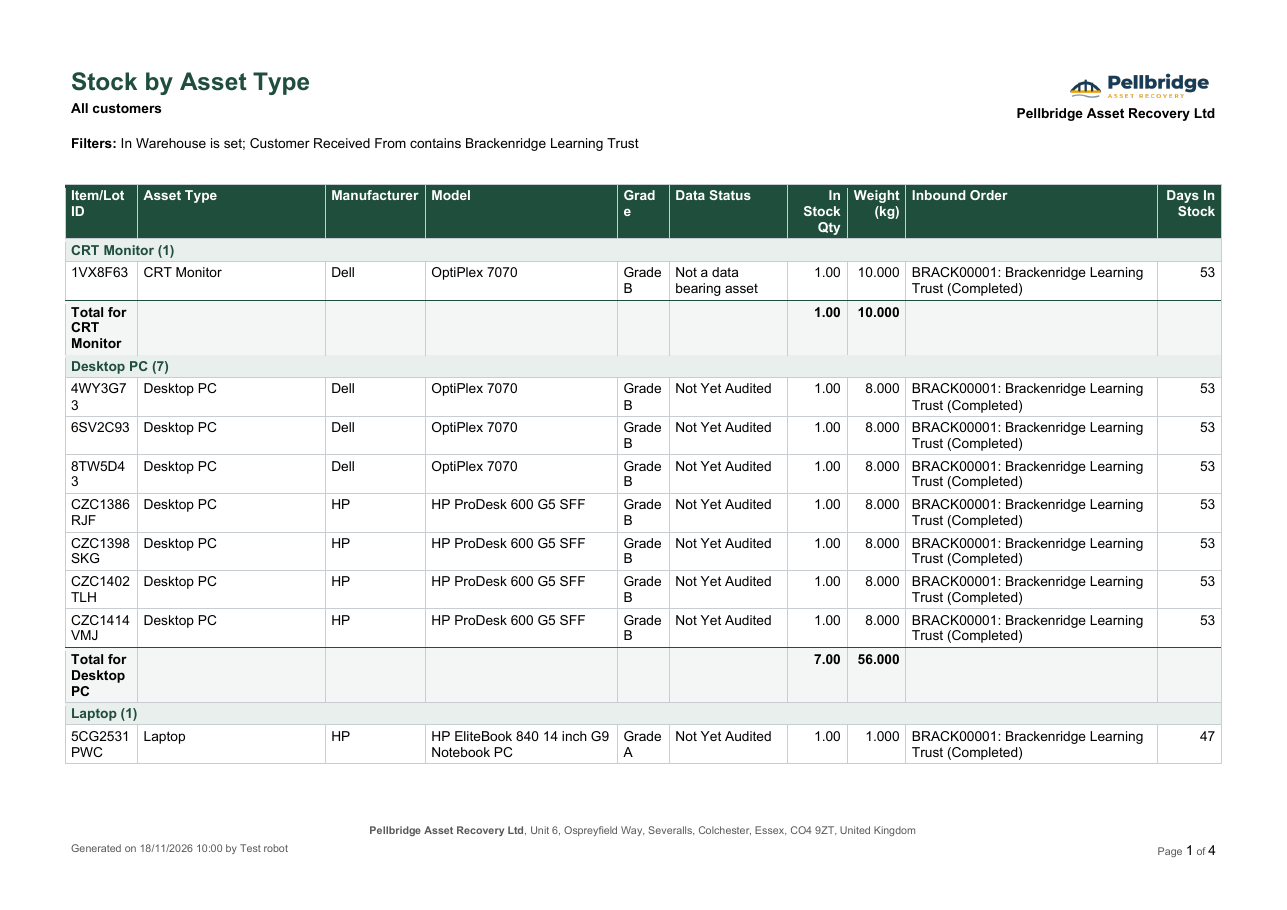
The first page of a generated PDF, on the Report Layout - Landscape layout.
Read more: Creating and Editing Document & Report Templates (opens in a new tab).
5. Generated Reports
Every file made is listed under Reports > Generated Reports, and the Generated Reports button on a report shows the ones made from it. You see the reports you generated and the ones your schedules made; administrators see everyone's. Open one and press Download Spreadsheet or Download PDF to save the file. A Generated Report holds the data as it was when it was made, so to run it again with today's data, open the report it came from and press Generate Report.
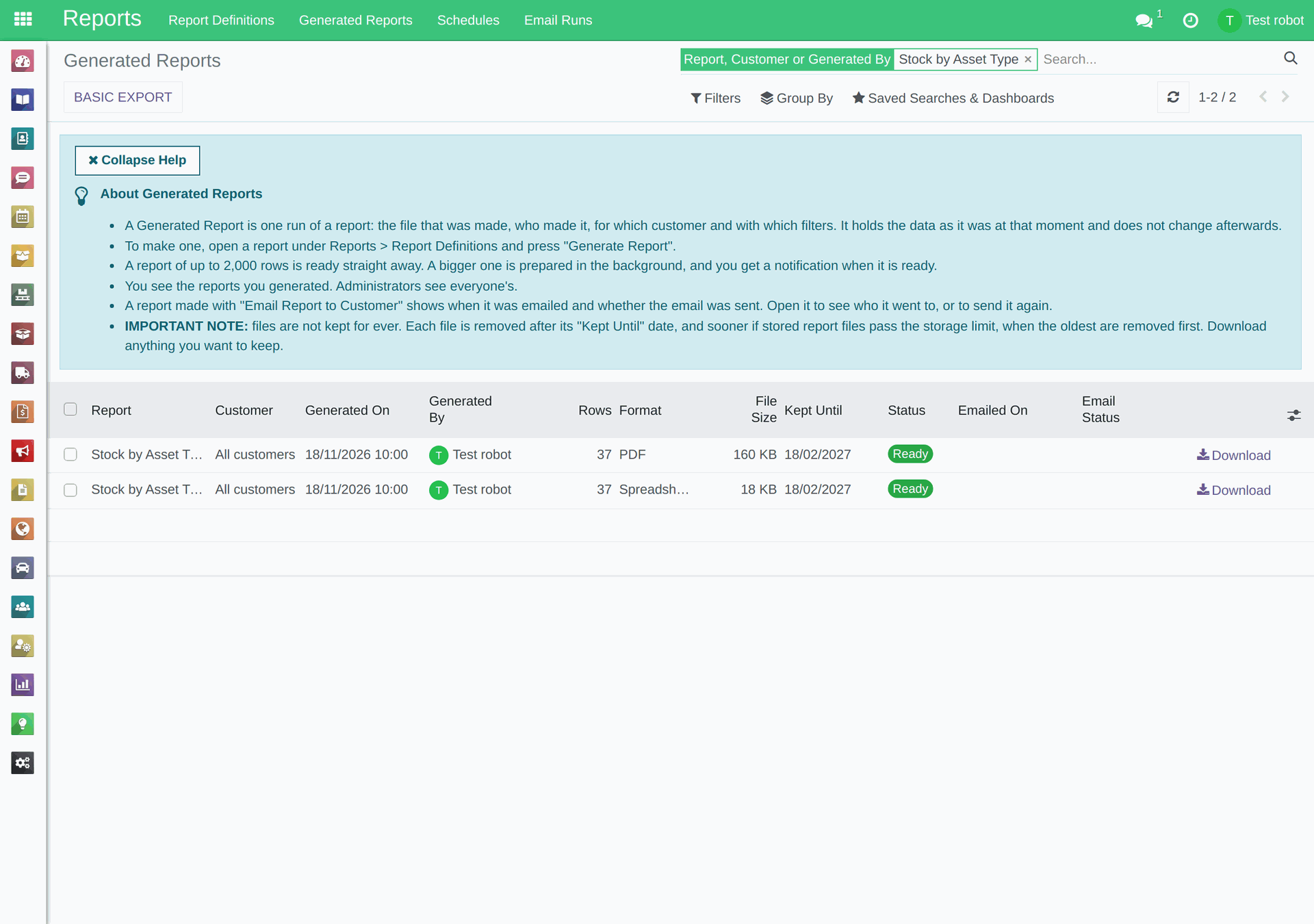
Reports > Generated Reports, with its help panel.
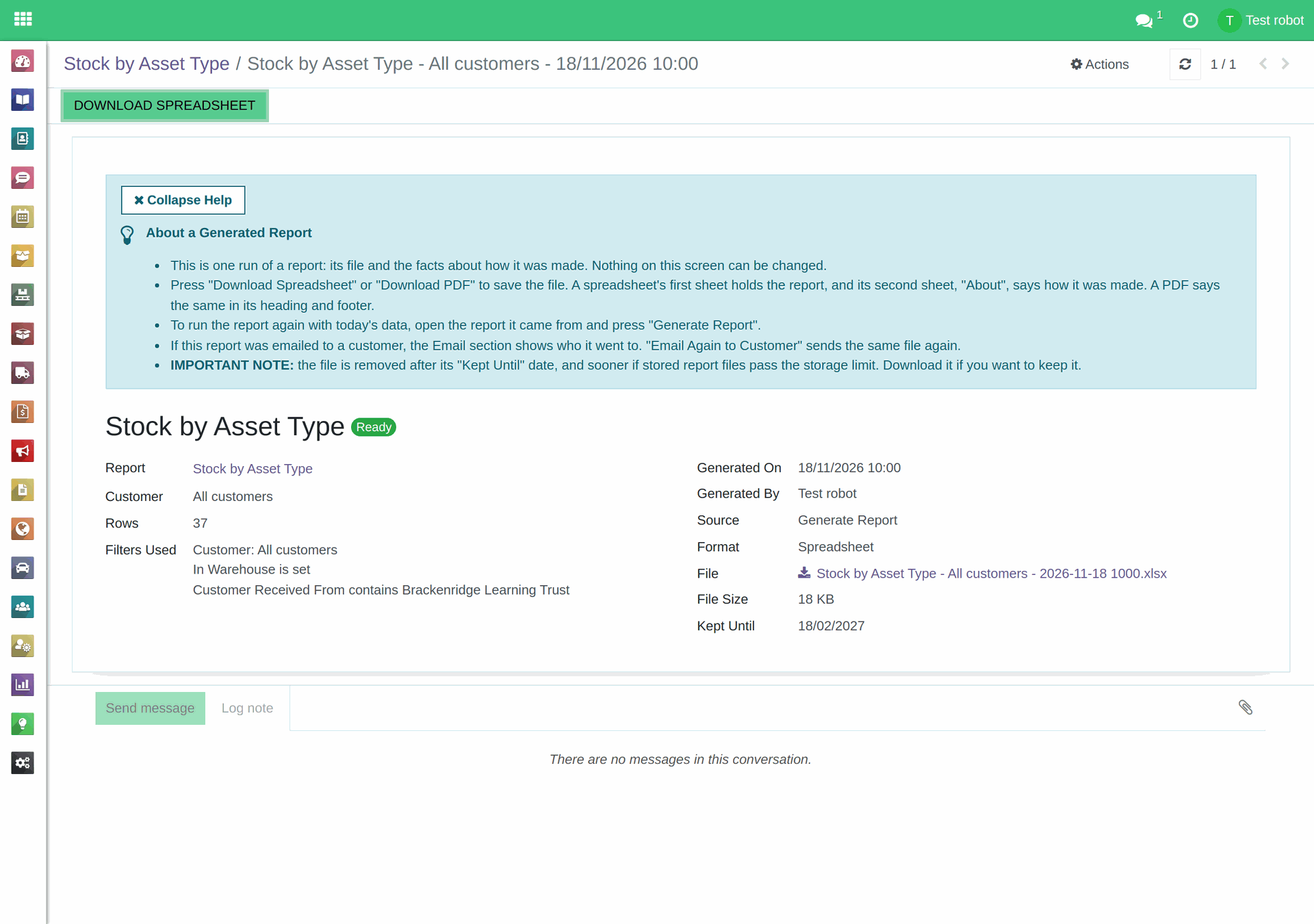
A generated report, showing its Kept Until date.
6. How long files are kept
Each file is removed after its Kept Until date. That date comes from Settings > Reports > Keep report files for, 3 months unless your administrator has changed it: "For example, 3 keeps a report generated on 11 November until 11 February." Stored report files are also limited in total, shown under that setting, and when the limit is passed the oldest files are removed first, whatever their date. A file waiting for its Email Run to be approved is never removed. Download anything you want to keep.
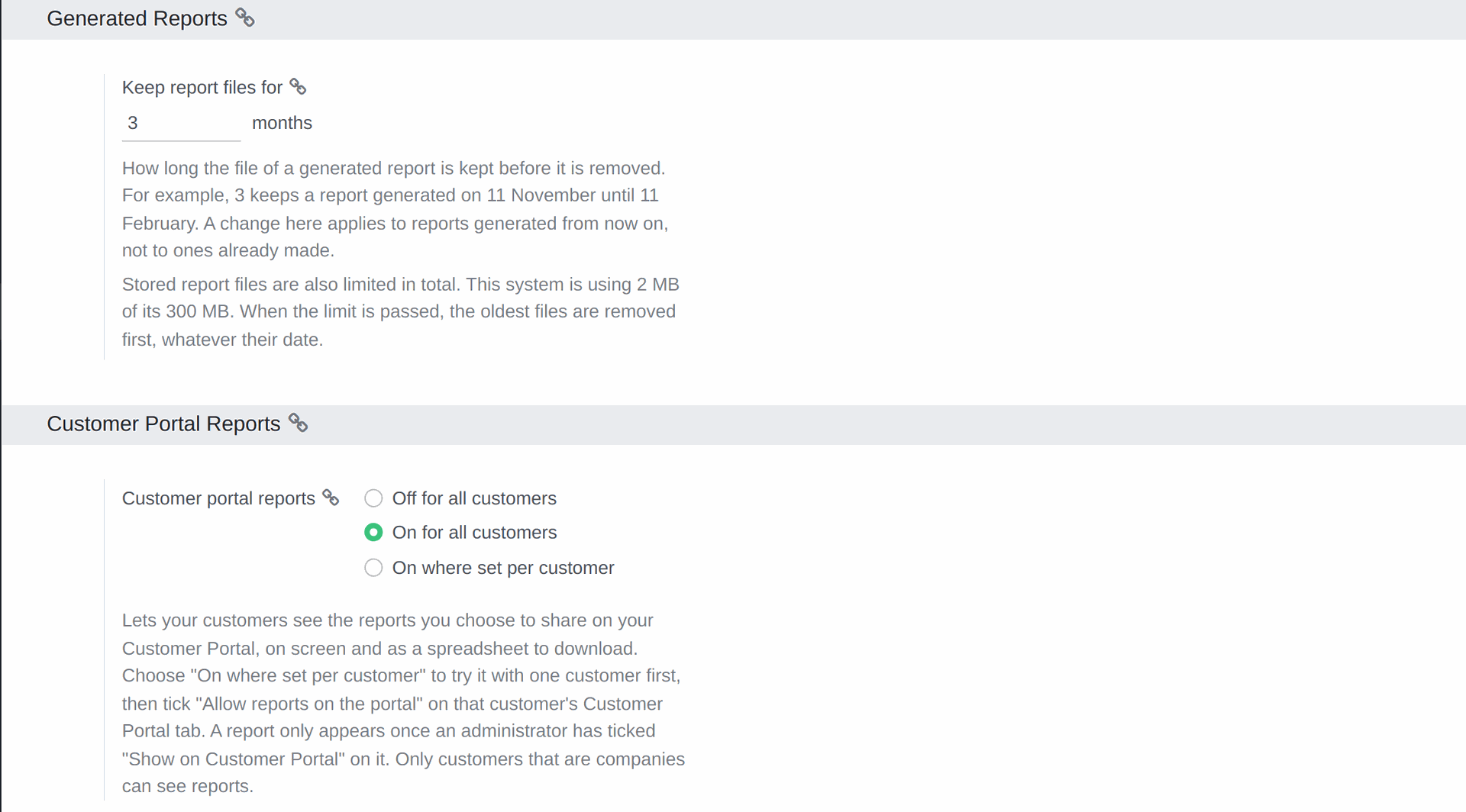
Settings > Reports.
7. When a file cannot be made
If a file cannot be made, the system tries 3 times. If it still fails, the Generated Report shows Failed, and a notification headed "Your report could not be made:" and the report's name asks you to open it and press Try Again. If it fails again, generate it with fewer rows, or contact Recycly Support and quote the date and time on the Generated Report.
Read more:
- Reports: how they work, and building your own (opens in a new tab)
- Reports: emailing a report to one customer or many (opens in a new tab)
- Reports: schedules that send a report by themselves (opens in a new tab)
- Reports: sharing reports on the Customer Portal (opens in a new tab)
- Reports: sending trade buyers a list of your stock (opens in a new tab)