Every place an asset can be recorded in RecyclyERP is a Location, and every Location has a Location Type. The type says what kind of place it is, and that decides what RecyclyERP does with the assets in it: whether they count as In Warehouse, whether they can be picked for an Outbound Order, and whether they are counted in stocktakes.
This guide covers what a Location is, the three Location Types you choose from, the four that belong to RecyclyERP's own locations, the locations whose type can't be changed, and the problems people most often run into.
1. What a Location is
A Location is a place inside a warehouse where assets sit: the goods-in bay, a quarantine area, the test bench, a rack, a shelf. Locations sit in a tree under their warehouse, so a full location reads as its whole path, for example WH01/Stock/Quarantine/Rack 1/Level 1. Parent Location is what builds that tree.
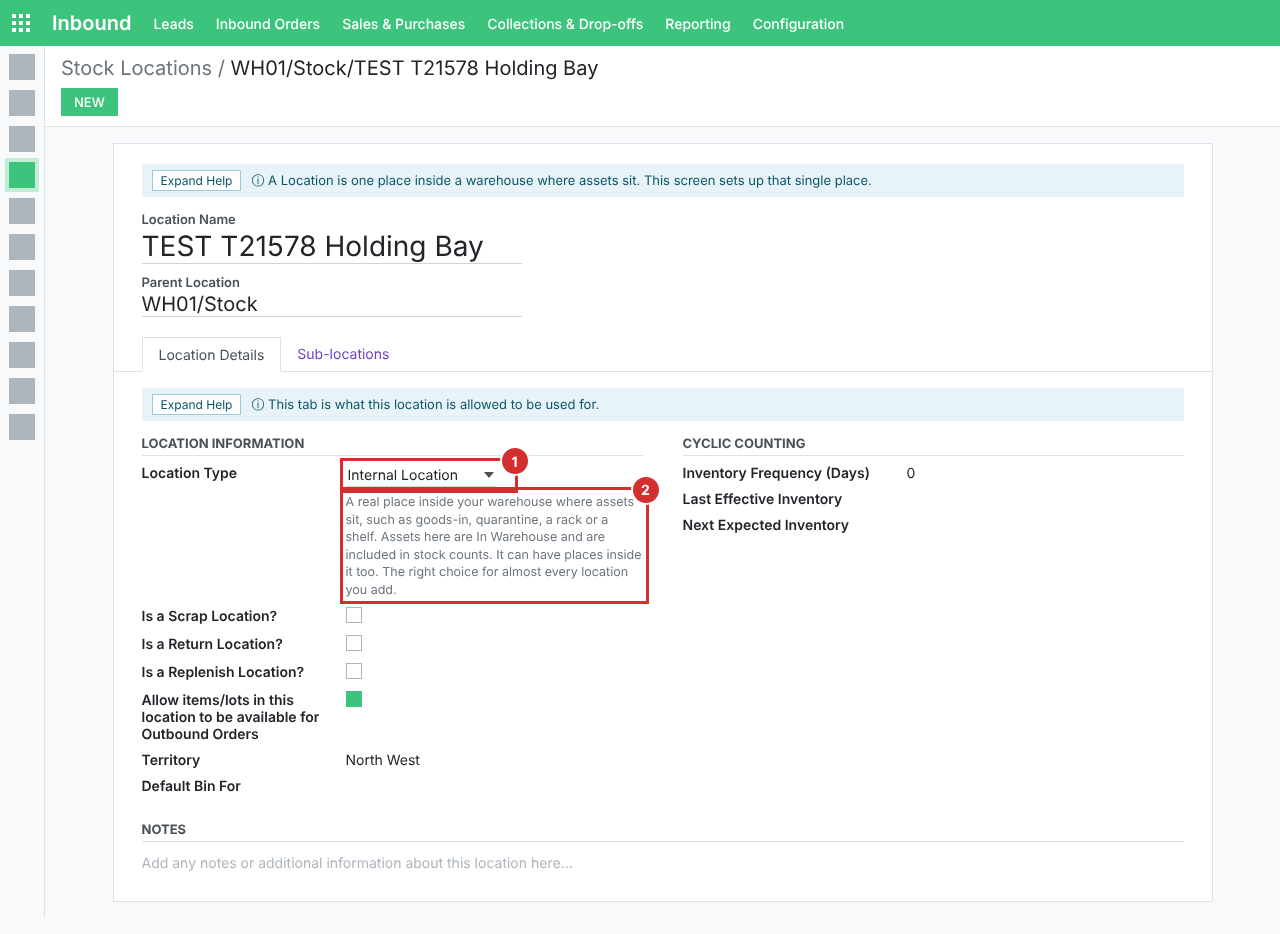
You manage them under Inbound > Configuration > Stock Locations, or on a warehouse's Stock Locations tab under Inbound > Configuration > Warehouses. Every location has a Location Type, in the Location Information section of its Location Details tab. A line of small grey text directly under the box explains the type chosen, and changes as soon as you pick a different one.
2. The three Location Types you choose from
When you add a location, or change one, the Location Type drop-down offers three types, in this order. A new location starts as Internal Location, which is the right choice almost every time.
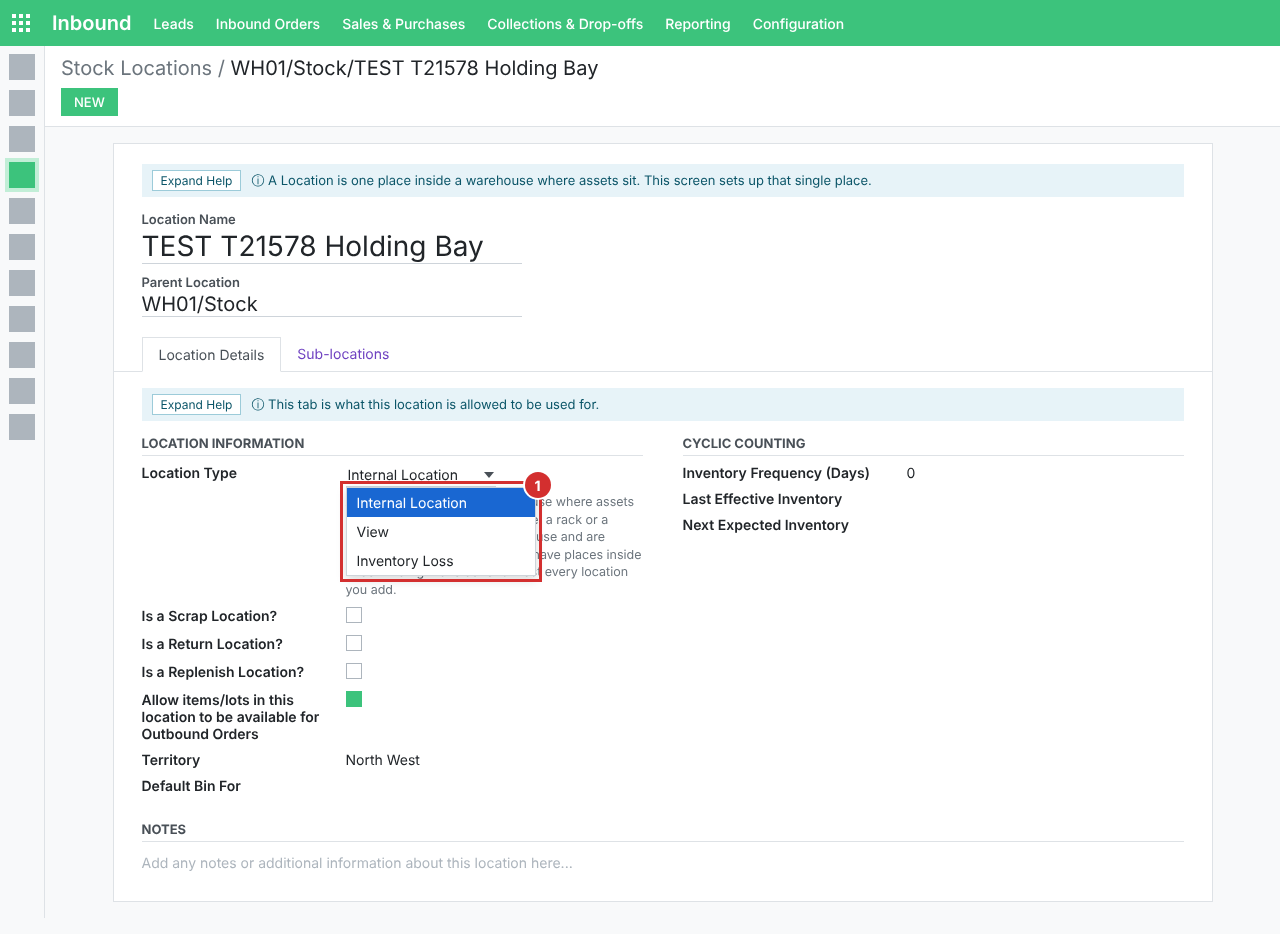
Internal Location
A real place inside your warehouse where assets sit, such as goods-in, quarantine, a rack or a shelf. Assets here are In Warehouse and are included in stock counts. It can have places inside it too. The right choice for almost every location you add.
- It is the only type that counts as In Warehouse. Booking in, receipts, splitting a lot, Demanufacture and Receive into Warehouse only ever offer Internal Locations.
- Stock in it can be picked for an Outbound Order, unless you untick Allow items/lots in this location to be available for Outbound Orders on it.
- Stocktakes, Default Bins and Is a Replenish Location? apply only to Internal Locations.
- An Internal Location can hold assets AND have places inside it, so Unit 2 > Rack 12 > Shelf 2 can all be Internal Locations. You do not need View to build the tree.
- A van or trailer that holds your assets is an Internal Location too.
- A scrap area inside your warehouse, where scrap waits to be collected, is an Internal Location with Is a Scrap Location? ticked. Items there are still In Warehouse.
View
A level that holds nothing itself, such as a building or an aisle, and only groups the places inside it. Nothing can be booked into it: assets go in the locations underneath.
- Each warehouse's top level, for example WH01, is a View, as are Physical Locations, Partners and Virtual Locations.
- Use it only for a level nobody will ever record an asset at. If you might ever put an asset there, make it an Internal Location instead.
Inventory Loss
Somewhere outside your stock that written-off assets go, such as "Virtual Locations/Scrap" or a disposal location. Assets moved here are no longer In Warehouse and can't be sold, but stay on the system and on customer reports. Tick "Is a Scrap Location?" so "Scrap & Remove from Stock" can use it.
- RecyclyERP's own Inventory Loss locations are Virtual Locations/Scrap, Virtual Locations/Recycled, Virtual Locations/Manufacture / Demanufacture and Virtual Locations/Inventory adjustment.
- It is the only type that can be the scrap location in Users & Settings > Settings > Inbound > Scrap Handling, or be chosen in Scrap & Remove from Stock, and then only with Is a Scrap Location? ticked.
- Scrapping items is covered in Scrap Management: scrapping items and removing them from stock (opens in a new tab).
3. The four types that belong to RecyclyERP's own locations
Every stock movement in RecyclyERP is recorded as a move from one location to another, and four more Location Types exist for the locations at the other end of those moves. RecyclyERP makes these locations itself, so you never need to pick one of these types, and they are not offered for new locations. A location already on one of them keeps it.
- Supplier Location ("Vendor Location" on a US English system): one of RecyclyERP's own locations, such as "Partners/Vendors": where assets bought from a supplier come from. Not a place you put assets. A move from here is a receipt, so the assets read as Received.
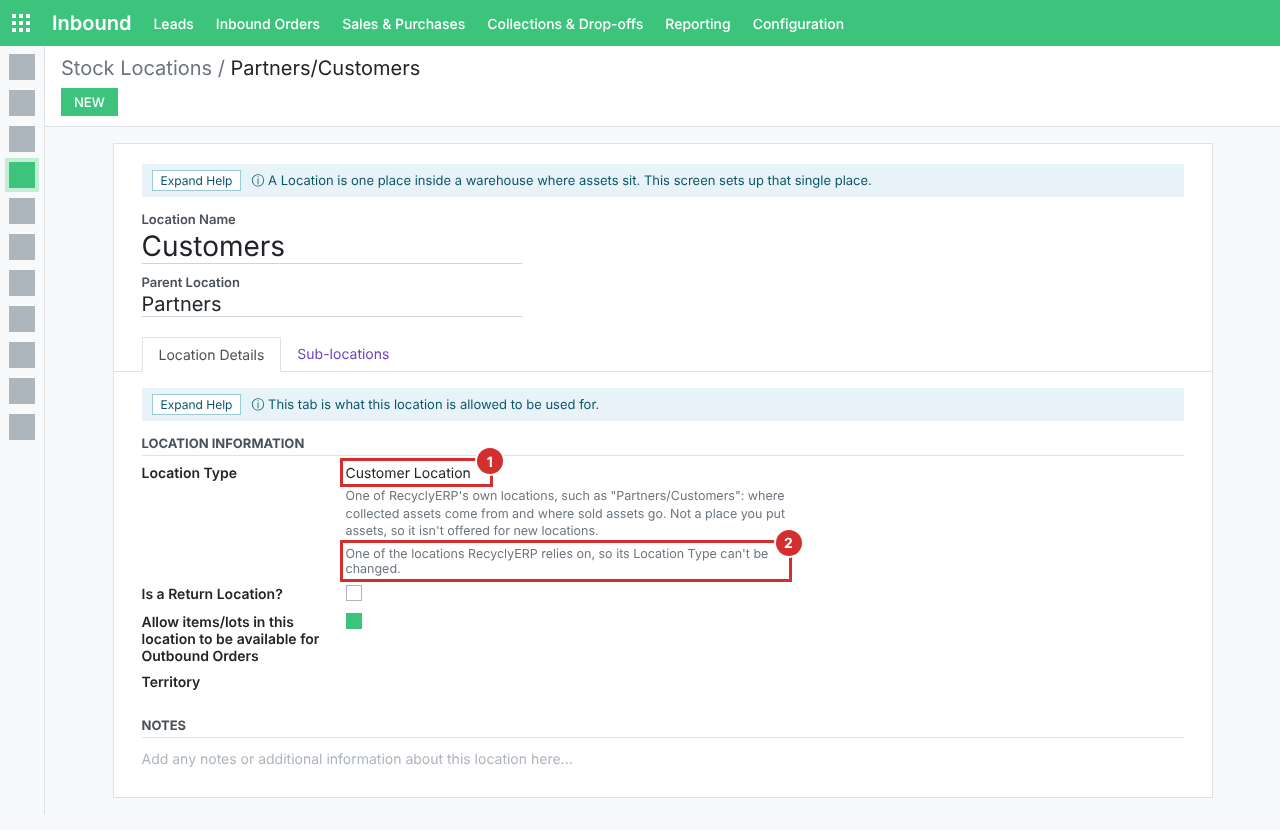
- Customer Location: one of RecyclyERP's own locations, such as "Partners/Customers": where collected assets come from and where sold assets go. Not a place you put assets. A move from here is a receipt (Received, or Returned for a return), and a move to it is Sold / Shipped.
- Production: used by manufacturing, which RecyclyERP doesn't use. Demanufacture goes through "Virtual Locations/Manufacture / Demanufacture", an Inventory Loss location.
- Transit Location: for stock on its way between two warehouses, which RecyclyERP doesn't track.
Putting one of your own locations on one of these types by hand does real damage. One warehouse's top location was set to Vendor Location by hand, and lots booked into it read Expected until it was found, because a Vendor Location is not In Warehouse.
4. Locations whose Location Type can't be changed
RecyclyERP relies on some locations to work, and these are the same ones that can't be deleted or archived. On these, Location Type is shown as plain text with no drop-down arrow, with the note "One of the locations RecyclyERP relies on, so its Location Type can't be changed." under it.
They are:
- Physical Locations, Partners and Virtual Locations
- Partners/Vendors and Partners/Customers
- Virtual Locations/Recycled and Virtual Locations/Manufacture / Demanufacture
- for each company: its Virtual Locations/Inventory adjustment, its Virtual Locations/Production, its own Virtual Locations/Scrap and its transit locations
- the scrap location chosen in Users & Settings > Settings > Inbound > Scrap Handling, whatever it is called
The type can't be changed by any other route either. Changing several locations at once on the Stock Locations list, or an import, that includes one of them is refused as a whole and nothing changes: the popup, Cannot Change This Location's Type, names each one. If you think one of them needs changing, contact support@recyc.ly.
A warehouse's own top location and its Stock location, for example WH01 and WH01/Stock, are locked the same way when you open them from that warehouse's Stock Locations tab, because everything the warehouse receives goes into its Stock location.
Common problems
- A location can't be changed to View. A View holds nothing, so a location with assets in it can't become one. Move the assets to another location first, or add a new location for the level you want.
- I can't find my write-off locations, such as Virtual Locations/Scrap. The Stock Locations list opens with the Internal filter on, so it shows only Internal Locations. Remove that filter and choose Filters > Inventory Loss instead.
- My scrap area is inside the warehouse. Make it an Internal Location with Is a Scrap Location? ticked. Items there stay In Warehouse until they are scrapped and removed from stock.
- The type I want isn't offered. Only Internal Location, View and Inventory Loss are offered, because the other four belong to RecyclyERP's own locations, which it makes itself. If you think you need one of them, contact support@recyc.ly.
- Assets in a location read Expected, not In Warehouse. Check that location's Location Type. Only an Internal Location counts as In Warehouse.