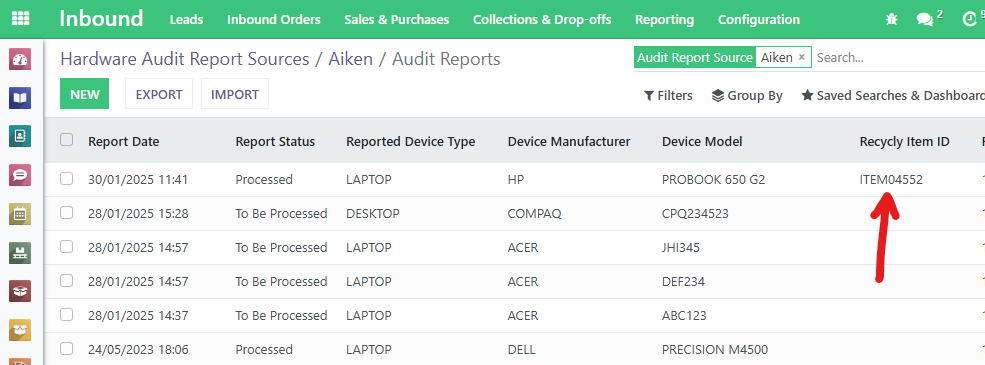
By default, our Aiken integration matches Aiken reports to Items in Recycly using the device Serial Number. However, the serial number may not always be easy to enter into Recycly, so it is useful to instead capture the Recycly Item ID in the Aiken report when it is submitted. Recycly then uses this ID to directly match the report to the correct Item or Lot — this works for both individual unit reports and Lot reports.

This guide describes how to create a Recycly Item ID field, which will be required to be entered for all Aiken audits. Recycly will use this field to match incoming audit reports — including Lot reports — to the correct Item or Lot in Recycly.
1. Enable Custom Fields in Aiken Workbench
First, we need to enable the Custom Fields feature. To do this, in the Aiken Workbench windows application, click the Admin menu then Parameters
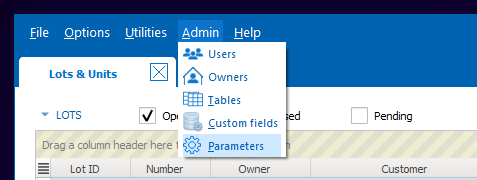
On the screen that appears, locate the CustomFields parameter, then click the Enable tick box, then click the Save button to save the change

2. Add a Recycly Item ID Custom Field
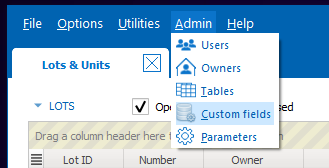
In the Aiken Workbench application, go to Admin -> Custom Fields
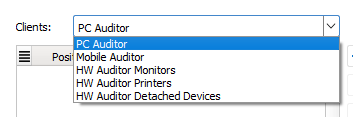
Select which Aiken tool you will be capturing the Recycly Item ID on.
If you use both PC Auditor and Mobile Auditor, then you'll need to add the custom field twice - once for each tool.
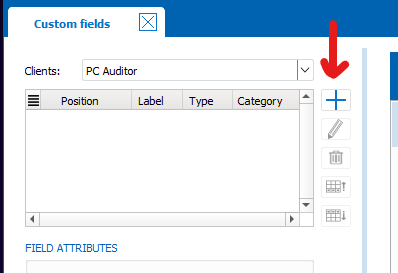
Click the plus (+) button to add a new field
Fill in the field information as per the below
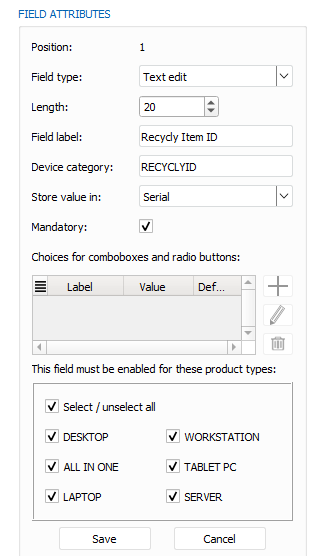
Press the Save button, and a preview of the new field will be shown

3. Auditing devices and entering the Recycly Item ID
Now that you have created the custom field as a mandatory field, any new audits will require the field to be entered.
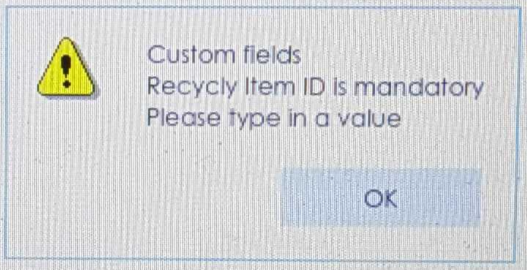
If a value is not entered while auditing, the user will receive the below message
4. Viewing the Recycly Item ID for audited items
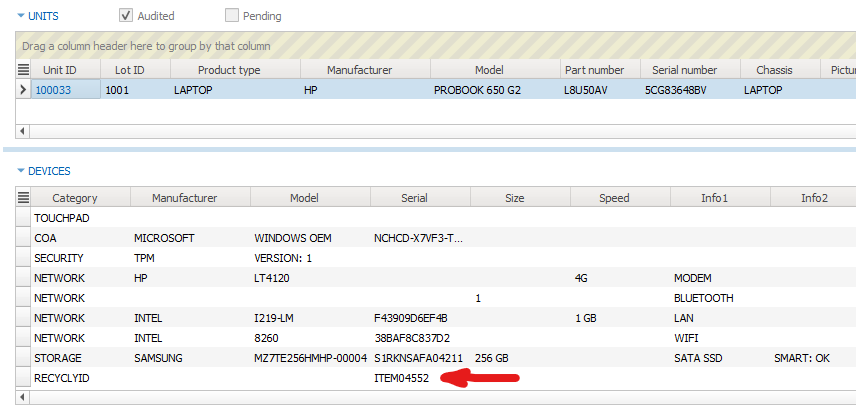
Once the Recycly Item ID has been entered for a unit, it can be viewed in the Aiken Devices list, as per the below
Note: This Recycly Item ID is included in the report data sent to Recycly. Recycly uses it to find the matching Item or Lot — whether the report is for a single unit or part of a Lot report.
5. Configuring Recycly to pick up your new Recycly Item ID custom field
The final step is to tell Recycly about your new custom field. To do this, in Recycly go to Inbound -> Configuration -> Hardware Audit Report Sources, and open your Aiken report source
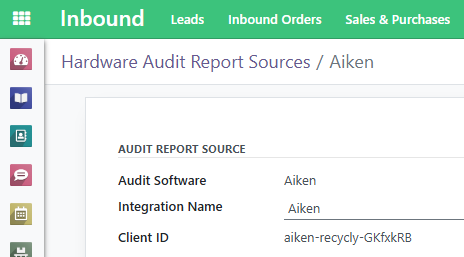
Now in the Aiken Custom Field Mappings area, enter the details of the new field you created, as per the below:
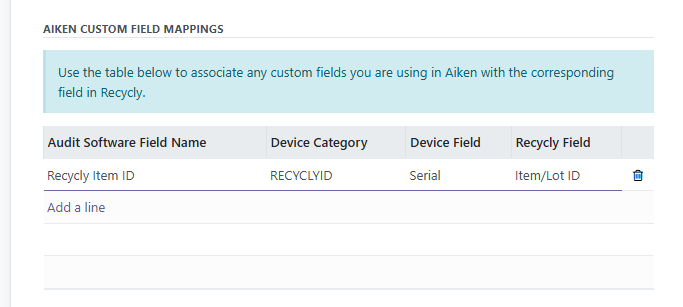
The above links your Aiken custom field to Recycly's Item/Lot ID field. When audit reports arrive from Aiken, Recycly reads this value and uses it to find the matching Item or Lot. This applies to all report types, including Lot reports — so items audited as part of a Lot are matched correctly too.
Now, when audit reports come in from Aiken — including Lot reports — Recycly will automatically match them to the correct Item or Lot using the entered Recycly Item ID.