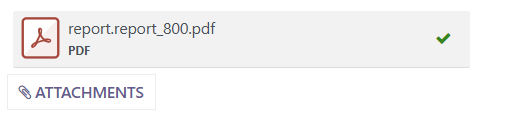
When creating new Document or Reports via the Documents app, you might find that when you download them, they have a somewhat cryptic filename, as in the example below
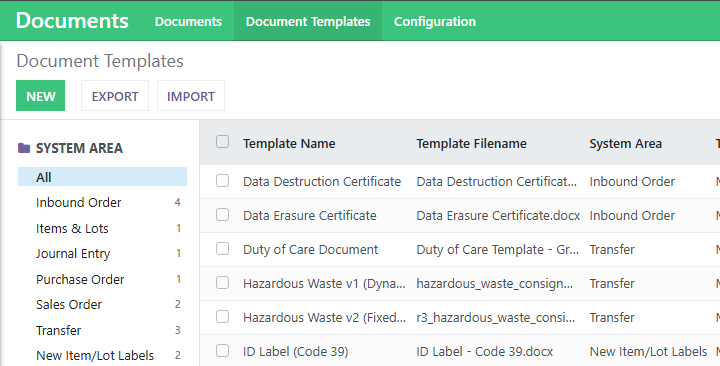
To resolve this, go into the Document Templates area of Recycly and select the document template that you need to fix
Then on the Advanced Properties tab, check if the report has a Printed Report Name set. If not, then this will be the reason the filename is a bit cryptic.
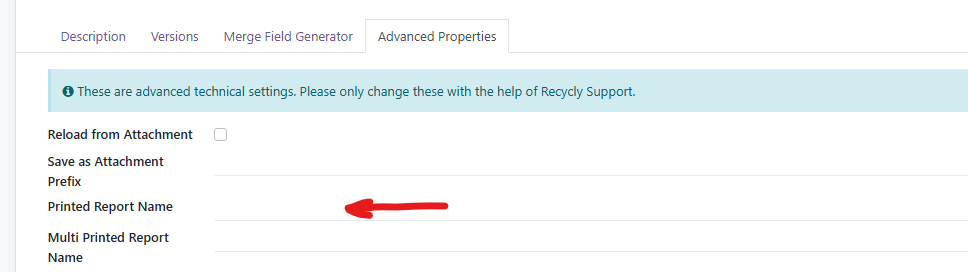
For Printed Report Name, you can use something like the below
'%s - Inventory Report' % (object.name)

This format will result in a filename like JOB001234 - Inventory Report.pdf
HTML Templates: Footer Settings (Legal Text & Logos)
If your template uses Output Format = HTML (Locked), footer content is managed from the template itself (not from a Word file).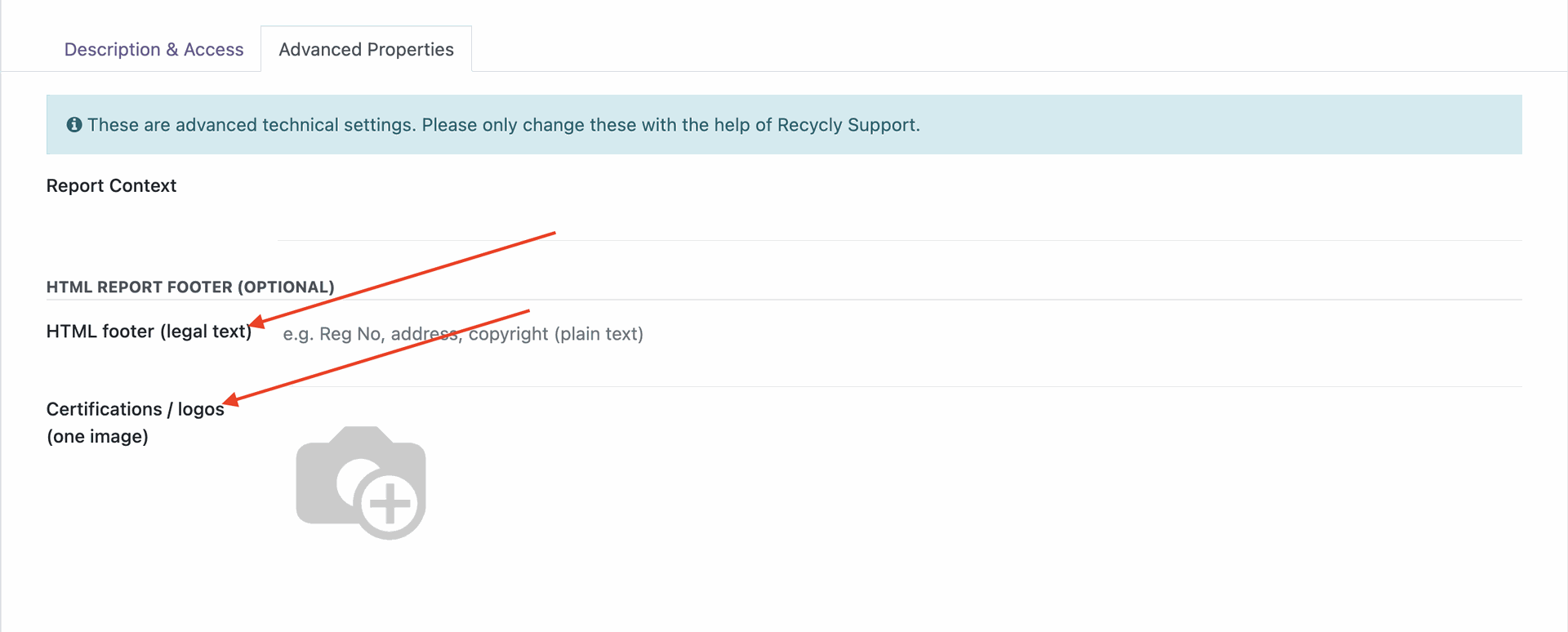
Go to Documents -> Document Templates, open the template, then in Advanced Properties update:
- HTML footer (legal text)
- Certifications / logos (one image)
These values are printed in the footer of the generated HTML/PDF report.
Both fields are optional — if left blank, no custom footer text/image is shown.