Overview
- In RecyclyERP, each collection can optionally have have one Driver, and one or more crew
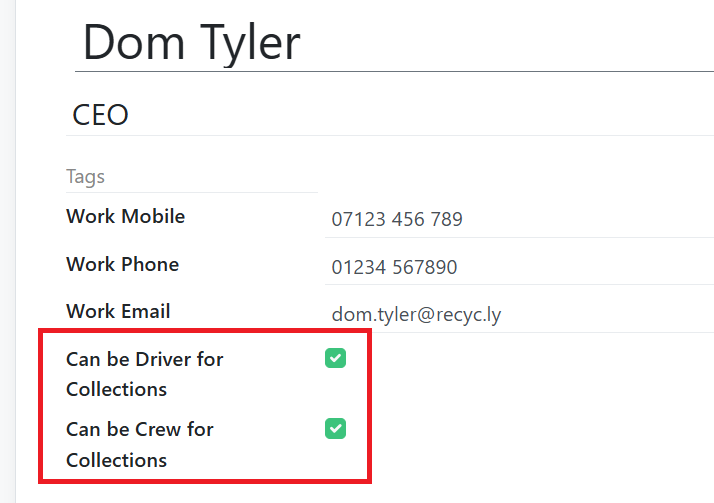
- You can choose who shows as Drivers and who shows as Crew in RecyclyERP's Employees app, which has two tick boxes:
- Can be Driver for Collections
- Can be Crew for Collections
- It is optional whether Employees are linked to Users in RecyclyERP
- The benefit of linking Employees to Users, is that you can store more HR-related information in their Employee record
- Note that each User incurs a monthly user fee, hence the option to have Employees who are NOT Users, giving you the opportunity to add Drivers and Crew to RecyclyERP without incurring additional license fees
Setting an existing RecyclyERP User to be available as a Driver
- Go into the Settings & Users to open the user record, so we can access (and create if needed) their Employee record
- If the user is not linked to an employee record, you'll see a CREATE EMPLOYEE button at the top which you can click now
- If the user is already linked to an employee record, you'll see a 1 Employee(s) button near the top-right which you can click now
- While in the Employee record, tick the appropriate option(s):
- Can be Driver for Collections
- Can be Crew for Collections
Adding a Driver to RecyclyERP without adding a matching User
- Go into the Employees App and open or create the employee
- Tick the appropriate option(s):
- Can be Driver for Collections
- Can be Crew for Collections
Driver Hub
Drivers can now be invited to Driver Hub, the drivers' app for collections, from the Driver Hub tab on their employee record. How to do it, how to take the app away again and what Driver Hub costs from 1 January 2027 are in Setting up drivers for Driver Hub (opens in a new tab).