Recycly User & Setup Guides
< Back to Article ListESG in Recycly: CO₂e avoided, counted automatically
Last updated: 2 September 2026 at 12:32:30 UTC by Dom Tyler
Every laptop you resell and every kilo of metal you recycle avoids emissions somewhere else: a new device that does not have to be manufactured, virgin material that does not have to be mined and refined. Recycly now measures that contribution for you, automatically, item by item.
This article walks through how it works today - switching it on, setting your factors, and where the figures appear - and finishes with what is coming next. Two companion articles go further: Customer portal ESG dashboard: switching it on and what your customers see and ESG reporting: the ESG Summary and the Environmental Impact Report.
1. Switch it on (or simply leave it on)
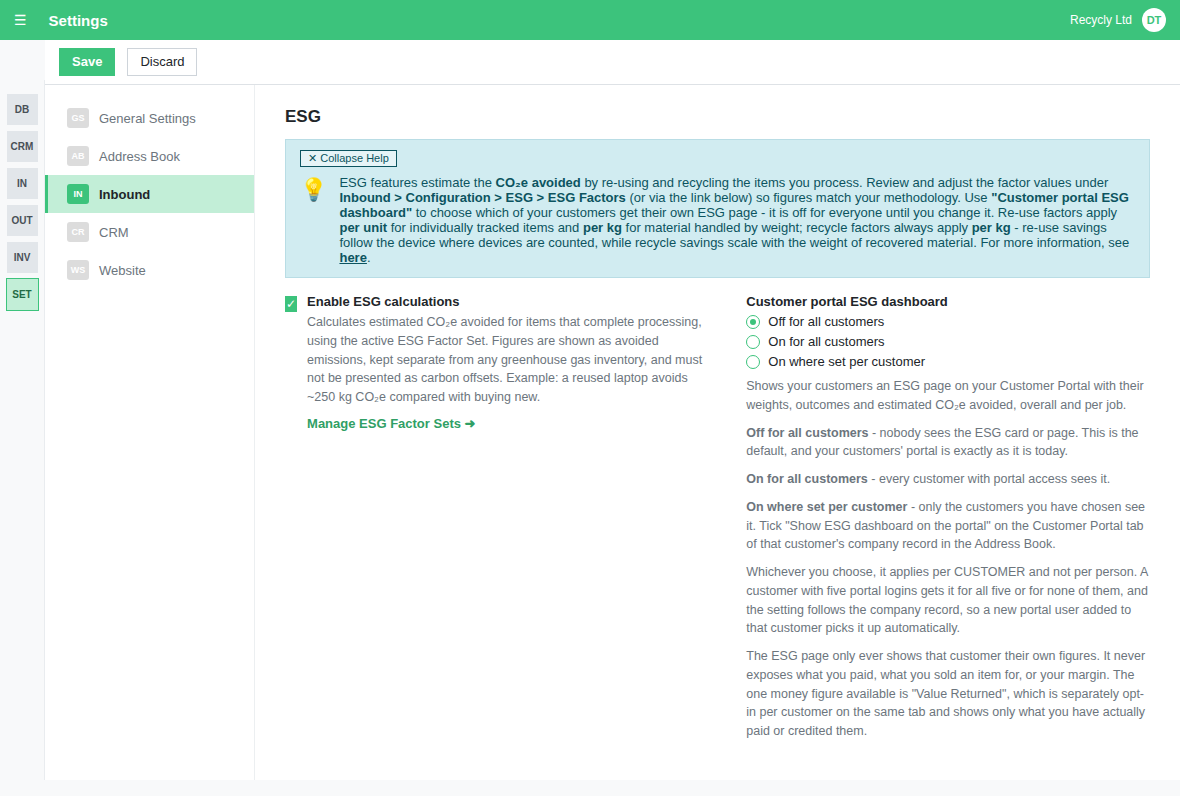
ESG calculations arrive switched on. Your administrator can manage this under Settings > Inbound > ESG with the Enable ESG calculations toggle. While it is off, nothing is calculated and the ESG tabs, columns, menus, reports and customer portal page are all hidden; only this Settings section and the two ESG items in the Setup Assistant stay visible, so you can switch it back on.
Beside the toggle (beneath it on a narrow screen), and only while calculations are on, sits Customer portal ESG dashboard: whether your customers can see their own ESG page on your Customer Portal, for nobody (the default), for everyone, or only for the customers you choose. That side of things is covered in Customer portal ESG dashboard: switching it on and what your customers see.
2. Your ESG factors
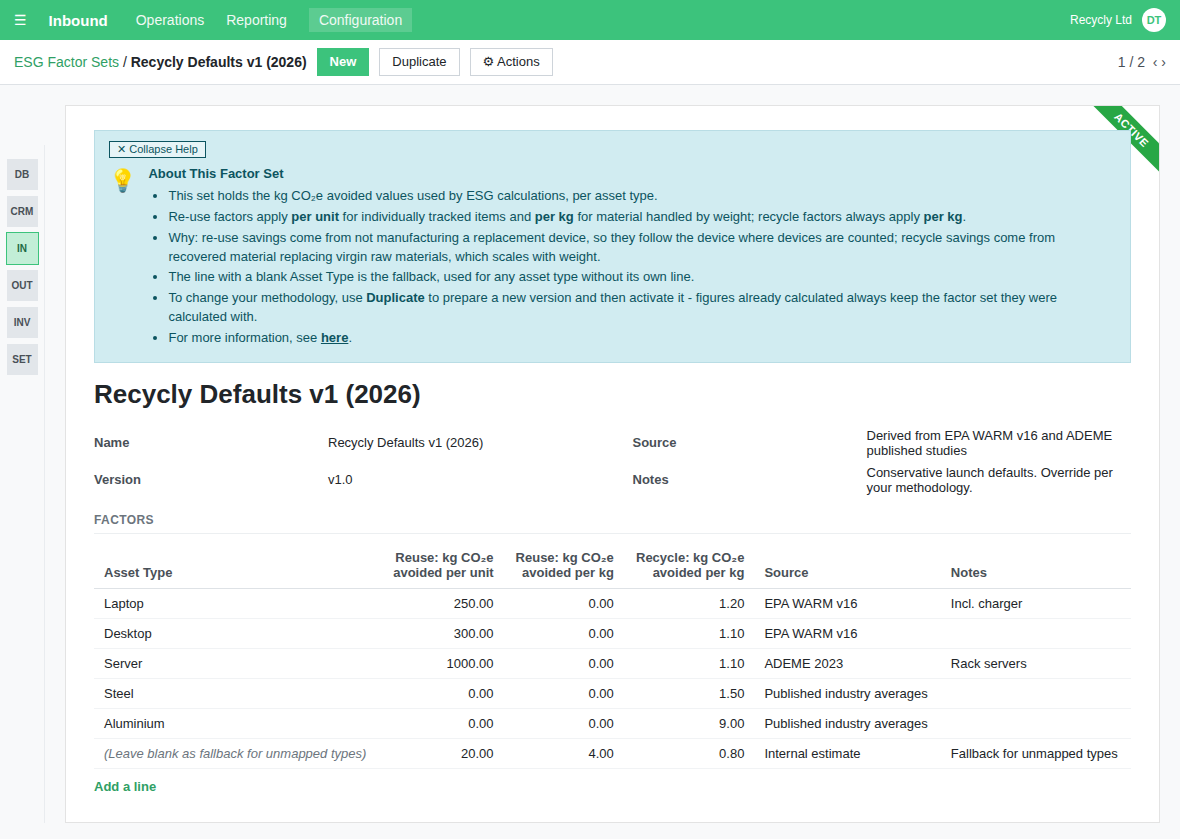
The numbers behind every figure live in an ESG Factor Set: for each asset type, three factors: Reuse: kg CO₂e avoided per unit (for individually tracked items), Reuse: kg CO₂e avoided per kg (for material handled by weight) and Recycle: kg CO₂e avoided per kg. Administrators manage them under Inbound > Configuration > ESG > ESG Factors. Anyone with ESG calculations switched on can open the factor sets and see which values their figures came from; only an administrator can change a value or activate a set.
Why the split: re-use savings come from not manufacturing a replacement device, so they follow the device where devices are counted and the kilograms where material is only weighed; recycle savings come from recovered material replacing virgin raw materials, which scales with weight - so recycling is always per kg.
Recycly ships with Recycly Defaults v1 (2026): conservative values drawn from published sources (EPA WARM, ADEME and industry averages) covering common IT asset types and scrap materials, plus a fallback line that catches any asset type without its own entry. Review them and adjust to your own methodology - every change to a factor, and to the set's name, version, source or Active flag, is recorded in the set's log.
Only one set is active at a time. When your methodology changes, Duplicate the set, adjust the copy and activate it - figures already calculated always keep the factor set they were calculated with, so your history never quietly changes.
3. Items count their CO₂e the moment processing completes
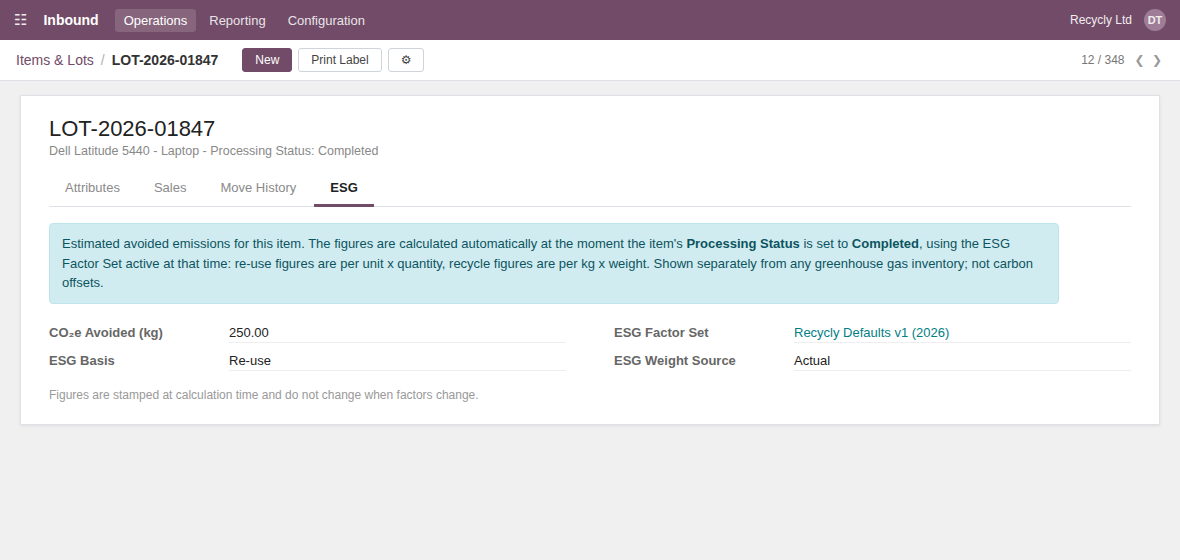
When an item's Processing Status is set to Completed, Recycly checks its Intended Final Action:
- Re-use outcomes (repair, resell, donate) score the factor per unit x quantity for individually tracked items, or per kg x weight for material measured by weight
- Recycle outcomes score the factor per kg x weight
The result is stamped onto the item's ESG tab along with the basis, the factor set used and whether the weight was actual or estimated. Stamped means stamped: the figure does not change when factors change later.
Donations count too - the Donate / Charity action type is treated as re-use, so charitable placements earn their avoided emissions like any resale.
4. Job totals on the Inbound Order
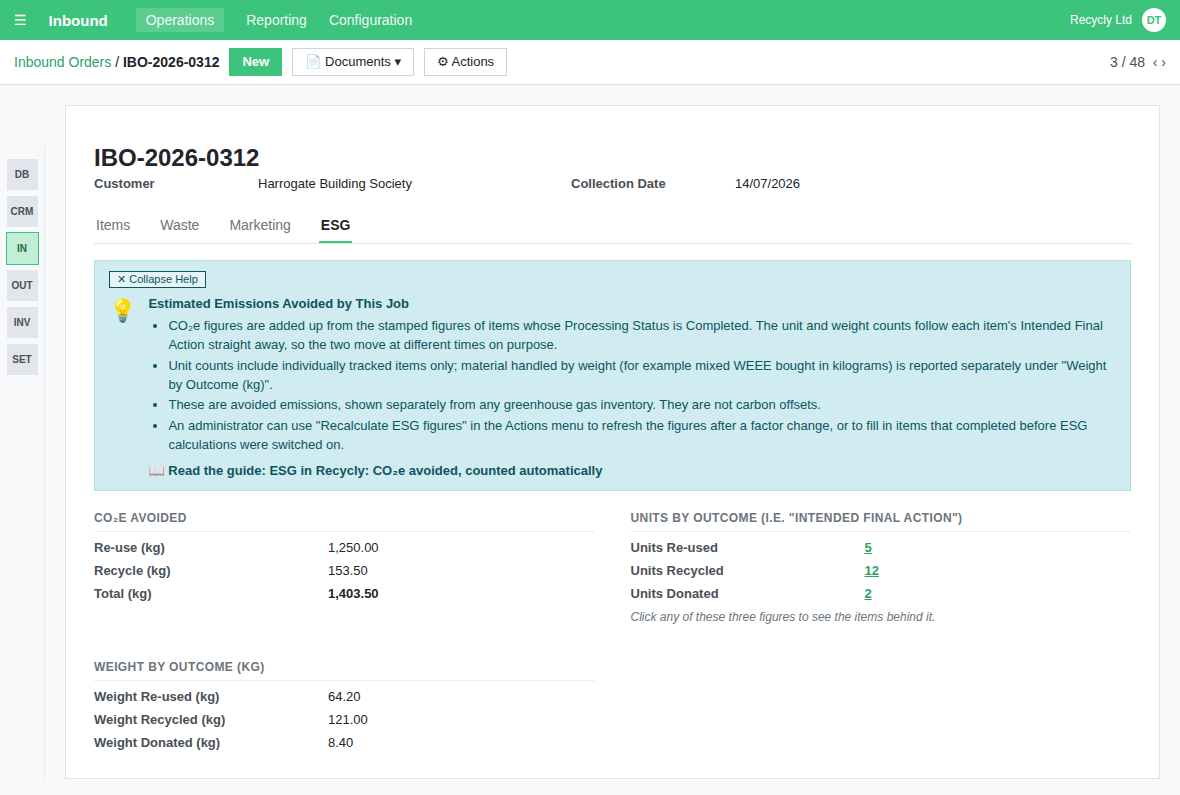
Each job's ESG tab totals its items: CO₂e avoided split by re-use and recycle, unit counts by outcome, and weight by outcome. The unit and weight counts follow each item's Intended Final Action immediately, so you can see where a job is heading before processing finishes; the CO₂e figures build as items complete. Click any of the three unit counts to see the items behind it.
Units and weight are never mixed. Unit counts include individually tracked items only; material handled by weight (for example mixed WEEE bought in kilograms) appears under Weight by Outcome (kg) instead. So a 46 kg lot of mixed WEEE is 46 kilograms recycled - never 46 units - and the two totals are never added together.
5. See it across your stock
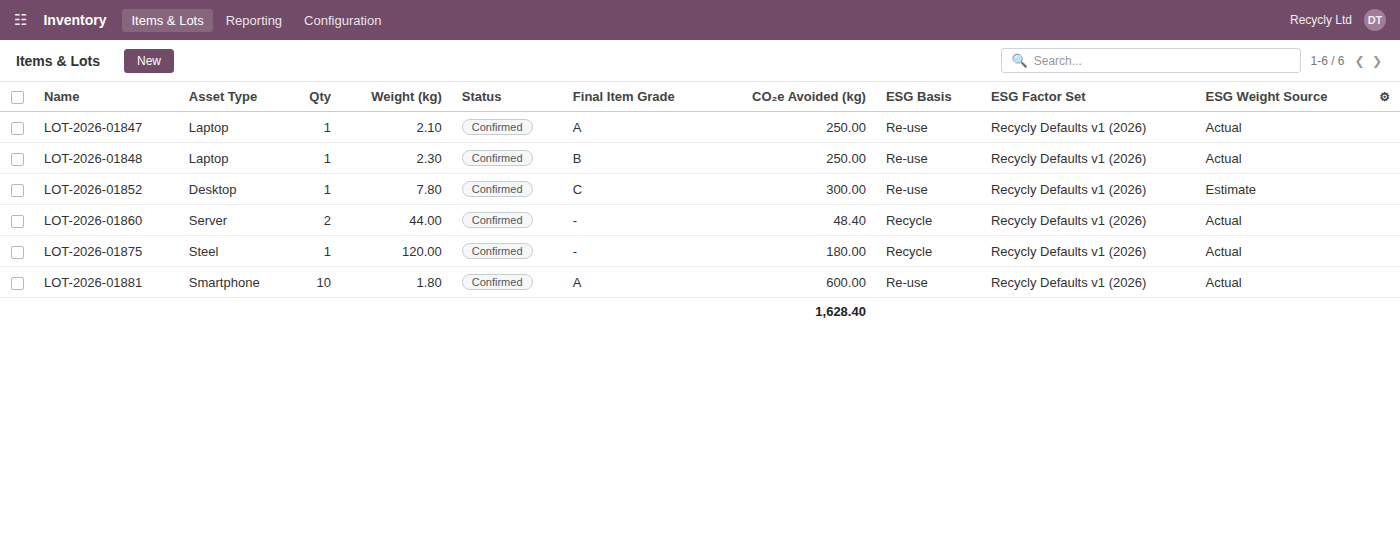
The Items & Lots list has four optional ESG columns - CO₂e Avoided (kg), ESG Basis, ESG Factor Set and ESG Weight Source - just after Final Item Grade. They are hidden until you show them from the column picker, and the CO₂e column totals whatever you have filtered.
6. Recalculating (administrators)
Figures never change when factors change. The one automatic exception is correcting a completed item's Intended Final Action, which recalculates that item straight away so its figure never describes an outcome it did not have. For anything else you want changed deliberately - after correcting a factor, or to backfill items that completed before ESG was enabled - administrators will find Recalculate ESG figures in the Actions menu on both items and jobs. Every recalculation writes the old and new values to the record's log, so there is always an audit trail.
7. Reporting: the ESG Summary and the Environmental Impact Report
Two reports turn the item figures into something you can analyse and send. Inbound > Reporting > ESG > ESG Summary is a pivot, list and graph over every completed item, filtered by period and outcome, with the items behind any figure one click away and an Export ESG Data (CSV) button that gives your customers a spreadsheet for their own ESG reporting. The Environmental Impact Report is a Word document covering either a single job or a customer over a date range: what happened to their equipment by outcome, the CO₂e avoided, everyday equivalents, the methodology behind the figures and an optional per-device appendix. Print the single-job version straight from the Inbound Order's Documents menu, or set one up under Inbound > Reporting > ESG > Environmental Impact Report, which keeps a record of every report you have produced. It is a Document Template, so you can brand and reword it as your own. Full guide: ESG reporting: the ESG Summary and the Environmental Impact Report.
8. Your customers' ESG dashboard
Your customers can see their own figures on your Customer Portal: an ESG card opening a dashboard of weights, outcomes, CO₂e avoided and everyday equivalents, filtered by period, asset type and outcome (and by site, where the customer has more than one), with the items behind the figures a click away and an ESG summary on each job page once that job has completed items. It is off until an administrator switches it on under Settings > Inbound > ESG, for all customers or customer by customer, and it only ever shows a customer their own figures. It never shows what you paid, what you sold an item for, or your margin; the one money figure it can show, Value Returned, is opted into per customer, needs the Settlements feature switched on, and totals only the confirmed settlement amounts for the period shown - what you have paid or credited them, never your resale price or margin. Full guide: Customer portal ESG dashboard: switching it on and what your customers see.
A note on the numbers
These figures are estimates of avoided emissions: the emissions that did not happen because a device was re-used or a material recycled instead of made from scratch. They are kept separate from any greenhouse gas inventory and must not be presented as carbon offsets. The default factors are deliberately conservative - if you report formally, review them with your own methodology or advisor first.
Coming next
This release is the foundation. Next we plan to build on it with:
- "Your Effect on Planet" - showing buyers the CO₂e avoided by shopping refurbished on your eCommerce store
Beyond that, we are working on social impact tracking for donated equipment, materials recovered and critical minerals reporting, the actual emissions of the service itself (your customers' Scope 3), and deeper carbon accounting through a specialist partner. Plans and timings may change as we go - watch this space.