Booking In is where you record what really came off the vehicle for a collection or drop-off. When the collection was done in Driver Hub, "From the driver" sits at the top of the screen and shows what the driver counted, weighed and photographed at the site, so you can compare as you go.
This guide is for warehouse staff who book in collections and drop-offs.
1. The three Booking In screens
All three open from the same button: open the collection or drop-off under Inbound > Collections & Drop-offs, then click Book In Items & Lots at the top. Hover over the button and it tells you which screen it will open for you. Each screen shows its name at the top:
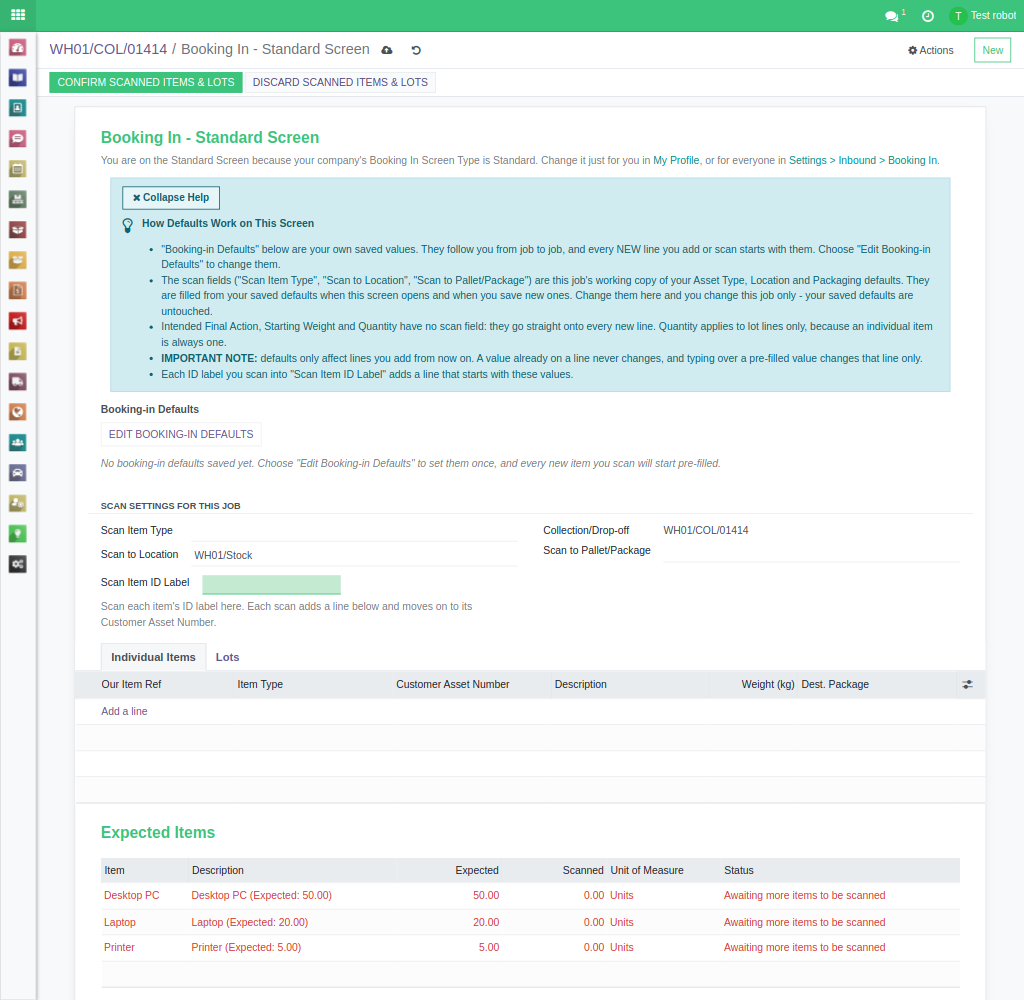
- Booking In - Standard Screen: a normal form for a desk with a barcode scanner. It opens when the job's Items Entry Method is "Enter summary of expected items in bulk".
- Booking In - Standard Screen: Expected Items: a pop-up for ticking off a list of expected items one by one. It opens when the job's Items Entry Method is "Enter or import a list of individual expected items".
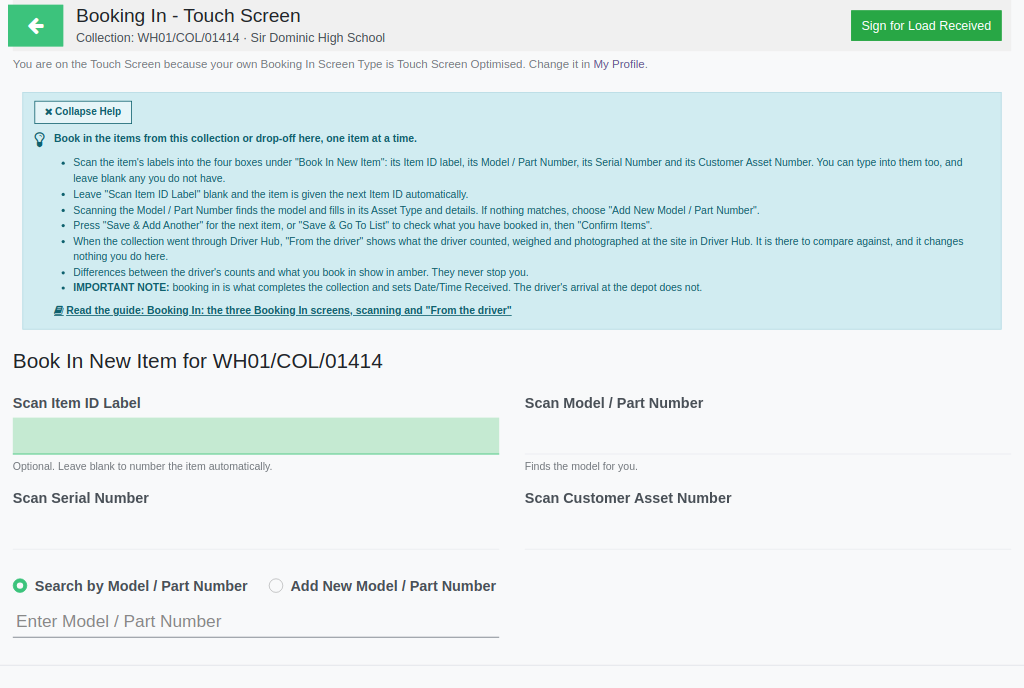
- Booking In - Touch Screen: a full-screen screen with large boxes and buttons, for a tablet on the warehouse floor. It opens for anyone whose Booking In Screen Type is Touch Screen Optimised, whatever the job's Items Entry Method.
2. Choosing which screen you get
- For the whole company: Settings > Inbound > Booking In > Booking In Screen Type, either Standard or Touch Screen Optimised. Standard is the default. An administrator sets this.
- For yourself: click your name at the top right, then My Profile, and choose your own Booking In Screen Type: Standard, Touch Screen Optimised, or "(Use company-level setting: ...)" to follow the company's choice, which the option names. Your own choice wins over the company's.
- The line under each screen's title tells you which setting chose that screen, yours or the company's, with a link to My Profile to change it.
3. How to scan on each screen
Booking In - Standard Screen. The cursor starts in Scan Item ID Label, above the "Individual Items" and "Lots" tabs. Scan the Recycly ID label on an item and a new line appears on Individual Items with that Item ID, starting with your Scan Settings and Booking-in Defaults. The cursor moves on to the line's Customer Asset Number, then its Serial Number when that column shows, and then back to Scan Item ID Label for the next item. A label you have already scanned, or one already used in the system, adds nothing and a message says why. You can still click "Add a line" and type straight into the list.
Booking In - Standard Screen: Expected Items. Scan each expected item into the scan box at the top of the pop-up. It moves to "Scanned Items", and anything not on the list goes to "Unexpected Items". Press Save when you have finished.
Booking In - Touch Screen. Under "Book In New Item" there are four boxes: Scan Item ID Label, Scan Model / Part Number, Scan Serial Number and Scan Customer Asset Number. A scanner's Enter moves you from one to the next. Leave Scan Item ID Label blank and the item is given the next Item ID automatically. Scanning the Model / Part Number finds the model and fills in its Asset Type and details; if nothing matches, choose "Add New Model / Part Number". Press Save & Add Another for the next item, or Save & Go To List to check what you have booked in, then Confirm Items. An Item ID already on your list or already in the system is refused when you save.
4. "From the driver"
"From the driver" shows once the driver has sent the proof of collection from Driver Hub. It shows the same information as the Proof of Collection tab on the collection:
- Driver and Vehicle: who did the collection, and in which vehicle.
- Collected At: when the driver finished at the site.
- Arrived at Depot At: when the driver confirmed in Driver Hub that the vehicle was back at the depot with this collection on it. Hover over the label to see this explained.
- The driver's status: green for "Collected - on the vehicle", amber for "Partly collected - on the vehicle", red for "Could not collect".
- The driver's counts for each Asset Type, with any difference from what was expected shown in amber.
- Seal numbers and Load weight, when the driver recorded them.
- The driver's photos.
It is there to compare against. Nothing in it can be edited, and it changes nothing you do on the screen. A collection that did not go through Driver Hub, such as a drop-off, has no "From the driver", and the screen looks as it always did.
5. What you have booked in, and why amber shows
As you book in, a line appears under "From the driver" for each Asset Type, for example "Laptop: booked in 2 of 3 counted by the driver (4 expected)". The line updates with each item or lot you add.
A line shows in amber when:
- what you have booked in is not the same as what the driver counted, or
- what the driver counted is not the same as what was expected, or
- you booked in an Asset Type the driver did not count, which reads "not counted by the driver".
Amber is a prompt to check, never a block. It never stops you booking in. A line partway through often shows amber simply because you have not finished yet.
6. What completes the collection
Booking in is what completes the collection and sets Date/Time Received. The driver's arrival at the depot does not. "Arrived at Depot At" only tells you the vehicle is back, so a collection that has arrived but has not been booked in is still waiting for you.
7. Signing at the warehouse
A transfer of waste needs a signed record from both sides. Two signatures are taken at the warehouse rather than at the customer's site, on a tablet or any other screen. Both buttons are on the collection or drop-off form, straight after Book In Items & Lots, and on Booking In - Touch Screen, at the right-hand end of the grey bar along the top (full width under it on a phone). Once signed, the button is replaced by a green tick, and hovering over it shows who signed and when.
Signing a drop-off with the customer
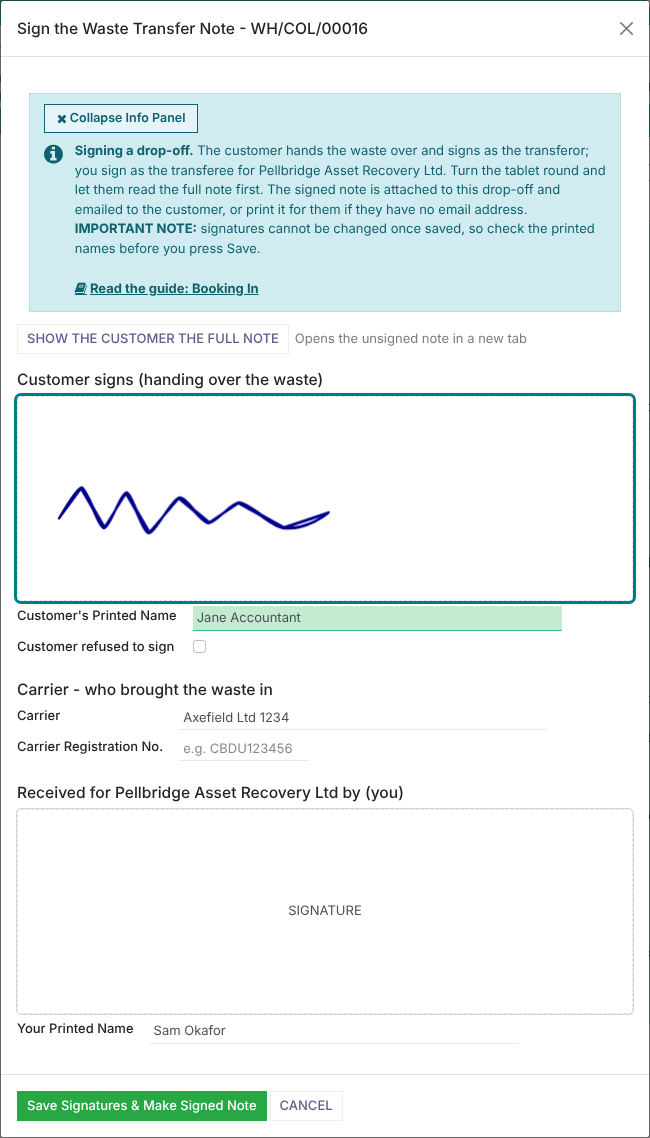
- When a customer brings the waste in themselves (a drop-off, with "Drop off by Customer" ticked), click Sign Drop-off with Customer as they hand it over.
- Click Show the Customer the Full Note and turn the tablet round, so they can read the whole Waste Transfer Note before they sign. It opens in a new tab: close the tab to come back, and nothing you have filled in is lost.
- The customer taps their signature box, signs, presses Adopt & Sign and types their name in Customer's Printed Name.
- If the customer will not sign, tick Customer refused to sign and type why in Why did they refuse?. You still sign yourself.
- Under Carrier, record who brought the waste in. It starts as the customer, which is right when they delivered it themselves. If a courier delivered it for them, type the courier's name, and their waste carrier registration number if you know it. Left blank, the note says "not recorded".
- Sign in the bottom box. Your Printed Name is filled in for you; change it if someone else is signing on this tablet. The Log Note still records who was logged in.
- Press Save Signatures & Make Signed Note. The signed note is attached to the drop-off and emailed to the customer when "Email the signed documents to the customer" is ticked in Settings > Inbound > Driver Hub. If the customer has no email address you are told so: click Print Signed Waste Transfer Note at the top of the drop-off to print them a copy. The signatures show on the drop-off's Drop-off Signatures tab.
Signing for a collection's load at the depot
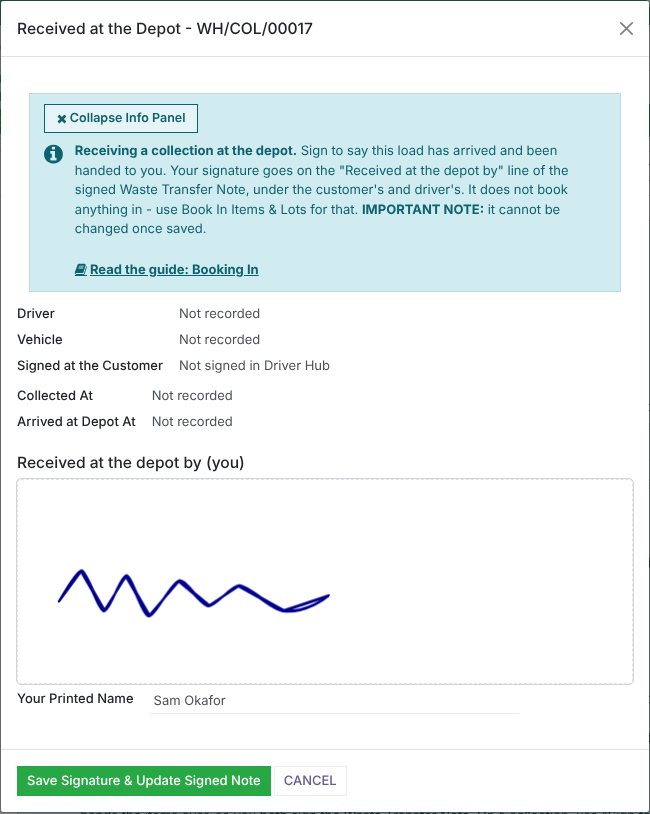
- Once the vehicle is unloaded, open the collection and click Sign for Load Received. It books nothing in: use Book In Items & Lots for that.
- The popup shows what Driver Hub sent: the driver, the vehicle, when the load was collected and arrived at the depot, and who signed at the customer. Anything not recorded reads "Not recorded", and you can still sign, so it works for collections done without Driver Hub too.
- Sign, check your name, and press Save Signature & Update Signed Note. Your signature goes on the "Received at the depot by" line of the signed Waste Transfer Note, under the customer's and driver's, and shows as a "Received at the depot" card on the collection's Proof of Collection tab. The updated note is attached and shown on the Customer Portal, but it is not emailed again.
Good to know
- Signatures cannot be changed or deleted once saved, by anyone, so check the printed names before you press Save.
- On a drop-off there is no driver, so the Waste Transfer Note's driver signature fields hold the warehouse person who received the waste. They fill the "Transferee / carrier signature" box.
- If your company uses its own Waste Transfer Note or Duty of Care Document without the signature fields, the signatures go on a "Signatures" page at the end of the signed copy, so they are never missing.
8. Related guides
Read more: Setting up drivers for Driver Hub (opens in a new tab), Doing a collection, including no signal (opens in a new tab), Processing Collections / Drop-offs where the types & quantities of items is not known in advance (opens in a new tab).