Your customers can add their own sites on your Customer Portal and keep them up to date, so you are not asked to type in every new office or warehouse yourself.
This guide explains what every portal user can do, what only a customer's Portal Organisation Admin can do, and how you make someone a Portal Organisation Admin.
1. Where your customers find it
- On the portal home page, the right-hand column holds Manage Personal Details, Manage Organisation Details and Manage Sites.
- Manage Sites is shown to every portal user who belongs to an organisation. A portal user with no company, such as a private individual, does not see it.
- When the organisation has no sites yet, the box reads "No sites added yet." and its button reads Add Your First Site, which opens the Add Site page straight away.
- Once it has sites, the box shows how many there are and their names, and its button reads Manage Sites, which lists them all.
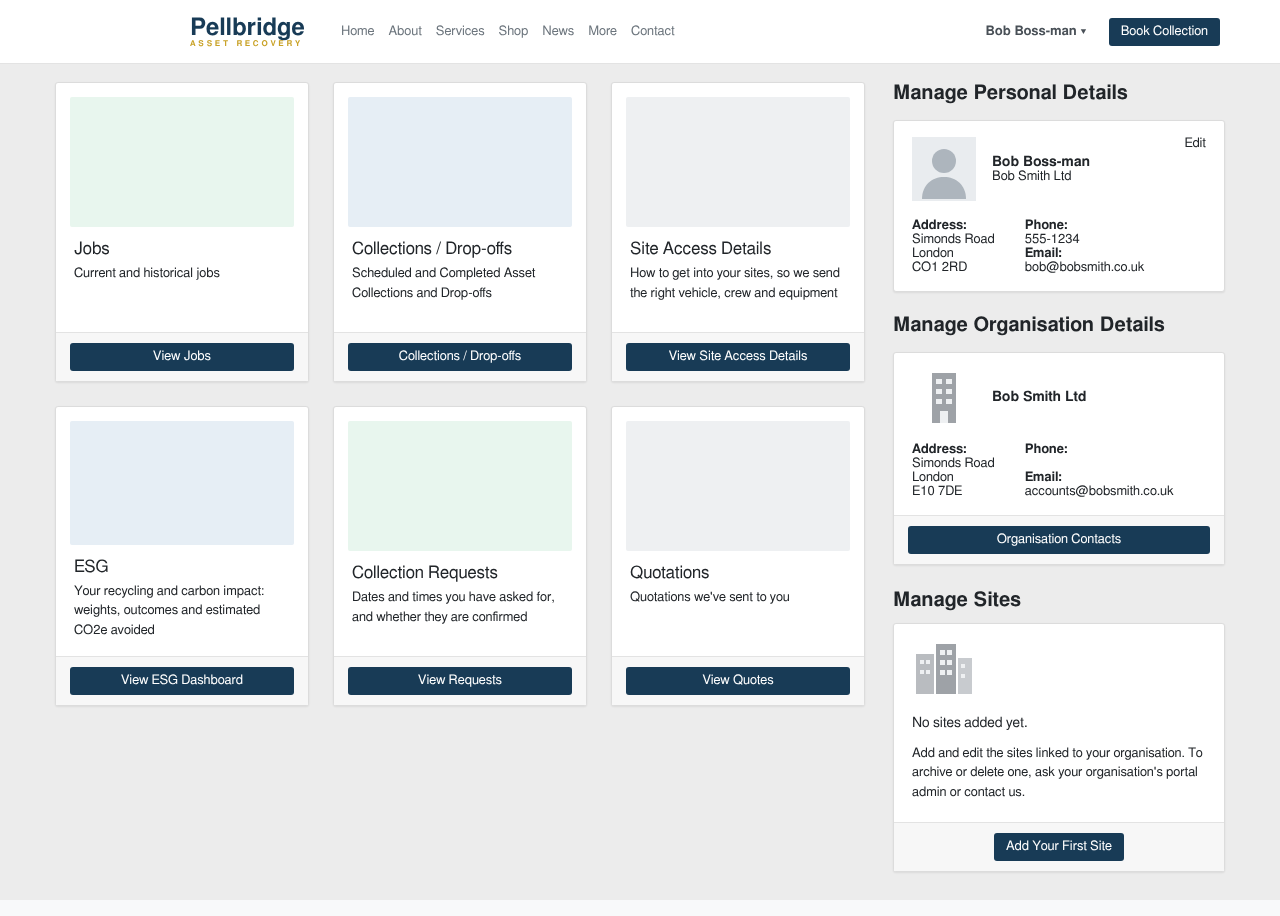
The portal home page for a portal user whose organisation has no sites yet. Manage Sites is at the bottom of the right-hand column.
2. Who can do what
Every portal user of an organisation can:
- Add a site, using the Add Site tile at the end of the Manage Sites page.
- Edit any of the organisation's sites, using Edit Site on its card: the site's name, phone number and address.
Only that organisation's Portal Organisation Admin can also:
- Archive, restore or delete a site. A site that a job, a collection or any other record already refers to can only be archived, never deleted, so its history stays intact.
- Edit the organisation's own details, using Edit on the Manage Organisation Details box.
- Add colleagues as portal users and remove them, using Add Contact and Archive Contact on the Organisation Contacts page.
Everyone else sees a line in the Manage Sites box telling them to ask their organisation's portal admin, or you, to archive or delete a site.
A site is always added under the customer's own organisation. Nobody on the portal can see or change another customer's sites.
3. Adding and editing a site on the portal
- On the portal home page, click Manage Sites, or Add Your First Site if there are none yet.
- Click the Add Site tile.
- Fill in the Site Name, the phone number and the Site Address, then click Create Site. The Manage Sites page opens again with the new site on it.
- To change a site later, click Edit Site on its card.
A site added on the portal appears straight away in your back end, on the customer's record at Address Book > Companies & Contacts, on its Sites tab. Fill in its Site Details before the first collection from it, as you would for a site you added yourself.
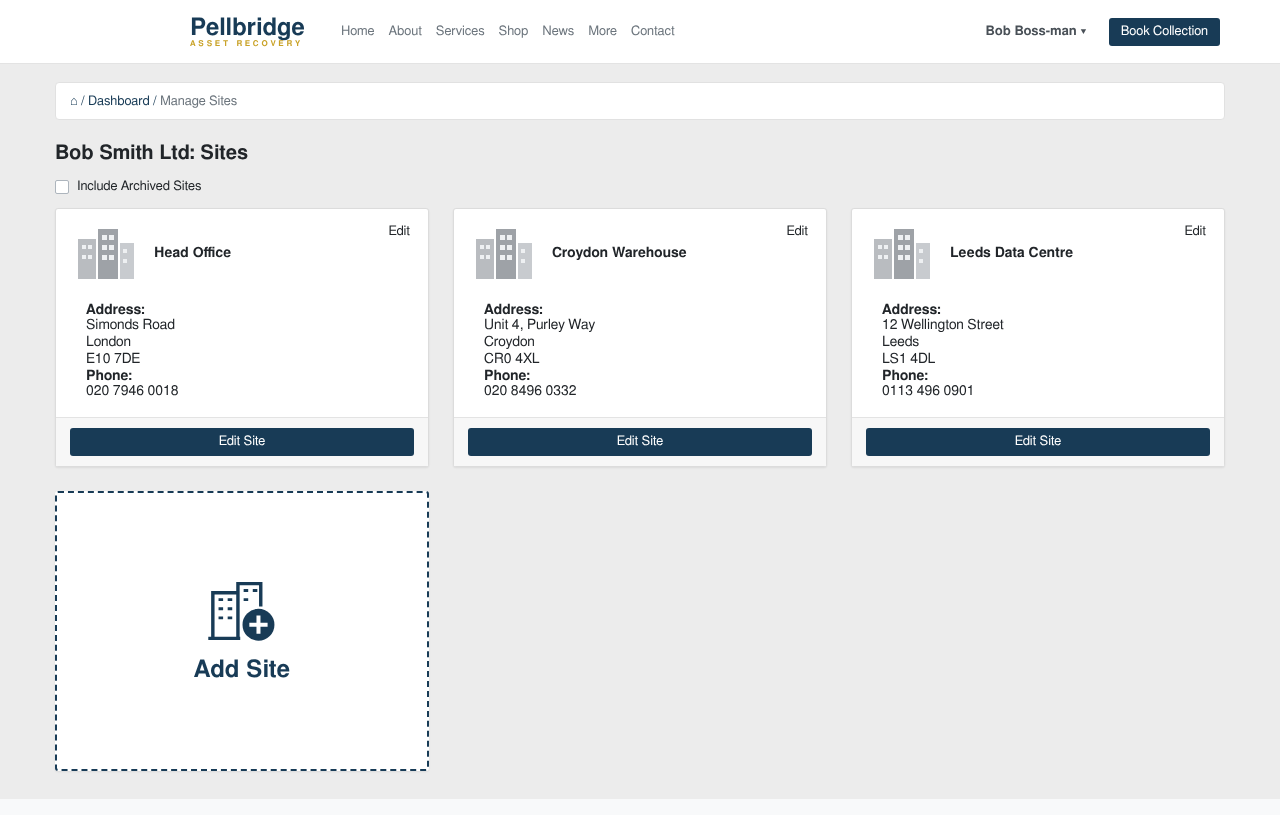
The Manage Sites page, with the Add Site tile after the last site. A portal user who is not their organisation's admin sees Edit Site on each card, and no Archive Site or Delete Site.
4. Making someone a Portal Organisation Admin
- Open Address Book > Companies & Contacts and open the person. They must already have a portal sign-in: the Simulate on Portal button at the top of their record shows that they do.
- Below Job Position, tick Portal Organisation Admin.
- Click Save. The change is recorded in the person's history at the bottom of the form, with your name.
- It takes effect the next time they open or refresh a portal page.
- Only an administrator, meaning someone with access to Users & Settings > Settings, can change the tick. Everyone else sees it but cannot change it.
- Untick it and save to take the permission away again.
- The tick only appears on a person who has a portal sign-in. It is not on companies, on sites, or on people who have never been given portal access. To give someone portal access first, see Inviting Customers to the Portal (opens in a new tab).
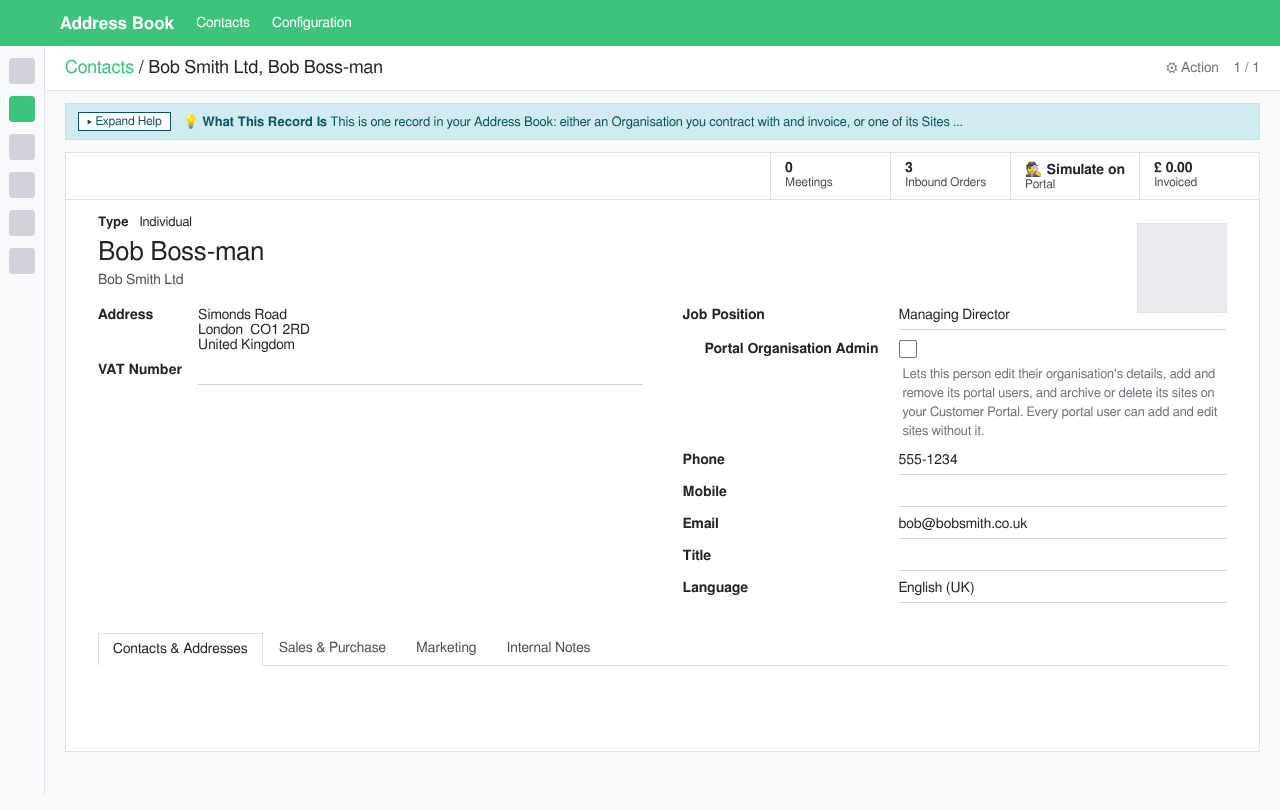
The Portal Organisation Admin tick on a person's record, directly below Job Position.
5. Mistakes to avoid
- Making everyone an Organisation Admin. It lets that person add and remove their colleagues' portal access and delete sites. One or two people per customer is normally enough, usually whoever looks after their IT or facilities.
- Adding customers' sites for them out of habit. They can now add and correct their own, so a customer asking you to add a site can be pointed at Manage Sites instead.
- Managing a customer's sites from your own portal sign-in. When you open the portal as a member of staff, Manage Sites lists your own company's sites, not a customer's. Simulate one of their portal users to see theirs. See Customer Portal for staff: what you see, and how to simulate a customer (opens in a new tab).
6. Related guides
- Inviting Customers to the Portal (opens in a new tab) - giving a customer's contacts a portal sign-in.
- Customer Portal for staff: what you see, and how to simulate a customer (opens in a new tab) - what the portal looks like when you open it yourself.
- The Address Book: Companies, Sites and Contacts (opens in a new tab) - companies, sites and the people at them, in the back end.