Your customers can see the reports you choose to share on your Customer Portal, on screen and as a file to download, without asking you for them. This guide is for administrators: it covers switching it on, choosing what to share, and checking what a customer will see.
1. What customers see
A shared report is listed under Reports on the customer's portal, where they can read it on screen, choose a Period, and press Download Spreadsheet or Download PDF. Each customer sees only their own rows. Columns for staff only, such as activities and tags, are never shown, and money columns only where an administrator allows them. Only customers that are companies can see reports, and the download buttons follow the customer's Can download documents setting.
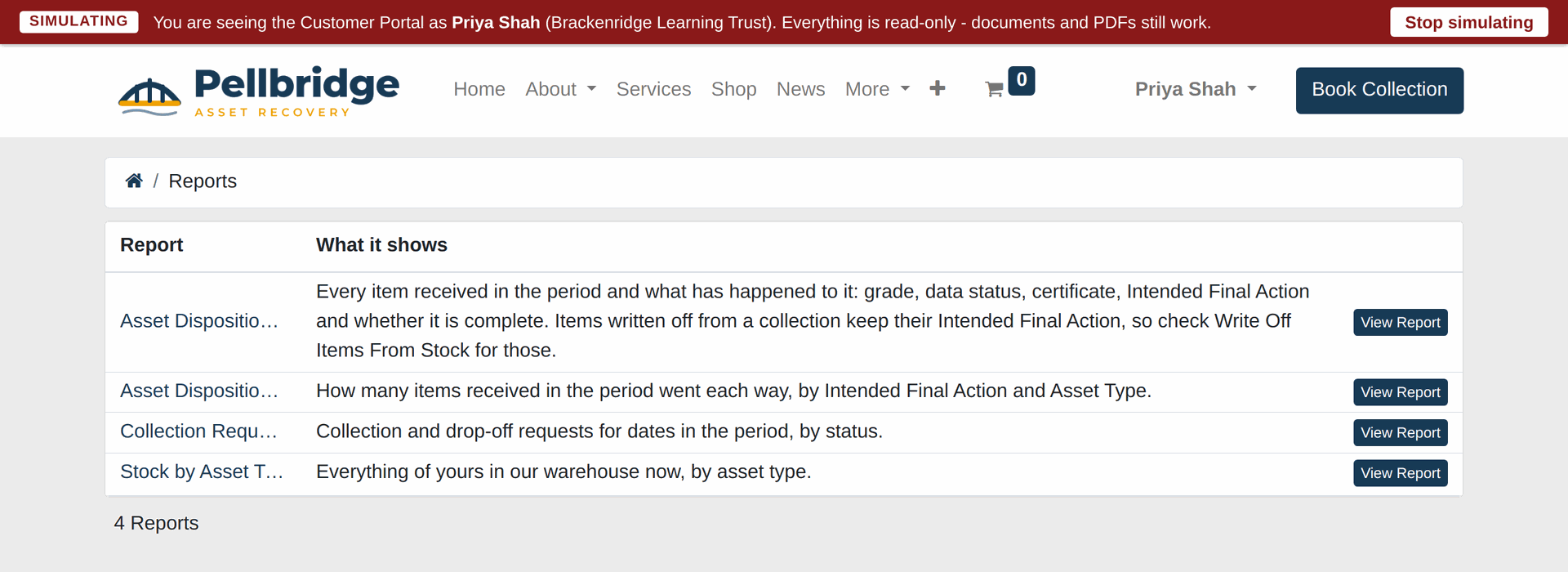
Reports on the Customer Portal, as a customer sees it.
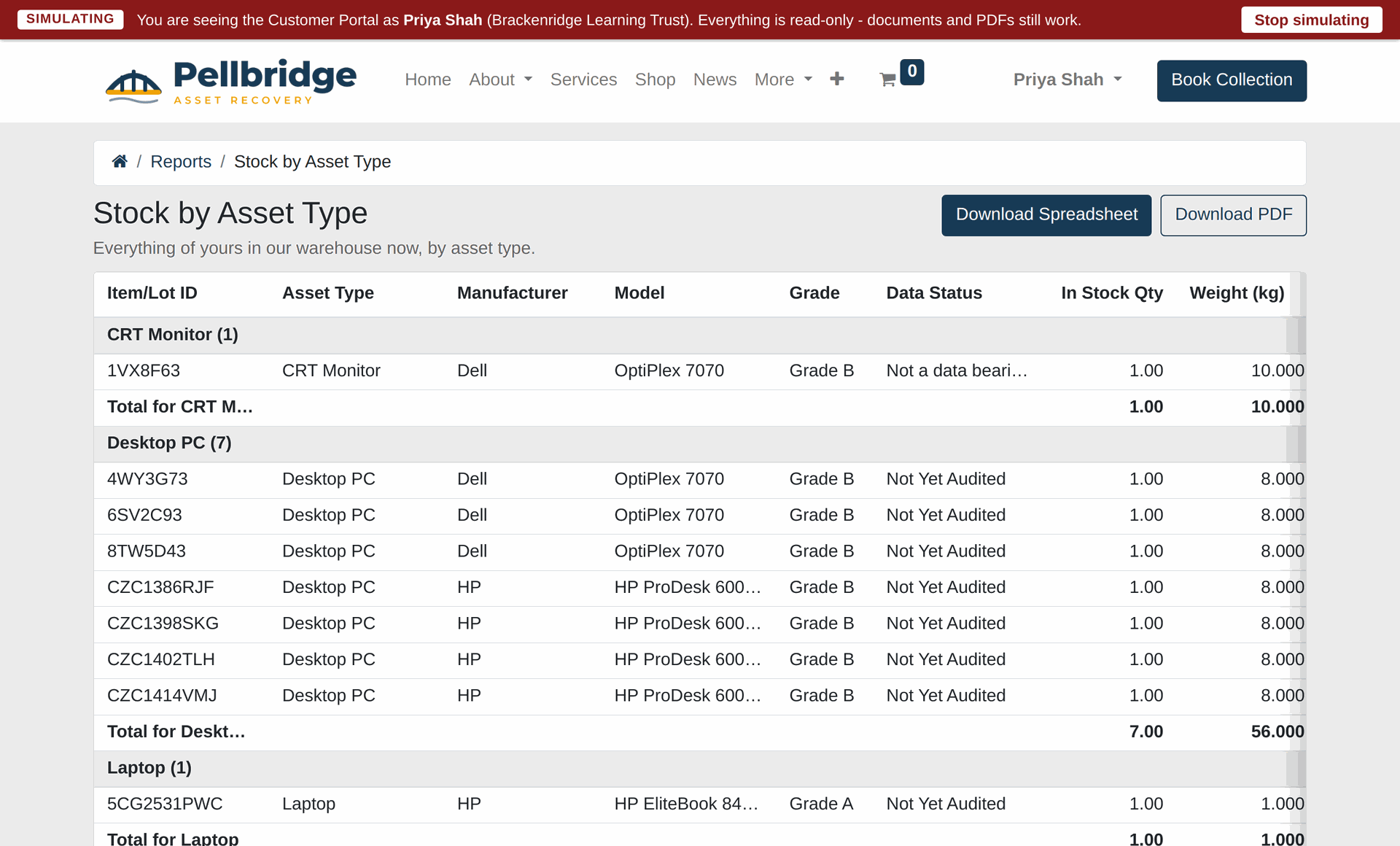
One report on the Customer Portal.
2. Switching it on
Under Settings > Reports > Customer Portal Reports, Customer portal reports has three choices: "Off for all customers", "On for all customers" and "On where set per customer". It starts off for all customers. To try it with one customer first, choose "On where set per customer", then tick Allow reports on the portal on that customer's Customer Portal tab. Only an administrator can change either.
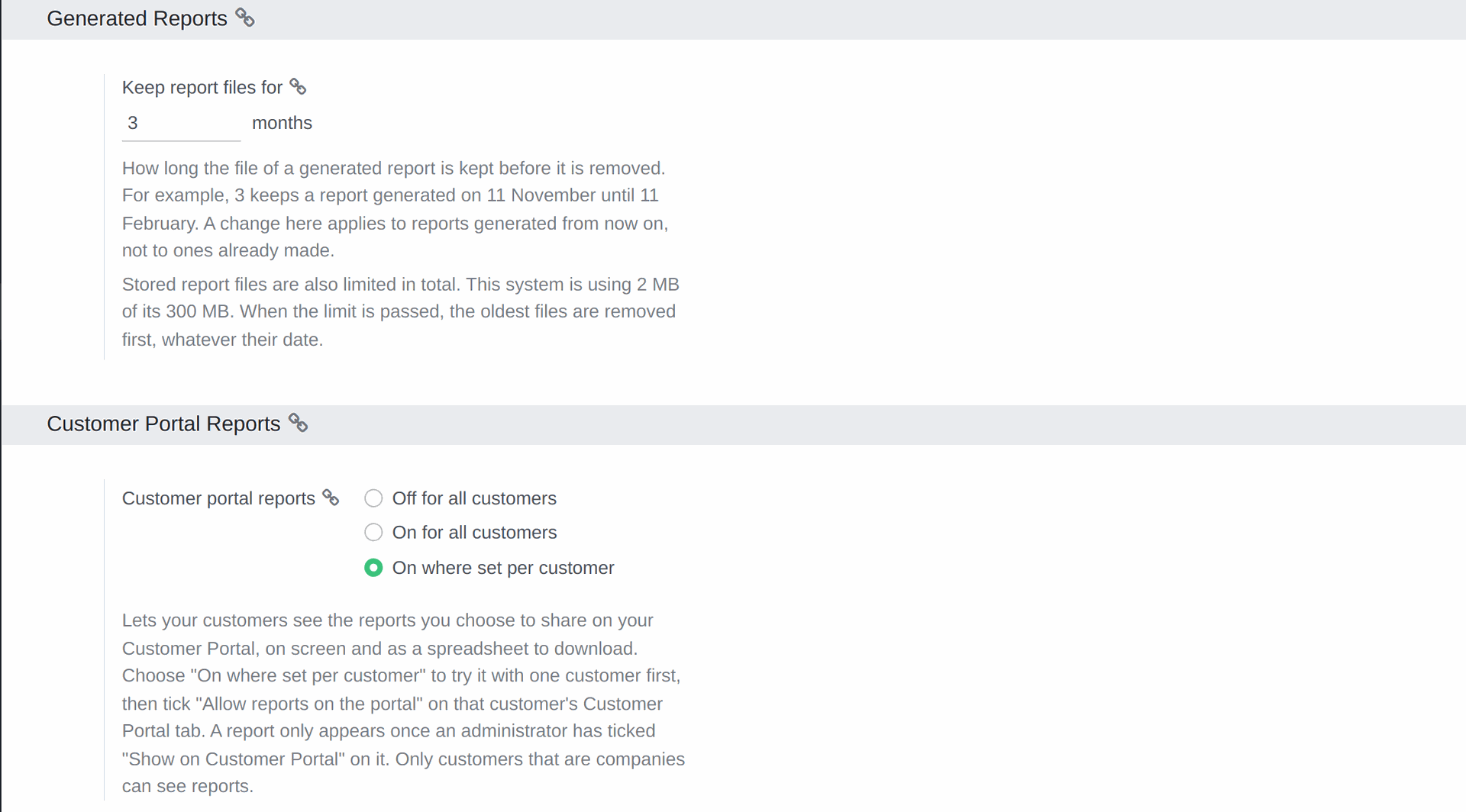
Settings > Reports > Customer Portal Reports.
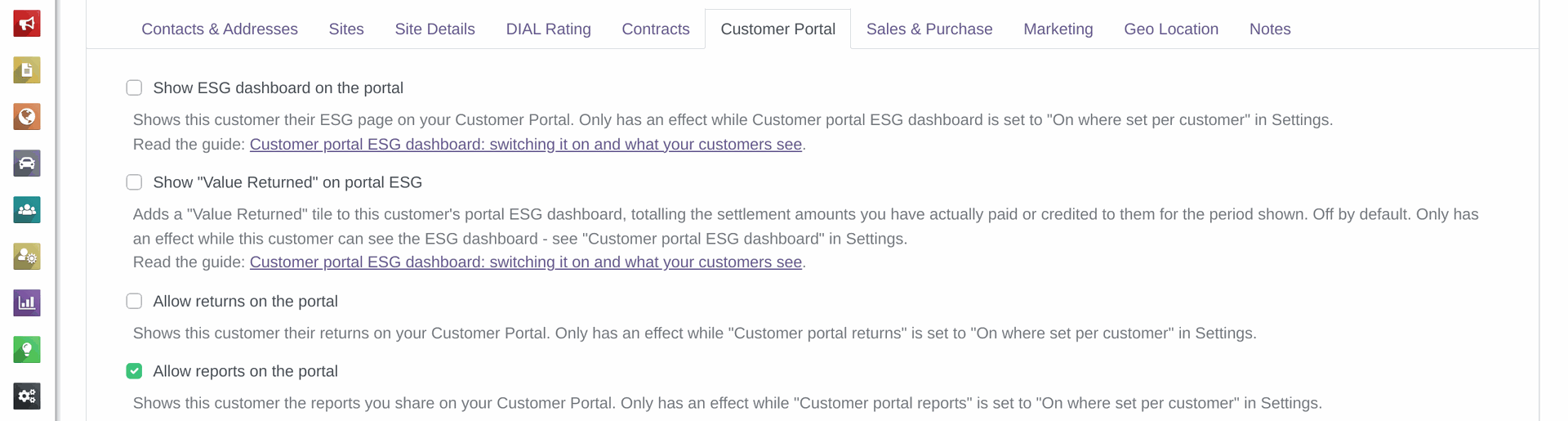
A customer's Customer Portal tab, with Allow reports on the portal.
3. Putting a report on the portal
Only an administrator can tick Show on Customer Portal, in a report's Sending to Customers section. When the report is saved, a pop-up, "Show This Report on the Customer Portal?", lists every column customers will see: tick "I have checked these columns and they are right for customers to see" and press Show on Customer Portal. From then on only an administrator can change the report, and anybody else can press Duplicate to make their own copy. Under Who can see it, choose "Every customer" or "Only customers given access", and list those under Customers given access.
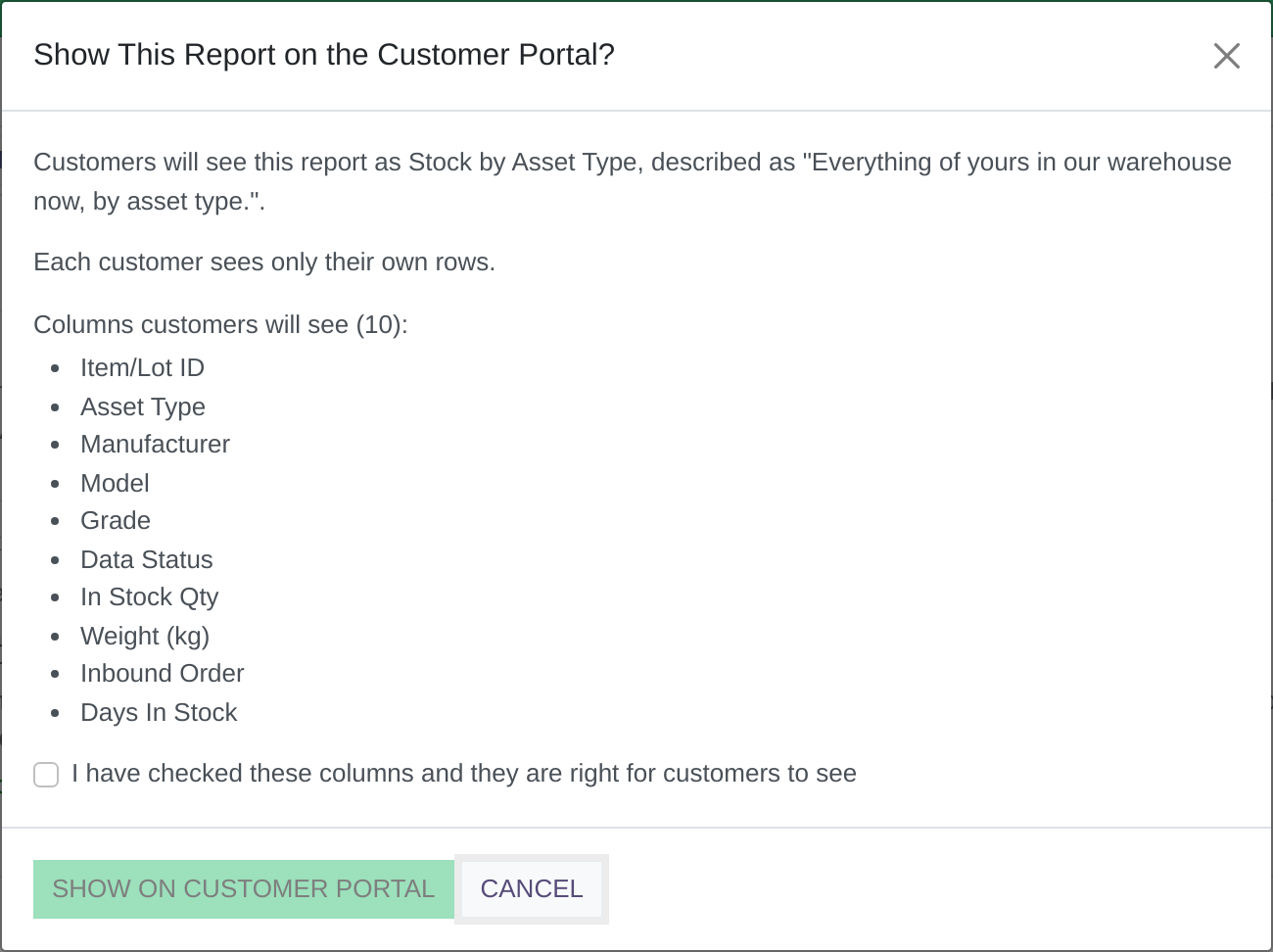
The pop-up that confirms the columns customers will see.
4. Seeing it as your customer does
To check what a customer will see, open the company in the Address Book and press Simulate on Portal, then open Reports on the portal. You see the portal exactly as that customer's portal user does, under a "SIMULATING" bar, until you click Stop simulating. Everything is read-only while you simulate, and a report you download while simulating is not recorded against the customer. The button is offered to administrators and to people with the Impersonate permission, on a company with at least one portal sign-in.
5. Money columns
Leave Show Money Columns to Customers unticked and every money column, such as a price, a cost or a value, is left out of what a customer sees, on the portal and by email. Only an administrator can tick it. The pop-up in section 3 says which money columns customers will see, or which are left out, and it comes back whenever a column is added, removed or renamed, so read it every time.
6. Things people get wrong
- Nothing shows until both are switched on: the setting under Settings > Reports (with "On where set per customer", the customer's tick too) and Show on Customer Portal on the report.
- A customer that is not a company never sees reports: they are told "Reports can't be viewed online for your account."
- A member of staff who opens the portal's Reports page without simulating sees the reports shared with your own organisation, usually none. Simulate one of the customer's portal users instead.
Read more:
- Reports: how they work, and building your own (opens in a new tab)
- Reports: generating a spreadsheet or PDF (opens in a new tab)
- Reports: emailing a report to one customer or many (opens in a new tab)
- Reports: schedules that send a report by themselves (opens in a new tab)
- Reports: sending trade buyers a list of your stock (opens in a new tab)