Trade buyers want to know what you have for sale, not where it came from. The built-in report "Stock List for Buyers" gives you that list, one line per kind of item, ready to email, put on a schedule or share on your Customer Portal.
1. The built-in Stock List for Buyers
Stock List for Buyers lists what you have for sale now: items in your warehouse that are available for outbound orders, with a quantity available, not on hold and not promised to an order. It shows one line per kind of item, with Asset Type, Manufacturer, Model, Final Item Grade, Available Quantity and Sales Price, grouped by Asset Type. Nothing on it says which customer an item came from, and it comes out as a portrait PDF unless you choose the spreadsheet.
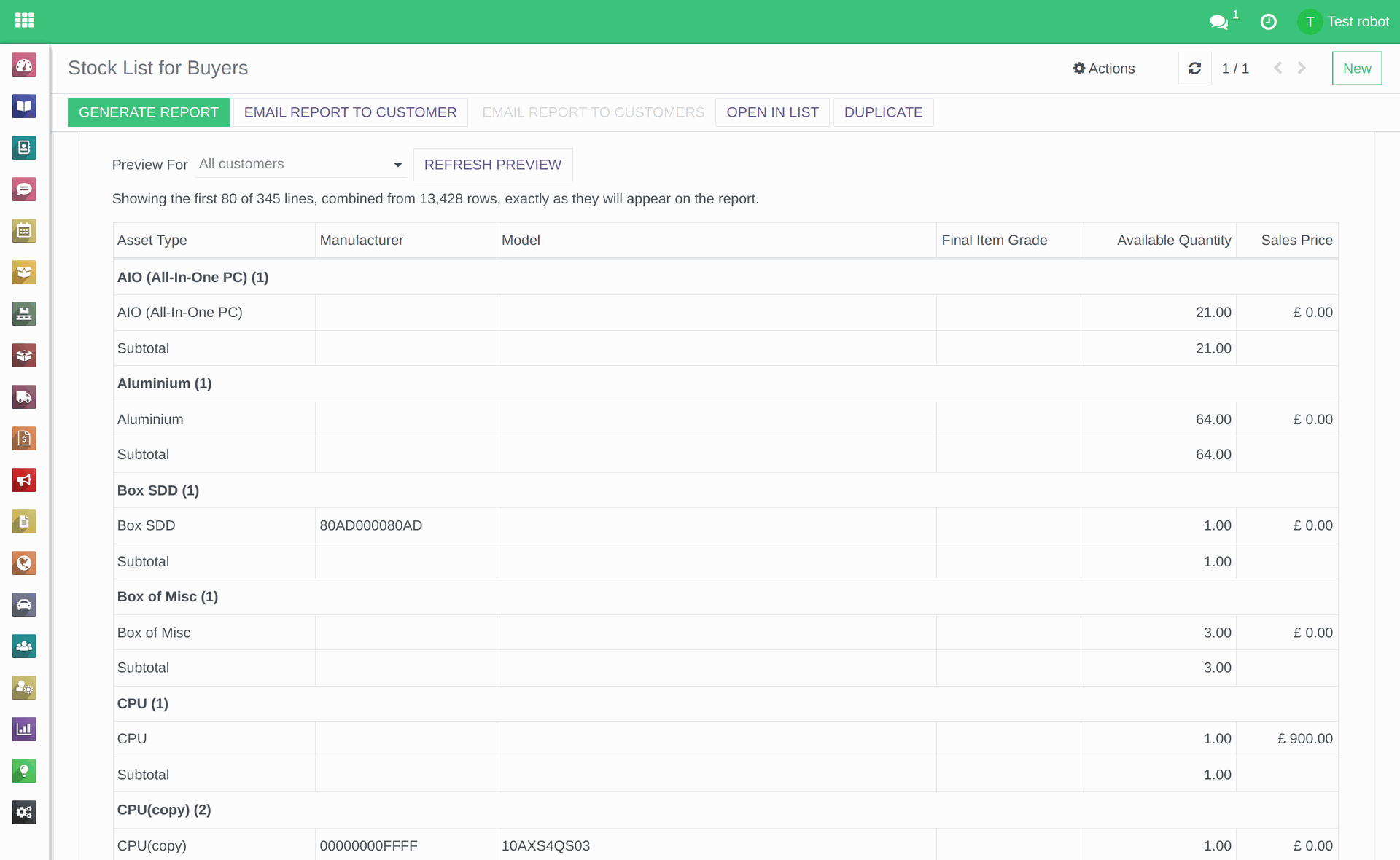
The Preview tab of Stock List for Buyers.
2. Duplicate it, then check its columns and prices
Like every built-in report it cannot be changed, so press Duplicate and work on the copy. Check its Columns tab, and the Sales Price on your items: items of one kind at different prices stay on separate lines, so a laptop at 100 and the same laptop at 120 are two lines. A copy made by somebody who is not an administrator sends each customer only their own rows, without money columns, until an administrator sets it up for buyers.
3. Combine Matching Rows
Combine Matching Rows is what turns a list of items into a list by kind. Rows that match in every column become one line, with the columns ticked Total added up, here Available Quantity. Leave out any column that differs on every row, such as Item/Lot ID, or nothing will combine.
4. Rows Customers Get: All rows
Normally each customer gets only their own rows. With Rows Customers Get set to All rows, every customer the report reaches gets every row, whoever it belongs to, so choose it only for a list meant for buyers. Only an administrator can set it, and only on an Items & Lots report. When the report is saved, a pop-up, "Let Customers See Every Row?", lists the columns customers will get: tick "I have checked that nothing in these columns says which customer an item came from" and press Let Customers See All Rows.
On an "All rows" report a customer only ever gets columns from the fixed list of columns that are safe for buyers, and any other column is left out:
- Type
- Asset Type
- Asset Sub-type
- Item Specification
- SKU(s), the stock keeping units
- Orig. Qty
- In Stock Qty
- Available Quantity
- UoM, the unit of measure
- Weight (kg)
- Data Status
- Calculated Item Grade
- Final Item Grade
- EWC Code, the European Waste Catalogue code
- WEEE Category, the Waste Electrical and Electronic Equipment category
- CO₂e Avoided (kg), the carbon dioxide equivalent avoided
- Sales Price
- Target Sales Price
- every attribute column, such as Manufacturer and Model, apart from Asset Number and Storage Erasure ID
The Safe for Buyers tick on the Columns tab shows which of your report's columns will reach them.
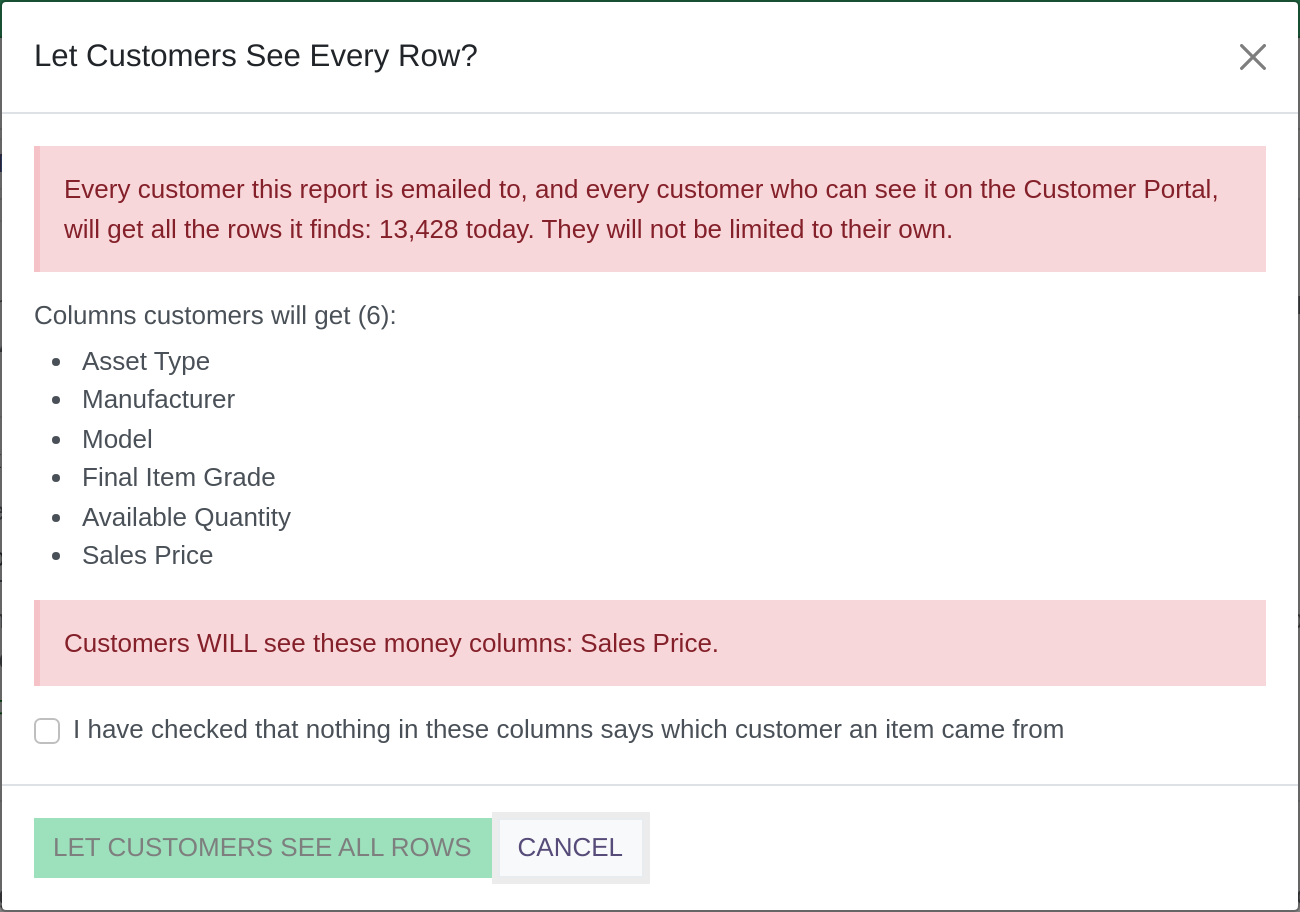
The pop-up that confirms an "All rows" report.
5. Sending it
Send it as you would any other report: to one buyer with Email Report to Customer, to many from its Recipients tab with Email Report to Customers, on a schedule, or on your Customer Portal. Every buyer gets the same lines, and the email pop-ups remind you that "this report sends all rows, not only each customer's own".
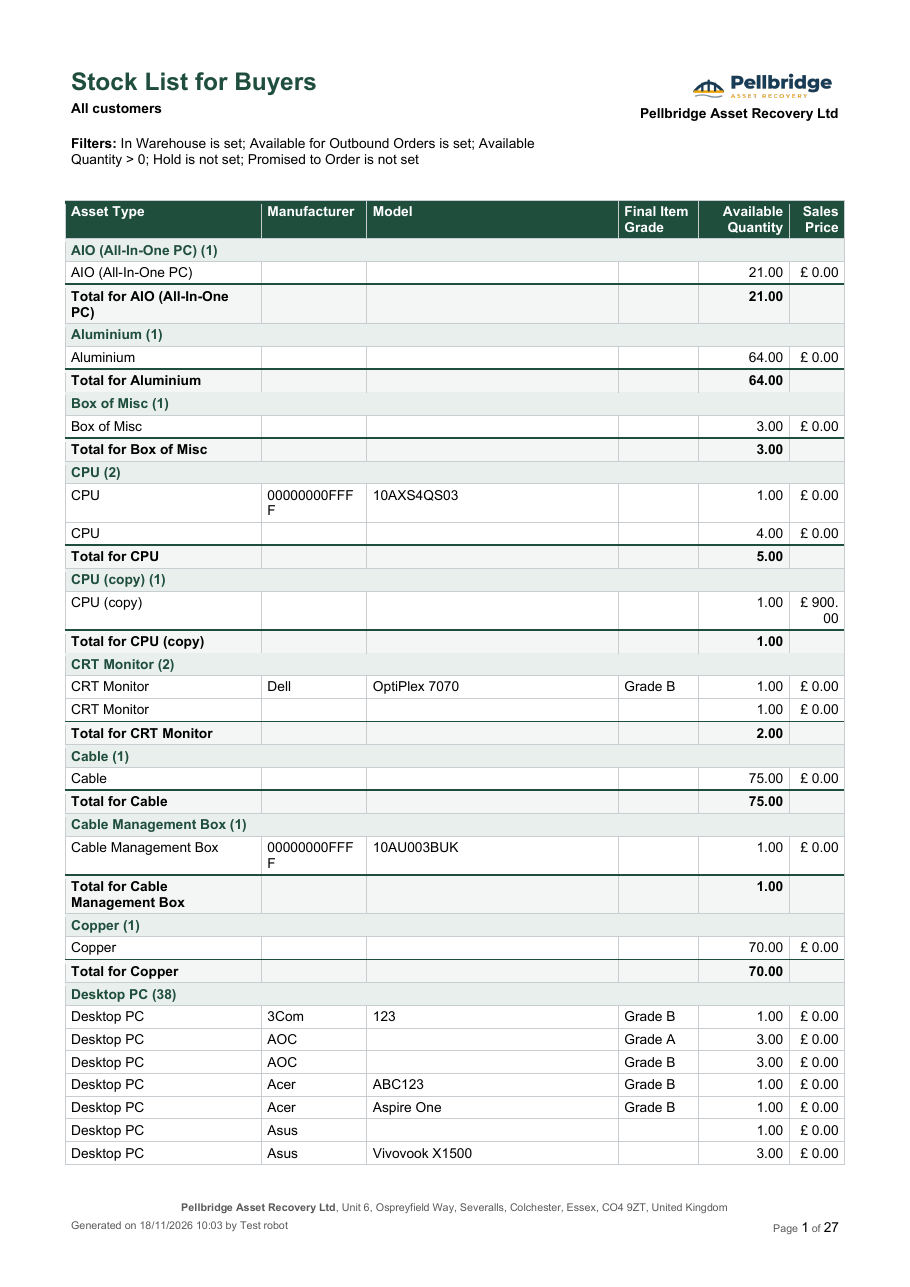
A stock list, generated as a PDF.
6. Things people get wrong
Never put ordinary customers on an "All rows" report's Recipients tab: every customer on it gets every row, including stock received from other customers. Keep the buyers on the stock list, and send your customers a report set to "Their own rows only".
Read more:
- Reports: how they work, and building your own (opens in a new tab)
- Reports: generating a spreadsheet or PDF (opens in a new tab)
- Reports: emailing a report to one customer or many (opens in a new tab)
- Reports: schedules that send a report by themselves (opens in a new tab)
- Reports: sharing reports on the Customer Portal (opens in a new tab)