Recycly is very flexible when it comes to data imports, but it can make it challenging when doing your first ones to get everything right.
Matching up Asset Types
The first thing you'll need to check is that all Asset Types in your data exist in Recycly


In the above example, we do not have an asset type for "AIO (All-In-One PC)".
This quickest way to resolve this will be to duplicate another, similar asset type and then customise it.


Matching up Storage Types
As per Asset Types, you'll also need to make sure the Storage Types defined in the data exist in Recycly


As for Asset Types, if you have any storage types not listed, you can duplicate an existing one to create it.
Matching up Manufacturers and Models
It is possible for Recycly to automatically create Manufacturers and Model Numbers as part of the import.
To do this, after using the "Test" button to test the import, you will see messages like the below

You can select the "Create New Values" option, as above, to tell Recycly to automatically create the model numbers.
IMPORTANT: You should check the quality of the data your are importing before using the "Create New Values" option, to make sure you are not adding duplicate / incorrect / messy data into your system.
Importing a Mixture of Asset Types
If you need to import a mixture of asset types which have different attributes, for example Desktop PCs which have CPU + Storage details, vs Monitors, which don't, then it is best to split them into separate files.

You should split the items which don't have storage details, into another file, like the below

Importing Items into an Inbound Order
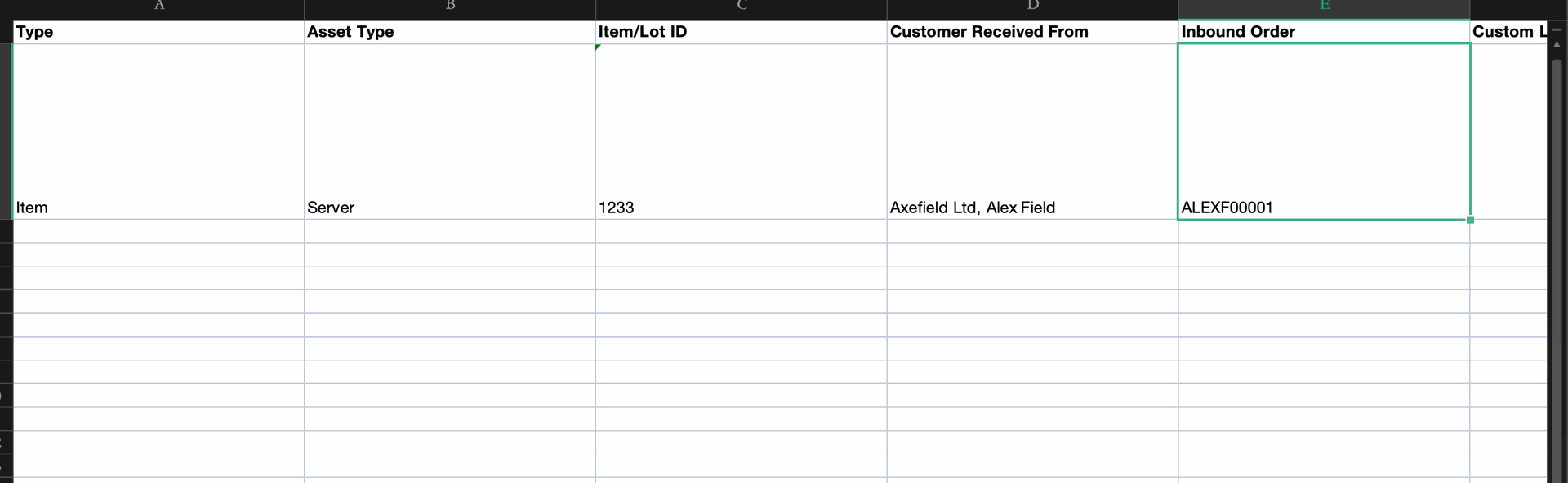
When importing items into an inbound order, you must include the inbound order reference in the item Excel file.
Important Notes
Inbound Order Reference
- The import file must include the Inbound Order reference (Job ID).
- Only the Job ID should be used (e.g., DIT01542).
- Do not use the full label (e.g., DIT01542: Altus Traffic Management), as this will not be recognized by the system.
Asset Type Consistency
- Each Asset Type in the system must be unique.
- Duplicate Asset Type names will cause import validation errors.
- Ensure the values in the Excel file match a single, unique Asset Type in the system.